Reinstall the Drivers for This Device Windows 10 Fix
If Windows 10 shows “Reinstall the drivers for this device,” start in Device Manager: save your work, uninstall the device, restart, and let Windows try again. If the same error returns, move to Windows Update or the manufacturer’s driver package. That warning usually points to a fresh driver load, not a full reset.
Likely causes
Most often, this is a driver problem, not a hardware failure. The device may have been updated badly, Windows may have picked a generic driver, or the maker may offer a better package than Windows can find on its own. If several devices fail at once, look beyond one driver.
Bad install after an update or device change
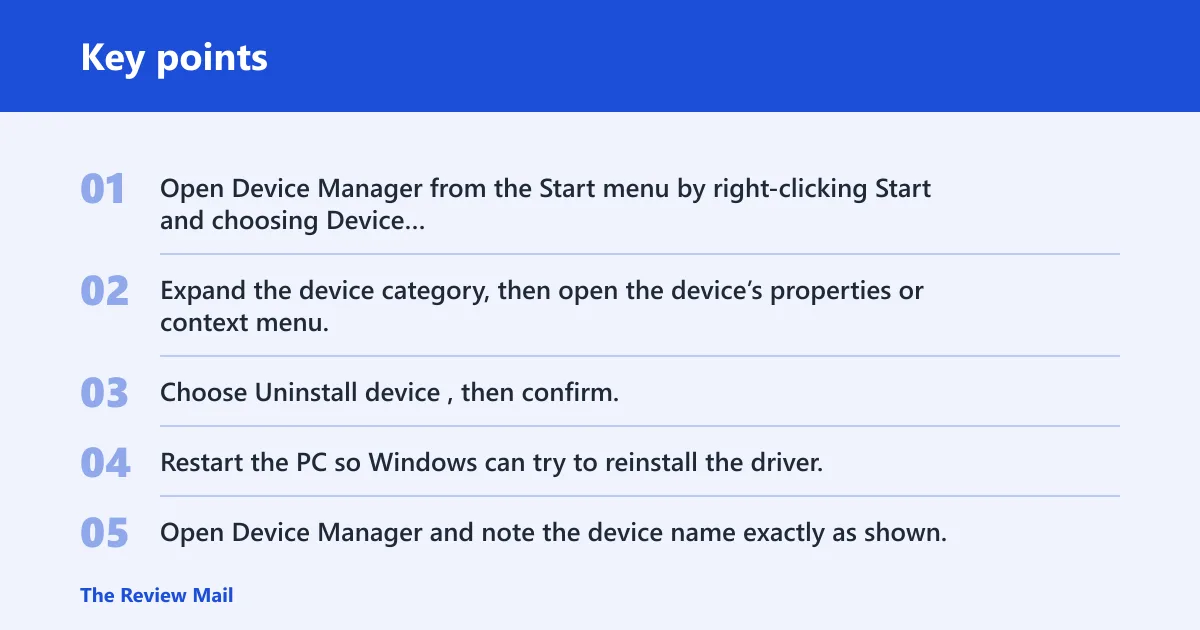
- Open Device Manager from the Start menu by right-clicking Start and choosing Device Manager.
- Expand the device category, then open the device’s properties or context menu.
- Choose Uninstall device, then confirm.
- Restart the PC so Windows can try to reinstall the driver.
This is the fastest first move when one device began failing after a change. If the same device returns with the same warning, move to Windows Update or the maker’s driver page.
Windows has the wrong or generic driver
- Open Device Manager and note the device name exactly as shown.
- Check Windows Update for driver updates.
- If no suitable update appears, get the driver from the device maker’s support page.
- Install that package, then restart.
Windows can install a working but limited driver for some hardware. That is common with older devices and some vendor-specific features.
The problem affects more than one device
- Check whether a network adapter, printer, scanner, or video card also fails.
- Run the Windows Update troubleshooter.
- Disconnect external hardware that is not needed for the test.
- Clear the Windows Update cache only if update repair steps point there.
If multiple drivers fail together, the issue may be broader than one device entry. Treat that as a Windows repair path, not a single-driver problem.
📊 The Device Manager driver page applies to Windows 11 and Windows 10. Source: Microsoft.
How do I reinstall the driver in Device Manager?
Use Device Manager when a single device needs a fresh driver load and you want the shortest path with built-in tools. Microsoft’s process is direct: close apps, uninstall the device, restart, and let Windows reinstall it. If Windows cannot reinstall it, move to Windows Update or the maker’s package.
- Save all work and close all apps.
- Right-click the Start menu and select Device Manager.
- Expand the device category with the arrow next to it.
- Right-click the device and select Uninstall device.
- Confirm the uninstall.
- Restart the PC from Start > Power > Restart.
- After restart, check whether Windows reinstalls the driver automatically.
Suppose a Bluetooth headset stops pairing after a Windows change. Uninstalling the Bluetooth adapter entry in Device Manager and restarting may force Windows to reload the device cleanly, which is often enough for one-device failures.
The restart matters because Windows attempts the reinstall during startup, not at the moment you click uninstall.
Should I update drivers through Windows Update or Device Manager?
Start with Windows Update when you want the broadest automatic driver check. Microsoft says that is the better place to get driver updates, and it can download and install drivers for many devices. Use Device Manager when you already know which hardware needs attention or need to reinstall one device.
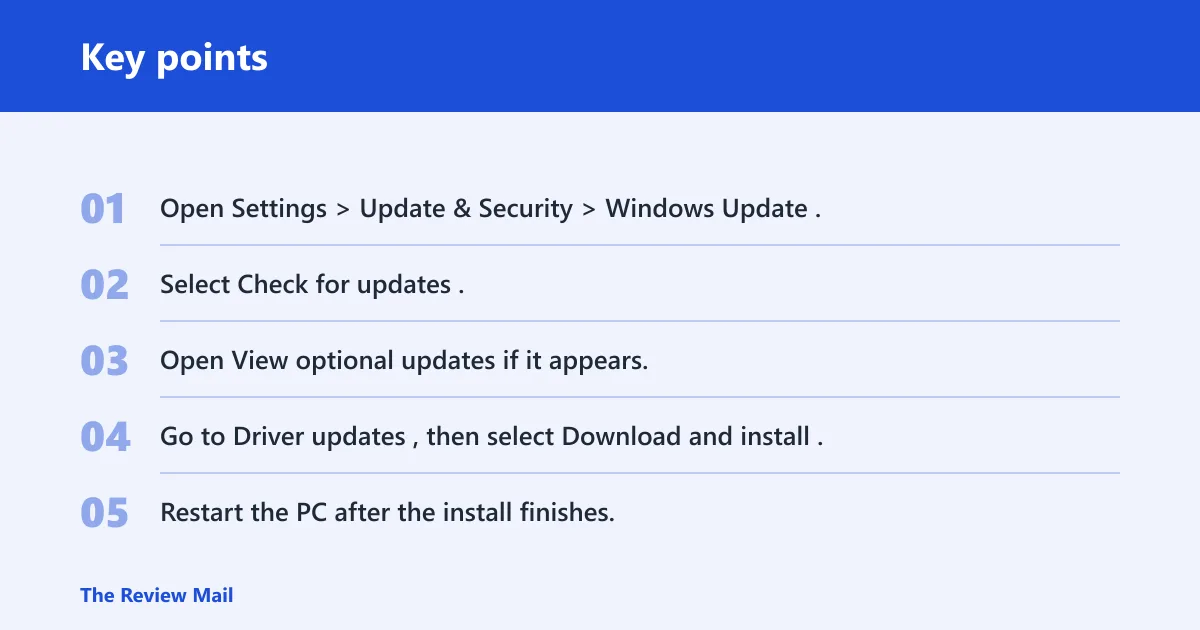
- Open Settings > Update & Security > Windows Update.
- Select Check for updates.
- Open View optional updates if it appears.
- Go to Driver updates, then select Download and install.
- Restart the PC after the install finishes.
Windows Update covers network adapters, printers, scanners, and video cards. That matters when the device is not a simple USB accessory and you want Microsoft’s automatic path first.
When Windows Update is the better first step
Use Windows Update first when the device is common hardware and you want a quick check for newer drivers. It is also the better path when Device Manager shows no clear reinstall result, because Windows Update may offer a newer or more compatible package than the one already present.
For older hardware, compare the Windows-provided driver with the maker’s package. If the device has special features, the OEM driver is often the safer choice.
What if the device still shows an error after reinstalling the driver?
If the device still fails, do not keep clicking the same uninstall button. Try a manual OEM driver install, then move to Windows Update troubleshooting if multiple devices are acting up or Windows keeps putting back the same version.
- Open Device Manager and note the device name and model details.
- Check Windows Update for optional driver updates.
- If Windows keeps reinstalling the same driver, visit the manufacturer’s support page and get the correct package for that exact model.
- Install the OEM driver, then restart.
- If several devices still fail, run the Windows Update troubleshooter.
Windows may restore the same driver version after every restart. That usually means the automatic source is not giving you a better package, so the maker’s driver becomes the next sensible step.
If the device disappears entirely after uninstall, shut the PC down and start it again so Windows has another chance to detect it. If it still does not return, check the cable, port, or slot before chasing software.
What to do when Windows 10 says reinstall the drivers for this device
| Symptom | Likely cause | Best action | Expected result | Escalation trigger |
|---|---|---|---|---|
| USB device shows the warning after unplugging and reconnecting | Windows loaded a bad or stale driver entry | Uninstall the device in Device Manager, restart, then reconnect it | Windows detects the device again and installs a fresh driver | It returns with the same warning or never reappears |
| Bluetooth turns on, but pairing or audio fails | The adapter needs a driver refresh | Use Windows Update first, then try Device Manager reinstall | The adapter pairs or appears normally again | The adapter vanishes or keeps loading the same version |
| Display adapter has limited resolution or errors after an update | Windows installed a generic display driver | Check optional driver updates, then install the OEM display package | Normal resolution and graphics features return | The same generic driver keeps coming back |
| Network adapter drops offline or has a warning icon | Driver corruption or a poor automatic match | Use Windows Update, then Device Manager reinstall if needed | Network connectivity returns after restart | No adapter appears or the issue affects other devices too |
Picture a laptop where Wi‑Fi and Bluetooth both fail after the same update. That is a clue to step away from a single-device reinstall and check Windows Update repair, because two separate adapters failing together usually points wider than one driver entry.
What if Windows itself needs repair?
Use Windows Update troubleshooting when the driver steps do not hold, or when the update system itself seems stuck. If the issue looks broader than one device, a built-in repair path is more appropriate than repeating uninstall and restart on the same hardware.
- Open the Windows Update troubleshooter from ms-settings:troubleshoot.
- Run the troubleshooter and apply any repair it offers.
- Disconnect external hardware that is not needed for the test.
- Check whether Windows Update starts offering or applying drivers normally again.
For a deeper repair, Fix problems using Windows Update reinstalls the current version of Windows and preserves apps, files, and settings. It needs internet access and power during the process. Use it only after simpler driver steps fail. (Microsoft Support)
If that still does not hold, Reinstall Windows with the installation media is the next level. It supports an in-place upgrade and a clean install, works from the Windows Recovery Environment, and requires matching your Windows edition and backing up data first. (Microsoft Support)
These are repair paths, not first moves. If a single USB mouse or printer can be recovered with Device Manager, do that before you touch the operating system.
Frequently asked questions
How do I open device Manager in Windows 10?
Right-click the Start menu and select Device Manager. You can also open it from the Run box with devmgmt.msc. Once it opens, expand the device category, right-click the device, and choose the action you need.
What does reinstalling a device driver in Device Manager do?
It removes the current device entry and lets Windows try to load it again after a restart. That can clear a bad install or a bad match, especially when the driver files are present but the device is not responding correctly.
Can I reinstall a driver without losing my files?
Yes. Reinstalling a device driver from Device Manager does not erase personal files. Save your work and close apps first, then use Device Manager and restart. For a full Windows repair path, the repair reinstall through Windows Update preserves apps, files, and settings.
Can reinstalling the current version of Windows fix driver problems?
Yes, a repair reinstall through Windows Update can help when the issue is wider than one driver and the update system seems tangled. It reinstalls the current Windows version while preserving apps, files, and settings, so it is a later step rather than the first one.