Disabled Devices on This Computer: Windows Fix Guide
Disabled devices on this computer often fall into a few broad states, such as Windows disabling them, hiding them, or no longer detecting them. Check Device Manager first, then re-enable, show hidden devices, or rescan in that order. If you pick the wrong state, input, USB, and other hardware can stay dead while you chase fixes that cannot work. This guide shows how to identify each state in Windows 10 and 11 and choose the correct recovery step.
What “disabled” means in Windows Device Manager
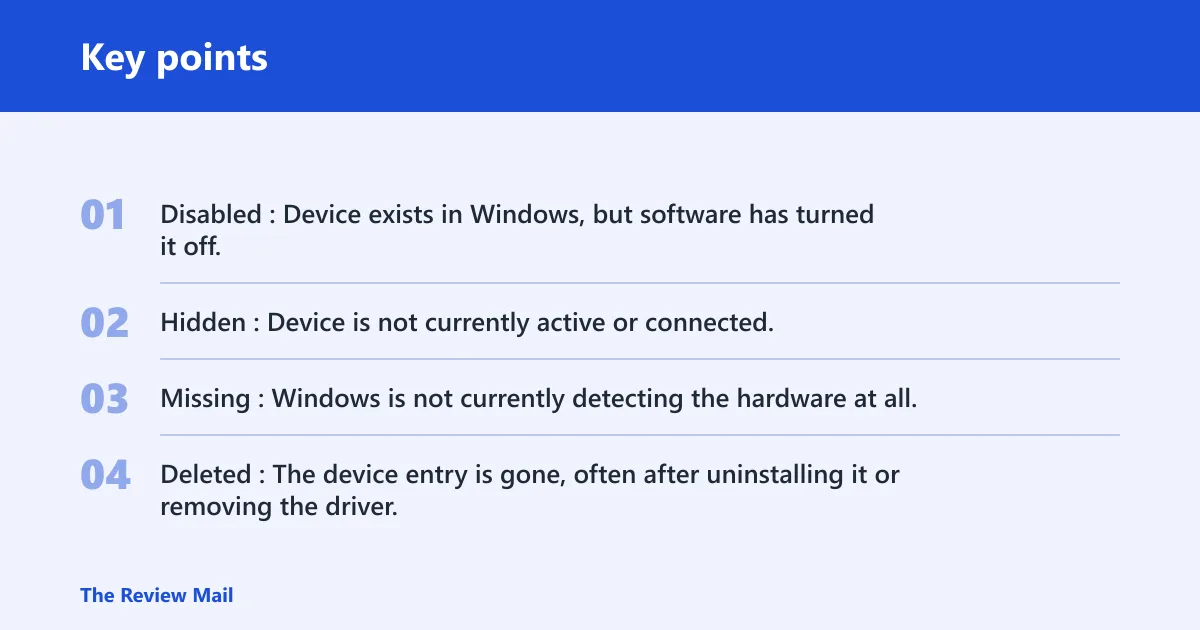
In Windows terms, a disabled device is still installed, but software has turned it off. That is different from a device that is hidden, missing, or deleted. If the hardware and driver are still present, Windows can often turn it back on from Device Manager.
The word disabled can also mean not working or not operating properly. Dictionary.com explicitly notes that disabled can mean made incapable of functioning. That broader meaning is why the same word causes confusion in troubleshooting.
Disabled vs hidden vs missing vs deleted
- Disabled: Device exists in Windows, but software has turned it off.
- Hidden: Device is not currently active or connected, but Device Manager can still list it after you turn on hidden items.
- Missing: Windows is not currently detecting the hardware at all.
- Deleted: The device entry is gone, often after uninstalling it or removing the driver.
That distinction matters because each state points to a different fix. A disabled device may respond to Enable device. A hidden device may need a rescan. A missing device often needs a cable, port, power, firmware, or driver check.
What Device Manager status text and icons tell you
Device Manager is the Windows hardware control panel. It shows device status and driver issues, and it lets you enable or disable devices. Open it from Windows Search or the Run dialog by typing Device Manager in Search or devmgmt.msc in Run, then inspect the status icon and the device entry itself.
Greyed-out text can mean the device is hidden or not currently present. A yellow warning symbol points to a driver issue. If the entry is absent, Windows may not be seeing the hardware at all.
How do you open Device Manager in Windows 10 and 11?
Open Device Manager from Windows Search or by using the Run dialog. In Windows 11, Search is often the fastest route, and the Settings app is not the same place as Device Manager. Windows 10 uses the same core tool and the same hardware list workflow.
Open it from Search
- Click Start or press the Windows key.
- Type Device Manager.
- Select the Device Manager result.
Open it with the Run dialog
- Press Windows key + R.
- Type
devmgmt.msc. - Press Enter.
Where Windows 10 and Windows 11 differ
The path into Device Manager is the same, but the surrounding interface is not. Windows 11 uses newer shell layouts and search behavior. Windows 10 keeps the older menu flow that many repair guides still reference. The hardware list, status icons, and right-click commands are largely the same.
How do you find disabled devices in Device Manager?
Turn on Show hidden devices from the View menu. That reveals non-present and previously connected devices, including greyed-out entries that are easy to miss. It is the fastest way to separate a truly disabled device from one that is merely hidden or unplugged.
Turn on Show hidden devices
- Open Device Manager.
- Select View.
- Choose Show hidden devices.
Read greyed-out entries correctly
Greyed-out text does not always mean failure. It often means Windows remembers the device, but it is not currently active or attached. If the entry appears after you turn on hidden devices, inspect its status before deciding to remove or reinstall it.
Where hidden HID and USB devices usually appear
Human Interface Devices, or HID, often show up under Human Interface Devices, Keyboards, Mice and other pointing devices, or Universal Serial Bus controllers. HID includes common input hardware such as mice, keyboards, touchpads, and some USB input devices. Power changes and driver changes can move them between visible and hidden states.
Suppose a laptop touchpad disappears after a driver update. In Device Manager, it may still be listed under HID or mice as a greyed-out entry. That points you toward hidden-device status or driver trouble, not a dead touchpad panel.
How do you re-enable a disabled device?
Right-click the device in Device Manager and choose Enable device. That command appears when Windows has the hardware present but turned off in software. It may require admin rights, and Windows may prompt for a driver reload or a restart afterward.
Use the Enable device command
- Open Device Manager.
- Find the device entry.
- Right-click it.
- Select Enable device.
What it means if the option is missing
If Enable device is missing, the item may not actually be disabled. It may be hidden, absent, or controlled by policy. If the command is greyed out, Windows may not have permission to change it, or the device may be controlled by OEM software or firmware settings.
When a restart is needed after enabling
Some devices wake up right away. Others need a restart so Windows reloads the driver stack. If the device is an internal HID item, a USB hub, or a storage controller, a reboot often finishes the change.
Why are my input devices disabled?
Keyboard, mouse, touchpad, and USB input devices are often disabled by a driver problem, power change, or a USB controller issue. Start with Device Manager, then check the physical connection and the driver state before you assume the hardware has failed. This is where HID matters most.
Keyboard, mouse, touchpad, and USB hub checks
Look under Human Interface Devices, Keyboards, Mice and other pointing devices, and Universal Serial Bus controllers. If an external device is involved, unplug it and plug it back in. If a dock or hub is involved, test the device without the dock.
Driver problems that break HID devices
A driver is the software layer that enables hardware to function. Outdated or broken drivers can make a device unavailable even when the hardware itself is fine. In those cases, the device may look disabled, show a warning icon, or refuse to start after re-enable.
Cable, port, and power checks before deeper fixes
Check the simplest path first. A loose USB plug, a faulty port, low power to a hub, or a dock issue can make Windows lose track of an otherwise healthy device. If the device works in another port, you have a connection problem, not a Device Manager problem.
Picture a USB mouse that stops working after a sleep cycle on a Windows 11 laptop. If Device Manager still lists the mouse under HID but it is greyed out, the next step is not random software cleanup. Re-enable it if available, then test a direct port instead of the dock.
Troubleshooting matrix for disabled, hidden, and missing devices
Use this table to match what you see in Device Manager to the safest next step. The key is to stop treating every problem as a driver reinstall. Status first, action second.
| Symptom | Device Manager state | Likely cause | Safest action | When to stop and escalate |
|---|---|---|---|---|
| Device appears greyed out | Hidden or previously present | Device is not currently active or connected | Turn on Show hidden devices, then inspect the entry | If it vanishes after rescan, check cable, port, or power |
| Device shows a disable icon or right-click option | Disabled | Windows turned it off in software | Use Enable device and restart if prompted | Escalate if Enable device is absent or greyed out |
| Device is gone from the list | Missing | Hardware is not being detected | Reconnect, try another port, and rescan for hardware changes | Escalate if BIOS/UEFI also does not see it |
| Device was removed after cleanup | Deleted | Uninstall or driver removal | Reconnect hardware or reinstall the driver | Escalate if reinstall fails with Code 31 |
| Input device works intermittently | Hidden, disabled, or warning state | Driver conflict or power management issue | Update, roll back, or reinstall the driver | Escalate if enterprise policy or OEM utility keeps reversing changes |
When to stop and check BIOS/UEFI or support
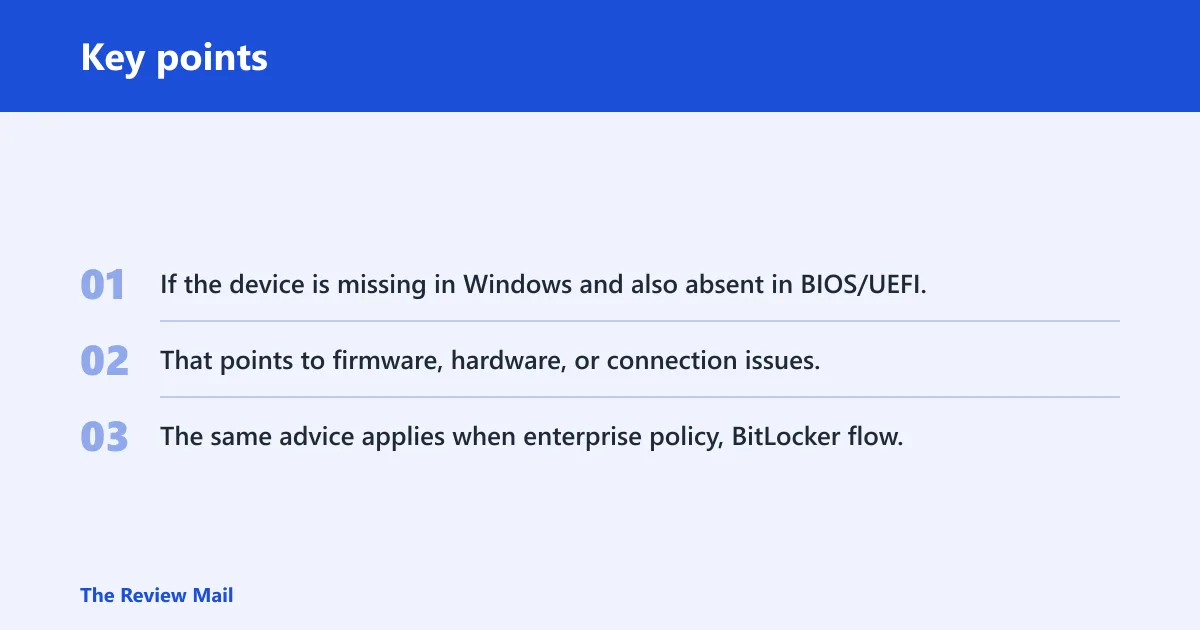
If the device is missing in Windows and also absent in BIOS/UEFI, the issue may be more likely related to firmware, hardware, or the connection than to drivers. That points to firmware, hardware, or connection issues. The same advice applies when enterprise policy, BitLocker flow, or an OEM utility keeps restoring the old state after each reboot.
What to do if Enable device does not work
If enabling fails, check the error and the permission model. Code 22 often indicates that the device is disabled. Code 31 often indicates that Windows is having trouble loading the driver properly. If the menu is missing, admin rights, policy, or vendor software may be blocking the change.
Code 22 and Code 31
Code 22 often means the device is disabled, so the main action is to enable it or resolve what is turning it off. Code 31 points more toward a driver problem. In that case, a reinstall or rollback is often more useful than repeated enable attempts.
Admin rights and enterprise policy blocks
Some device changes need admin rights. On managed PCs, enterprise policy may block disable or enable actions altogether. If the machine is enrolled in a work or school environment, policy can make a local fix look impossible even when the hardware is fine.
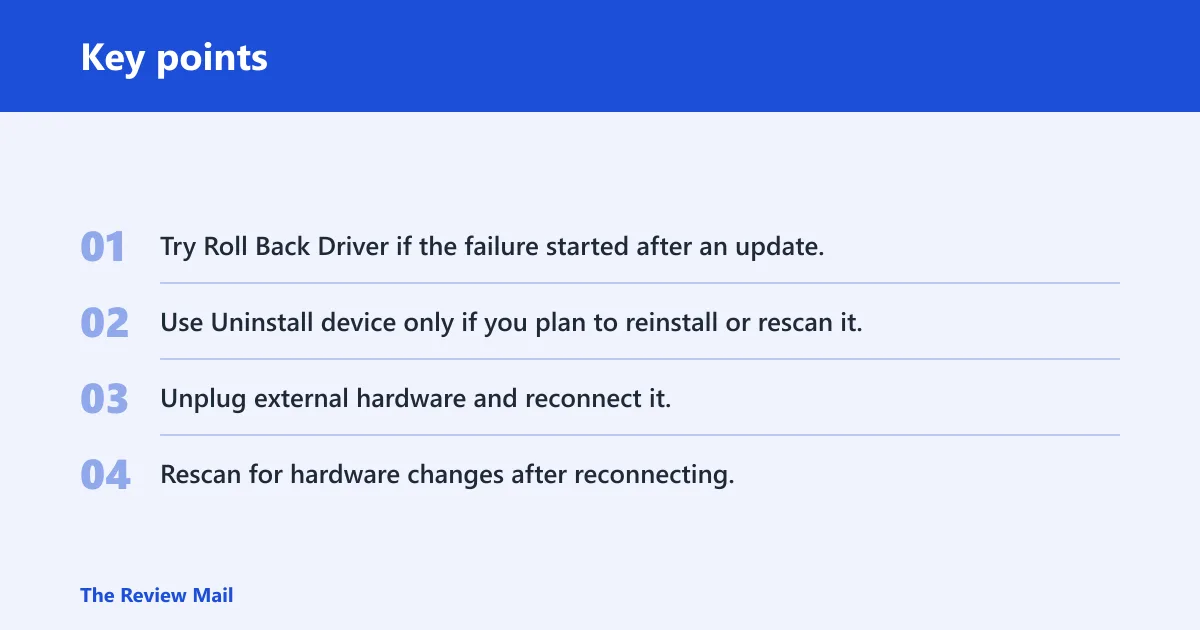
Roll back, reinstall, or unplug and reconnect
- Try Roll Back Driver if the failure started after an update.
- Use Uninstall device only if you plan to reinstall or rescan it.
- Unplug external hardware and reconnect it.
- Rescan for hardware changes after reconnecting.
OEM utilities can also interfere. Some laptop tools, dock managers, and security suites can disable devices or restore old settings on startup. If the same device keeps changing state after a clean enable, check whether vendor software is involved before repeating the driver work.
How to disable device driver
Disable a driver only when you are isolating a conflict or comparing two driver versions. In Device Manager, right-click the device, open Properties if needed, and use the disable option only if you are prepared to re-enable it. That step can take the device offline immediately.
On a shared or managed PC, disabling a driver can have side effects beyond the target device. A USB hub, network adapter, or HID controller may feed several peripherals at once. That is why the status check comes first.
How to disable devices on windows 11
In Windows 11, open Device Manager, right-click the device, and choose Disable device. The label may differ slightly from Windows 10 depending on the device class and driver package. Use this only when you know the device is the one you want to turn off.
Windows 11 also puts more emphasis on modern settings screens, but those screens do not replace Device Manager for hardware state changes. For device status, Device Manager remains the direct control panel.
How to find disabled devices windows 10
In Windows 10, open Device Manager and look for the device in its category. If it is not obvious, use View and then Show hidden devices. Greyed-out entries often reveal devices that were once present and may still be useful to inspect.
Windows 10 still follows the same logic as Windows 11: identify whether the device is disabled, hidden, or missing before you decide on the next action. That simple separation prevents a lot of wasted time.
How to find disabled devices Windows 11
In Windows 11, use Search or Windows key + R to open Device Manager, then turn on Show hidden devices. This matters because hidden entries can look like disabled hardware, especially for USB and HID items that were recently unplugged or moved to a different port.
A quick rescan after that often tells you whether Windows lost track of the device or simply hid an old entry. If the device returns after the rescan, you were dealing with a missing detection state, not a true disable.
how to enable a disabled device
Right-click the device in Device Manager and choose Enable device. If the command is available, that is the cleanest recovery path because it preserves the installed hardware and driver. If the command is not there, the device is probably not in the disabled state you expected.
how to show disabled devices Windows 10
Open Device Manager, select View, and choose Show hidden devices. Then scan the list for greyed-out devices and warning symbols. That view is especially useful for older PCs, where long device histories can leave a lot of inactive entries behind.
how to show disabled devices Windows 11
Windows 11 uses the same Device Manager path: open Device Manager, then use View and Show hidden devices. The wording is familiar even when the rest of the interface looks newer. This is the best first step when a device seems to have vanished after an update or reboot.
Frequently asked questions
what does disabled mean on a computer
Disabled on a computer usually means turned off in software, not physically removed. In Windows hardware terms, the device can still be installed and listed in Device Manager. That is why you should look for an enable option before reinstalling drivers or replacing hardware.
how to disable a computer
To disable a computer is not the same as disabling one device. If the goal is shutdown, use the Windows power menu. If the goal is to stop a single hardware component, use Device Manager instead. Mixing those two tasks causes avoidable trouble.