Images Not Loading on PC: Windows Fix Checklist
Start by isolating the failure: if images load in one app but not another, it is app-specific; if they fail everywhere on the PC, it is local or system-wide; if only websites fail, check the browser or network. Misdiagnosing it wastes time and can hide a storage, codec, cache, or connection problem. This guide shows how to test each layer and apply the right fix.
This guide is part of our Windows network and Wi-Fi problems: full list and fixes series.
Image loading triage matrix
This table separates the common failure patterns before you change settings. Use the symptom pattern first, then move to the fastest test. That keeps you from treating a browser problem like a codec problem, or a File Explorer thumbnail failure like a bad image file.
| Symptom pattern | Most likely cause | Fastest test | Next fix |
|---|---|---|---|
| Photos app only | Photos app failure, outdated app, or a Windows app issue | Open the same JPG or PNG in File Explorer preview or another viewer | Repair or reset Photos, then update Windows |
| File Explorer only | Thumbnail cache, thumbnail setting, folder location, or codec support | Switch to an image folder with known JPG files and check whether thumbnails stay blank | Turn on thumbnails, clear the cache, and check file support |
| Browser only | Cache, cookies, permissions, extensions, DNS, proxy, VPN, or mixed content | Open the same page in another browser or a private window | Clear browser data, test permissions, and disable extensions |
| All apps | Corrupt file, unsupported format, system file damage, or graphics driver trouble | Open the file in another viewer and test a different image type | Check file integrity, update Windows, and review drivers |
| Only some file types | Codec support gap or unsupported camera format | Compare JPG or PNG with HEIC, WebP, AVIF, or RAW | Install the needed codec extension or convert the file |
Why are images not loading on my PC?
If images fail everywhere on the PC, treat it as a local problem first. That usually means a bad file, missing codec support, a broken app component, or a driver issue. If the same image opens in one place but not another, the problem is narrower and faster to isolate.
Local decoding failure
A local decoding failure means Windows cannot read the file format cleanly. Common examples are HEIF, HEIC, WebP, AVIF, and RAW files. A JPG or PNG that fails everywhere points more toward corruption or a system issue than a format gap.
Say your camera imports show up as HEIC files and nothing opens them, while JPG files still work. That points to codec support, not a broken display or a dead folder. Install the needed Microsoft Store extension before you keep troubleshooting the viewer.
App-specific failure
When only Photos fails, the issue is often inside the app itself. Microsoft has documented a Windows 11 Photos error, The specified procedure could not be found, and an accepted fix was to open Photos app Advanced Options and click Repair. The same Microsoft answer also lists Reset as the next step. (Microsoft Learn)
That applies to image files like .jpg, .jpeg, and .png. If Photos is the only failing app, do not spend time on browser cache or DNS yet.
Browser-specific failure
If images fail only on websites, the browser is the right place to start. Cache, cookies, extension conflicts, blocked image permissions, proxy settings, or DNS problems can stop images while local files still open normally. That is a different failure path from a blank thumbnail in File Explorer.
Network-delivery failure
When a site loads text but not images, the connection may be part of the problem. Slow or unstable Wi-Fi, router trouble, a bad DNS server, or a VPN can prevent image requests from finishing. A mobile hotspot comparison is one of the fastest ways to separate local browser trouble from network-delivery trouble.
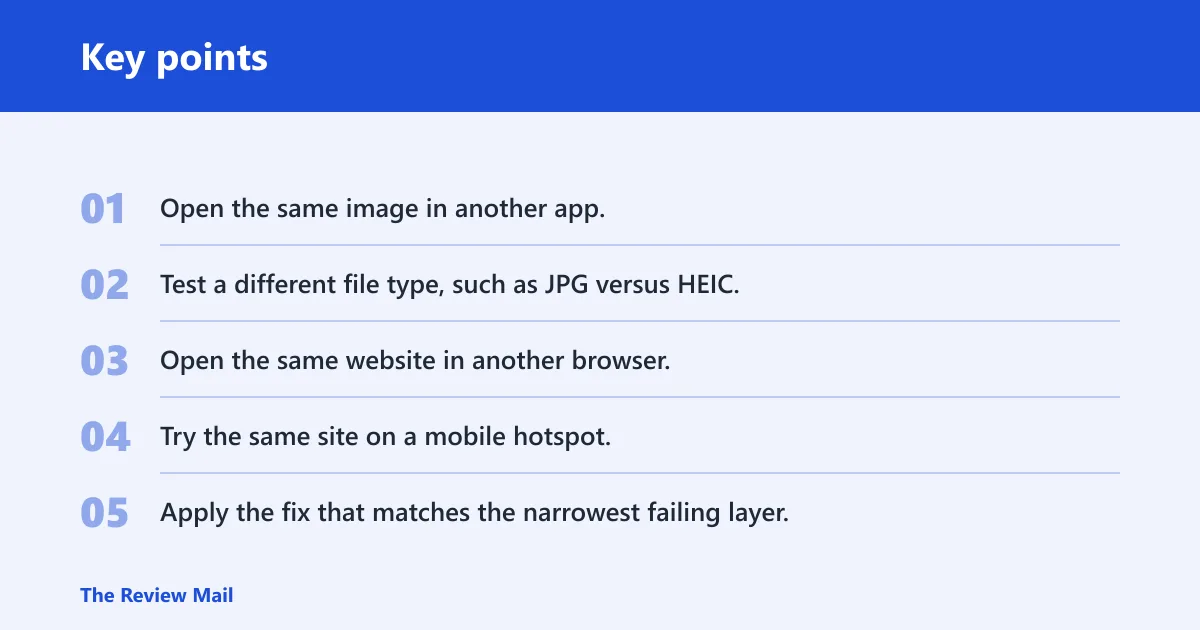
- Open the same image in another app.
- Test a different file type, such as JPG versus HEIC.
- Open the same website in another browser.
- Try the same site on a mobile hotspot.
- Apply the fix that matches the narrowest failing layer.
Fix images that won’t load in browsers
When images fail on websites, start with browser data, permissions, extensions, and DNS. Those four areas cause a large share of browser-only image failures, and each has a quick test that does not affect the rest of Windows. Avoid jumping straight to Photos repair or File Explorer fixes if the problem only appears online.
Clear browser cache and cookies
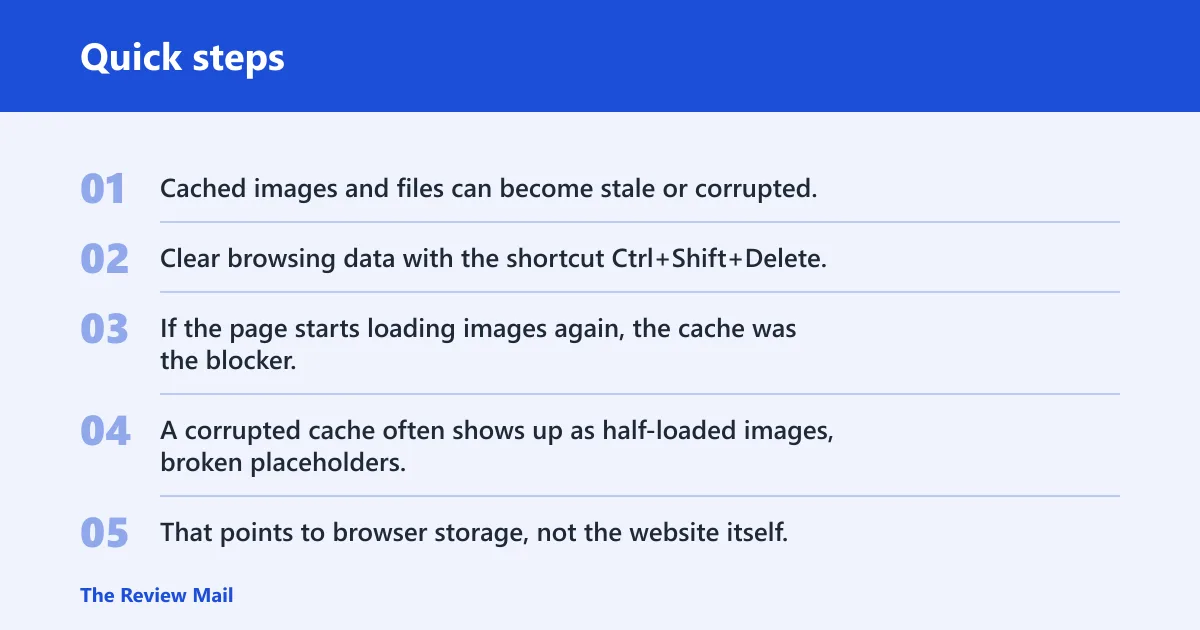
Cached images and files can become stale or corrupted, and cookies can keep a broken session alive. Clear browsing data with the shortcut Ctrl+Shift+Delete, then remove cached images and files. If the page starts loading images again, the cache was the blocker.
A corrupted cache often shows up as half-loaded images, broken placeholders, or images that load after a hard refresh but fail again later. That points to browser storage, not the website itself.
Check image permissions in site settings
Some browsers let a site block image loading through site settings. Look for an Images permission, an allow images toggle, or a blocked-site exception list. If one site is affected and others are not, the permission list is worth checking before deeper fixes.
Disable extensions temporarily
Ad blockers, privacy blockers, and script blockers can stop image requests or rewrite page content. Disable extensions temporarily to isolate a conflict. If the images return after the disablement, re-enable extensions one by one until the blocker appears.
Flush DNS or change DNS servers
DNS cache errors and a bad DNS server can cause browser-loading failures even when the page itself opens. Flush the DNS cache, then test again. If the problem continues, change to a known public DNS option and retest the same site.
That step matters when the browser hangs on image fetches but local files are fine. DNS changes are not a cure for a corrupt photo file, but they can fix image delivery from a site that fails to resolve or route image requests cleanly.
Why do images load in one browser but not another?
When one browser loads images and another does not, compare browser data, extensions, and connection settings before blaming the website. The browsers may not share the same cache, cookie state, privacy tools, proxy settings, or DNS behavior. That is why the same page can look normal in one browser and blank in another.
Compare cache and cookie state
One browser may hold a clean cache while the other has corrupted cached images and files. Clear browsing data in the failing browser first. If that browser starts loading images after a cache purge, the other browser was never the problem.
Check extension conflicts
Extension sets often differ across browsers. A privacy tool in one browser may block image hosts that another browser allows. Disable extensions temporarily in the failing browser, then reload the page and watch for immediate changes.
Test proxy, VPN, and security settings
Proxy and VPN settings can change image routing or block certain content types. Security settings can do the same. If the failing browser is the only one with a VPN profile or a proxy turned on, turn it off for a clean comparison.
Try another network or hotspot
If the browser behaves differently on a mobile hotspot, the network is part of the issue. That can point to a router problem, DNS filtering, or an unstable connection. A quick hotspot test is often faster than chasing browser settings that are not at fault.
Picture one browser loading a news page perfectly while another leaves every inline image blank. If the cache is clear and extensions are disabled, the next useful comparison is the network, not the homepage.
Image loading on websites: mixed content, permissions, and cache
Website-only image failures often come from the page itself. Mixed content blocks, site permissions, and stale cache entries are the first things to check. If text loads but image areas stay empty, the browser is usually rejecting content rather than losing the whole page.
Check for mixed content blocks
If a page is on HTTPS but tries to load images over HTTP, the browser may block those images as mixed content. That security restriction is common on pages that still reference old image URLs. Reloading will not fix it until the site serves the images over HTTPS.
Review blocked-site exceptions
Some browsers keep per-site exceptions for images. A blocked-site rule can hide every image on a domain while leaving the rest of the page intact. Check the site settings before clearing everything else.
Clear corrupted cached files
Corrupted cached files can stop just one site or one image host. Clear cached images and files, then reload the page from scratch. If the site works in a private window but not in a normal window, the cached data is a stronger suspect.
When to reset browser data
If clearing cache, checking permissions, and disabling extensions do not help, reset browser data for that browser profile. That is a broader step, so use it after the narrower tests. It is most useful when multiple sites fail in the same browser and the same browser settings keep coming back.
How do I fix blank image previews in File Explorer?
Blank previews in File Explorer are a thumbnail problem unless the file itself is broken. That is different from a Photos app launch failure or a browser image block. Start by confirming that the folder contains supported image files, then check thumbnail settings and the thumbnail cache.
Turn on thumbnails
In Folder Options, make sure Always show icons, never thumbnails is turned off. If that setting is enabled, Windows shows icons instead of preview images. This is one of the fastest checks for blank previews.
Clear the thumbnail cache
Windows stores preview data in thumbnail cache files such as thumbcache_*.db. If those files become damaged, previews can stay blank or stale. Clearing the thumbnail cache forces Windows to rebuild it.
Check folder and file location
Some previews fail because the folder is in a location with limited access, or because the files are hidden. Check hidden files and folders in Folder Options, especially if the images were copied from another drive or from a camera card. A missing path can look like a preview problem.
Confirm thumbnail generation is enabled
Thumbnail generation can be reduced by performance settings, file-system issues, or system damage. If previews fail only in one folder, compare it with a folder that shows thumbnails correctly. That helps separate a folder-specific issue from a global Explorer setting.
Image format support and driver checks
If the same file fails in every app, check format support and the graphics stack. Some formats need a codec extension, while others fail because the file is damaged or the display driver is misbehaving. This is where file-type triage matters most.
Know which file types need extra support
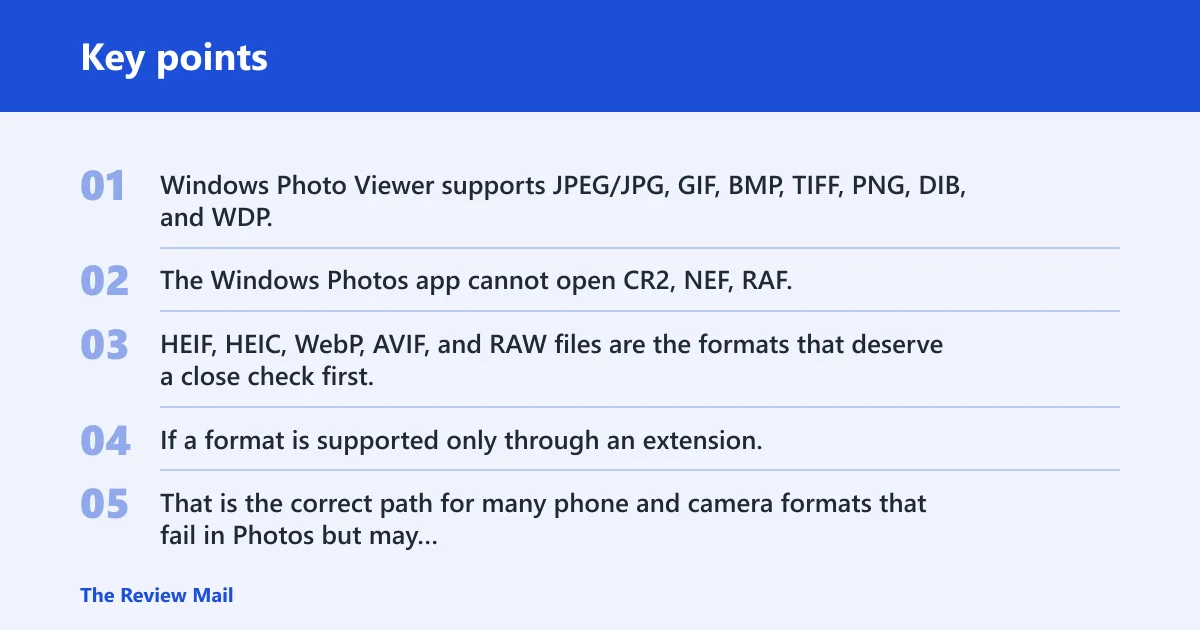
Windows Photo Viewer supports JPEG/JPG, GIF, BMP, TIFF, PNG, DIB, and WDP. The Windows Photos app cannot open CR2, NEF, RAF, and other image file types without extra support. HEIF, HEIC, WebP, AVIF, and RAW files are the formats that deserve a close check first.
Install Microsoft Store codec extensions
If a format is supported only through an extension, install the matching Microsoft Store codec package. That is the correct path for many phone and camera formats that fail in Photos but may open in a different viewer. If a file opens after the extension install, the file was fine all along.
Update or reinstall the display adapter driver
A graphics driver issue can cause partial rendering, broken previews, or images that flicker in one app but not another. Open Device Manager, then update or reinstall the display adapter driver if previews or image rendering look inconsistent. If the problem began after a driver change, that clue matters.
Check whether the file is corrupt
If the file will not open in any supported viewer, the file itself may be damaged. Check another copy of the same image if possible. That is a simple way to separate a bad file from a bad app, bad cache, or bad driver.
Quick fixes worth doing after the diagnosis
Once the symptom bucket is clear, a few broad fixes are still worth doing when the narrow fix does not fully solve it. Update Windows before deeper troubleshooting. If the problem is in Photos, use Advanced Options to Repair first, then Reset if needed. Try another viewer such as IrfanView or a similar tool to confirm whether Windows is the problem.
Run the Windows Store Apps troubleshooter if the issue stays inside Microsoft apps. If system files may be involved, use sfc/scannow to check for corruption. After any setting change, restart the PC so Windows can rebuild caches and reload drivers.
Frequently asked questions
Why won’t my pictures load on my computer
That usually means one of four things: a broken app, a missing codec, a corrupt file, or a system problem. The fastest test is to open the same image in another viewer. If that works, the file is probably fine and the original app or cache is the real issue.
Why are pictures not loading on websites?
Website images often fail because of browser cache, blocked image permissions, extension conflicts, mixed content, or DNS problems. Compare the page in another browser or another network first. If the page works elsewhere, the site is probably fine and the failure is local to the browser setup.
How do I fix blank image previews in File Explorer: turn off Always show icons?
Turn off Always show icons, never thumbnails, then clear the thumbnail cache files such as thumbcache_*.db. If that does not help, check whether the images are hidden or stored in a location with access problems. If only HEIC, WebP, AVIF, or RAW files fail, codec support is the next place to look.
Why do images load in one browser but not another: different browsers do not share?
Different browsers do not share the same cache, extensions, permissions, proxy settings, or DNS behavior. Clear the failing browser’s data first, then disable extensions and test another network if needed. If the other browser still works, the broken one usually has a local setting or add-on conflict.
Why are WhatsApp or Discord images not showing on my PC?
Those images often fail in the app or browser window that hosts them, which makes cache and permissions the first checks. If they load on a mobile hotspot or in another browser, the network or DNS is likely involved. If they fail everywhere, check file format support and the image file itself.