
Wi-Fi Error No Internet Secured: How to Fix It
“Wi‑Fi: No Internet, Secured” means your PC joined the router but did not reach the internet. Start by checking whether another device can browse, because that one check separates a router or ISP outage from a Windows-only fault. On Windows 10 and Windows 11, the label can appear even on a live network if the signal is weak or if Windows cannot verify reachability.
What the status means
If the page loads on a phone over mobile data, the home network may be the issue. If a browser on the same PC fails while Ethernet works, the fault is usually on the Wi‑Fi side, not the internet line. A false warning can happen, but a real outage is still common enough that you should not skip the first comparison.
Likely causes, from most to less likely
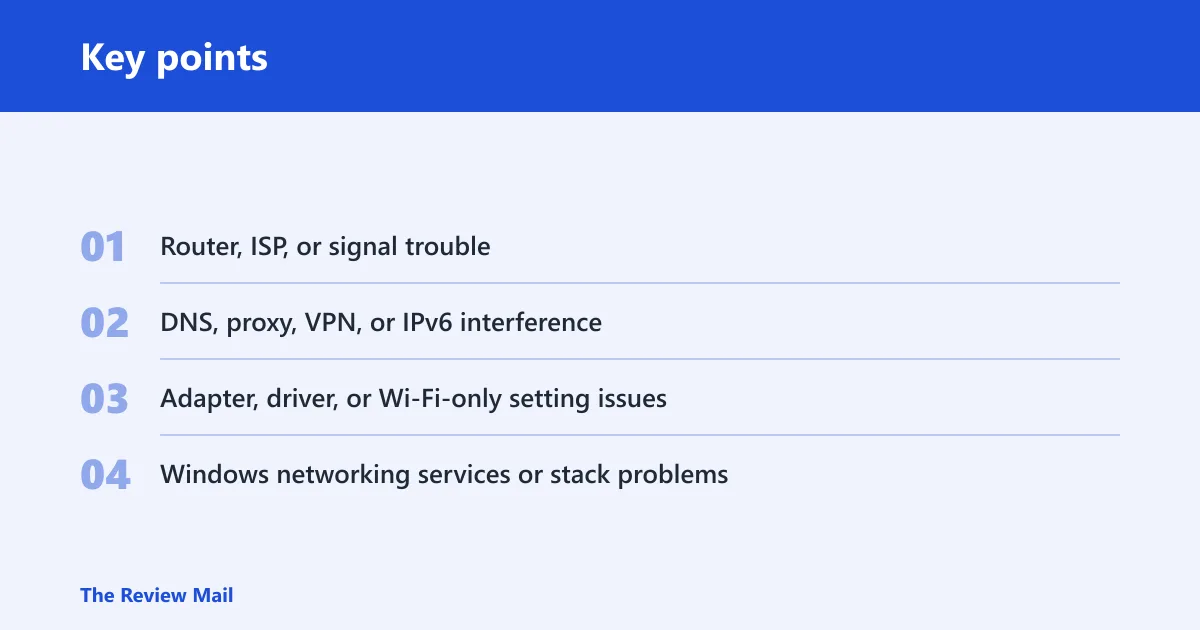
- Router, ISP, or signal trouble — the PC can associate with Wi‑Fi, but packets do not reach the internet.
- DNS, proxy, VPN, or IPv6 interference — name lookups or route handling fail even though the radio link is up.
- Adapter, driver, or Wi‑Fi-only setting issues, Ethernet works, but the wireless path does not.
- Windows networking services or stack problems, DHCP, Winsock, or TCP/IP state gets stuck.
Can other devices get online?
Check another phone, tablet, or laptop on the same network first. If nothing can browse, stop working on the PC and restart the router, then check the ISP or modem status lights or app. If one device works and your Windows PC does not, the fault is local to that machine or its Wi‑Fi path.
If every device fails
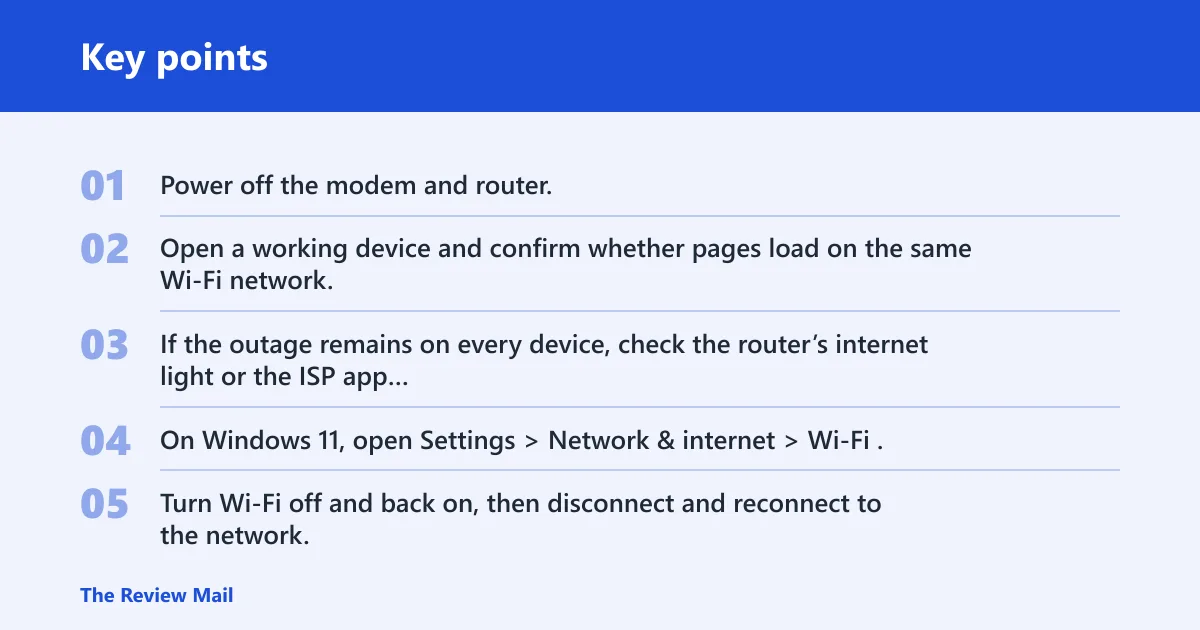
- Power off the modem and router. Wait 30 seconds, then turn on the modem first and the router second.
- Open a working device and confirm whether pages load on the same Wi‑Fi network.
- If the outage remains on every device, check the router’s internet light or the ISP app before changing Windows settings.
If Ethernet works but Wi‑Fi fails
A wired connection working while wireless fails usually points to the adapter, its driver, or a Wi‑Fi-only setting such as random hardware addresses. The internet line is less suspect in that branch, because the same PC reaches the network over a cable.
- On Windows 11, open Settings > Network & internet > Wi‑Fi. On Windows 10, open Settings > Network & Internet > Wi‑Fi.
- Turn Wi‑Fi off and back on, then disconnect and reconnect to the network.
- Open Device Manager > Network adapters, right-click the Wi‑Fi adapter, and choose Update driver. If that fails, uninstall the device, then choose Action > Scan for hardware changes.
If a hotspot works
Suppose your laptop can browse through a phone hotspot but not through the home router. That points away from the PC’s general internet access and toward the home network, DNS, the router, or a Wi‑Fi-only setting tied to that SSID.
- Forget the home network: Settings > Network & internet > Wi‑Fi > Manage known networks, then select the network and choose Forget.
- Reconnect and re-enter the password.
- If only that network fails again, review Random hardware addresses for that SSID and turn the setting off, then test again.
Why does only one network fail?
When one SSID fails but others work, the problem is often network-specific: a saved profile, MAC filtering, a captive portal, or weak signal on that band. A one-network failure is much less likely to be a full Windows outage, and much more likely to be a profile or router rule problem.
Branch-specific checks
- Forget the affected network in Manage known networks, then reconnect.
- Open the Wi‑Fi network’s properties and test Random hardware addresses for that network if the problem returns after reconnecting.
- Move closer to the access point and test again.
- If the network uses a captive portal, open a browser and load a plain HTTP page to trigger sign-in.
A common first-timer mistake is to keep changing DNS when only one office network fails. If the hotspot works and the office Wi‑Fi fails only on that SSID, DNS is often a false lead.
Fix DNS and browser reachability
Change DNS when other devices on the same Wi‑Fi work, the router is fine, and pages still fail on this PC. That branch fits a name-resolution problem, not a radio problem.
Set public DNS and refresh the lease
- Open Settings > Network & internet > Wi‑Fi > Hardware properties or the adapter’s DNS settings page for your connection.
- Set the DNS server to 8.8.8.8 and 8.8.4.4, then save.
- Open Windows Terminal or Command Prompt as administrator and run the commands below.
- Test browsing again. If pages load after the DNS switch, stop here.
ipconfig /flushdns
ipconfig /release
ipconfig /renew
ipconfig /registerdns
If DNS fixes the problem, the browser path was the issue. If nothing changes, revert the DNS setting after testing so you do not keep a workaround that is masking a different fault.
Restart Windows network components
If the link is up but Windows still refuses to verify access, restart the built-in networking services and then reset the stack. WLAN AutoConfig should be started and set to Automatic. Network Setup Service can be checked as a secondary service if the failure persists, but it is not the first place to start.
Use the built-in tools first
- Open Settings > System > Troubleshoot > Other troubleshooters on Windows 11, or Settings > Update & Security > Troubleshoot on Windows 10.
- Run the Network troubleshooter and let it finish its checks.
- Open Services, find WLAN AutoConfig, and confirm it is running and set to Automatic.
- If the failure continues, check Network Setup Service and restart it once before changing more settings.
Reset Winsock and TCP/IP
Use these commands if the issue keeps returning after reconnecting or after a reboot. The pairing fits cases where Windows’ network state is stale.
The reset commands are commonly listed as netsh winsock reset and netsh int ip reset.
Restart the PC after those commands finish. If the status returns after reboot, the problem is not a temporary session glitch. Move on to the adapter and service branch instead of repeating the same reset.
Fix the Wi‑Fi adapter
Driver problems matter most when Ethernet works but wireless does not, or when the problem returns after a short reconnect.
Driver, power, proxy, VPN, and IPv6 checks
- Open Device Manager > Network adapters, right-click the Wi‑Fi adapter, and choose Update driver.
- If the problem remains, choose Uninstall device, then Action > Scan for hardware changes.
- Open Device Manager > Network adapters > your Wi‑Fi adapter > Properties > Power Management and clear any option that lets Windows turn off the device to save power.
- Open Settings > Network & internet > Proxy and turn off any manual proxy unless your network requires one.
- Disconnect any VPN client, then test again.
- If the issue persists, review IPv6 on the adapter.
Suppose the connection drops only after a few minutes and then comes back after reconnecting. That pattern fits adapter power management, a flaky driver, or a network profile setting more than a router-wide outage.
Wi‑Fi troubleshooting matrix
This table separates the common branches so you can stop when the symptom and fix line up. Use the stop-here rule to avoid chasing unrelated settings.
| Symptom | Likely cause | Exact Windows check | Best next fix |
|---|---|---|---|
| Only this PC fails on Wi‑Fi | Adapter, driver, or local stack issue | Test the same PC on Ethernet | Update or reinstall the Wi‑Fi driver |
| Ethernet works but Wi‑Fi fails | Wi‑Fi-only setting, driver, or power management | Device Manager > Network adapters | Disable power saving, then update the driver |
| Only one network fails | Saved profile, MAC filtering, captive portal, weak signal | Settings > Network & internet > Wi‑Fi > Manage known networks | Forget the network and reconnect |
| Hotspot works | Home router, DNS, or router policy | Connect to a phone hotspot | Set DNS to 8.8.8.8 and 8.8.4.4 |
| DNS change fixed it | Name resolution failure | Run a browser test after the DNS switch | Keep the DNS change, then flush DNS |
| Error returns after reboot | Persistent service, driver, or adapter fault | Reboot, then check Services and Device Manager | Run Network reset, then reinstall the driver if needed |
Still not working?
If the earlier branches do not clear the fault, use Windows network reset from Settings > Network & internet > Advanced network settings > Network reset. It is the right escalation when the stack keeps breaking after the usual resets. It requires a reboot afterward.
Last escalation steps
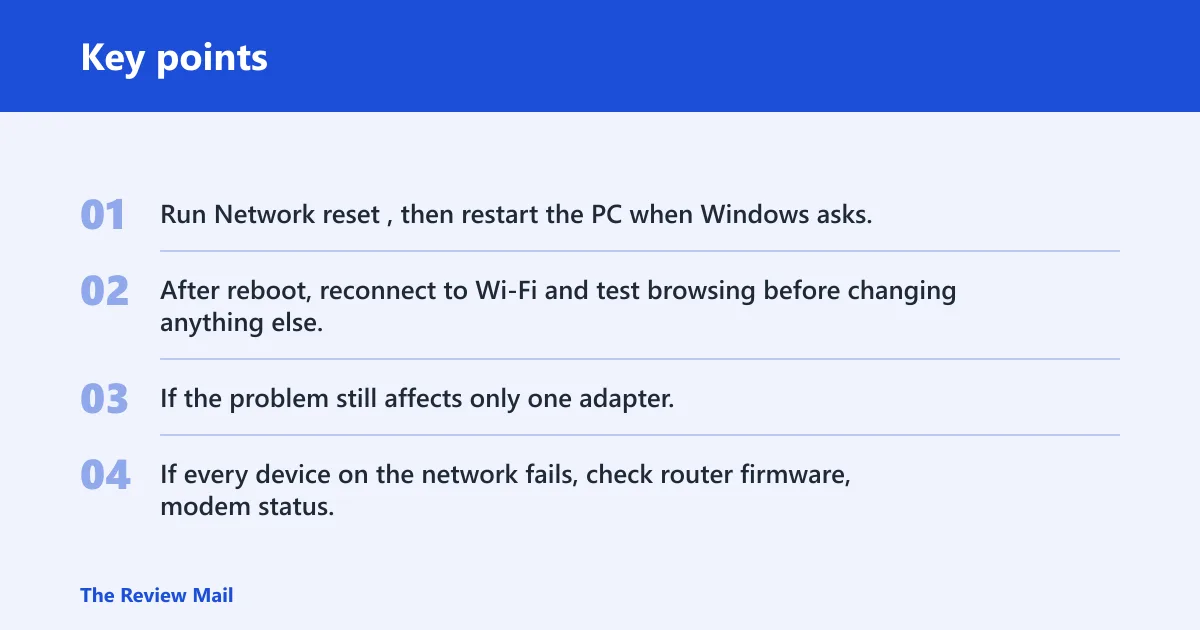
- Run Network reset, then restart the PC when Windows asks.
- After reboot, reconnect to Wi‑Fi and test browsing before changing anything else.
- If the problem still affects only one adapter, replace the Wi‑Fi driver package from the PC maker or adapter vendor.
- If every device on the network fails, check router firmware, modem status, and ISP fault reports.
Keep the Wi‑Fi driver current and leave the network profile alone unless the symptom points to that SSID. If the same network keeps breaking after reconnects, focus on the router or the adapter rather than repeating resets.
Frequently asked questions
Can’t connect to wifi no internet secured
First check whether another device can browse on the same network. If it cannot, restart the router and modem. If another device works, open Device Manager > Network adapters and update the Wi‑Fi driver, then run Network troubleshooter from Windows Settings.
What to do if wifi says no internet secured
Use the branch that matches the symptom: hotspot works, Ethernet works, or only one network fails. Then apply the matching fix in Manage known networks, DNS settings, or adapter settings. Do not jump straight to a full reset unless the simpler branch tests fail.
Why does Windows display the no internet secured message?
Windows shows that status when it joins the Wi‑Fi network but does not confirm internet access. A weak signal can trigger it even on an active network. If a browser works on another device, the issue is usually local to the PC, its DNS, or its wireless settings.
How do I fix wifi says no internet secured on Windows 11?
On Windows 11, start with Settings > System > Troubleshoot > Other troubleshooters, then check WLAN AutoConfig in Services. If the problem survives a reconnect, run netsh winsock reset and netsh int ip reset, then reboot and test again.
Why does it work on ethernet but not Wi‑Fi?
That usually points to a wireless-only problem: driver conflict, power management, or a Wi‑Fi feature such as random hardware addresses. Check Device Manager, disable Wi‑Fi power saving, and compare the behavior on a hotspot. If Ethernet stays stable, the internet line is less likely to be the fault.
Can a VPN cause no internet secured?
Yes. A VPN can block browsing if its tunnel, DNS handling, or kill switch is active while the Wi‑Fi link is fine. Turn the VPN off, reconnect to the network, and retest. If pages load afterward, leave the VPN disabled until its settings are checked.