Duplicate These Displays Windows 10
Press Windows+P, then select Duplicate. If that option is missing, open Settings > System > Display, pick the external screen, and set Multiple displays to Duplicate these displays. Pick the wrong mode, and the projector may stay blank, the image may stretch, or Windows may mirror the wrong screen. This guide covers the fastest mirror toggle, plus fixes for missing, grayed-out, or poor-quality Duplicate mode.
What Duplicate mode does
Duplicate shows the same content on both screens. Windows has four display modes: PC screen only, Duplicate, Extend, and Second screen only. That choice matters because the wrong mode can leave a projector dark, send the image to the wrong monitor, or make a laptop look unchanged.
When mirroring makes sense for monitors and projectors
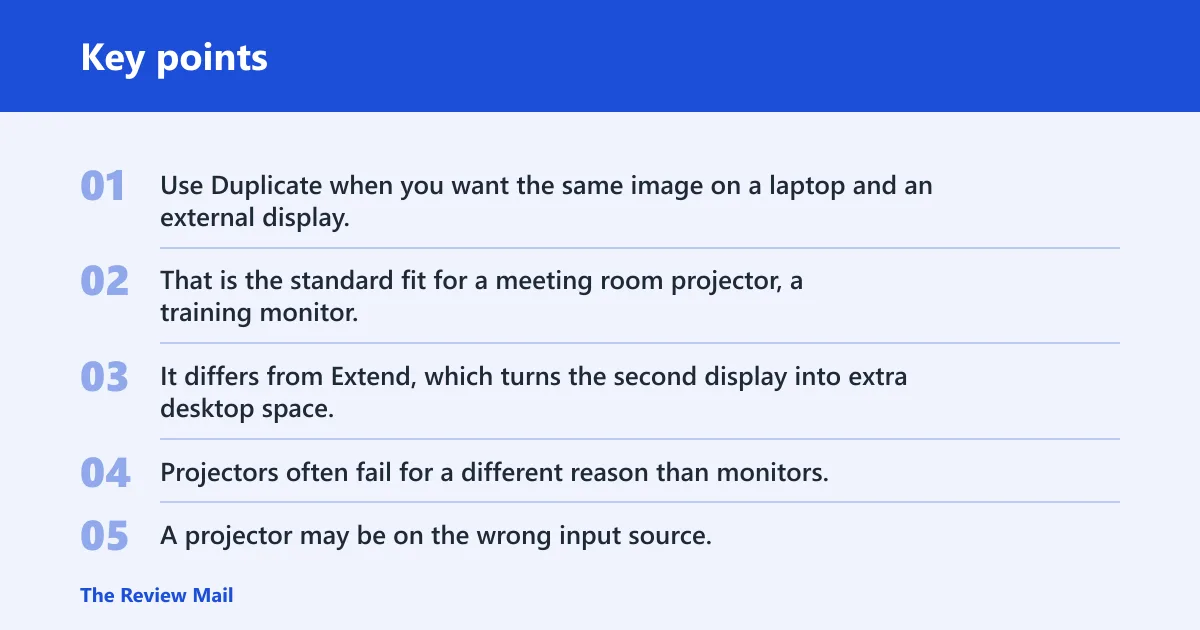
Use Duplicate when you want the same image on a laptop and an external display. That is the standard fit for a meeting room projector, a training monitor, or a quick presentation. It differs from Extend, which turns the second display into extra desktop space.
Projectors often fail for a different reason than monitors. A projector may be on the wrong input source, while a monitor may be connected but not accepting the current refresh rate or resolution. Keep those paths separate while you troubleshoot.
What changes on the laptop after duplication
After you mirror a laptop, the built-in screen may not remain the active one if Windows makes the external display primary. Audio may also move to the projector or monitor if that device exposes speakers through HDMI or USB-C. Lid-close behavior matters too, especially in clamshell mode.
Say your laptop is connected by HDMI to a 24-inch monitor and the display looks fine until the lid closes. If the power setting is wrong, the laptop may sleep instead of staying awake for duplication. That is a settings issue, not a cable fault.
📊 Windows 11 and Windows 10 both support multiple monitors. Source: Microsoft.
How do you switch to Duplicate in Windows 10?
Press Windows+P and choose Duplicate from the projection menu, which is commonly the quickest way to mirror a screen in Windows 10. That is the quickest way to mirror a screen in Windows 10, and Windows 11 uses the same shortcut. If the menu shows a different mode, select Duplicate before checking anything else.
- Connect the monitor or projector with HDMI, DisplayPort, USB-C, or VGA.
- Press Windows+P.
- Select Duplicate.
- Check that both screens show the same image.
How to confirm both screens mirror correctly
Open the desktop and move a window. Both displays should show the same window in the same place. If one screen goes black, the output may still be set to Extend or Second screen only. If the image appears on the wrong display, move to the display settings section next.
Where is Duplicate these displays in Settings?
Go to Settings > System > Display, then scroll to the Multiple displays section. That is where Duplicate these displays appears. Use it when the keyboard shortcut is not enough, when you need to confirm the selected screen, or when a dock or adapter changes the available modes.
How to choose it from Display settings
Select the external display first if Windows shows more than one screen. Then open the Multiple displays menu and choose Duplicate these displays. If Windows keeps the wrong layout after that, apply the same change again from the Project menu so the setting and the live output match.
Display mirroring troubleshooting table
This table sorts the most common failure by symptom. Start with the exact row that matches the screen behavior, then follow the next action in order.
| Symptom | Likely cause | Exact Windows path | Next action |
|---|---|---|---|
| Blank second screen | Wrong cable path, loose connection, or the display is on the wrong input source | Settings > System > Display | Check the cable, then change the monitor or projector to the correct input source |
| Duplicate missing | Dock limitation, GPU driver issue, or unsupported display combination | Settings > System > Display | Open Display settings, select the external display, and try the Detect button |
| Duplicate grayed out | Adapter, dock, refresh rate, or active mode limitation | Windows+P or Settings > System > Display | Try a direct HDMI or USB-C connection and switch from an active mode such as Extend |
| Wrong resolution | Mirror mode chose a lower common resolution or scaling changed | Settings > System > Display | Select the recommended resolution and check scaling after mirroring |
| Main display swapped | Windows set the external display as primary | Settings > System > Display | Set the intended screen as primary, then switch back to PC screen only if needed |
Why is Duplicate missing or grayed out?
Duplicate can disappear or be unavailable when the dock, GPU driver, or display combination does not support the mode you are asking for. That happens more often with a USB-C dock than with a direct HDMI cable. It can also happen when the monitor or projector is using a refresh rate Windows cannot mirror cleanly.
Cable, dock, or adapter limits
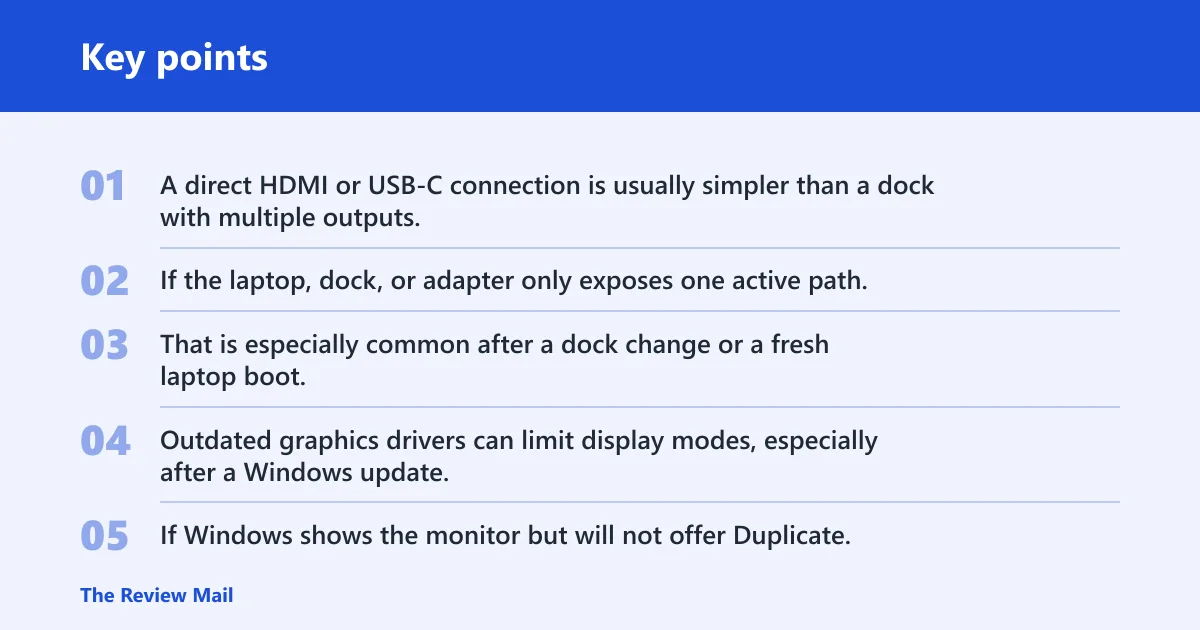
Start with the physical path. A direct HDMI or USB-C connection is usually simpler than a dock with multiple outputs. If the laptop, dock, or adapter only exposes one active path, Windows may hide Duplicate or gray it out. That is especially common after a dock change or a fresh laptop boot.
Graphics driver problems
Outdated graphics drivers can limit display modes, especially after a Windows update. If Windows shows the monitor but will not offer Duplicate, update the GPU driver from the laptop maker or GPU maker. Then open Windows+P again and check whether the mode returns.
Unsupported refresh rate or display combination
Mirroring uses a common mode both screens can accept. If one display prefers a refresh rate or resolution the other cannot match, Duplicate may be blocked. Lowering the external display to a standard mode often brings it back. This is more likely with older VGA projectors or mixed adapters.
How do you fix bad image or wrong resolution?
Start with the recommended resolution in Settings > System > Display. That usually fixes blur, stretched edges, or a cropped picture after mirroring. If the image still looks off, check scaling and then the refresh rate so both displays are using a mode they can share.
Use the recommended resolution
Windows often chooses a safe mirror resolution when two displays are combined. That can make text look softer than expected. Open Display settings, choose the external display, and switch to the recommended resolution if it is available. Then check the projector or monitor before changing anything else.
Match refresh rate where possible
A mismatch in refresh rate can make the image flicker, feel laggy, or refuse to mirror cleanly. If the external display supports several rates, pick one that the laptop can also output comfortably. This matters more with projectors than with a basic office monitor.
Check scaling after mirroring
Scaling can change when Windows mirrors two screens. That is why a duplicated image may look zoomed or cropped even when the resolution appears correct. If the picture is still wrong, reset scaling to a common value on the active display and test again.
Suppose a 15-inch laptop is duplicated to a 1080p projector and the right edge of a slide disappears. That usually points to a resolution or scaling mismatch, not a bad cable. Change the display to the recommended resolution first, then check scaling before anything else.
Laptop and projector edge cases
Connection type matters because the fix path changes. HDMI, DisplayPort, USB-C, and VGA are the common wired options. The cable is only part of the path, though. The monitor or projector still needs the right input source selected before Windows can mirror cleanly.
Use Detect when Windows does not find the display
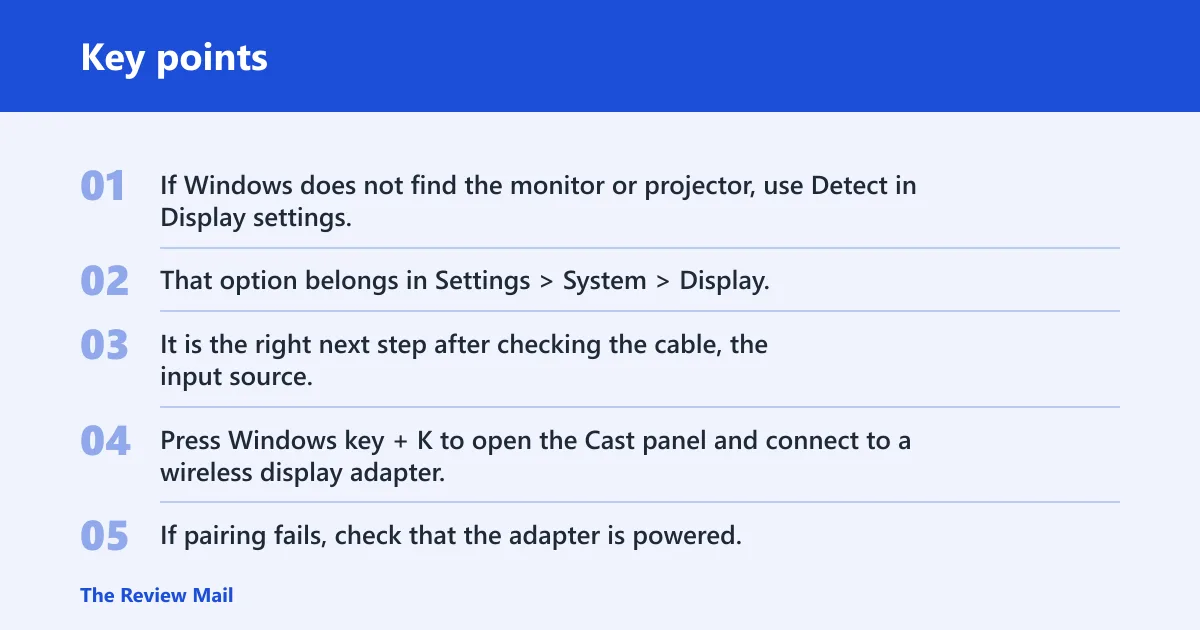
If Windows does not find the monitor or projector, use Detect in Display settings. That option belongs in Settings > System > Display. It is the right next step after checking the cable, the input source, and the power state on the external display.
Wireless duplicate problems with Cast
Wireless duplication starts differently. Press Windows key + K to open the Cast panel and connect to a wireless display adapter. If pairing fails, check that the adapter is powered, the PC and adapter can talk to each other, and the network is not overloaded or unstable.
Wireless mirroring is more sensitive to signal quality than a cable. A crowded Wi-Fi channel can cause delays, frozen frames, or a connection that drops during a presentation. If the adapter connects but the image stutters, move closer to the access point or switch to a cable.
Lid-close behavior, clamshell mode, and audio output
On laptops, lid-close behavior can stop the mirror session unless Windows is set to stay awake with the lid shut. In clamshell mode, the laptop usually needs external power and an external keyboard or mouse. Audio may also move to the projector or monitor, so check the sound output if speakers go silent.
A common first-timer mistake is closing the lid before confirming the laptop is still set to Duplicate. That can make it look as if the projector failed, when the machine simply slept. Check the power setting first, then return to Windows+P and pick the mirror mode again.
Frequently asked questions
How do I duplicate my screen in Windows 10?
Connect the display, then use Windows+P and select Duplicate. That is the fastest path for most people. If the screen stays blank or the option is missing, move to Display settings, confirm the external display is selected, and check Detect if Windows does not find it.
How do I switch from extend to duplicate in Windows 10?
Press Windows+P and change the mode from Extend to Duplicate. You can also do it in Settings > System > Display under Multiple displays. If the mode will not change, the dock, adapter, or driver may be limiting the available display modes.
What to do if my monitor is not detected in Windows 10
Check the cable, then confirm the monitor or projector is set to the correct input source. After that, open Settings > System > Display and use Detect. If Windows still misses the screen, try a different port, a direct cable, or a different adapter.
How do I go back to single screen after duplicating?
Press Windows+P and choose PC screen only. That returns Windows to the laptop display alone. You can also change the mode in Settings > System > Display if you want to confirm the active screen before disconnecting the monitor or projector.
Why is the duplicated screen lower resolution?
Mirroring forces both displays to a common mode, which can reduce sharpness if one screen cannot match the other. Pick the recommended resolution in Display settings and check scaling after switching. If the image still looks soft, try a matching refresh rate or a different cable path.