How to Fix a Driver Cannot Load
If Memory Integrity says a driver cannot load, it means Windows is blocking a driver it considers incompatible or vulnerable. Start by identifying the blocked .sys file and the related app or device vendor, then update to a newer driver that is compatible with Windows 11. For more details, see Microsoft Support. If the blocked item is a card reader that you use, uninstall and disable the device in Device Manager. Do not turn off Memory Integrity.
What you’ll need
- Access to Windows Security.
- The exact .sys file name from the warning.
- The related app, device, or manufacturer name.
- A restart after each change.
- For risky cases, a restore point before you change files or uninstall software.
How do you find the blocked driver?
Open Windows Security first and write down the exact driver name. The warning appears under Core isolation details on Windows 11, and Memory Integrity is the setting that blocks incompatible or vulnerable drivers. A restart is typically required after a change to that setting.
- Open Windows Security.
- Go to Device security.
- Select Core isolation details.
- Read the Memory integrity warning and note the blocked .sys file name.
- Match that file name to the app or device vendor before you change anything.
If the blocked item belongs to software or hardware you recognize, use the vendor name to find the right replacement package before changing settings.
Blocked driver decision table
| Driver type | Likely source app/device | Safest first fix | When to rename the file | When to uninstall the app | Should Memory Integrity remain on? |
|---|---|---|---|---|---|
| Card reader driver | Built-in or external card reader hardware | Confirm whether the PC has a card reader, then uninstall and disable the device in Device Manager if you use it | Only if a vendor-supported replacement is unavailable and the device is nonessential | If the card reader is not needed | Yes, if Windows accepts the updated driver |
| Other device or app drivers | The related vendor package or device software | Install the newest compatible vendor package for Windows 11 | Only when the vendor provides no compatible update and the software is optional | Uninstall if the software is no longer needed | Yes, if a compatible driver is available |
Should you update or reinstall the driver?
Start with the newest compatible driver, not a protection change. A newer version of the driver, compatible with Windows 11, is needed. That is why the first step is to check Windows Update and the vendor package before you make any other change.
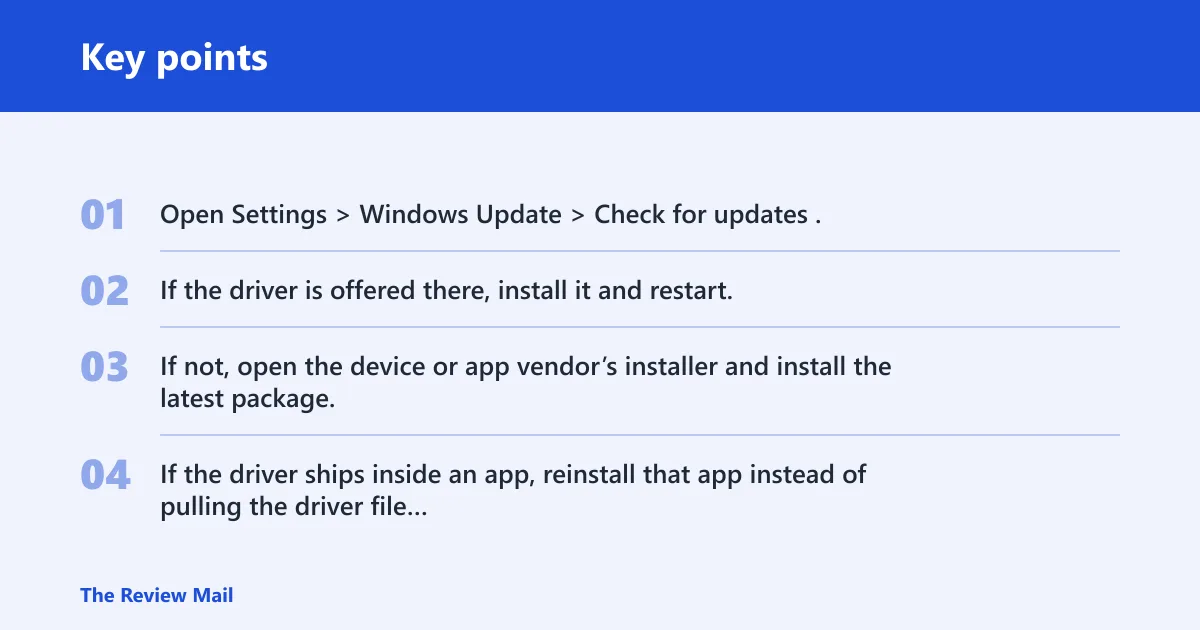
- Open Settings > Windows Update > Check for updates.
- If the driver is offered there, install it and restart.
- If not, open the device or app vendor’s installer and install the latest package.
- If the driver ships inside an app, reinstall that app instead of pulling the driver file by hand.
A common first-timer mistake is uninstalling the app before checking for an updated installer. That can remove the only copy of the replacement driver and leave the warning in place.
How do you fix a card reader driver block?
Before anything else, confirm whether there is a card reader available in your PC. If there is, and you use it, uninstall and disable the device in Device Manager until a newer compatible driver is available. Keep Memory Integrity on while you do that.
- Confirm whether your PC has a built-in or attached card reader.
- Open Device Manager.
- Find the card reader device.
- Right-click it and choose Uninstall device.
- Disable the device in Device Manager if you need to keep it from loading.
- Restart and check whether the warning is gone.
When should you rename the driver file?
Rename the file only when a compatible update does not exist and the software or device is optional. Rename the blocked file only after you have identified the related vendor package and confirmed that the device or app does not have a supported update yet. Do not use a rename as a substitute for finding the correct driver.
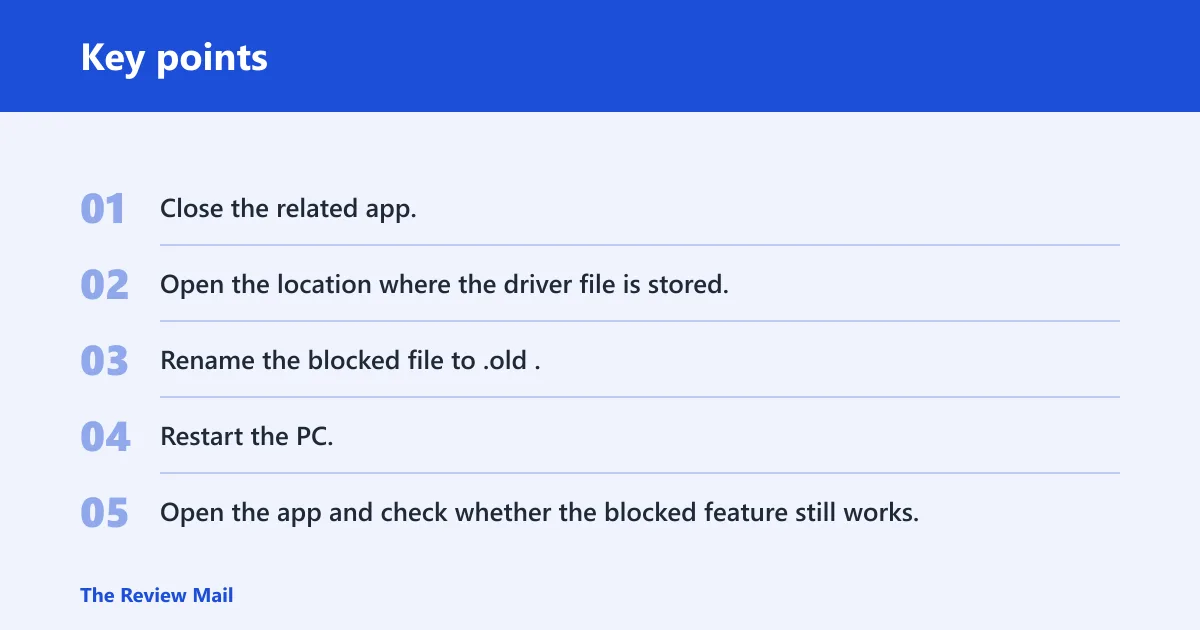
- Close the related app.
- Open the location where the driver file is stored.
- Rename the blocked file to .old.
- Restart the PC.
- Open the app and check whether the blocked feature still works.
If the app breaks, the driver was required. Rename it back, then switch to an updated vendor package instead of leaving the software half-working.
What if the problem started after Windows Update?
Check the update timing before you roll anything back. Windows Update can install compatibility fixes, but a recent update can also trigger the block. If the warning began right after an update, open update history first and remove only the update that matches the timing. Then restart and check Memory Integrity again.
- Open Settings > Windows Update > Update history.
- Look for the last quality or driver update that landed before the warning.
- Select Uninstall updates and remove only the matching item.
- Restart, then return to Windows Security > Device security > Core isolation details.
Common mistakes
The wrong move can create a second problem. Keep these traps in mind.
- Skipping the file name and vendor match before making changes.
- Removing a device or app that you still need for everyday use.
- Renaming a driver file without first looking for a vendor-supported Windows 11 package.
- Skipping the restart, which leaves the old driver or old protection state in place.
- Forgetting to confirm that the replacement driver actually loaded.
Picture a desktop with a built-in card reader. If the reader is blocked and you still use it, uninstalling and disabling it in Device Manager is the safer path until a compatible driver is available. That is why matching the device to the fix matters.
Frequently asked questions
How do I fix a driver cannot load on this device on Windows 11?
Open Windows Security > Device security > Core isolation details, note the blocked .sys file, and install the newest compatible driver from Windows Update or the manufacturer first. If the blocked driver belongs to a card reader you use, uninstall and disable the device in Device Manager until a compatible version is available. Do not turn off Memory Integrity.
What does a driver cannot load on this device mean?
It means Memory Integrity is blocking a driver Windows considers incompatible or vulnerable. The warning points to a specific file, usually a .sys driver, so the next step is to match that file to the app or device before you change settings. (Microsoft Learn)
How do I fix a driver cannot load on this device for a card reader?
Confirm whether your PC has a card reader. If it does and you use it, uninstall and disable the device in Device Manager. Then look for a newer driver package that is compatible with Windows 11.
Should I turn off Memory Integrity to fix the driver error?
No. Do not turn off the Memory Integrity Setting. Keep it on and update the blocked driver or disable the affected device if that is the supported path.
How do I find which app or device is using the blocked driver?
Use the file name from Windows Security > Device security > Core isolation details, then search Installed apps, Device Manager, and the vendor name. If the driver belongs to a card reader, confirm whether the PC has one before you change anything, then uninstall and disable it in Device Manager if needed.