This device isn’t compatible in Windows 10: fixes guide
If Windows 10 says this device is not compatible, first identify whether the block comes from a driver, firmware, or unsupported device class; do not uninstall or force-install anything until you know which one. Guessing can break a working device, hide the real error, or make a failed upgrade harder to undo. This guide shows how to tell which layer Windows is blocking and what to check before changing anything.
What the compatibility message usually means
This message often means Windows has blocked a specific driver package, device class, or firmware component during an upgrade rather than declaring the hardware dead. The warning can appear during Windows 10 version 1903 updating and may include the text “This device is not compatible with Windows 10.” Microsoft’s warning can also tell users to contact the manufacturer. (Microsoft Learn)
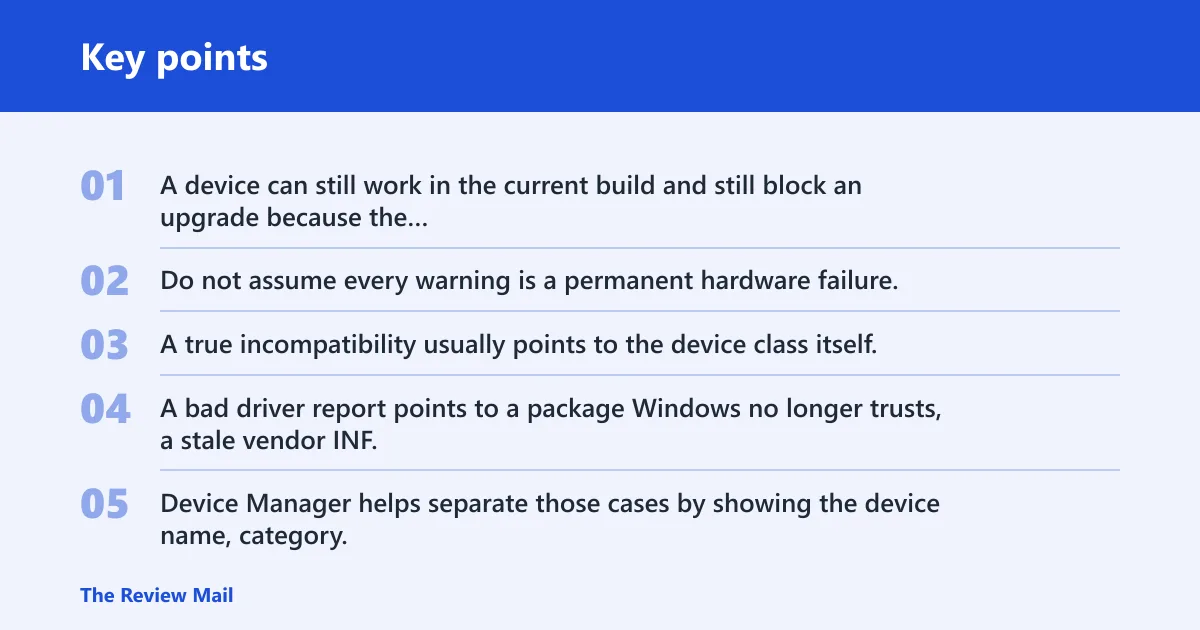
That distinction matters. A device can still work in the current build and still block an upgrade because the target build rejects its driver, storage entry, or firmware record. Do not assume every warning is a permanent hardware failure.
Driver block vs. hardware incompatibility
A true incompatibility usually points to the device class itself. A bad driver report points to a package Windows no longer trusts, a stale vendor INF, or a firmware record that needs a vendor-supplied update. Device Manager helps separate those cases by showing the device name, category, and status.
Say your laptop boots normally, but the upgrade stops at the compatibility screen. That often means the current driver stack is still functional in Windows 10, yet the next build is refusing it. In that case, the safest path is triage, not removal.
📊 Microsoft’s Device Manager help page applies to Windows 10. Source: Open Device Manager.
How do you find the incompatible device in Device Manager?
Open Windows 10 Device Manager from Start by entering its name. Microsoft’s Device Manager help page applies to Windows 10. Then look for the category and name that match the warning, because the blocked item is often shown more clearly there than in the upgrade dialog.
Focus on three things: the category, the device name, and the status text. Storage entries, System Firmware, and peripheral devices are the most common places to start when the upgrade says a device is incompatible.
What to check first
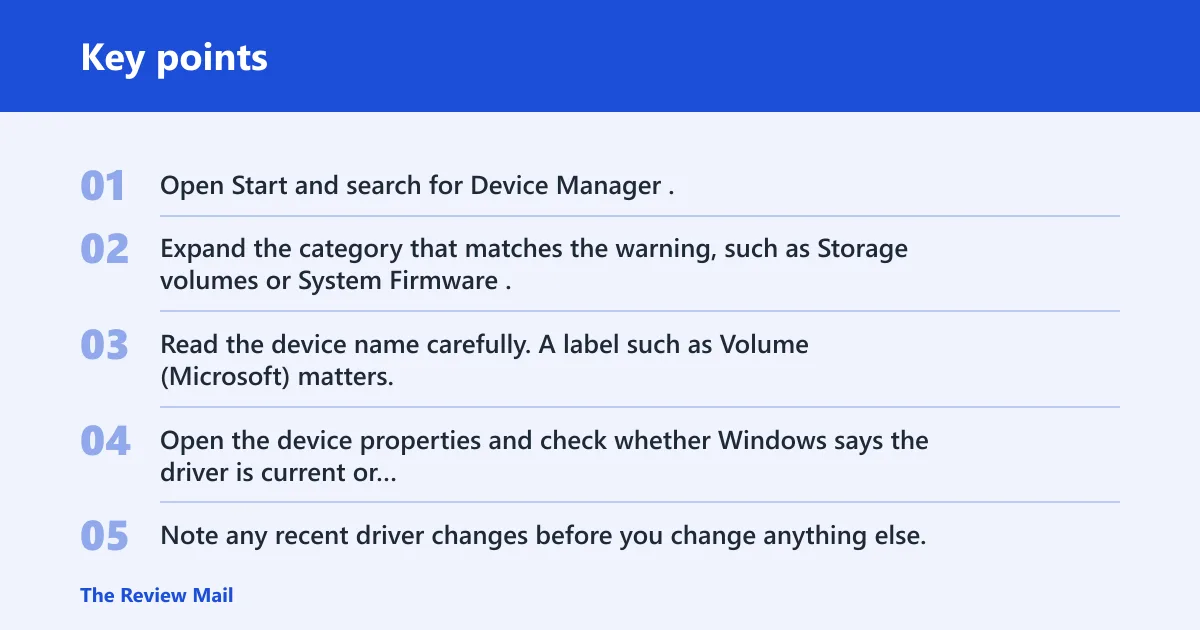
- Open Start and search for Device Manager.
- Expand the category that matches the warning, such as Storage volumes or System Firmware.
- Read the device name carefully. A label such as Volume (Microsoft) matters.
- Open the device properties and check whether Windows says the driver is current or reports an install failure.
- Note any recent driver changes before you change anything else.
Look for the right category, not only the name
One reported incompatible device label is Volume (Microsoft), and it appears under Storage volumes > Volume in Device Manager. That path matters because the fix is usually different from a chipset or Bluetooth driver issue. A firmware block under System Firmware points to a different decision tree again.
Picture an SSD listed as Volume (Microsoft) with no obvious warning icon. The upgrade still refuses to continue. That can still be a storage-driver issue even when the device looks healthy inside Windows.
Should you update drivers or firmware first?
Start with the category that matches the warning, then confirm the current state in Device Manager before you download anything. If the block is on storage, begin with storage drivers. If it is under System Firmware, check firmware first. If the category is a peripheral, begin with that vendor’s driver package.
Do not treat Device Manager’s “driver is current” message as the final word. It only means Windows has no newer package in its local sources. The vendor may still have a newer or more specific build on the manufacturer support site.
Use the safest order
- Storage block: check the storage controller or volume driver, then move to the manufacturer support site.
- Firmware block: inspect System Firmware, then look for a device-specific firmware package from the vendor.
- Peripheral block: check the printer, dock, adapter, or controller driver before touching firmware.
- Mixed block: if a recent driver update preceded the problem, consider rollback before more updates.
Triaging the error by device class
Use the table below to match the symptom to the safest next step. This is the fastest way to tell a bad driver report from a broader compatibility problem. It also keeps you from applying a firmware update when the real issue is a storage package, or vice versa.
| Symptom | Likely cause | Where to check in Device Manager | Safest next action |
|---|---|---|---|
| “This device isn’t compatible in Windows 10” appears during upgrade | Blocked driver or unsupported device class | Start with the device name and its category | Identify the exact category before changing drivers |
| Volume (Microsoft) appears under storage | Storage volumes driver mismatch or unsupported volume driver | Storage volumes > Volume | Try the vendor storage package from the manufacturer support site |
| Driver update fails with “Windows was unable to install your Volume” | Windows cannot stage the volume driver | Storage volumes entry and its properties | Stop the generic update path and use the OEM package |
| System Firmware shows current | Firmware may already be up to date, but the block remains | System Firmware | Check the vendor site for a matching firmware release or read the vendor release notes |
| Peripheral or chipset device triggers the warning after a recent install | New driver introduced the block | That device’s category, plus Driver tab | Roll back the recent driver before trying another package |
When a recent driver should be rolled back
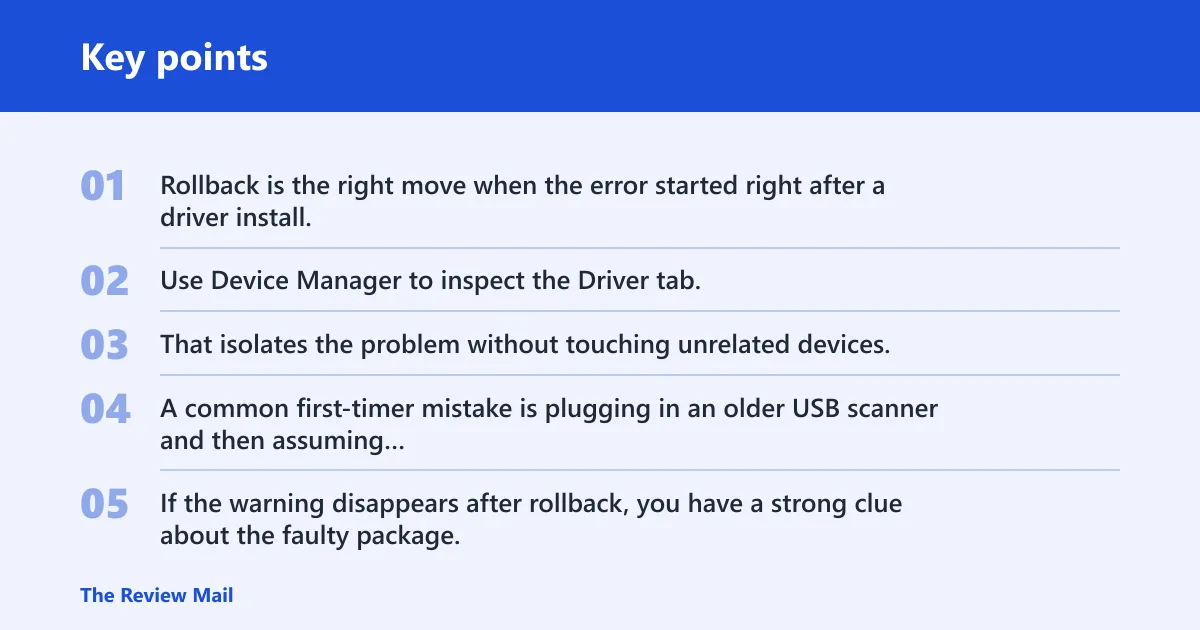
Rollback is the right move when the error started right after a driver install, Windows update, or vendor utility update. Use Device Manager to inspect the Driver tab, then remove the most recent package that appears to have changed the state. That isolates the problem without touching unrelated devices.
A common first-timer mistake is plugging in an older USB scanner and then assuming Windows 10 will install it automatically, only to find the device is marked as incompatible. Change one variable at a time. If the warning disappears after rollback, you have a strong clue about the faulty package.
Why does my device say it isn’t compatible with this version?
This usually happens because the target build, such as Windows 10 version 1903, rejects a driver or device class that the current build still tolerates. Device Manager may still show the driver as current, but the upgrade can block anyway when the package is not accepted for that version.
That is why this warning is not the same as “device failed.” It can mean “the current driver is valid here, but not for the next build.” The device may still function until the upgrade path is resolved.
Why a current driver can still block the upgrade
Windows only knows what it can validate against the target install. A package can be current for the present system and still fail compatibility checks for the next one. The right fix is often a newer vendor build, a different vendor package, or a firmware update that matches the hardware revision.
What to do when the vendor package will not install
Read the installer message carefully and match the exact model, serial number, or board revision before trying another package. A package that says the system is not supported is often aimed at a different revision, even when the laptop name looks close. Do not switch files randomly.
If the package fails on an HP Elitebook 840 G3, for example, the next step is not guessing. A helper recommended downloading firmware and storage drivers from HP support and entering the laptop serial number on HP’s drivers page. That is the safest way to avoid the wrong revision.
Stop when the package does not fit
- Check the installer’s wording for model, revision, or platform limits.
- Match the exact device using the manufacturer support site.
- Use the serial number lookup when the vendor offers it.
- Use a different package only when the vendor documents that choice.
Can a firmware update fix the compatibility block?
Yes, sometimes, but only when the block is tied to firmware, chipset initialization, or a device’s low-level handoff. It will not help every case, and System Firmware may already show as current in Device Manager even while the upgrade stays blocked. That means firmware is not always the missing piece.
Check the vendor release notes and the Device Manager category before you assume firmware is the answer. If the issue is actually storage or a peripheral driver, a firmware flash can waste time and add risk.
When firmware is the right target
Use firmware first when the warning sits under System Firmware, when the vendor names a firmware fix, or when the incompatible item appears to be part of the platform rather than an add-on device. Otherwise, start with the exact driver class that matches the warning.
Why my device isn’t compatible with this version in Windows 10?
In Windows 10, this warning usually means the target build has rejected something tied to the device: a storage volume, a firmware component, or a peripheral driver. It does not automatically mean the hardware is defective. It means the device, as configured, is not acceptable to that version.
That is why the device class matters. A storage issue and a firmware issue can look similar in the upgrade screen, but they do not use the same fix path. Device Manager is the quickest way to tell them apart.
Why storage, firmware, and peripheral cases differ
Storage devices often block because of a volume driver or controller package. Firmware blocks point at System Firmware. Peripheral and chipset blocks usually point to a vendor driver that Windows accepted in the past but will not carry into the next build.
What to do if your device isn’t compatible with this version?
Begin with Device Manager, confirm the category, then use the manufacturer support site for the exact model or serial number. If the device is storage, firmware, or a peripheral, update only that class first. If a recent driver change triggered the warning, roll it back before trying a different package.
Once the likely cause is addressed, retry the Windows upgrade. If the warning returns, go back to the category name and the vendor package rather than forcing another install.
Frequently asked questions
What if the device is listed as Volume (Microsoft)?
Volume (Microsoft) usually points to a storage-volume entry under Storage volumes > Volume. The safest next step is to inspect the storage driver path, then use the manufacturer support site if Windows cannot update it. The message “Windows was unable to install your Volume” suggests you should stop the generic update path.