Windows Activation Error 0xc0ea000a
Windows activation error 0xc0ea000a means Windows is not activated because the installed edition, product key, or licensing state does not match what the device can use. Start with the built-in activation checks, then verify the edition and key before trying anything more disruptive. This helps you avoid reinstalling or replacing software when the issue is simply a mismatch.
What 0xc0ea000a means
Start by opening Settings > System > Activation. On Windows 11 and Windows 10, confirm that your device is up to date, and if needed, use winver to verify the Windows version you are running. You can do this by typing winver in the search box on the taskbar and selecting Winver from the list of results. (Microsoft)
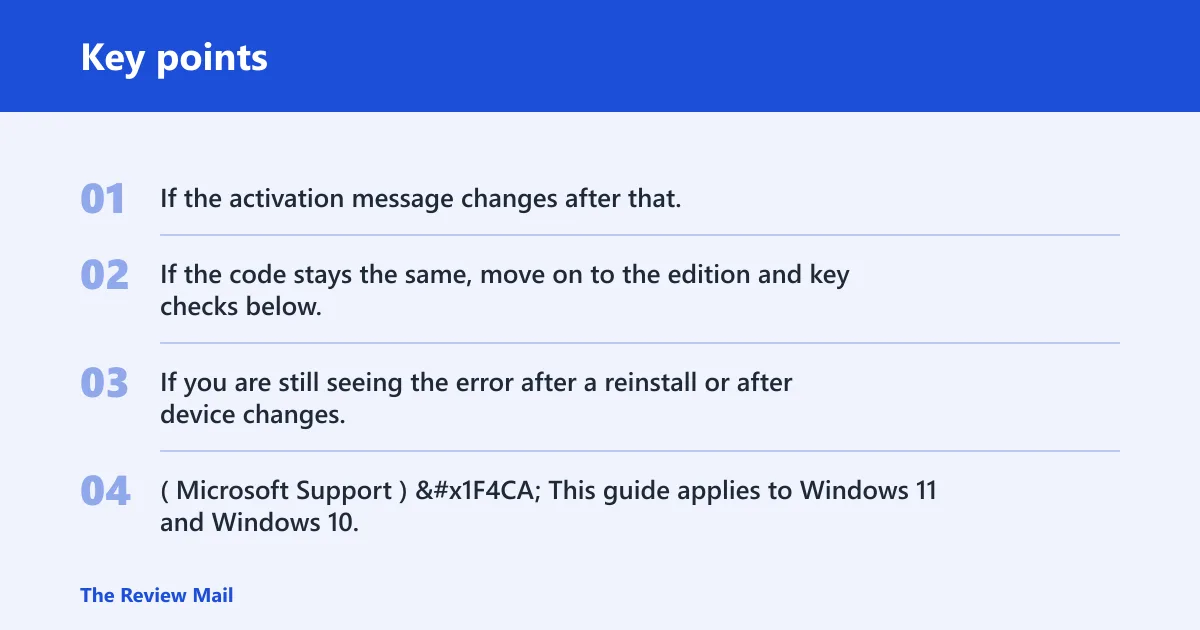
Run the Activation troubleshooter first. If the activation message changes after that, save both codes before you try anything else. If the code stays the same, move on to the edition and key checks below.
If you are still seeing the error after a reinstall or after device changes, the installed edition may not match the license on the device, or the device may need the correct activation path for its current licensing state. (Microsoft Support)
📊 This guide applies to Windows 11 and Windows 10. Source: Microsoft.
Likely causes
These are the most useful causes to test first, from most likely to less likely in a real support flow.
- Windows edition mismatch. The installed edition does not match the license tied to the device or key.
- Missing or wrong product key. The key entered is not valid for the current edition, or no key is present yet.
- Licensing state after hardware change. A major hardware change, especially motherboard replacement, prevents Windows from finding the saved license.
- Enterprise activation or management policy. A work device may be activated through assigned organization licensing, not a consumer key.
If the activation code changes after you run troubleshooting, keep both codes. If it stays the same, continue with the edition and key checks in the next sections.
0xc0ea000a triage table
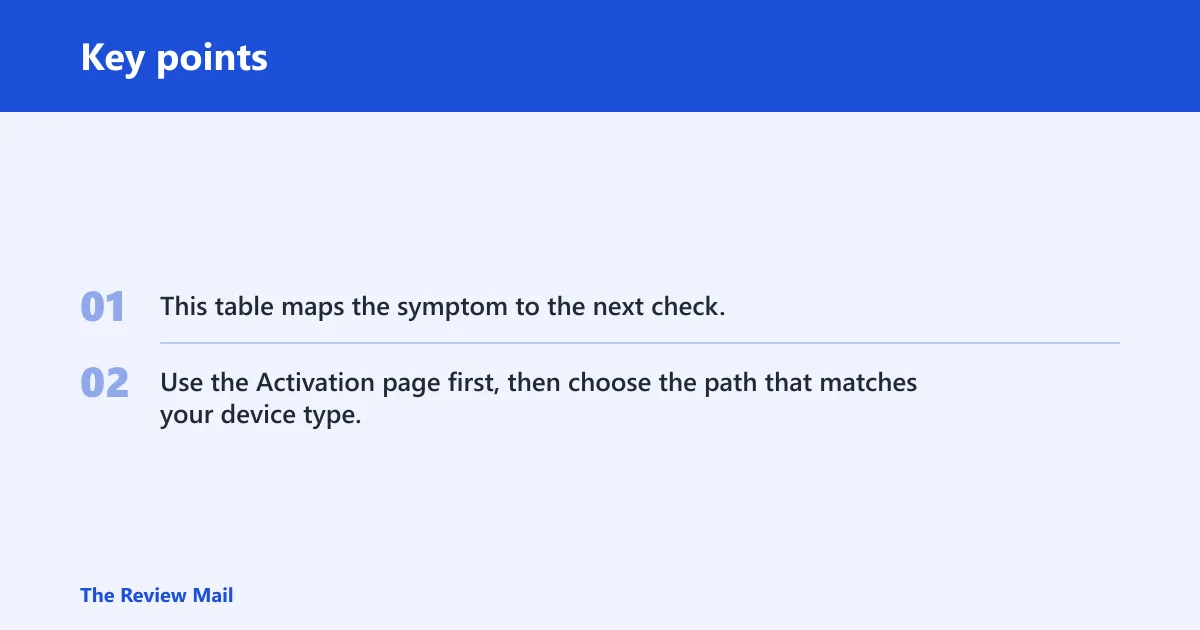
This table maps the symptom to the next check. Use the Activation page first, then choose the path that matches your device type.
| Symptom | Likely cause | How to verify in Activation settings | Exact next action for OEM, retail, and enterprise devices |
|---|---|---|---|
| Error appears after reinstall | Edition mismatch | Check the edition shown under Windows edition in Settings > System > Activation | OEM: install the edition that matches the license on the device. Retail: enter a key for the installed edition or reinstall the correct edition. Enterprise: confirm the assigned edition with IT before reinstalling. |
| Error appears after entering a key | Wrong or invalid product key | Use Change product key and note whether Windows accepts the key | OEM: compare the device’s licensing information with the installed edition. Retail: re-enter the correct key for that edition. Enterprise: ask IT whether the device should use organization activation instead of a retail key. |
| Error appears after motherboard replacement | Licensing state after hardware change | Check whether activation started failing after the repair or upgrade | OEM: use Troubleshoot and sign in with the same Microsoft account if prompted. Retail: sign in with the same Microsoft account, then reactivate. Enterprise: ask IT whether the device must be reissued or reassigned. |
| Error appears on a work laptop | Enterprise activation or policy | See whether the page shows organization-managed activation or no valid personal key | OEM: not usually relevant. Retail: do not buy a new key until IT confirms the channel. Enterprise: let IT verify the assigned edition and activation method. |
How do I fix Windows activation error 0xc0ea000a?
Run the Activation troubleshooter first, then move to edition and key checks if the code does not change. Microsoft support recommends using the troubleshooter for simple errors, and on Windows 11 you can use Get Help to run it. On Windows 10, use the Activation page in Settings and follow the same diagnostic path.
- Open Settings > System > Activation.
- Select Troubleshoot. On Windows 11, let Get Help run the diagnostics automatically.
- Wait for the result, then note whether Windows returns the same code or a new one.
- If the code changes, save both codes before you try anything else.
- If the code stays the same, move to the edition and key checks in the next sections.
Do not jump straight to buying a license. The issue may be tied to the installed edition or the current activation state instead.
Is the installed edition the problem?
Yes, and this can happen after a reinstall. Check the edition in Settings > System > Activation, then compare it with the license type you expect. If the wrong edition is installed, reinstall the correct edition and try activation again.
- Open Settings > System > Activation.
- Note the edition shown on the page, such as Home or Pro.
- Compare that with the edition tied to your license or device channel.
- If the device is enterprise-managed, confirm the assigned edition with IT before reinstalling.
- If the installed edition is wrong, reinstall the matching edition and try activation again.
For example, if a PC originally had Windows 11 Home but was reinstalled with Pro, activation can keep failing until the correct edition is installed.
Does your key match the edition?
If you have a key, use Change product key only for a key that matches the installed edition. On an OEM device, the key may be embedded in firmware, and you should compare it with the edition installed on the PC before retrying activation.
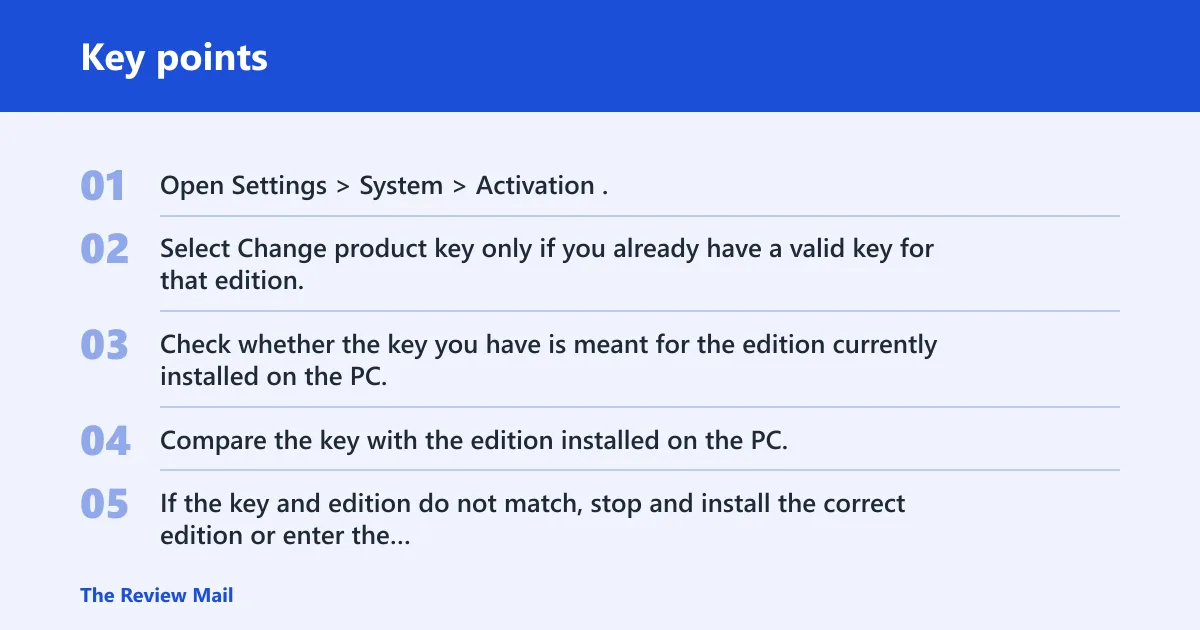
- Open Settings > System > Activation.
- Select Change product key only if you already have a valid key for that edition.
- Check whether the key you have is meant for the edition currently installed on the PC.
- Compare the key with the edition installed on the PC.
- If the key and edition do not match, stop and install the correct edition or enter the correct edition key instead of forcing activation.
The embedded key may be the right answer on an OEM laptop, but it is not a universal fix. Retail and enterprise devices follow different licensing paths.
Did a hardware change break activation?
A significant hardware change can trigger a new activation failure, especially after a motherboard replacement. If that is the recent change, Windows may no longer find the saved license and the device may need to be reactivated.
- Open Settings > System > Activation and confirm the error started after the hardware change.
- Sign in with the same Microsoft account used before the change if prompted.
- Select Troubleshoot on the Activation page.
- Follow the reactivation prompts that appear.
- If the device is a work PC, ask IT whether it uses enterprise activation before trying a consumer license.
A common mistake is replacing a motherboard and then installing a new key immediately. If the old digital license is still eligible for reactivation, the Microsoft account path may solve it without buying anything.
Need the exact evidence support will ask for?
Collect the activation page details before you contact support or IT. The useful evidence is the current edition, the activation state, the license channel or device type, and whether the code changed after troubleshooting. That makes it much easier to tell whether you have an OEM, retail, or enterprise problem.
- Windows edition: Home, Pro, or another edition shown in Activation settings.
- Activation state: activated, not activated, or blocked by an error code.
- License channel or device type: OEM device, retail install, or enterprise-managed PC.
- Error-code history: the original code and any new code after troubleshooting.
If you need a quick status check, open a Command Prompt and run slmgr /xpr. For entering a known-good key, use slmgr /ipk <key>, then slmgr /ato to try activation again. Use those only after you have confirmed the edition and licensing path.
Frequently asked questions
Why is Windows telling me to activate again?
That usually means Windows no longer sees a valid match for the current install. A recent reinstall, a different edition, a key that does not match, or a major hardware change can all trigger it. Start on the Activation page and compare the installed edition with the license path you expect.
Does 0xc0ea000a mean my product key is wrong?
Not always. The error can also appear when the installed edition does not match the license or when the device’s activation state changed after hardware work. Check the edition first, then use Change product key only with a key that belongs to that edition.
Can a Windows edition mismatch cause activation failure?
Yes. If the PC has the wrong edition installed, activation can fail even with a valid license. Check Settings > System > Activation, compare the edition with your license, and reinstall the correct edition if they do not line up.
What should I check before buying a new Windows license?
Check the installed edition, the current activation state, and whether the device is OEM, retail, or enterprise-managed. Also confirm whether a hardware change or a different edition caused the problem. Buying a new key before those checks can waste money on the wrong channel.
Where can I find the OEM product key on my PC?
On many OEM systems, the key may be stored in firmware and used automatically during activation. If activation fails, compare the installed edition with the license on the device before making changes. If the device does not show a key, it may rely on a digital license or a different activation method.