FLTMGR_FILE_SYSTEM BSOD Fix for Windows 11 Fast Steps
For a FLTMGR_FILE_SYSTEM BSOD on Windows 11, start by looking at the bug check parameter because Parameter 1 indicates the type of violation. The bug check value is 0x000000F5 and it indicates an unrecoverable failure occurred in the Filter Manager.
Ignore the crash timing and you can waste hours on the wrong repair, lose access to Windows, or risk data loss if the underlying issue is a storage driver, volume problem, or failing drive.
This guide shows the quickest first check for each scenario, plus the next step when Safe Mode, updates, or disk checks do not stop the crash.
What FLTMGR_FILE_SYSTEM means on Windows 11
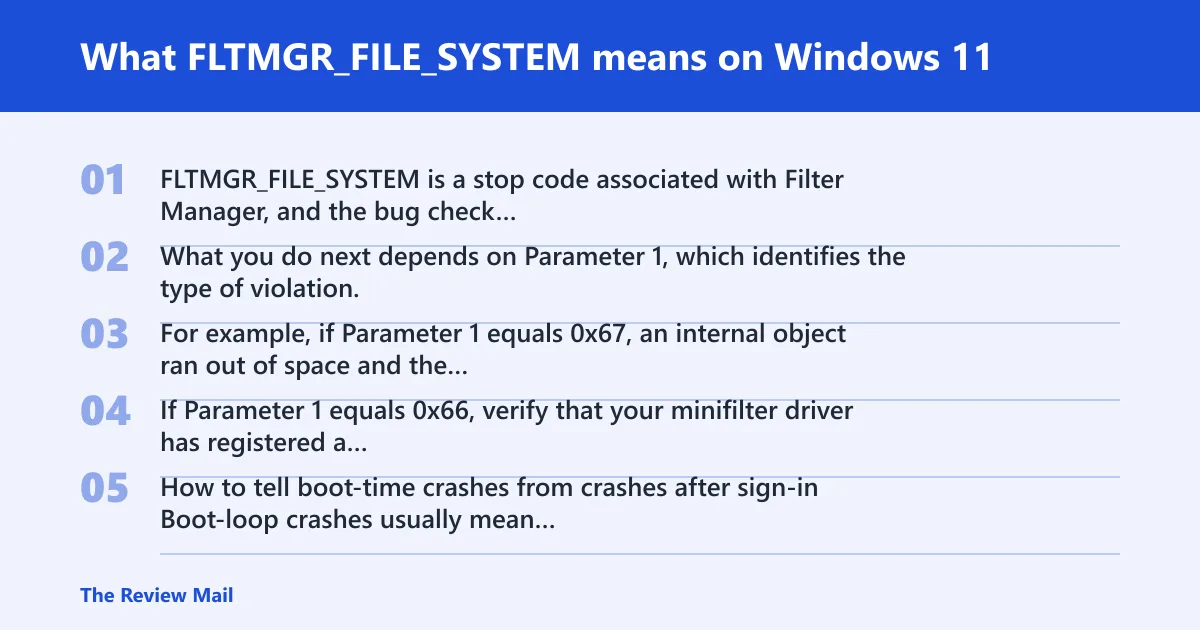
FLTMGR_FILE_SYSTEM is a stop code associated with Filter Manager, and the bug check value is 0x000000F5.
What you do next depends on Parameter 1, which identifies the type of violation. For example, if Parameter 1 equals 0x67, an internal object ran out of space and the system cannot allocate new space. If Parameter 1 equals 0x66, verify that your minifilter driver has registered a post-operation callback for the operation.
How to tell boot-time crashes from crashes after sign-in
Boot-loop crashes usually mean Windows fails before user apps load, so start with recovery options, disk checks, and boot repair. Crashes after sign-in more often point to a driver, external device, or system file issue that shows up once the desktop is active.
What recent changes matter most
Check what changed most recently: a storage driver, security filter, firmware update, external SSD, or Windows update. If the crash began right after one of those changes, undoing that change is often the fastest safe step before broader repairs.
According to Blue Screen Error Archives – Driver Easy — Driver Easy has a Windows 11/10 BSOD article for ntoskrnl.exe.
What is most likely causing the crash?
Common causes include a storage driver, a filter driver, or volume metadata damage. In some cases, the issue is tied to a specific Parameter 1 value rather than a general storage failure, so checking that value helps narrow the next repair.
Storage drivers and filter drivers
NVMe, SATA, chipset, encryption, backup, and security drivers all sit between Windows and disk. If one was installed, updated, or removed recently, it can trigger the crash the next time Windows reads or writes affected volumes.
File-system or disk corruption
Corruption can affect volume metadata, not just user files. That is why CHKDSK is often worth trying when the crash happens at boot or after an unsafe shutdown.
Windows file damage
If protected Windows files are damaged, SFC and DISM can help repair them. These tools are useful when Windows loads far enough to open a terminal.
RAM or memory-related faults
If disk repairs do not change anything, test memory as well. A memory fault can contribute to repeated crashes even when the visible symptoms look storage-related, and a separate Memory Management stop code may appear in other cases.
Can a bad driver cause FLTMGR_FILE_SYSTEM on Windows 11?
Yes. A bad storage, filter, or security driver can cause this stop code, especially after a driver update or new device. Start in Safe Mode if Windows will still load, then remove the most recent storage-related change.
- Go to Settings > System > Recovery > Advanced startup > Restart now, then choose Troubleshoot > Advanced options > Startup Settings and boot into Safe Mode.
- Open Device Manager, expand Storage controllers, Disk drives, and IDE ATA/ATAPI controllers, then use Properties > Driver to Roll Back Driver or Uninstall device.
- Disconnect external drives, USB storage, and docks, then test again.
- Check the PC maker’s support page for the chipset, NVMe, SATA, and storage controller driver that matches your exact model.
- If Parameter 1 equals 0x66, verify that your minifilter driver has registered a post-operation callback for the operation.
Should you run CHKDSK, SFC, or DISM first?
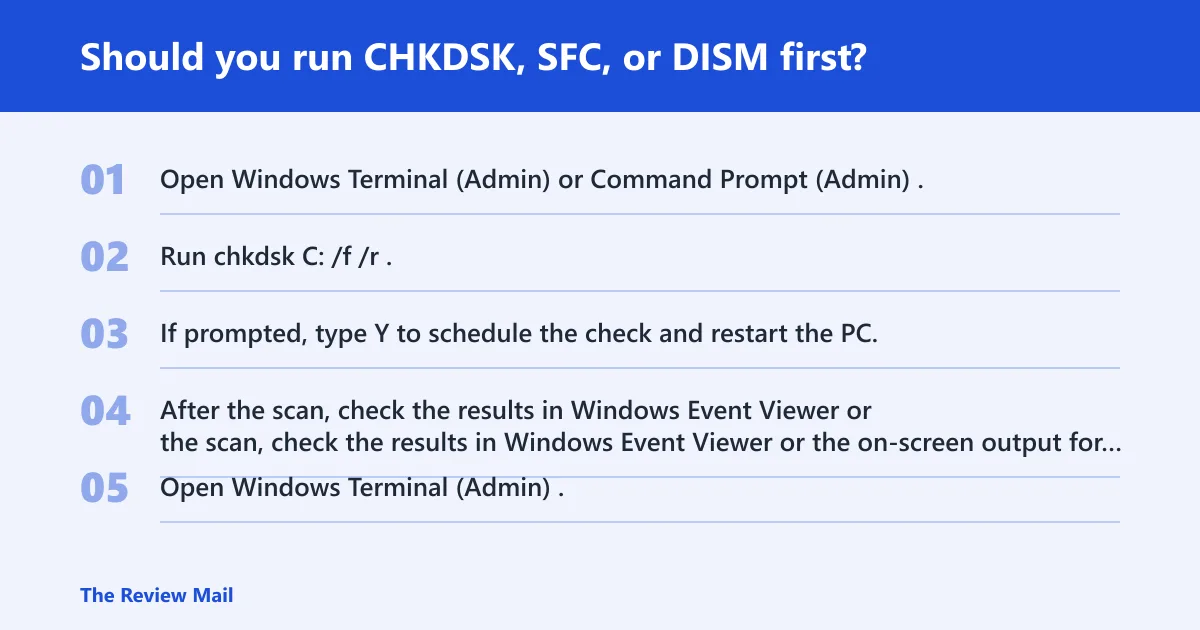
Run CHKDSK first when the crash follows disk activity, an unsafe shutdown, or a boot failure that points to the volume itself. Run SFC and DISM first when Windows loads far enough to open a terminal and the crash looks tied to damaged Windows files rather than disk metadata.
When CHKDSK is the right first repair
- Open Windows Terminal (Admin) or Command Prompt (Admin).
- Run
chkdskC: /f /r. - If prompted, type Y to schedule the check and restart the PC.
- After the scan, check the results in Windows Event Viewer or the on-screen output for repaired file-system errors or bad sectors.
When SFC and DISM are better than disk checks
- Open Windows Terminal (Admin).
- Run
sfc /scannow. - If SFC reports unrepaired files, run
DISM /Online /Cleanup-Image /RestoreHealth. - Re-run
sfc /scannowafter DISM finishes.
If you want the order in one line, use this sequence:
sfc /scannow
DISM /Online /Cleanup-Image /RestoreHealth
chkdsk C: /f /r
SFC repairs protected Windows files. DISM repairs the Windows image that SFC uses. CHKDSK checks the volume itself. None of them is a universal fix, so the result matters more than the run itself.
Use this symptom-to-fix decision table
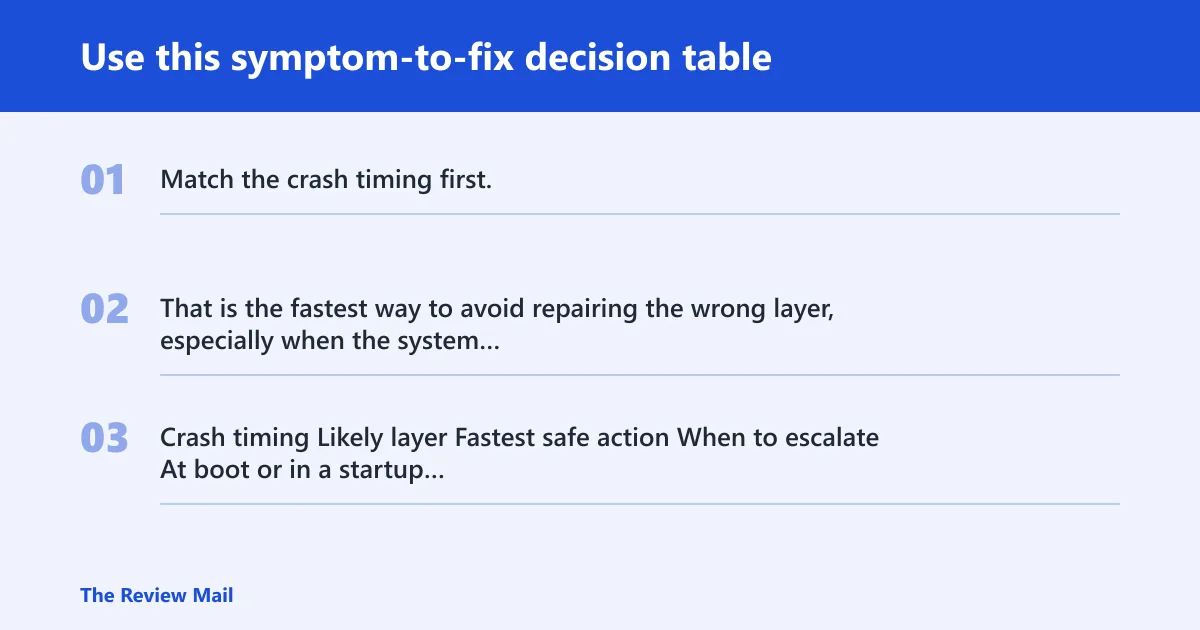
Match the crash timing first. That is the fastest way to avoid repairing the wrong layer, especially when the system still boots but the error returns only under a certain workload.
| Crash timing | Likely layer | Fastest safe action | When to escalate |
|---|---|---|---|
| At boot or in a startup loop | Storage driver, volume metadata, boot files | Safe Mode, then CHKDSK and driver rollback | If Windows still cannot boot after repair, move to System Restore or recovery options |
| Right after sign-in | Driver, security filter, recent update | Safe Mode, uninstall the last storage or security change | If the crash returns in Safe Mode too, use System Restore or a repair install |
| Random use during file copies or external drive access | Storage driver, failing SSD, file-system damage | Disconnect external devices, run CHKDSK, check storage drivers | If CHKDSK reports errors again, back up data first and inspect the drive |
| After Windows Update or a driver update | Windows files or filter driver | System Restore, then SFC and DISM | If no restore point exists, repair install or Reset this PC becomes the next step |
| Repeated crashes with no clear disk symptom | RAM or broader corruption | Windows Memory Diagnostic or memtest86 | If memory passes, check the SSD or volume metadata next |
Should you use System Restore or Reset this PC?
Use System Restore when the crash began after a driver, firmware, or Windows update and a restore point exists. Use Reset this PC only after you have copied important files off the machine, because it is a later step when driver rollback, CHKDSK, SFC, and DISM do not stop the loop.
- Open Control Panel > Recovery > Open System Restore if a restore point is available, or use WinRE > Advanced options > System Restore from recovery media.
- If not, choose Reset this PC only after copying important files off the machine.
- If the PC will not stay up long enough to do that, use recovery media or another PC for backup-first recovery.
Windows 11 Home and Pro both include recovery paths, though Pro editions may offer more control in managed environments. The general logic is the same on both.
Still blue screening after the basic fixes?
If Safe Mode, driver rollback, CHKDSK, SFC, and DISM do not change the crash, stop treating it as a simple software fault. At that point, test RAM and inspect the SSD health through the PC maker’s tools.
- Run Windows Memory Diagnostic from the Start menu, or boot memtest86 if you need a deeper pass.
- If memory passes, the SSD or volume metadata may still be suspect.
- Back up files before another repair cycle if Windows can still boot.
- Use a repair install if you need to keep apps and data while replacing damaged Windows components.
That is also where broader corruption can become the issue. If the crashes spread beyond storage activity, or the system changes from storage errors to wider symptoms, the next step is not another disk scan.
Prevention: keep storage, chipset, and security filter drivers current from the PC maker, and avoid interrupting disk or update operations once they start.
Frequently asked questions
How do I fix FLTMGR_FILE_SYSTEM BSOD in Windows 11?
Start with Safe Mode, remove the last storage-related driver change, then run chkdsk C: /f /r and sfc /scannow. If the crash began after an update, use System Restore first. If Windows still loops, back up files and move to a repair install.
What causes FLTMGR_FILE_SYSTEM blue screen on startup?
Startup crashes often point to a storage driver, volume metadata damage, or boot-file repair needs. If Windows reaches Startup Settings, use Safe Mode first, then CHKDSK. If it does not, go straight to recovery options and a restore point if one exists.
Should I run Safe Mode, SFC, or CHKDSK for FLTMGR_FILE_SYSTEM?
Use Safe Mode first if Windows still boots, because it helps isolate a third-party driver. Then choose CHKDSK for boot or disk symptoms, and sfc /scannow plus DISM /Online /Cleanup-Image /RestoreHealth when the problem looks like damaged Windows files.
Is FLTMGR_FILE_SYSTEM a storage or memory problem?
It is usually a storage-stack problem, but RAM can still be involved when corruption keeps returning after disk repairs. If CHKDSK, SFC, and DISM do not help, run Windows Memory Diagnostic or memtest86 before replacing the SSD.
What do I do if Windows 11 keeps blue screening after an update?
Use System Restore if a restore point exists. If not, boot Safe Mode, remove the newest storage or security driver, then run sfc /scannow and DISM /Online /Cleanup-Image /RestoreHealth. If the loop stays, back up data first.
When should I use System Restore or Reset this PC for BSODs?
Use System Restore when a recent update or driver change started the crash. Use Reset this PC when repair tools fail, no restore point exists, and you have already saved important files. Resetting is a later step, not the first one.