Nmi Hardware Failure Windows 11
If you see NMI_HARDWARE_FAILURE on Windows 11, stop normal troubleshooting and isolate the last hardware or firmware change first. If the crash repeats after one reset, suspect RAM, BIOS settings, storage, or a new device. Ignoring that pattern can corrupt data, waste time on software fixes, and let a failing part keep damaging boot stability. This guide shows the fastest checks, what to remove or swap, and when to stop and test hardware instead of Windows 11.
What the blue screen means
NMI_HARDWARE_FAILURE is a Windows bug check with value 0x00000080. Microsoft documents that this stop code is tied to a Non-Maskable Interrupt, can produce a memory dump file, and may restart automatically depending on Startup and Recovery settings. Microsoft Learn Microsoft Learn
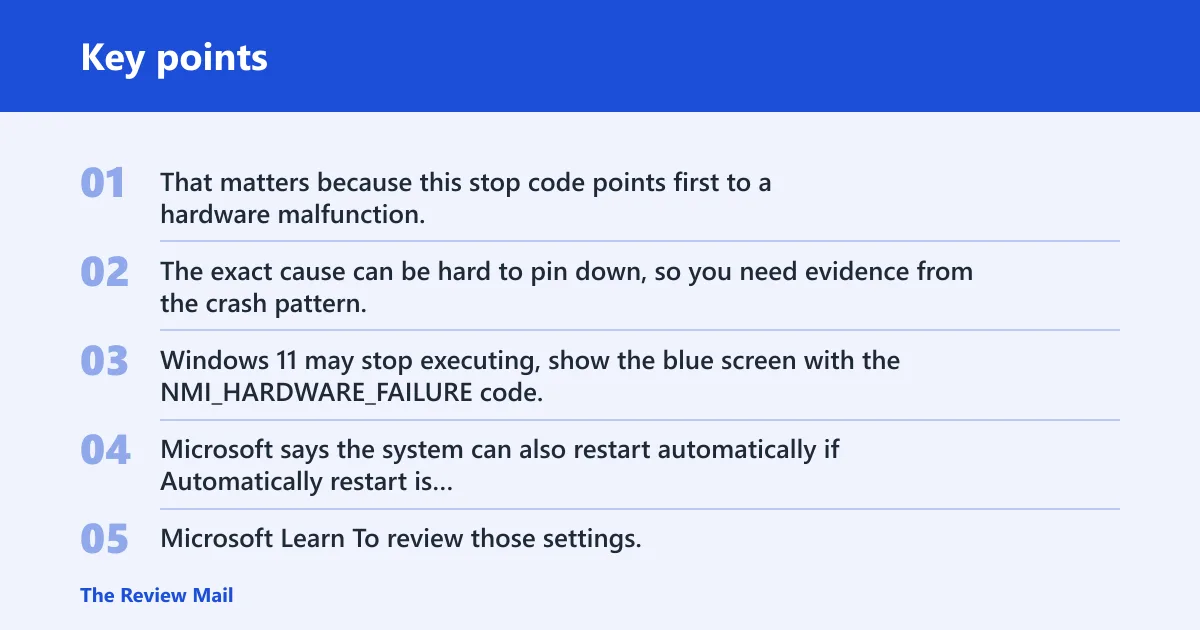
That matters because this stop code points first to a hardware malfunction, not a routine software crash. The exact cause can be hard to pin down, so you need evidence from the crash pattern, the dump file, and any recent change.
What Windows does after the crash
Windows 11 may stop executing, show the blue screen with the NMI_HARDWARE_FAILURE code, and save a memory dump file for later analysis. Microsoft says the system can also restart automatically if Automatically restart is enabled in Startup and Recovery, which can hide the stop screen before you read it. Microsoft Learn
To review those settings, open Settings > System > About > Advanced system settings, then under Startup and Recovery choose Settings. Clear Automatically restart if you need time to read the stop screen, and keep the dump setting enabled so diagnosis is possible. Microsoft Learn
Could the NMI switch be involved?
On some servers and older workstations, an NMI switch is a physical hardware/debug feature used by administrators to force a non-maskable interrupt for diagnostics or crash capture. Accidental triggering is rare on consumer PCs because most desktops and laptops do not expose that control. Suspect it only if the machine has unusual server-style hardware, a chassis NMI button, or a service access panel that could be pressed inadvertently.
Nmi crash patterns that point to hardware
The crash pattern tells you where to look first. If the system fails at boot, under load, or immediately after a device, BIOS, or memory change, hardware rises to the top. Driver-only fixes are lower on the list when the machine cannot stay up long enough for Windows to load normally.
Say your desktop boots into Windows and then hard-crashes the moment a game starts compiling shaders. That points more toward load, power, temperature, or memory stability than a random printer driver. A common first-timer mistake is to spend an hour updating display software before checking whether XMP or a new GPU power cable changed the system state.
Nmi hardware failure triage table
| Symptom pattern | Most likely cause | Fastest verification step | Safest next action | Can you keep using the PC? |
|---|---|---|---|---|
| Crash at boot | RAM instability, storage fault, or BIOS setting change | Enter BIOS and load defaults; note whether the crash happens before Windows starts | Remove recent hardware changes and test memory modules one at a time | No. Stop booting repeatedly and isolate hardware immediately. |
| Crash under gaming or heavy load | Overheating, unstable power, or aggressive memory tuning | Check CPU and GPU temperatures in firmware or vendor tools; disable XMP/EXPO | Return BIOS settings to stock and retest under the same workload | Maybe briefly, but back up data and avoid heavy load until stable. |
| Crash after a new peripheral | Recently added device or driver | Disconnect the device and see whether the crash stops | Remove the device from Device Manager or roll back its driver | Yes, if the machine is otherwise stable; remove the new device first. |
| Crash after BIOS, XMP, or EXPO changes | Memory training or firmware instability | Disable XMP/EXPO and return to default memory speed | Update BIOS or revert the setting that changed first | No, not until the machine is back at stock settings and stable. |
| Repeated crashes with no recent changes | Hardware malfunction that is harder to isolate | Check the dump file and run memory testing | Test or replace the most suspect component first | No. Treat it as a hardware fault and stop normal use until diagnosed. |
Could a new device or driver be the trigger?
Yes. Microsoft specifically recommends removing recently installed hardware or drivers first. That is the fastest branch when the crash began right after a peripheral, add-in card, USB dock, storage adapter, or new driver was introduced. If nothing changed recently, move past this section and focus on memory and firmware.
- Unplug all external devices except the keyboard, mouse, and display, then reboot.
- Open Device Manager, expand the relevant category, and look for the newest hardware or driver.
- Right-click the device and choose Properties > Driver > Roll Back Driver if the option exists.
- If rollback is unavailable, choose Uninstall device, then reboot.
- For desktops with add-in cards, power off, reseat the card, and retest one change at a time.
Suppose a Wi‑Fi adapter was added the day before the crash began, and the blue screen returns before login. Remove that adapter or roll back its driver before you reinstall Windows. If the system stabilizes, the cause was probably the recent device path, not a generic Windows 11 fault.
Is RAM or memory training the problem?
Often, yes. Microsoft notes that memory modules should be the same type, and unstable or mismatched RAM can trigger hardware faults that surface as this stop code. If the machine uses two sticks, XMP, or EXPO, memory is one of the first parts to isolate because it can fail before Windows fully loads.
Before you move to deeper repair steps, use a quick memory-focused check from our Windows Memory Diagnostic guide and, if you can still boot, compare the result with what a RAM-related crash pattern looks like. If the system is already unstable, keep the test simple and avoid adding more variables.
- Shut down, unplug power, and reseat the memory modules.
- Check that the modules match in type, capacity, and speed, and use the same kit where possible.
- Enter BIOS and disable XMP or EXPO before the next boot.
- Run Windows Memory Diagnostic from the Start menu, or test with memtest86 if Windows stays unstable.
- If the crash continues, test one stick at a time in the same slot.
Should I reseat RAM for NMI hardware failure? Yes, because a loose stick or a module that fails only under training can trigger repeated blue screens. If a single stick is stable by itself and the pair is not, the issue may be the module combination, not the operating system.
Could firmware, XMP, or overheating be causing it?
Yes. A firmware change, aggressive memory profile, or thermal problem can all look like a hardware malfunction. If the crash started after a BIOS update, XMP, or EXPO change, return the machine to stock settings before you chase drivers. Check temperatures as part of the same pass.
If you are unsure where to start, use a quick BIOS reset/defaults checklist before you make any other changes. That keeps memory training, overclocking, and vendor tweaks from masking the real cause, especially when the stop code appears during boot or right after POST.
- Enter BIOS setup and choose the default settings option.
- Disable overclocking, XMP, or EXPO.
- Check CPU and GPU temperatures with vendor monitoring tools or within Windows.
- If the vendor offers a newer BIOS or firmware that addresses stability, update it after the system is back at stock settings.
- Retest under the same workload that caused the crash.
Do I need to update BIOS for nmi hardware failure windows 11? Sometimes, but not before you remove unstable settings. If the machine crashes after XMP or EXPO was enabled, the faster test is to disable that profile first. BIOS updates are useful when the board vendor documents stability fixes, especially for memory compatibility.
What if Windows will not boot normally?
Use the boot path that keeps the evidence. If Windows 11 cannot start far enough to troubleshoot, rely on Startup and Recovery settings, the dump file, and a limited Safe Mode pass. Safe Mode is useful for removing software noise, but it is not a substitute for hardware isolation.
For a safer recovery pass, review our Safe Mode guide before you make changes that could hide the crash pattern. If Windows can boot even briefly, use that chance to preserve the dump file and avoid forcing a full reinstall before the hardware path is checked.
- In Windows, confirm that Startup and Recovery is set to save a memory dump and avoid instant restart.
- After the crash, look for the dump file in
C:\Windows\Minidumpor the full memory dump location set in Recovery settings. - Open a Command Prompt from recovery media and run
sfc /scannow/offbootdir=C:\ /offwindir=C:\Windows if Windows can boot into Safe Mode. - If Safe Mode is available, use it only to remove the last driver or device software, then reboot normally.
- If the machine still fails before login, stop software repairs and test the hardware path.
The debugger extension !analyze in WinDbg is useful here because it can inspect the bug check details in the dump file and help narrow the root cause. That does not guarantee a single answer, but it often shows which subsystem triggered the stop. The dump is more useful than guessing from the screen alone. If the code points at memory corruption, the next step is often a deeper review of the dump in a BSOD dump analysis guide.
Likely causes, in order
Start with the last change, then move to memory and firmware, then to deeper component testing. A hardware malfunction is the core category, and the exact cause can be difficult to determine, so a short, ordered process is better than trying every repair at once. If the system keeps crashing, treat it as a hardware problem until proven otherwise.
- Recent hardware or driver change: remove the new device, use Device Manager to roll back the driver, and reboot.
- Memory instability: reseat the modules, confirm they match, and test one stick at a time.
- Firmware or memory profile instability: reset BIOS settings and disable XMP or EXPO.
- Thermal or power stress: check temperatures and retest under a lighter load.
- Deeper hardware fault: inspect the dump file with !analyze in WinDbg and test suspect components one by one.
One practical distinction helps. If the crash begins immediately after a USB dock, graphics card, or storage controller is added, the device path is plausible. If it happens on every boot with no recent change, the odds shift toward a failing part or unstable memory rather than a single driver.
Still not working?
If the blue screen keeps returning after you remove recent hardware, reset BIOS, and test memory, escalate to component isolation. That means trying the machine with the minimum supported hardware, swapping known-good RAM if available, and contacting the system or motherboard vendor if the crash persists. If you have a laptop, vendor service is often the next sane step.
Use the dump file, the crash pattern, and the last change to decide whether the next move is a driver rollback or a hardware test. For recurring crashes with no recent change, do not keep rebooting blindly; that can hide the pattern and make diagnosis slower.
Prevention: keep BIOS settings at stock unless a specific setting is needed, and add new hardware one part at a time so the next crash has a clear cause.
Frequently asked questions
What is NMI hardware failure?
It is a blue-screen stop tied to a Non-Maskable Interrupt and code 0x00000080. Windows 11 can save a memory dump file and then reboot depending on Startup and Recovery settings. The key takeaway is that Microsoft treats it as a hardware malfunction bug check, not a routine software error.
What does stop code 0x00000080 mean?
It identifies the NMI_HARDWARE_FAILURE bug check. If you can still reach the desktop, check Settings > System > About > Advanced system settings > Startup and Recovery so the next crash saves a dump file. That file is more useful than the blue screen alone for root-cause analysis.
Is NMI_HARDWARE_FAILURE a hardware or driver problem?
Start with hardware. Microsoft lists it as a hardware malfunction bug check, but a recently installed driver or device can still be the trigger. The practical split is simple: if the crash began after a new device, use Device Manager first; if not, test RAM and firmware settings first.
Should I reseat RAM for NMI hardware failure?
Yes. Reseat the modules, confirm they are the same type, and test one stick at a time if the system still crashes. If XMP or EXPO is enabled, disable it before the next test. That keeps you from chasing a memory profile problem as if it were a Windows 11 bug.
Why does NMI_HARDWARE_FAILURE keep happening on Windows 11?
Repeated crashes usually mean the underlying fault is still present: unstable RAM, a bad device, an overclocked memory profile, or a deeper hardware malfunction. If there were no recent changes, move straight to dump analysis, memory testing, and stock BIOS settings rather than repeating driver installs.