Dns Is Not Responding Fix
To fix “DNS is not responding,” test about three levels in order: one browser, then one device, then one router; if all fail, the issue is often the ISP. Skipping the wrong layer wastes time and can leave you changing settings that do nothing. This error means the device cannot turn a website name into an IP address, so the browser never reaches the site. This guide shows how to separate browser-only, device-only, router-wide, and ISP-wide DNS failures, then apply the right fix.
What the DNS error means
The DNS server doing the lookup may be your ISP resolver, your router resolver, or a public resolver. It may be unavailable, misconfigured, or blocked. (Wikihow)
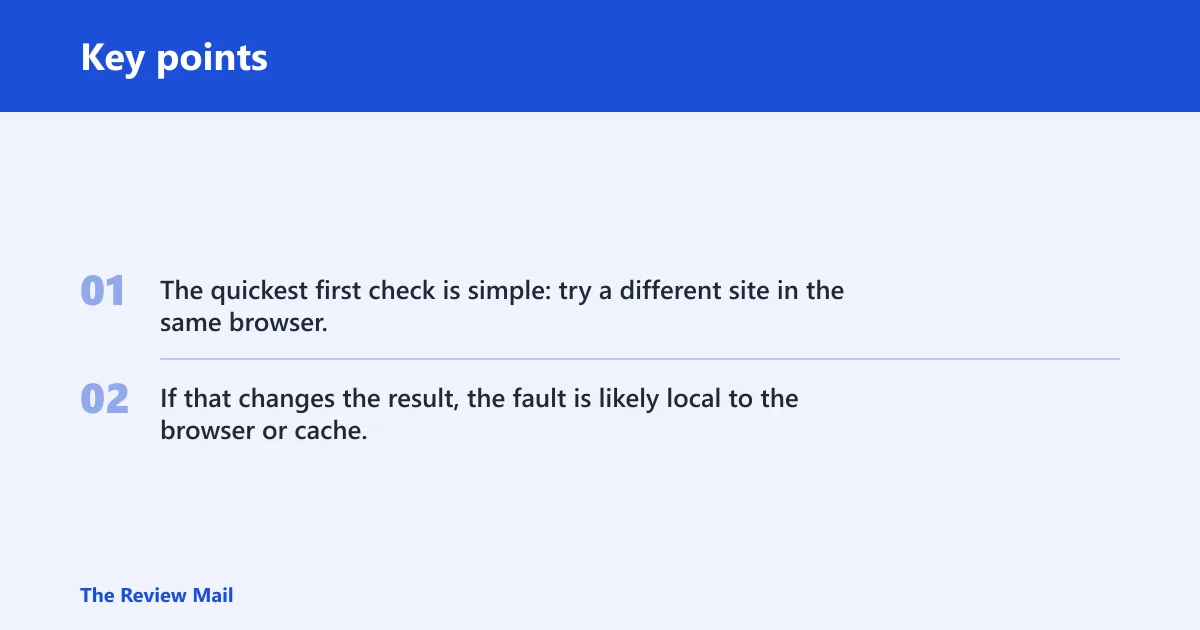
The quickest first check is simple: try a different site in the same browser, then try the same site in a different browser. If that changes the result, the fault is likely local to the browser or cache, not the whole network.
DNS failure triage
| Symptom | Likely failure layer | Fastest test | Safest fix |
|---|---|---|---|
| One site fails, others load | Browser cache, extension, or the site’s DNS record | Open the same site in another browser | Clear browser cache, then retry |
| All sites fail on one browser only | Browser-only setting or extension | Open a second browser | Disable extensions and clear browser cache |
| Only one device fails on the network | Device DNS cache, adapter, or Windows settings | Try the same site on another device | Flush DNS, run Windows troubleshooting, then check the adapter |
| Wi-Fi connects but browsing fails | DNS lookup path, router, or resolver | Open a known site and test another device on Wi-Fi | Restart the router and test a public DNS resolver |
| VPN only: sites fail when the VPN is on | VPN DNS handling | Turn the VPN off and retry the same site | Leave VPN off for testing, then adjust its DNS settings |
| Ethernet only: Wi-Fi works but wired browsing fails | Adapter, driver, or wired profile | Switch the same device to Wi-Fi | Update or reinstall the Ethernet driver |
What causes DNS errors most often?
Most DNS failures come from stale or corrupt DNS cache, a router that cannot reach its DNS servers, VPN or proxy interference, or a Windows adapter or driver problem. Less commonly, the ISP resolver is down or blocked. Say your laptop opens email but every site times out; that often points to lookup failure, not a broken browser.
A common first-timer mistake is switching DNS settings before checking whether the fault is only on one device. Picture a desktop on Ethernet that fails while a phone on Wi-Fi loads pages normally. That points away from an ISP-wide outage and toward the desktop’s adapter, driver, or local cache.
Fix browser-only DNS failures
If only one browser fails, treat it as a browser-layer problem first. Cache, extensions, proxy settings, or a corrupted session can block name lookups even when the rest of Windows is fine.
- Open another browser and visit the same site, then a second site such as a well-known homepage.
- Clear the browser cache for the problem browser, then close and reopen it before retrying the same domain.
- Check the browser’s proxy settings and disable any extension that changes network or privacy behavior.
- If the site still fails, open a private window and test the same page again to rule out stored session data.
Fix device-only DNS failures
If the same network works on another device, focus on the Windows machine. DNS cache can become stale or corrupt, and Windows includes the DNS Client service on client versions. Windows network troubleshooting can also surface DNS-specific errors.
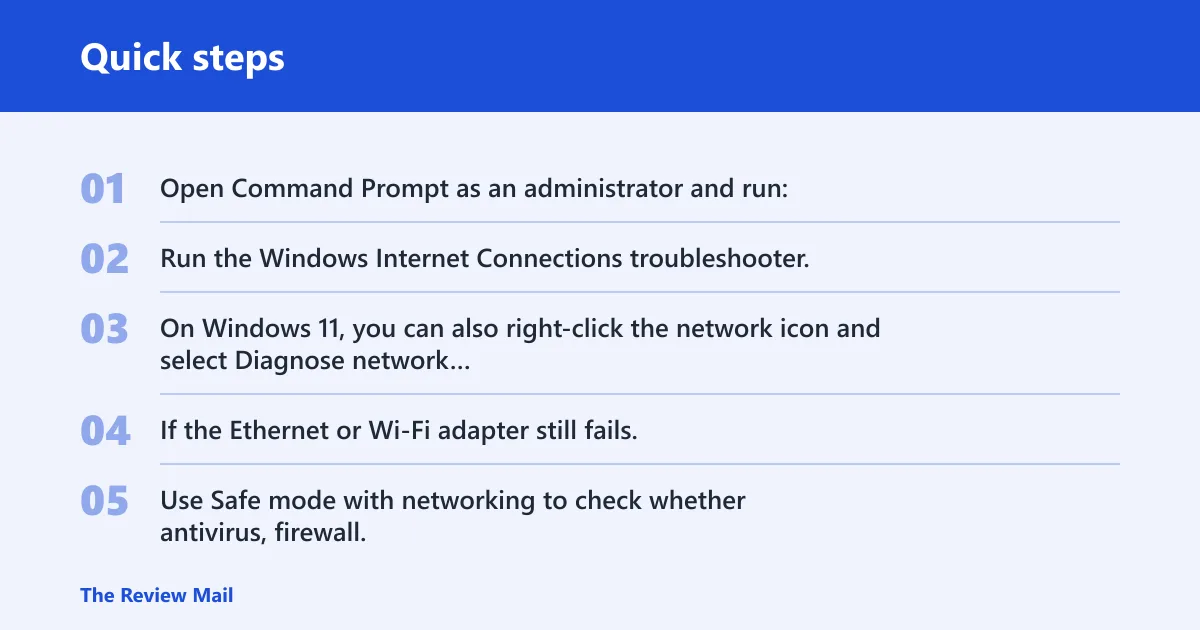
- Open Command Prompt as an administrator and run:
ipconfig /flushdns
- Run the Windows Internet Connections troubleshooter. On Windows 11, use Settings > System > Troubleshoot > Other troubleshooters. On Windows 10, use Settings > Update & Security > Troubleshoot > Additional troubleshooters.
- On Windows 11, you can also right-click the network icon and select Diagnose network problems.
- If the Ethernet or Wi-Fi adapter still fails, update or reinstall the network adapter driver in Device Manager > Network adapters.
- Use Safe mode with networking to check whether antivirus, firewall, or another security tool is interfering.
ipconfig /release
ipconfig /flushdns
ipconfig /renew
netsh winsock reset
netsh int ip reset
Fix network-wide DNS failures
If every device on the same home network fails, the router or modem is a stronger suspect than the computer. How-To Geek recommends restarting the router when it may be causing DNS failures. That will not help if the outage is upstream, but it is the quickest safe network-wide reset.
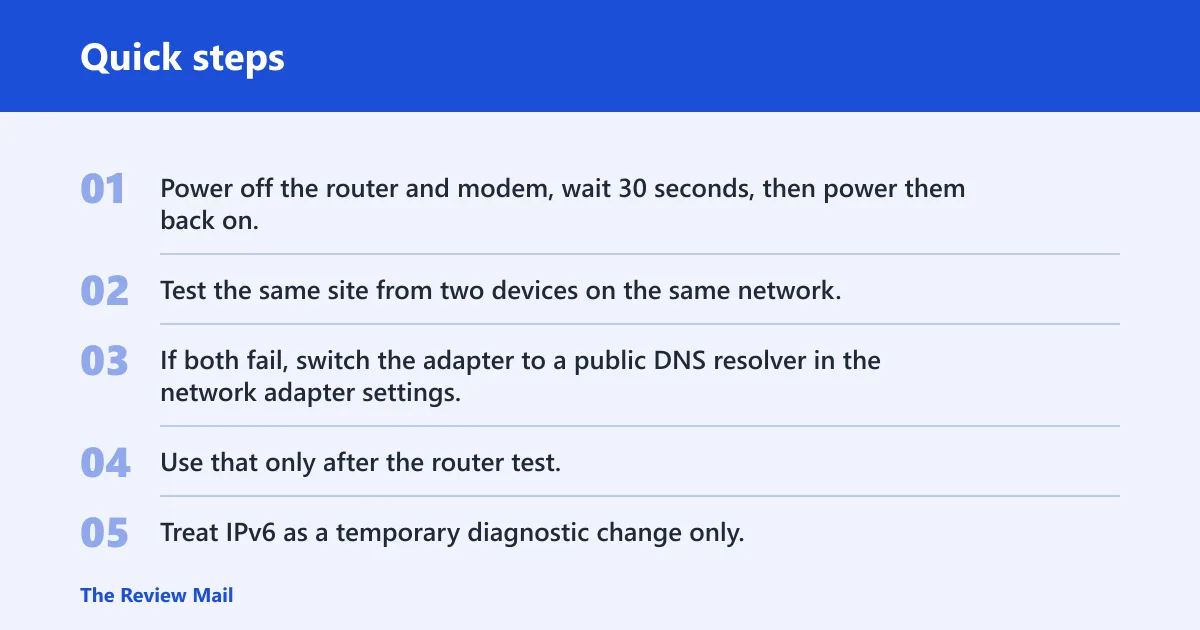
- Power off the router and modem, wait 30 seconds, then power them back on.
- Test the same site from two devices on the same network.
- If both fail, switch the adapter to a public DNS resolver in the network adapter settings.
- Use that only after the router test. It is the wrong first step for captive portals, enterprise networks, or an ISP outage.
- Treat IPv6 as a temporary diagnostic change only. Disable it on the adapter, test once, then turn it back on if it changes nothing.
What DNS server should you switch to?
If your default resolver is failing, a public DNS resolver can help. Use it in the adapter settings, not as a blanket repair for every outage. If the problem is the router, the ISP, or a blocked network with special DNS rules, changing the resolver may do nothing or may break sign-in flows on a managed network.
- Open Settings > Network & internet > Advanced network settings.
- Select your active adapter, then open its DNS settings or IPv4 properties.
- Enter a public resolver offered by a reputable provider, then save.
- Retry the same site and a second site from a fresh browser session.
Still not working?
If the same failure survives browser checks, device checks, router power cycling, and a public resolver test, separate home-network trouble from ISP trouble by using a different network. If the device works elsewhere, the home network still needs attention. If it fails everywhere, the device settings are the last layer to revisit.
- Connect the device to a phone hotspot or another known-good network and retry the same domain.
- If it works there, reset network settings in Settings > Network & internet > Advanced network settings > Network reset.
- If every device still fails on the home connection, contact the ISP and mention DNS lookup failure on multiple devices.
- If only one Windows device fails everywhere, reinstall the adapter driver or ask for vendor support for the network hardware.
Frequently asked questions
What does dns not responding mean?
Start with a second browser, then a second device, then a router reboot. That order separates browser-only trouble from a device fault and a network-wide failure without changing settings you do not need.
Why is my dns not responding?
Most often the cause is a stale DNS cache, a router that cannot reach its DNS server, a VPN or proxy changing lookup traffic, or a Windows adapter issue. Less often the ISP resolver is down. Test the same site on another device before changing DNS settings, because that tells you which layer is failing.
How do I fix dns server is not responding on Windows 11?
Use Settings > System > Troubleshoot > Other troubleshooters and run Internet Connections first. Then open Command Prompt as administrator and run ipconfig /flushdns. If the problem stays on one PC, check Device Manager > Network adapters, and then reinstall the adapter driver if needed.
How do I fix dns server is not responding on Windows 10?
Open Settings > Update & Security > Troubleshoot > Additional troubleshooters, then run Internet Connections. If that fails, use Command Prompt as administrator and run ipconfig /flushdns. On Windows 10, the same troubleshooting logic applies, but the menu path is different.
Should I restart my router when dns is not responding?
Yes, if the failure affects more than one device on the same network. Power cycling the router and modem can clear a temporary path to the DNS server. It will not help an ISP-wide outage or a browser-only problem, so verify the scope before you wait for a reboot to finish.
Does flushing the dns cache help?
It helps when a device keeps a stale or corrupt lookup result. Run ipconfig /flushdns in an elevated Command Prompt, then retry the same site in a fresh browser window. If one browser still fails, clear that browser’s cache too, because some name lookups are tied to stored browser data.
Should I disable vpn if dns is not responding?
Yes, for testing. A VPN can redirect traffic through a third-party server and break DNS resolution. Turn it off, retry the same site, and then decide whether the VPN needs a DNS setting change. If the site works with the VPN off, the VPN is part of the failure path.
How do I know if the problem is my device or the network?
Check one other device on the same connection, then try a different network such as a hotspot. If only one device fails, the fault is local to that device. If every device fails at home but works on another network, the home router, modem, or ISP is the likely layer to fix.
Can antivirus or ipv6 cause dns errors?
Yes, either can interfere. Use Safe mode with networking to test whether antivirus or firewall software is involved, then disable IPv6 only as a diagnostic step, not as the default fix. If IPv6 changes nothing, turn it back on and continue with adapter or router checks.