Scan Windows 11 Pc Problems
To scan Windows 11 PC problems, use one of three paths: run System File Checker and DISM for Windows integrity, use a built-in troubleshooter for a Windows setting or hardware fault, or fix the scanner or printer driver if the problem is tied to one device. Using the wrong path wastes time and can leave corrupted files, broken settings, or a nonworking scanner in place.
What “scan” means here
When people search for scan Windows 11 PC problems, they usually mean one of three things. The issue may be damaged Windows files, a built-in troubleshooter for a specific feature, or a physical scanner or printer that will not respond. Start by matching the symptom to the right path.
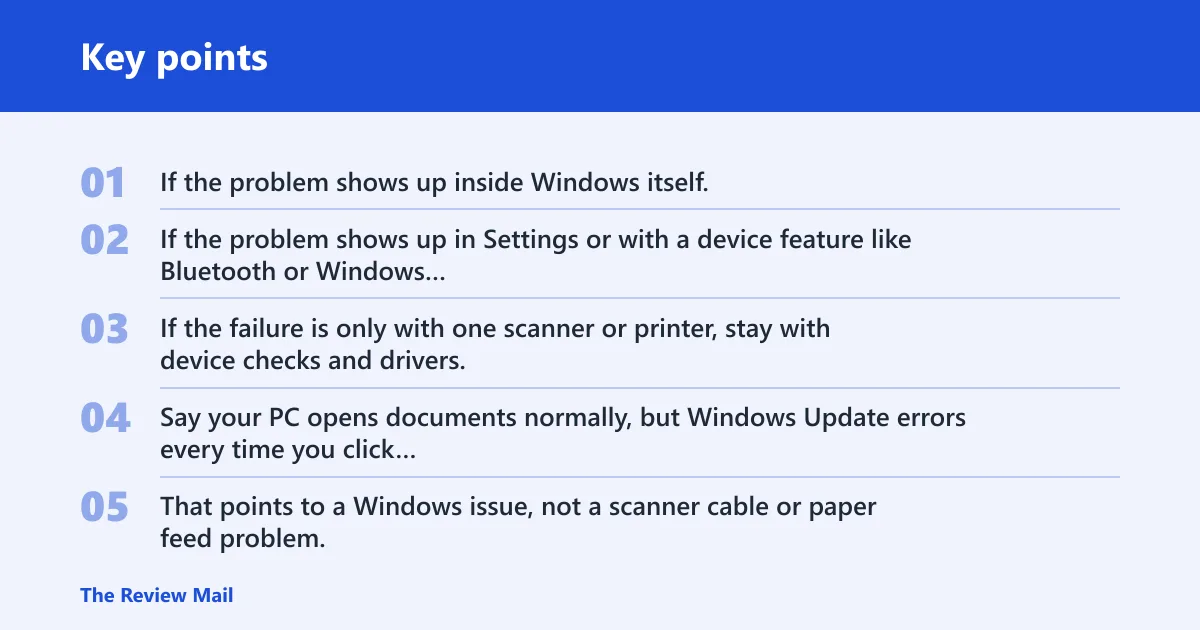
If the problem shows up inside Windows itself, repair commands are the right place to start. If the problem shows up in Settings or with a device feature like Bluetooth or Windows Update, use a troubleshooter. If the failure is only with one scanner or printer, stay with device checks and drivers.
Say your PC opens documents normally, but Windows Update errors every time you click Check for updates. That points to a Windows issue, not a scanner cable or paper feed problem. Suppose your USB scanner works in one app but not another; that leans toward a device or driver issue instead of SFC or DISM.
📊 Windows 11 troubleshooters are found under Settings > System > Troubleshoot > Other troubleshooters. Source: Wikihow.
Windows scan decision table
| Symptom | Tool | Command or location | What success looks like | What to try if it fails |
|---|---|---|---|---|
| Windows apps crash, system files seem damaged, or repair warnings repeat | DISM, then SFC | Elevated Command Prompt; run DISM.exe /Online /Cleanup-image /Restorehealth, then sfc /scannow | DISM finishes without a source error; SFC reports that Windows Resource Protection found and repaired files, or found no integrity violations | If DISM cannot reach Windows Update, add a repair source with /Source and /LimitAccess; if SFC cannot run, retry from an elevated Command Prompt |
| Windows Update, Bluetooth, or another built-in feature will not work | Windows 11 troubleshooter | Settings > System > Troubleshoot > Other troubleshooters, then click Run next to the matching item | A troubleshooter runs and reports a fix, a reset, or no changes needed | If the troubleshooter does not open, look for the same repair path in the Get Help app or move to the device driver step |
| A scanner or printer is missing, offline, or not detected by one app | Device check and driver repair | Check cable, power, and device status; then open Device Manager or the printer/scanner app and reinstall the driver from the manufacturer | The device appears again, or the app can scan or print normally | Use the device-specific troubleshooter, remove and add the device again, or test another USB port or cable |
| You want details after SFC says it repaired files | CBS.log review | Check CBS.log and use findstr to filter SFC entries, then export them to sfcdetails.txt | You get a focused text file that shows what SFC changed or could not fix | If the log still points to corruption, rerun DISM first and then SFC again |
Do you need an admin Command Prompt?
DISM and SFC generally need an elevated Command Prompt, so open Command Prompt as administrator before running either repair command. Without elevation, Windows may block the scan or refuse to replace protected files.
Open Start, type cmd, then choose Run as administrator. If Windows asks for permission, confirm it. If the command window opens without administrator rights, close it and reopen it the same way, because standard privileges are not enough for these repairs.
If admin launch is blocked by policy or account limits, sign in with an administrator account. On managed PCs, a work or school policy may restrict repair commands, and in that case the right fallback is to contact the device owner or IT support.
Run DISM before SFC
Use DISM first when you suspect Windows component store corruption. Microsoft’s repair order matters here: run DISM.exe /Online /Cleanup-image /Restorehealth before SFC. DISM checks and repairs the image that SFC depends on, which is why it often needs to come first. (Microsoft Support)
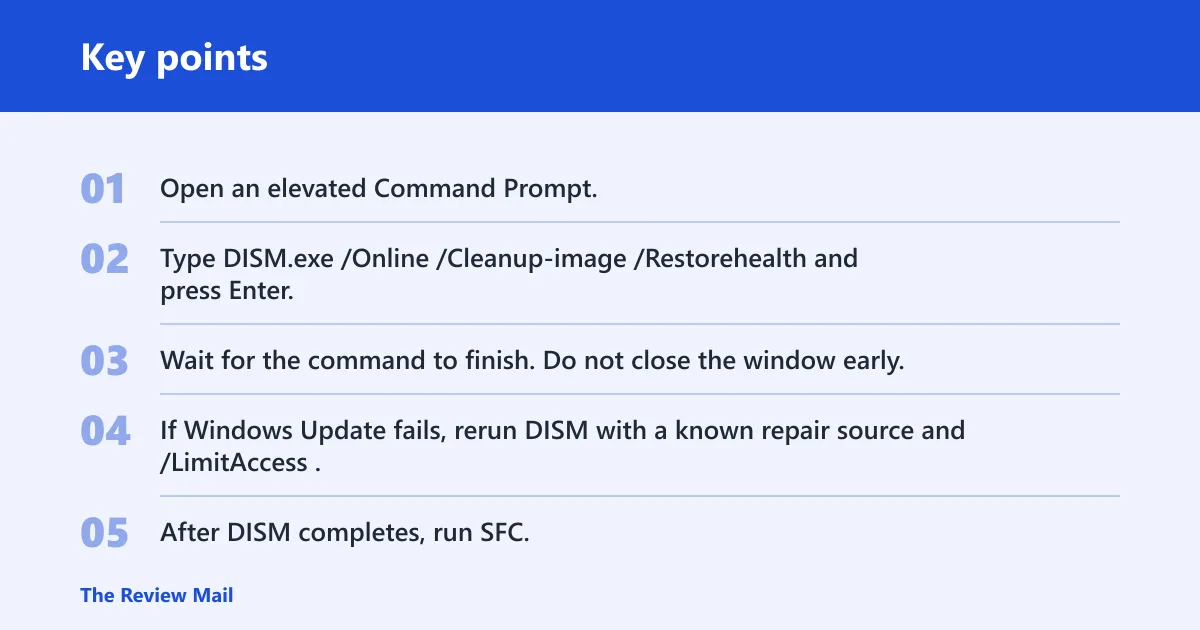
DISM normally uses Windows Update as the source. If Windows Update is broken, DISM can also use a repair source with /Source and /LimitAccess. That matters when the online source is unavailable, because the command then needs another local or mounted source instead of reaching out to Windows Update.
- Open an elevated Command Prompt.
- Type DISM.exe /Online /Cleanup-image /Restorehealth and press Enter.
- Wait for the command to finish. Do not close the window early.
- If Windows Update fails, rerun DISM with a known repair source and /LimitAccess.
- After DISM completes, run SFC.
A successful DISM run usually ends cleanly rather than stopping at a source or access error. If it fails because Windows Update is unavailable, that is not a dead end. It means you need a valid repair source before you try again.
What to do when DISM cannot contact Windows Update
If DISM cannot contact Windows Update, point it at a local source and block online fallback with /LimitAccess. A common example uses installation media or a mounted ISO as the source path. The exact /Source path varies, so confirm the path for your media before you run it.
Keep the command in the same elevated Command Prompt window. If the source path is wrong, DISM can fail again even though the repair files are present somewhere else on the system. The fix is usually the path, not the whole machine.
How do you run SFC?
Run sfc /scannow in an elevated Command Prompt. SFC scans all protected system files and replaces corrupted files with a cached copy. That makes it the right tool after DISM, or after you suspect Windows files themselves are damaged.
Start Command Prompt as administrator, type sfc /scannow, and press Enter. The scan may take time. A successful result often says Windows Resource Protection found no integrity violations, or that it found corrupted files and repaired them.
If SFC says it found corruption but could not fix everything, go back to DISM and run the repair command again, then rerun SFC. If SFC says it cannot perform the requested operation, the usual fix is to retry from an elevated Command Prompt and make sure no other repair process is already holding system files open.
What SFC result messages mean
If SFC says no integrity violations were found, the protected system files it checked look intact. If it says it found corrupted files and repaired them, the scan completed its repair job. If it says it could not repair some files, the log file becomes the next step.
A failed SFC run does not always mean the PC is beyond repair. It often means the cached copy is incomplete, the component store needs DISM, or the command lacked elevation. That is why the order matters.
Where are Windows 11 troubleshooters?
Windows 11 troubleshooters are found under Settings > System > Troubleshoot > Other troubleshooters. Use this path for issues such as Windows Update and Bluetooth. Some troubleshooters now open in the Get Help app after you click Run, so the launch experience can differ by item and build.
Open Settings, go to System, then Troubleshoot, then Other troubleshooters. Find the item that matches the symptom and click Run. If the troubleshooter opens in Get Help, follow the prompts there. Do not expect every troubleshooter to look the same.
This path fits problems that are clearly tied to Windows features or settings. It does not replace SFC or DISM for file corruption, and it does not fix a dead scanner cable or missing printer driver by itself.
When a troubleshooter is the right choice
Use a troubleshooter when the issue belongs to a Windows feature rather than the whole operating system. Windows Update errors, Bluetooth pairing issues, and some device setup problems belong here. If the failure is limited to one external device, also check the manufacturer’s driver and the device connection.
If the troubleshooter opens but does nothing useful, move to the next layer. That usually means device reinstall steps for scanners and printers, or DISM and SFC when the symptoms point to Windows files.
How do you read SFC details?
Check CBS.log when SFC reports problems or when you need the details behind a repair. The log contains SFC entries, and you can use findstr to filter them into a smaller text file. That helps separate SFC messages from the rest of the log.
Open an elevated Command Prompt and use findstr against CBS.log to isolate SFC details, then export the output to sfcdetails.txt. The exact command depends on the path you use for the log file, but the goal is the same: collect only the repair entries you need to review.
If the filtered log still shows repeated corruption or repair failures, rerun DISM first and then SFC again. If the log points to a single file or component that keeps failing, the problem may be deeper than a standard integrity scan can fix.
Scanner and printer problems: keep them separate
A scanner that will not start, a printer that disappears, or an app that cannot see the device is often a hardware or driver problem. Do not spend time on SFC or DISM if the failure is only on one USB scanner or one network printer and Windows itself is otherwise stable.
Start with power, cable, Wi-Fi, and device status. Then reinstall the device driver or use the relevant Windows troubleshooter. If the device is still missing, test another port, another cable, or another app that can talk to the same device.
A common first-timer mistake is to run system file repair when the real issue is a scanner driver. That can waste a full repair cycle while the missing device is still unplugged or blocked by an old driver.
Frequently asked questions
Can’t scan windows 11
If Windows 11 will not scan a PC for problems, first decide which scan you mean. Use SFC and DISM for Windows file integrity, use Settings troubleshooters for Windows features, and use driver or device steps for a printer or scanner. The correct path depends on the symptom, not the word scan alone.
How scan windows 11
Windows 11 does not use one single scan for every problem. Repair commands like SFC and DISM check system files, troubleshooters handle selected Windows features, and device steps fix scanners or printers. Start with the symptom, choose the matching path, and only then run the command or menu option.
Scan not working windows 11
If a scan is not working, check whether the failure is in the command, the Windows troubleshooter, or the device itself. For SFC and DISM, reopen Command Prompt as administrator. For troubleshooters, open Settings > System > Troubleshoot > Other troubleshooters. For a scanner, reinstall the driver and confirm the connection.
Windows 11 scan computer for problems
To scan a Windows 11 computer for problems, use DISM first, then SFC, when the issue looks like system corruption. Use built-in troubleshooters when Windows features fail, and use device-specific fixes when only one scanner or printer stops responding. That routing keeps you from using the wrong repair path.