Windows V Not Working Windows 10
Win+V not working usually means the clipboard history panel does not open when you press the shortcut. The quickest fixes are to confirm Clipboard history is on, make sure the Windows key is not being blocked, and restart Explorer or the PC if the shell gets stuck. Start with the simple settings checks before moving to hardware or app conflicts.
Microsoft documents the relevant behavior here: Clipboard history must be enabled to use Win+V, the shortcut opens the clipboard history panel, and Windows Explorer can be restarted from Task Manager when the shell gets stuck. See Microsoft Support: Get help with clipboard history in Windows 10, Microsoft Support: Keyboard shortcuts in Windows 10, and Microsoft Support: Open Task Manager.
What Win+V failure means
Win+V usually fails in one of three ways: nothing happens, the clipboard panel never opens, or Windows responds to the Windows key but ignores V. Start by splitting those symptoms, because each one points to a different fix path.
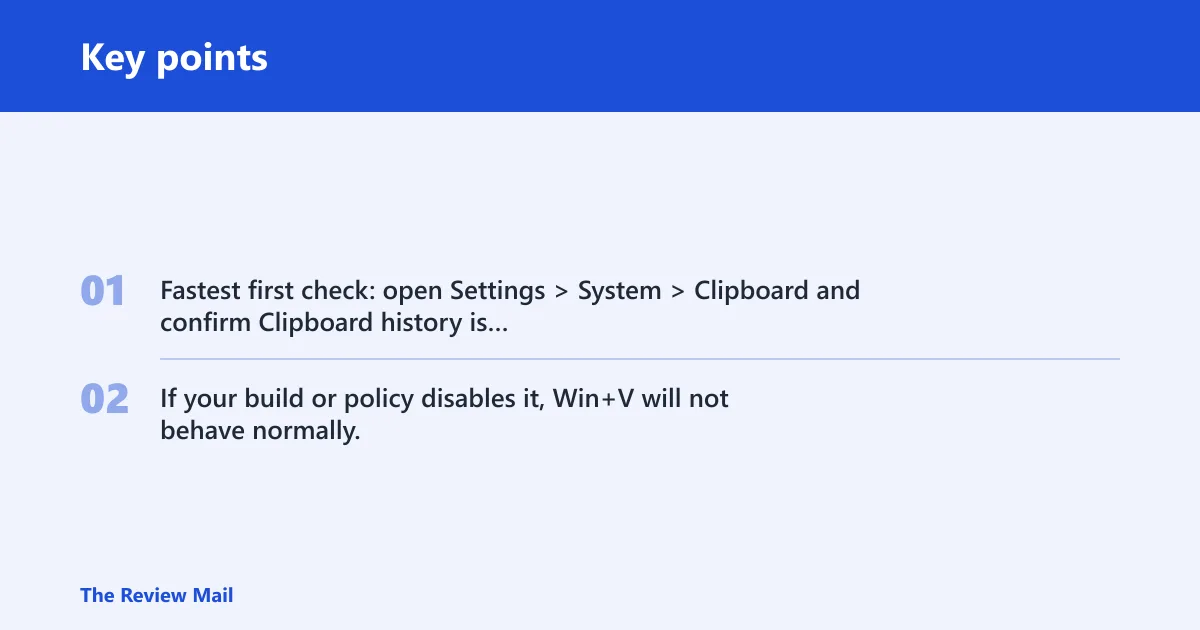
Fastest first check: open Settings > System > Clipboard and confirm Clipboard history is turned on. If your build or policy disables it, Win+V will not behave normally.
Windows V troubleshooting decision table
| Failure mode | Symptom | 1-minute check | Exact Windows 10 path | Likely cause | What to try next |
|---|---|---|---|---|---|
| No response at all | Pressing Win+V does nothing, and the Start menu may also fail to open with the Windows key alone. | Press the Windows key alone. Try a second keyboard if available. | Settings > Ease of Access > Keyboard | The Windows key is blocked by Sticky Keys, Filter Keys, a keyboard utility, or hardware remapping. | Turn off Sticky Keys and Filter Keys, then test Win+V again. If needed, disable vendor hotkey or remapping software and retest. |
| Clipboard panel does not open | The Windows key works, but the clipboard history flyout never appears after copying text. | Copy a new line of text, then press Win+V. | Settings > System > Clipboard | Clipboard history is off, or Explorer is stuck and not showing the shell UI correctly. | Turn on Clipboard history. If it is already on, restart Windows Explorer from Task Manager. |
| Windows key works, but V does nothing | Win+E or Win+R works, but Win+V does not open Clipboard history. | Test Win+E and Win+R to confirm the Windows key is fine. | Settings > Time & Language > Language | Keyboard layout or a third-party clipboard app is intercepting the V shortcut. | Check layout, close clipboard managers, and sign out then back in. |
Why does Win+V stop working on Windows 10?
The most common reason is simple: Clipboard history is not enabled in Windows 10, so there is nothing for Win+V to open. The next most common causes are a blocked Windows key, Explorer shell issues, or another app intercepting the shortcut.
Clipboard history is turned off
Win+V depends on Clipboard history. If that feature is off, the shortcut has nothing to open. This is the first place to check when the panel never appears after you copy text.
- Open Settings > System > Clipboard.
- Turn on Clipboard history.
- Copy a short line of text, such as a sentence from Notepad.
- Press Win+V again and look for the clipboard panel.
Say your laptop was just reset and Win+V does nothing after you copy text. If Clipboard history was off, turning it on in Settings is enough for the shortcut to start working again.
Check whether history reset after sign-in
- Open Settings > System > Clipboard.
- Confirm Clipboard history is still on after signing out and back in.
- If you use multiple devices, check whether sync-related options were reset in the same page.
- Copy new text and retest Win+V.
The Windows key is blocked
If the Windows key itself is disabled, Win+V cannot fire. Gaming keyboards, OEM hotkey tools, remapping apps, Sticky Keys, and Filter Keys can all interfere with that modifier key.
- Press the Windows key alone. If the Start menu does not open, the key is likely blocked.
- Use a different external keyboard to separate a hardware fault from a laptop utility issue.
- Open Settings > Ease of Access > Keyboard and turn off Sticky Keys and Filter Keys.
- Check any keyboard utility from the manufacturer for a Win lock, game mode, or function-key lock.
- If you use remapping software, disable the Windows key remap and test again.
A common first-time mistake is assuming V is broken when the Windows key is the real problem. If Win+E and Win+R fail too, focus on the modifier key before anything else.
Check laptop function-key layers
- Look for an Fn lock or function-key mode on the keyboard.
- Test both Fn+Win+V and plain Win+V if the laptop allows it.
- Check whether Num Lock or vendor hotkey mode changes the behavior of the top-row keys.
- Open the OEM keyboard utility and restore default shortcut settings if available.
Explorer or clipboard apps are intercepting the shortcut
When the setting is on and the key works, a shell conflict is a common next suspect. Windows Explorer handles the hotkey layer, and third-party clipboard managers can duplicate or override clipboard behavior.
- Press Ctrl+Shift+Esc to open Task Manager.
- Select Windows Explorer, then choose Restart.
- Close any third-party clipboard manager or hotkey app from the notification area.
- Test Win+V again after the restart.
Suppose Win+V worked yesterday and now opens nothing after a shell crash. Restarting Windows Explorer is the quickest recovery step before a full reboot.
Sign out or restart if the clipboard stays empty
- Copy a short text snippet.
- Sign out of Windows, then sign back in.
- If the panel is still empty, restart the PC.
- After restart, copy new text and test Win+V again.
Why does Windows key + V not work on my PC?
Remote desktop sessions, virtual machines, keyboard layout changes, and third-party clipboard managers can all change how Win+V behaves. If the shortcut works locally but not in a remote session, the remote host or guest may be limiting clipboard passthrough.
- If you are in Remote Desktop, test the shortcut on the local PC first.
- If you are in a virtual machine, check the guest additions or integration settings for clipboard sharing.
- Switch the keyboard layout in Settings > Time & Language > Language and retest.
- Disable the third-party clipboard manager completely, not just its tray icon, then test again.
Check for layout and input-method conflicts
- Open Settings > Time & Language > Language.
- Confirm the active keyboard layout matches the physical keyboard.
- Switch layouts once, then switch back and retest Win+V.
- On laptops, verify whether the Fn layer changes the key map for the V key or the Windows key.
Windows Update can fix shortcut bugs
If the shortcut used to work and no settings changed, an OS update can fix broken shell components or driver conflicts. This is especially useful after a cumulative update, device driver install, or login change. On Windows 10, the supported update path is still the same: Settings, Windows Update, then a restart if required.
- Open Settings > Update & Security > Windows Update.
- Select Check for updates.
- Install pending updates and restart when prompted.
- After the restart, copy text and test Win+V again.
If a shell bug or input bug is behind the shortcut failure, updating and rebooting can clear it without changing any clipboard settings.
Why is the clipboard history shortcut missing or disabled?
The shortcut can seem missing because Clipboard history is off, the Windows key is blocked, or a policy or remote session prevents the panel from opening. The setting itself is controlled from Windows Settings, so check there before chasing hardware issues.
- Open Settings > System > Clipboard.
- Verify Clipboard history is on.
- Open Settings > Ease of Access > Keyboard and turn off Sticky Keys and Filter Keys if they are on.
- Test again with a new copy action, not an old clipboard item.
Still not working?
If none of the checks above restore Win+V, move to the more invasive steps in this order: create a new local user account, test there, then remove or repair any keyboard utility or clipboard manager. If the shortcut still fails in a clean profile, the issue is more likely system-level or vendor-specific.
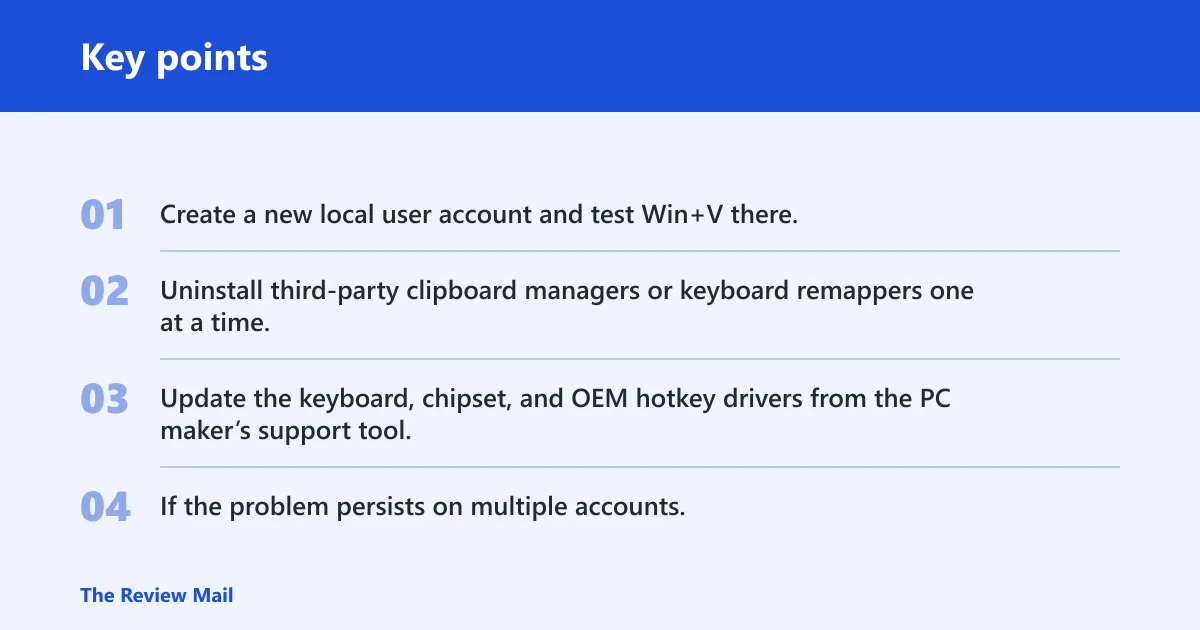
- Create a new local user account and test Win+V there.
- Uninstall third-party clipboard managers or keyboard remappers one at a time.
- Update the keyboard, chipset, and OEM hotkey drivers from the PC maker’s support tool.
- If the problem persists on multiple accounts, contact the device vendor or a qualified technician.
Prevention
Keep Clipboard history on, and avoid stacking multiple clipboard tools that do the same job. If you use a gaming keyboard or OEM utility, leave its Windows key settings documented so you can reverse a shortcut lock quickly after an update or profile change.
Frequently asked questions
Why is my windows 10 not working?
If Win+V stopped working, the usual causes are Clipboard history being off, the Windows key being blocked, or Explorer losing its hotkey handling. Check Settings > System > Clipboard first, then test the Windows key alone, then restart Windows Explorer from Task Manager.
How do I turn on clipboard history in Windows 10?
Open Settings > System > Clipboard and switch on Clipboard history. Then copy any text and press Win+V. If the panel still does not appear, restart Windows Explorer or sign out and back in before testing again.
Can I use Win+V if I have never enabled clipboard history?
No. Win+V depends on Clipboard history being enabled in Settings > System > Clipboard. Once it is on, copy a new item and press Win+V again. The panel should then show recent clipboard entries.
What should I check if the Windows key works but V does nothing?
Check keyboard layout and any third-party clipboard manager first. Then open Settings > Time & Language > Language to confirm the active layout, and disable clipboard utilities temporarily so they do not intercept the shortcut. If those checks fail, restart Explorer and try again.
Does Windows 10 need an update for Win+V to work?
Not usually, but updates can fix shell or driver issues that break the shortcut. Go to Settings > Update & Security > Windows Update, install pending updates, and restart if prompted. Then copy text again and retest Win+V.
Can a third-party keyboard app block the Win+V shortcut?
Yes. Keyboard remappers, gaming utilities, and clipboard managers can override the Windows key or the V shortcut. Disable the app completely, not just its tray icon, then test Win+V again. If the shortcut returns, reconfigure that app’s hotkey rules and keep the conflicting setting documented.