Scan Pc for Issues Windows 11
How to scan a PC for issues in Windows 11 starts with the symptom, not a random full sweep. Use Settings troubleshooters for feature-specific problems, DISM for Windows image damage, SFC for protected-file corruption, and Device Manager when a driver or device looks wrong. For freezes, add Windows Memory Diagnostic or CHKDSK before assuming the issue is software-only.
What to run first
Restart the PC first. It clears temporary hangs and gives Windows a clean start. That can fix a one-off freeze or a stuck app. If the problem returns, match the symptom to the right built-in tool instead of running every scan in sequence.
When a scan is enough and when it is not
Use a troubleshooter when the fault looks local to one feature, such as Bluetooth, printing, audio, camera, or Windows Update. Move to DISM and then SFC when the symptom points to system files, update components, or repeated app crashes. If the PC still freezes after repair scans, check drivers, storage, RAM, and logs next. For a broader symptom map, see the Windows 11 performance-problem cluster.
Say your laptop loses Wi-Fi after sleep, but Ethernet still works. That points first to the Network troubleshooter, not SFC. Suppose Windows Update loops on “installing” and then rolls back. That usually calls for DISM before SFC, because the Windows component store may be damaged.
If the PC freezes, becomes unresponsive, or randomly restarts, add Windows Memory Diagnostic to check RAM and CHKDSK to look for file-system or disk errors. If repair scans do not explain the issue, open Reliability Monitor and Event Viewer to see whether the failures line up with a driver crash, storage warning, update failure, or app fault.
📊 SFC applies to Windows 11 and older Windows versions. Source: Microsoft.
Windows 11 troubleshooting tools
Windows 11 puts common troubleshooters in Settings > System > Troubleshoot > Other troubleshooters. Many open in the Get Help app and guide you through checks for common PC issues. Start here when the problem is tied to one device class or one Windows feature, not broad file corruption. Microsoft documents these troubleshooters in its Settings and Get Help support pages, and older third-party guides such as (Wikihow) describe the same path.
Which troubleshooter fits the symptom?
- Network for no internet, dropped Wi-Fi, or limited connectivity.
- Windows Update for failed installs, stuck downloads, or update loops.
- Bluetooth for pairing failures, missing devices, or repeated disconnects.
- Printer for queues that will not print, offline printers, or driver conflicts.
- Audio for missing sound, the wrong output device, or device detection issues.
- Camera for apps that cannot find the webcam or show a black preview.
These tools can fix common settings, services, and device problems. They cannot repair corrupted Windows files, a failing drive, or broken system images. If a troubleshooter reports no issues and the symptom remains, move to Device Manager, DISM, or SFC based on what failed. Microsoft’s support pages for Windows Update troubleshooting, Bluetooth and printer troubleshooting, and Settings troubleshooters cover the same symptom-specific approach.
Hardware and Devices troubleshooter
The hidden Hardware and Devices troubleshooter can help when a device looks misconfigured, a driver behaves badly, or Windows stops recognizing hardware after a change. Microsoft’s support for msdt.exe -id DeviceDiagnostic has been inconsistent across Windows releases, so availability can vary. If the command still launches on your PC, use it; if it does not, fall back to Device Manager and the manufacturer’s driver tools.
How to open it
- Press Win + R to open Run.
- Type msdt.exe -id DeviceDiagnostic and press Enter.
- Or open Command Prompt or Windows Terminal and run the same command.
- Follow the prompts and let it check device configuration one step at a time.
Use this troubleshooter when Device Manager shows a warning icon, an unknown device, or a device that appears disabled without a clear reason. It is a better first step than SFC when the symptom is tied to hardware detection or driver behavior. If it does not open, or it points to a device-specific problem, go directly to Device Manager, then update, re-enable, or reinstall the affected device driver there. Microsoft’s Device Manager guidance is the safer fallback path when the legacy troubleshooter is unavailable.
Windows scan command sequence
Microsoft says DISM should run before System File Checker. Use DISM first when Windows components look damaged, then run SFC to repair protected files that depend on those components. The usual command is DISM.exe /Online /Cleanup-image /Restorehealth, followed by sfc /scannow. Microsoft also documents that DISM can use a local source and that SFC checks and repairs protected Windows files from cached copies when possible. (Microsoft Support)
Run DISM first
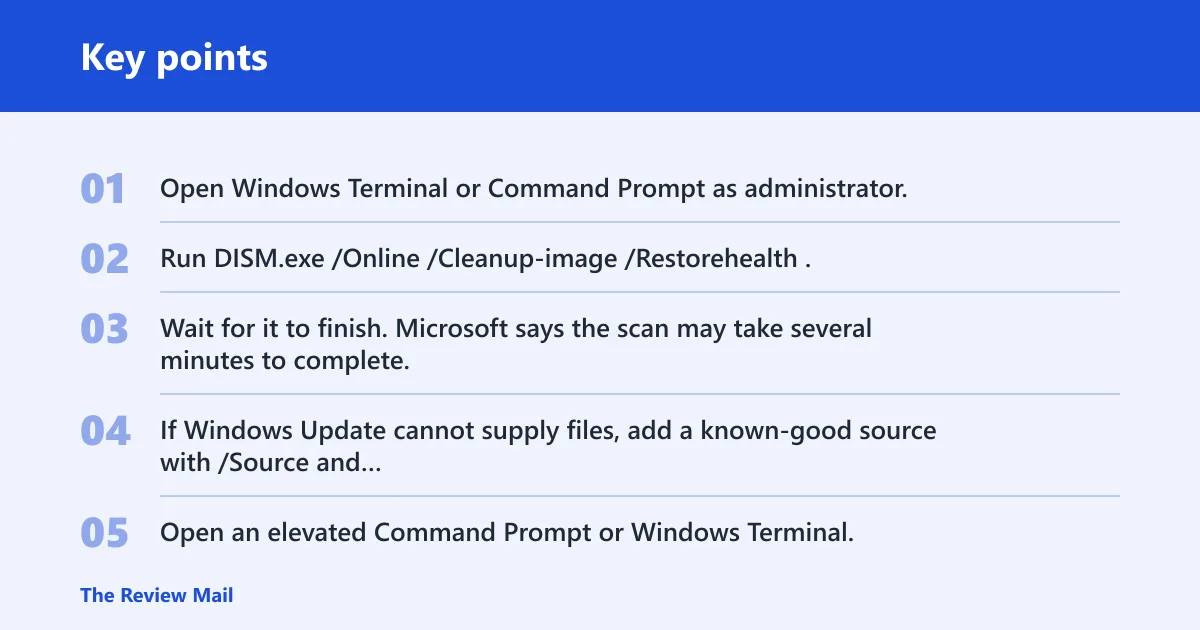
- Open Windows Terminal or Command Prompt as administrator.
- Run DISM.exe /Online /Cleanup-image /Restorehealth.
- Wait for it to finish. Microsoft says the scan may take several minutes to complete.
- If Windows Update cannot supply files, add a known-good source with /Source and /LimitAccess.
DISM repairs the files Windows uses for component recovery. It can pull those files from Windows Update when update services are healthy. If Windows Update itself is broken, point DISM at local installation media or another repair source with /Source and /LimitAccess, then rerun SFC. If your goal is specifically file corruption, the companion guide on corrupted Windows files explains the same DISM-then-SFC order in more detail.
Then run SFC
- Open an elevated Command Prompt or Windows Terminal.
- Type
sfc /scannowand press Enter. - Let the scan finish before opening more apps.
- Restart if Windows asks for it.
SFC is a built-in Windows repair tool that scans protected system files and replaces corrupted files with cached copies. It applies to Windows 11 and older Windows versions. Use it after DISM when you suspect file corruption rather than a driver, disk, or memory problem. Microsoft’s SFC guidance also notes that some repairs are only visible in the log, not in the summary line.
Read SFC results
SFC returns a Windows Resource Protection message at the end of the scan. The result tells you whether Windows found a problem, fixed it, or hit a block. If SFC cannot repair everything, the log often points to the exact files that still need attention.
What the messages mean
- Windows Resource Protection did not find any integrity violations means SFC found no protected-file corruption.
- Windows Resource Protection could not perform the requested operation usually points to a blocked or failed scan.
- Windows Resource Protection found corrupt files and successfully repaired them means the fix completed.
- Windows Resource Protection found corrupt files but was unable to fix some of them means you need more detail from the log and possibly DISM again.
To view details, open %windir%\Logs\CBS\CBS.log. Microsoft also uses findstr /c:”[SR]” to copy SFC details into sfcdetails.txt. That filtered file is easier to read because it keeps only the SFC entries tied to file repairs or failures. Microsoft’s SFC documentation points to CBS.log and sfcdetails.txt as the main places to check when the summary does not tell the whole story.
A common first-timer mistake is to stop at the summary line and ignore the log when SFC says it could not fix some files. The summary tells you that more work is needed, but CBS.log or sfcdetails.txt shows which files were left behind and whether DISM or another repair path should come next.
PC scan decision table
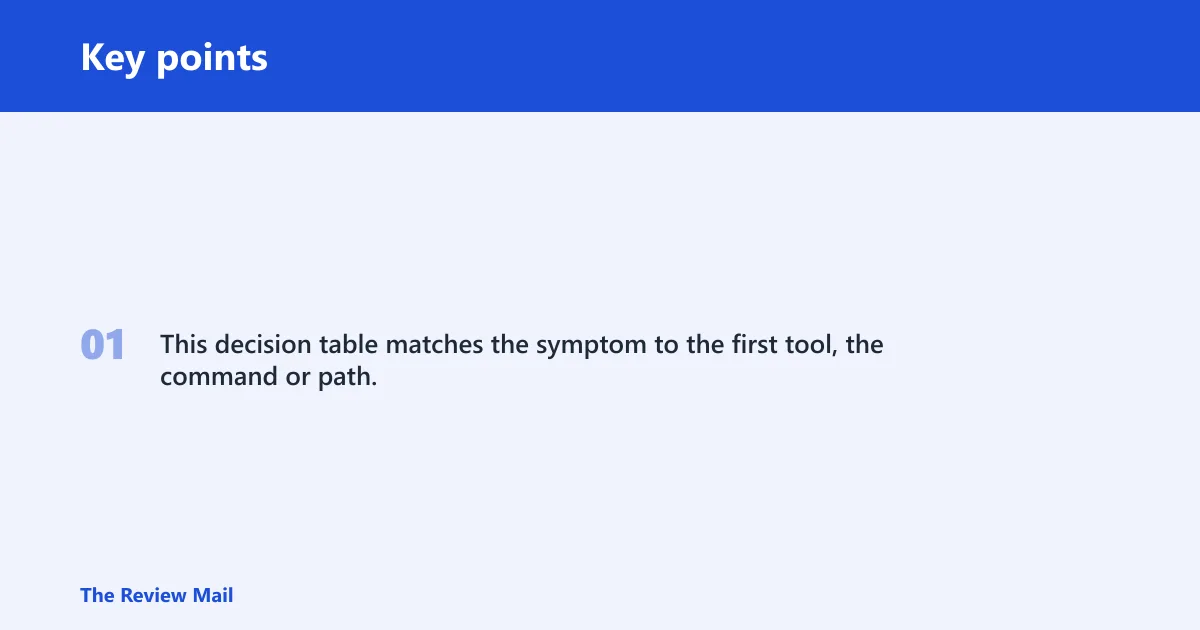
This decision table matches the symptom to the first tool, the command or path, the result you should expect, and the next fallback step if the first scan does not solve it.
| Symptom | Best first scan/tool | Command or path | Expected result | Next fallback step |
|---|---|---|---|---|
| Freezes or unresponsive apps after a restart | Windows 11 Troubleshooter for app or device symptoms | Settings > System > Troubleshoot > Other troubleshooters | Finds a simple settings, service, or device conflict | Check Device Manager, then run DISM and SFC if crashes continue |
| Slow startup or broad lag across Windows | DISM, then SFC | DISM.exe /Online /Cleanup-image /Restorehealth, then sfc /scannow | Repairs Windows component damage and protected files | Review startup apps, storage health, and Device Manager warnings |
| Windows Update errors or update loops | Windows Update troubleshooter | Settings > System > Troubleshoot > Other troubleshooters | Resets common update services and checks update components | Run DISM; if Windows Update is broken, use /Source and /LimitAccess |
| Bluetooth will not pair or keeps disconnecting | Bluetooth troubleshooter | Settings > System > Troubleshoot > Other troubleshooters | Fixes common adapter and service issues | Open Device Manager, update the Bluetooth driver, or rerun Hardware and Devices |
| Printer appears offline or will not print | Printer troubleshooter | Settings > System > Troubleshoot > Other troubleshooters | Checks spooler and printer settings | Check the queue, restart the Print Spooler, or update the printer driver |
| No sound or wrong audio device | Audio troubleshooter | Settings > System > Troubleshoot > Other troubleshooters | Finds output-device and service problems | Set the correct playback device and inspect Device Manager |
| Camera is missing in apps or shows a black screen | Camera troubleshooter | Settings > System > Troubleshoot > Other troubleshooters | Checks camera permissions and device access | Enable the camera in Device Manager and review privacy settings |
| Corrupted system files or repeated app crashes | SFC | sfc /scannow | Replaces corrupted protected files with cached copies | Run DISM first if SFC cannot repair some files |
| A device shows a yellow warning icon or unknown device | Hardware and Devices troubleshooter, then Device Manager | msdt.exe -id DeviceDiagnostic | Checks device configuration and driver-related issues | Update, enable, or reinstall the driver in Device Manager |
Device Manager follow-up checks
Device Manager is the next stop when a scan points to hardware or driver trouble. Look for yellow warning icons, unknown devices, and disabled devices. Those signs usually mean the issue is not SFC-level file corruption, but a driver or configuration problem that needs a manual fix. Microsoft’s Device Manager support articles emphasize using it to update, enable, disable, or uninstall devices when Windows flags them.
What to do there
- Right-click the flagged device and check for a driver update.
- Enable devices that are disabled by mistake.
- Look for a renamed or missing device after a recent update.
- If the device still fails, remove and reinstall the driver package from the manufacturer or Windows Update.
Device Manager matters for the broader Windows 11 performance-problem cluster because a bad driver can look like a system fault. A graphics driver can trigger freezes. A network adapter can look like an update or internet problem. A printer driver can make a working device appear broken.
Frequently asked questions
How do I scan my PC for issues in Windows 11?
Start with the symptom, then choose the narrowest built-in tool. Use a Settings troubleshooter for Bluetooth, printer, audio, camera, network, or Windows Update issues. Use DISM before SFC for file or component damage. Check Device Manager when the issue points to a driver or missing device.
How do I run SFC and DISM on Windows 11?
Open Command Prompt or Windows Terminal as administrator. Run DISM.exe /Online /Cleanup-image /Restorehealth first, then run sfc /scannow. DISM repairs the Windows image, while SFC scans protected system files and can replace corrupted files with cached copies.
What built-in tools can check my Windows 11 computer for problems?
Windows 11 includes Settings troubleshooters, the hidden Hardware and Devices troubleshooter, DISM, SFC, Windows Memory Diagnostic, CHKDSK, Event Viewer, Reliability Monitor, and Device Manager. Use troubleshooters for feature-specific faults, DISM and SFC for Windows file damage, and Device Manager when Windows flags a driver or device with an error icon.
How do I open the Hardware and Devices troubleshooter in Windows 11?
Press Win + R, then run msdt.exe -id DeviceDiagnostic. You can also enter the same command in Command Prompt or Windows Terminal. Microsoft does not show it in the Settings app, and support availability can vary, so this direct command is only useful if it still launches on your system.
Which Windows 11 troubleshooter should I run for Bluetooth or printer issues?
Run the Bluetooth troubleshooter for pairing failures, disconnects, or missing adapters. Run the Printer troubleshooter for offline printers, queue problems, or print jobs that never start. Both are in Settings > System > Troubleshoot > Other troubleshooters, and many open in the Get Help app.
How do I view System File Checker details after a scan?
Open %windir%\Logs\CBS\CBS.log and look for SFC entries. Microsoft also uses findstr /c:”[SR]” to copy those details into sfcdetails.txt. That filtered file is easier to review when SFC says it could not repair some files.