How to Scan Windows 11 for Problems
Scan Windows 11 for problems by matching the symptom to the right built-in tool: use Settings for update issues, Windows Security for malware, SFC for protected file corruption, DISM for component store repair, and CHKDSK for disk errors. Using the wrong check can waste time and let update failures, crashes, or corrupted files spread. This guide shows which scan to run first, what each result means, and when to escalate.
What problem are you actually scanning for?
Start with the symptom, not the tool. Update failures point to Windows Update troubleshooting, file corruption points to SFC and sometimes DISM, and disk errors point to CHKDSK. Check power, internet, and restart status first because those basics can block several repairs at once.
What do you need first?
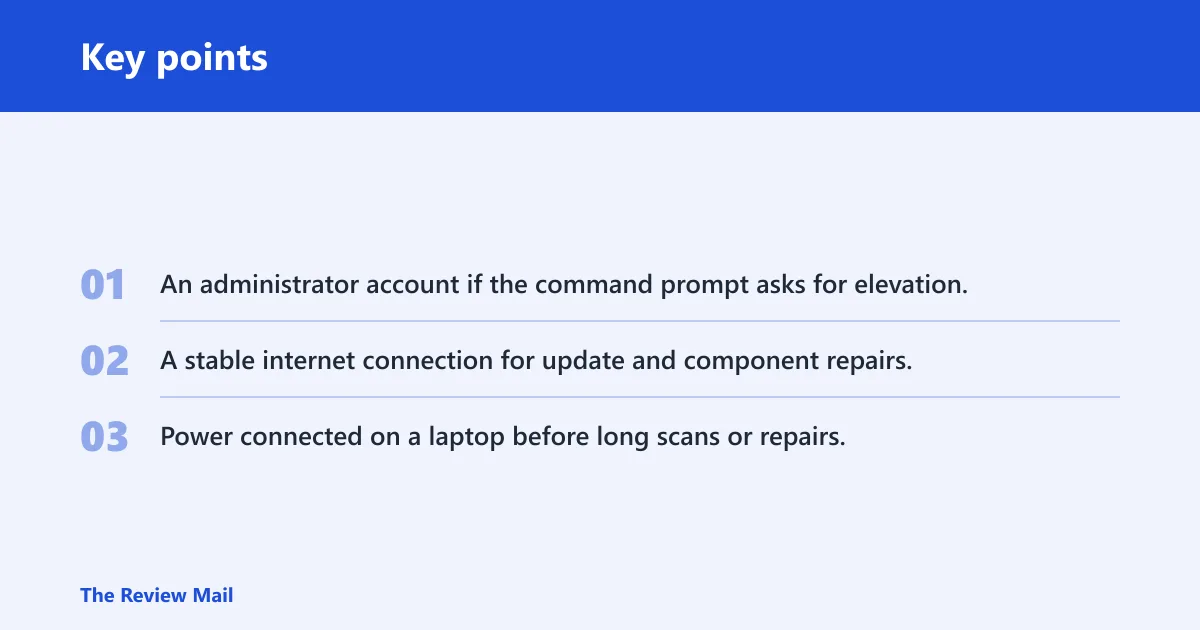
Before you start, make sure the basic conditions are in place. A clean run depends on admin access for repair commands, a stable connection for update and image repairs, and enough power to let scans finish.
- An administrator account if the command prompt asks for elevation.
- A stable internet connection for update and component repairs.
- Power connected on a laptop before long scans or repairs.
Which scan should you run for each symptom?
Use the symptom to pick the scan. For update failures, start with the Windows Update troubleshooter. For suspected protected file corruption, use SFC. For component store problems, use DISM after SFC stalls or reports repair problems. For disk errors, use CHKDSK.
| Symptom | First scan to run | What a good result looks like | Next escalation if it fails |
|---|---|---|---|
| Windows Update will not install | Windows Update troubleshooter in the Get Help app | The troubleshooter reports that update settings or services were fixed, or it finishes with no issue found | If it finds nothing, check internet, disconnect external hardware, then retry the update and move to manual update repair steps |
| Apps crash, files seem corrupted, or system errors appear | SFC /scannow | Windows Resource Protection finds no integrity violations, or repairs files successfully | If SFC says it found corruption but could not fix some files, run DISM /Online /Cleanup-Image /RestoreHealth, then run SFC again |
| Slow boot, file access errors, or bad sectors are suspected | chkdsk | Windows reports and repairs file-system errors, or finishes without finding errors | If recurring CHKDSK errors keep coming back, back up files and treat the drive as a possible failure risk |
| Scanner, printer, or driver device is missing | Bluetooth & devices > Printers & scanners | The device appears after Add device, or the scan app sees the scanner | Install the scanner driver or manufacturer software, then reconnect and restart |
Say your laptop keeps failing a cumulative update and the network icon shows no connection. The right first move is not SFC. Open the Update troubleshooter, fix the connection, and retry the update after the machine is back online.
Windows Update troubleshooting in the Get Help app is Microsoft’s first-line option for update failures. Source: Microsoft.
How do you run the first built-in scan?
For update installation problems, start with the Windows Update troubleshooter in the Get Help app. Microsoft says it can automatically run diagnostics, and it is meant to come before manual update troubleshooting steps. That makes it the fastest first pass when the symptom is a stuck or failed update.
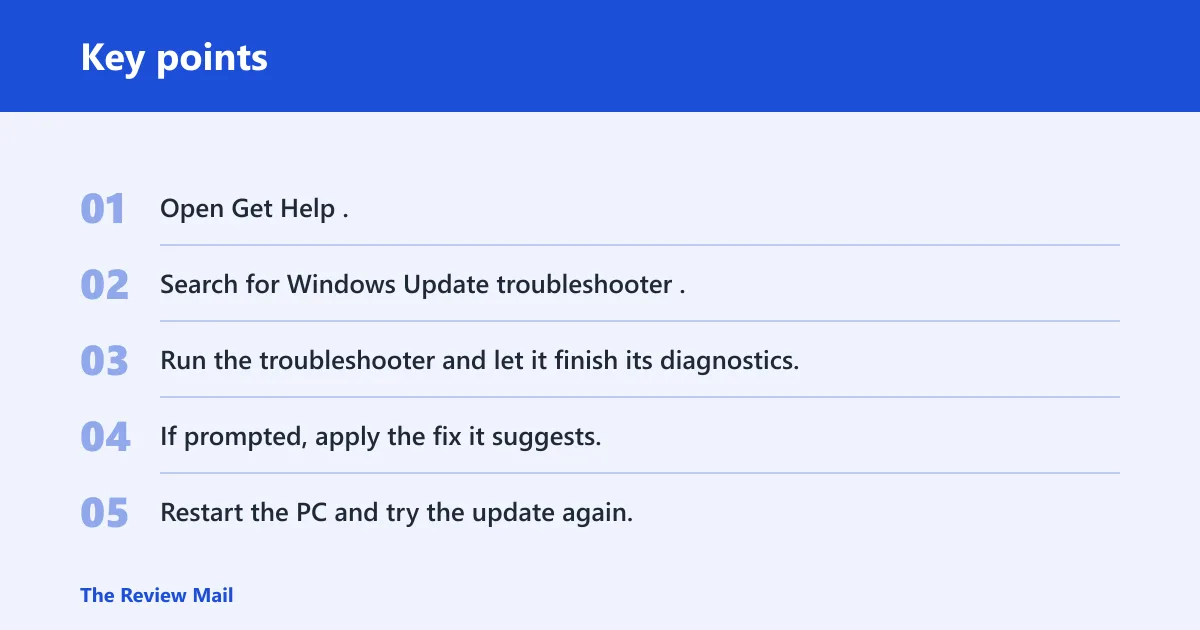
How do I run the Windows update troubleshooter in Windows 11?
Use the built-in troubleshooter first because it targets the update path directly and can fix common settings or service issues automatically. If it completes without changes, that is still useful information: it tells you to move on to connection checks, hardware disconnects, and deeper update repair steps instead of repeating the same scan.
- Open Get Help.
- Search for Windows Update troubleshooter.
- Run the troubleshooter and let it finish its diagnostics.
- If prompted, apply the fix it suggests.
- Restart the PC and try the update again.
Microsoft’s update guidance also points to checking Wi-Fi or Ethernet connectivity and disconnecting external hardware before deeper troubleshooting. Keep those checks near the top of the list if the troubleshooter does not clear the error. Back up personal files to another drive, cloud storage, or an external device before broader update repair steps.
If the built-in troubleshooter does not resolve the update problem, open Settings > Windows Update and try Check for updates again after confirming the connection. If the update still fails, use the Microsoft Update Catalog to download the specific KB package manually, or use the Windows 11 Installation Assistant or setup media for an in-place repair install.
How do I scan my PC for problems in Windows 11?
The right scan depends on what is failing. Use the Windows Update troubleshooter for update errors, sfc /scannow for protected file checks, dism /online /cleanup-image /restorehealth when SFC needs an image-level repair, and chkdsk /f when the drive or file system is the likely source of the problem.
- Match the symptom to the decision table above.
- Run the first tool listed for that symptom.
- Read the result instead of running every scan at once.
- Move to the next escalation only if the first scan fails.
How do you use SFC and DISM?
Run sfc /scannow to check protected Windows system files for corruption. Microsoft’s SFC guidance says a clean result means Windows Resource Protection found no integrity violations, while repairable damage may be fixed automatically; if SFC cannot complete the repair, use DISM next and then run SFC again. Administrator access may be required for both commands.
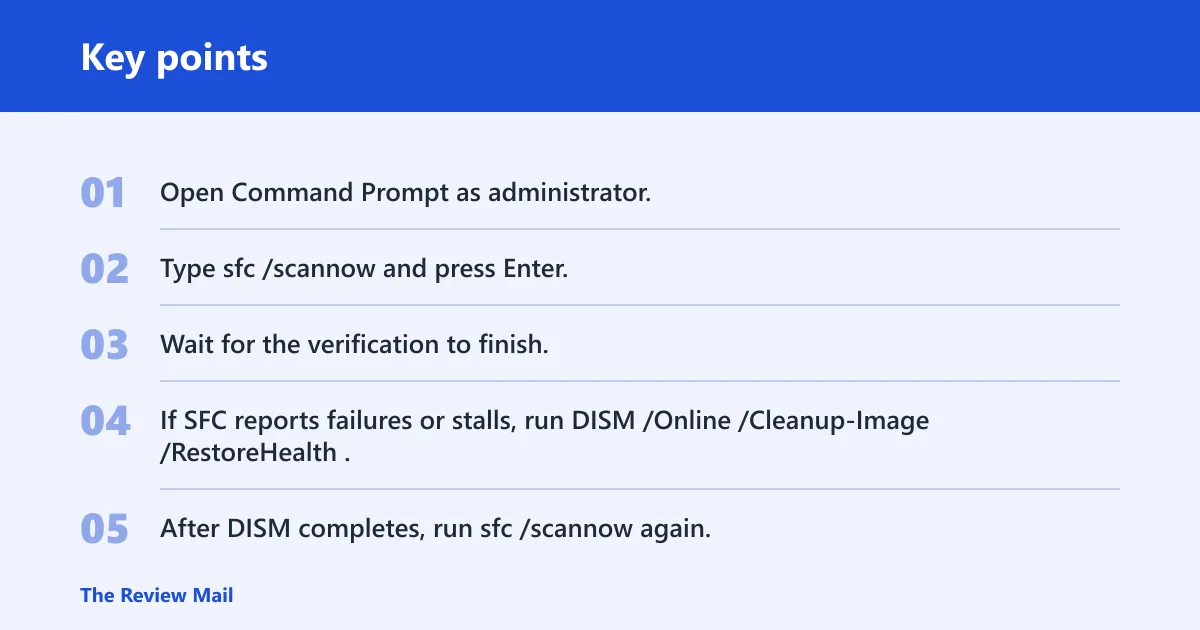
- Open Command Prompt as administrator.
- Type
sfc /scannowand press Enter. - Wait for the verification to finish.
- If SFC reports failures or stalls, run
DISM /Online /Cleanup-Image /RestoreHealth. - After DISM completes, run
sfc /scannowagain. - Restart the PC.
SFC usually takes only a few minutes, but problem cases can appear to stall at 4, 30, 69, 93, or 100 percent during verification. That pause can still be normal while Windows checks a difficult file set. Microsoft documents that SFC may take time to verify files, so give it time to continue; if it has truly stopped responding, cancel it, then run DISM before starting SFC again. Source: Microsoft.
Suppose a desktop freezes at 93 percent on SFC while the fan is still active and the system drive light keeps blinking. That can be a slow verification, not a dead command. If it still does not finish after a long wait, let it complete, cancel it if it is genuinely stuck, then move to DISM as the next repair step.
How do I restore and repair system files in Windows 11?
Use DISM when SFC cannot finish the job or keeps finding repairable corruption. Microsoft’s DISM guidance recommends DISM /Online /Cleanup-Image /RestoreHealth to repair the Windows image, then running SFC again so it can verify the repaired component store. That sequence matters because SFC alone may not be able to correct image-level problems. Source: Microsoft.
- Open Command Prompt as administrator.
- Run
DISM /Online /Cleanup-Image /RestoreHealth. - Wait until DISM completes.
- Run
sfc /scannowagain. - Restart after both commands finish.
If DISM fails, stops with an error, or SFC still reports corruption afterward, the next step is an in-place repair install, which reinstalls Windows while keeping your files and apps. On Windows 11, use Settings > System > Recovery > Fix problems using Windows Update if that option is available, or use the Windows 11 Installation Assistant or installation media for the repair. Do not jump there before the built-in checks have had a fair run.
What if SFC or DISM did not work?
If the repair chain does not clear the problem, confirm the PC has a stable connection and enough power, then rerun DISM and SFC in that order. Microsoft’s guidance for these tools supports repeating the repair verification after the image is fixed. If corruption keeps coming back, move to a repair install rather than looping the same scan.
- Confirm the PC has a stable connection and enough power.
- Rerun
DISM /Online /Cleanup-Image /RestoreHealth. - Rerun
sfc /scannowafter DISM completes. - If file corruption keeps returning, move to a repair install rather than repeating the same failed scan.
How do you check scanners and drivers?
Do not use the Windows Scan app to diagnose Windows health. It is for documents and images, not system repair. Microsoft says Windows 11 can search for locally connected scanners when you choose Add device in Settings, and the search can take a few minutes. If Windows still misses the scanner, the driver or manufacturer software is the next place to look. (Microsoft Support)
How do I check scanners and drivers?
Use Settings first to confirm whether Windows can see the device at all, then move to the maker’s software if it cannot. That workflow separates a discovery problem from a software problem and avoids wasting time in the wrong app. Manufacturer software can also add OCR and duplex scanning that the basic driver may not provide.
- Open Settings > Bluetooth & devices > Printers & scanners.
- Select Add device and wait for the local search to finish.
- Open the Windows Scan app only to scan documents, photos, receipts, or other paper files.
- If Windows does not detect the scanner correctly, download the scanner driver or manufacturer software from the maker’s site.
- Reconnect the scanner and restart the PC if detection still fails.
Microsoft’s path for adding scanners on Windows 11 is Bluetooth & devices > Printers & scanners. That is the place to confirm whether the device is visible to Windows at all. Manufacturer software can also add OCR and duplex scanning that the basic driver may not provide.
Picture a multifunction printer that prints fine but never appears in the scan app. The printer driver may be present while the scanner driver is missing. Installing the maker’s software often fixes detection and adds the extra scan options the built-in app cannot expose.
What common mistakes should you avoid?
Most wasted time comes from using the wrong tool or skipping the follow-up step. Keep the scan matched to the symptom, then read the result before moving on. CHKDSK, SFC, and DISM solve different problems, and the best outcome often comes from using them in the right order instead of trying all of them at once.
- Using the Windows Scan app for system health checks.
- Running SFC when the real problem is a failed Windows Update.
- Stopping after SFC when DISM is the next repair step.
- Skipping the restart after a repair command finishes.
For update problems, a quick pre-check helps: verify Wi-Fi or Ethernet, disconnect external hardware, and back up personal files to another drive, cloud storage, or an external device before broader troubleshooting. Those steps are plain, but they save time when the first scan does not resolve the issue.
Prevention: keep manufacturer drivers current for scanners and multifunction printers, especially after a Windows update. That cuts down on detection problems and missing advanced scan features.
Frequently asked questions
How do I check Windows 11 for problems?
Start with the symptom. Use the Windows Update troubleshooter for update failures, SFC for protected file corruption, DISM if SFC fails, CHKDSK for disk errors, and Bluetooth & devices > Printers & scanners for scanner detection. That order prevents random scans and gets you to the likely fix faster.
How do I use SFC /scannow on Windows 11?
Open Command Prompt as administrator, type sfc /scannow, and wait for the verification to finish. A clean result says Windows Resource Protection found no integrity violations. If it reports problems, rerun SFC after DISM /Online /Cleanup-Image /RestoreHealth. Microsoft’s SFC guidance also applies to Windows 10 and Windows 11. Source: Microsoft.
What should I do if SFC /scannow gets stuck?
A pause at 4, 30, 69, 93, or 100 percent can still happen during a difficult verification. If the command remains stuck for a long time, let it continue if possible, or cancel it if it is truly frozen, then run DISM /Online /Cleanup-Image /RestoreHealth before starting sfc /scannow again. Restart afterward so Windows can apply the repair.
How do I repair hard drive errors in Windows 11?
Use chkdsk /f when the symptom points to file-system or disk trouble rather than Windows file corruption. Microsoft documents CHKDSK as a disk-checking tool that can find and repair file-system issues, and repeated errors can point to a drive that needs closer attention. Run it from an elevated Command Prompt. If the system drive is in use, Windows will usually ask to schedule the check for the next restart; choose Y, restart, and let the scan run before Windows loads. Source: Microsoft Learn.
How do I scan Windows 10 for errors?
The same repair commands apply on Windows 10: sfc /scannow, DISM /Online /Cleanup-Image /RestoreHealth, and chkdsk /f. Microsoft’s SFC and DISM guidance covers both Windows 10 and Windows 11, so the repair sequence is the same even if the Settings path for scanners differs. Source: Microsoft and Microsoft.