Windows Server Network Discovery Not Working
On Windows Server 2019/2022, check the active network profile and the Network Discovery rules in Windows Firewall first; those are the most common reasons discovery stops after a change. Network Discovery cannot be turned on in Network and Sharing Center on Windows Server. If that does not fix it, check the dependency services next, because stopped or misconfigured services can block browse lists, shared folders, and server visibility.
Likely causes, ranked
Start with the failure point that changes the fewest things. A profile mismatch or blocked firewall rule is most often behind a server that disappears from browse lists. If the firewall looks right, move to services, then policy, then a broader network reset only if the stack still acts as if discovery is off.
Firewall rules or profile mismatch
Windows Firewall is the first place to check because discovery can be blocked even when the sharing toggle is on. On servers, the wrong profile matters. A domain-joined server on a Public profile, or a Private checkbox left off in the rule group, often looks fine in Control Panel but stays invisible to other systems.
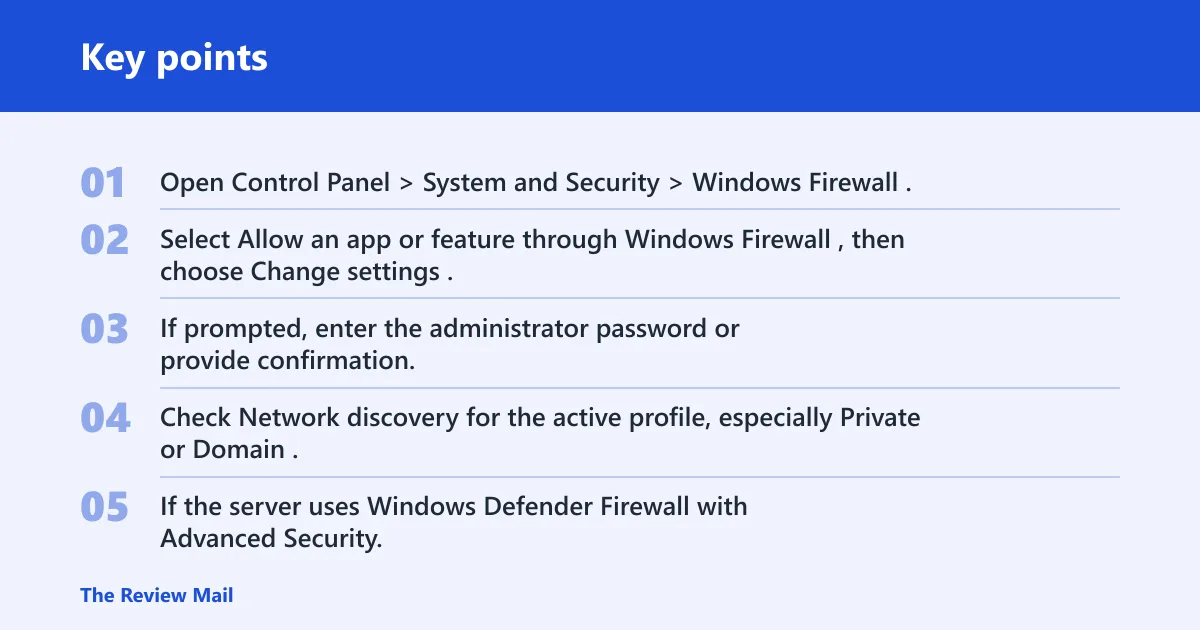
- Open Control Panel > System and Security > Windows Firewall.
- Select Allow an app or feature through Windows Firewall, then choose Change settings.
- If prompted, enter the administrator password or provide confirmation.
- Check Network discovery for the active profile, especially Private or Domain.
- If the server uses Windows Defender Firewall with Advanced Security, verify the Network Discovery rule group is enabled there too.
- Open a second device on the same subnet and check whether the server appears in browse results or by name.
Say your server is joined to a domain but the network profile shows Public. The discovery rule can be enabled and still fail to expose the machine. Fix the profile first, then recheck the firewall rule group.
Required services are stopped or set wrong
Microsoft lists four dependency services that must be started for discovery to work: DNS Client, Function Discovery Resource Publication, SSDP Discovery, and UPnP Device Host. The key detail on servers is the startup type. A service that starts only after manual intervention can drop back into failure after reboot.
- Open Services with
services.msc. - For each service, open Properties.
- Set Startup type to Automatic for DNS Client, Function Discovery Resource Publication, and SSDP Discovery.
- Set UPnP Device Host to start, then confirm its status is Running.
- Confirm Function Discovery Resource Publication is both Automatic and Running, then retry discovery from another host.
Picture a server that can browse shares by IP address but never appears in the network list. That usually points away from SMB itself and toward service publication. The share may still work directly while discovery stays broken.
Sharing settings are blocked by policy or a public profile
If the toggle in Advanced sharing settings will not hold, a policy or profile source is often overriding it. The symptom usually shows up as a setting that turns back off after save, or a change that looks accepted until the next restart. On servers, domain or local policy can do this.
- Open Control Panel > Network and Internet > Network and Sharing Center.
- Select Change advanced sharing settings.
- Under the active profile, turn on Network discovery and File and printer sharing.
- If the change reverts, check whether the server is being treated as Public instead of Private or Domain.
- If domain policy manages the box, confirm the intended setting in Group Policy rather than forcing the local toggle.
The network stack needs a broader reset
This is the least common fix in the sequence. Use it only after the firewall, profile, and services all look correct and the server still behaves as if discovery is broken. A stack reset can clear bad name-resolution or socket state, but it should not be the first move on Windows Server.
- Run these commands in an elevated Command Prompt if name resolution looks stale:
ipconfig /release
ipconfig /flushdns
ipconfig /renew
netsh winsock reset
netsh int ip reset
Reboot after the commands complete.
Why won’t the setting save?
If Network Discovery will not stay on, the server is usually being blocked by the active profile, a dependency service, or a policy source that overwrites the local choice. The fastest way to verify that is to test the same profile section in Advanced sharing settings, then confirm the services that feed discovery publication.
Check the active profile first
- Open Network and Sharing Center.
- Select Change advanced sharing settings.
- Open the section that matches the active profile: Private, Domain, or another profile if that is what the server is using.
- Turn on Network discovery and save.
- If it flips back, stop and check the profile source before trying the same toggle again.
Confirm the service state after saving
- Open
services.msc. - Verify Function Discovery Resource Publication is set to Automatic.
- Verify it is Running, not merely present in the list.
- Check DNS Client, SSDP Discovery, and UPnP Device Host for the same startup and running-state check.
How do you allow discovery through Windows Firewall?
Open the Network Discovery rule through Windows Firewall, then verify the correct profile box is checked. On servers, the important part is not only turning the rule on but making sure it applies to the profile that the machine is actually using. A good rule on the wrong profile does nothing.
- Open Control Panel > System and Security > Windows Firewall (per Microsoft support).
- Select Allow an app or feature through Windows Firewall.
- Select Change settings, and confirm any administrator prompt.
- Select Network discovery, then choose OK.
- Open Windows Defender Firewall with Advanced Security and confirm the Network Discovery rule group is enabled for the active profile.
- Test visibility from another host on the same subnet.
That last test matters. If the server still cannot be seen after the rule is enabled, the fault is probably not the firewall alone. Move to services or policy instead of toggling the same box again.
Windows server network discovery checklist
Use this list to verify the startup type and runtime state before you chase deeper policy issues. Microsoft names these services as the dependency set for discovery. If one is stopped or disabled, the server can stop publishing itself or stop responding in browse lists.
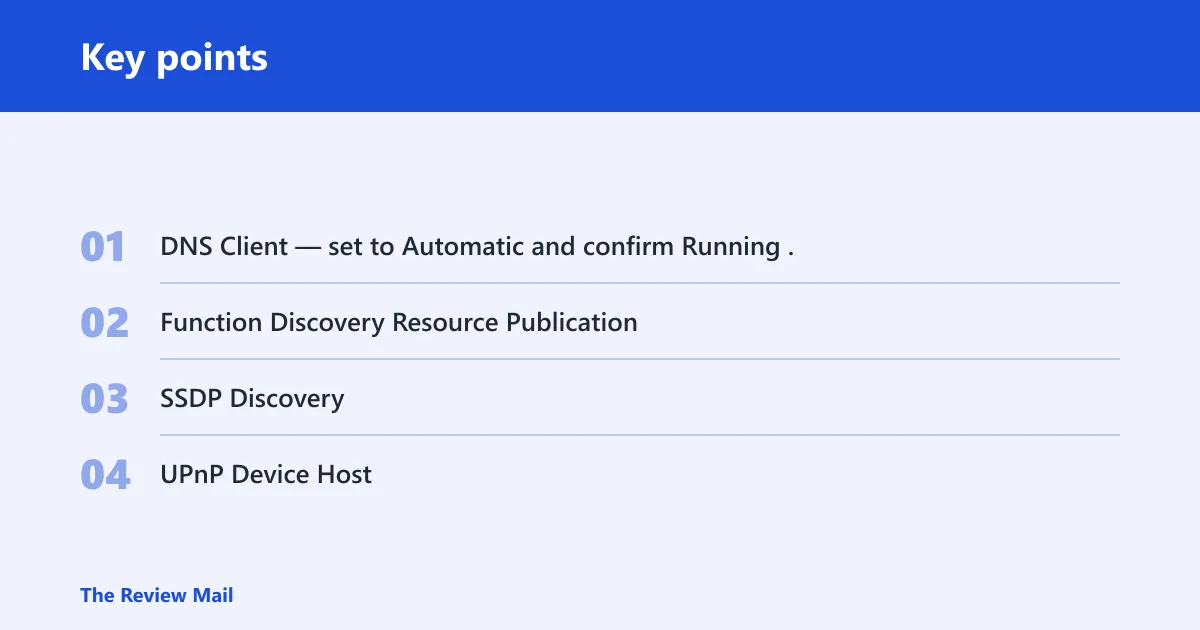
- DNS Client — set to Automatic and confirm Running.
- Function Discovery Resource Publication — set to Automatic and confirm Running.
- SSDP Discovery, set to Automatic and confirm Running.
- UPnP Device Host, start it and confirm Running.
| setting won’t save | server not visible to others | can’t browse shares | service status | next action |
|---|---|---|---|---|
| Yes | No | No | Any dependency service stopped | Set DNS Client, Function Discovery Resource Publication, SSDP Discovery, and UPnP Device Host to Automatic; start them in services.msc |
| No | Yes | No | All services running | Check Windows Firewall Network Discovery for the active profile and confirm Domain or Private, not Public |
| No | Yes | Yes | All services running | Verify the Network Discovery rule group in Windows Defender Firewall with Advanced Security, then test from a second device on the same subnet |
| Yes | Yes | Yes | Startup type changed back after reboot | Check Group Policy or local security policy for the setting that is overriding Advanced sharing settings |
Server discovery decision matrix
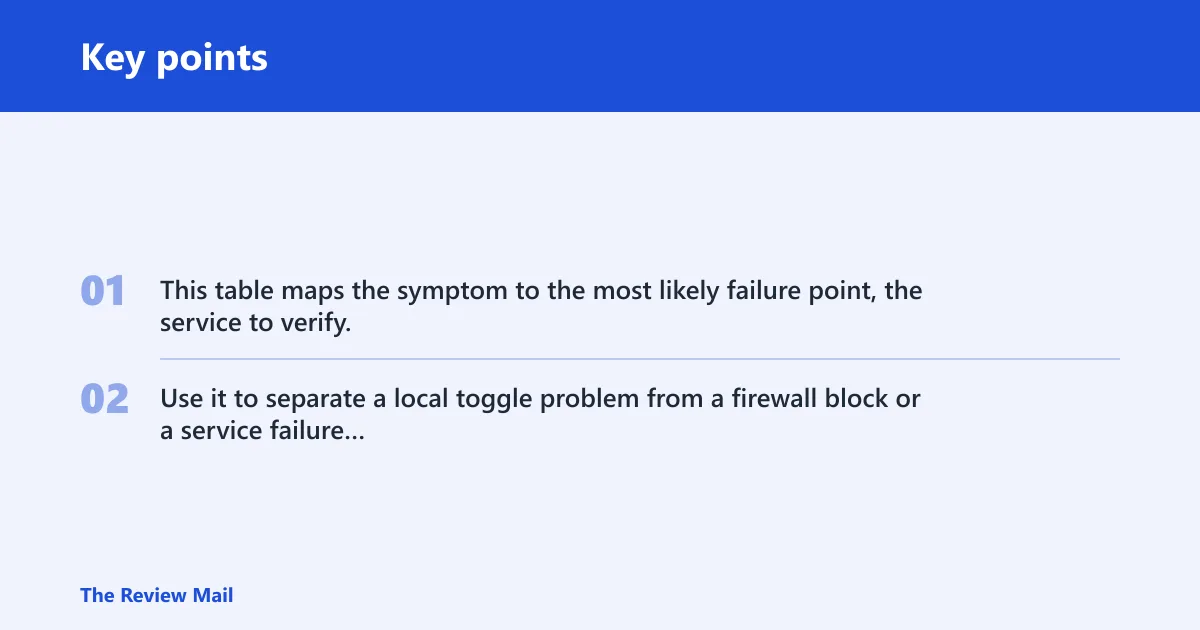
This table maps the symptom to the most likely failure point, the service to verify, the firewall path to check, and the quickest test. Use it to separate a local toggle problem from a firewall block or a service failure without repeating the same fix in every branch.
| Symptom | Most likely cause | Exact service to check | Firewall path to verify | Fastest confirmation test |
|---|---|---|---|---|
| Setting won’t save | Profile or policy override | Function Discovery Resource Publication | Control Panel > System and Security > Windows Firewall > Allow an app or feature through Windows Firewall | Save in the active profile, then reopen Advanced sharing settings to see whether it stayed on |
| Server not visible to others | Firewall block or wrong profile | DNS Client | Windows Defender Firewall with Advanced Security > Network Discovery rule group | Browse from another device on the same subnet |
| Can’t browse shares | Discovery service chain broken | SSDP Discovery and UPnP Device Host | Allow an app or feature through Windows Firewall | Open the server by name or by share path from a second host |
| Visible after reboot, then gone again | Startup type reset or policy change | Function Discovery Resource Publication | Rule group still enabled on the active profile | Recheck services.msc after restart |
What if other computers still cannot see the server?
If the server still cannot be seen, recheck the network profile and the source of any policy that keeps changing discovery settings. Then test from another machine on the same subnet. If the server appears by IP but not by name, the fault is usually still in discovery publication or firewall filtering rather than SMB itself.
- Confirm the server is on the intended profile: Domain or Private, not Public.
- Verify the four dependency services again in
services.msc. - Test a second client on the same subnet, not a remote subnet across routing or VPN.
- If the issue persists, use a network reset only as the last broad cleanup step.
- If discovery still fails after that, check domain policy or local security settings that may override the UI.
Keep the server on the correct network profile and confirm the discovery services are set to Automatic before you rely on the box for share browsing. That avoids the common cycle of fixing it once, then losing it again after the next restart.
Frequently asked questions
Why is network discovery not working on Windows Server?
On Server 2019 and 2022, the usual cause is a blocked rule, a wrong profile, or a stopped dependency service. Start with Windows Firewall, then check Function Discovery Resource Publication and the active profile in Advanced sharing settings. If the server still does not appear, test from another device on the same subnet.
Which services must be running for network discovery to work?
Check DNS Client, Function Discovery Resource Publication, SSDP Discovery, and UPnP Device Host. Set the first three to Automatic and confirm they show Running in services.msc. If one service stays stopped after a reboot, look for a policy or startup-type override.
How do I turn on network discovery in Windows Server 2019?
You cannot turn on Network Discovery in Network and Sharing Center on Windows Server. Instead, open Control Panel > System and Security > Windows Firewall, select Allow an app or feature through Windows Firewall, choose Change settings, and enable Network discovery for the active profile. Then check Advanced sharing settings and the required services.
Why won’t changes in Advanced sharing settings save?
The usual reason is that the active profile is being managed by policy or treated as Public. Reopen the same profile section in Advanced sharing settings, save again, and then verify Function Discovery Resource Publication in services.msc. If the value flips back, policy is overriding the local setting.
How do I allow network discovery through Windows Firewall?
Open Control Panel > System and Security > Windows Firewall, then choose Allow an app or feature through Windows Firewall. Select Change settings, check Network discovery, and make sure the active profile box is selected. For servers, confirm the same rule in Windows Defender Firewall with Advanced Security.
Can a network reset fix network discovery on Windows Server?
Sometimes, but only as a last resort. If the server still fails after firewall, profile, and service checks, run ipconfig /flushdns and netsh winsock reset, then reboot.
Does this problem affect Windows Server 2022 too?
Yes. The same failure points apply: firewall rules, the active network profile, and the discovery services. The fix path is the same on Server 2019 and 2022: verify Network Discovery in the active profile, confirm the firewall rule group, and check the four dependency services.
What should I check if other computers can’t see my server?
Check whether the server is on Public instead of Private or Domain, then verify the firewall rule group and service status. If the server can be reached by IP but not by name, the issue is likely discovery publication or name resolution, not the share itself.