Critical Structure Corruption BSOD Fix for Windows 11
This stop code is one of the common bug check codes displayed on the bug check screen. If Safe Mode boots, start with drivers. If it fails before login, test RAM, disk, and BIOS/UEFI. The fastest first move is to note whether Windows can boot normally, boot only in Safe Mode, or not boot at all.
What Critical Structure Corruption means in Windows 11
This stop code can appear during boot, stall the machine in a reboot loop, or return only under load when the same component gets touched again.
Separate software triggers from unstable hardware first. That is the job here. A driver rollback can fix one path, but bad RAM, a shaky SSD, or BIOS instability can keep the crash coming back.
According to Fix problems that block programs from being installed or… — Microsoft says built-in recovery options can help resolve common Windows 11 issues.
Which fix should you try first?
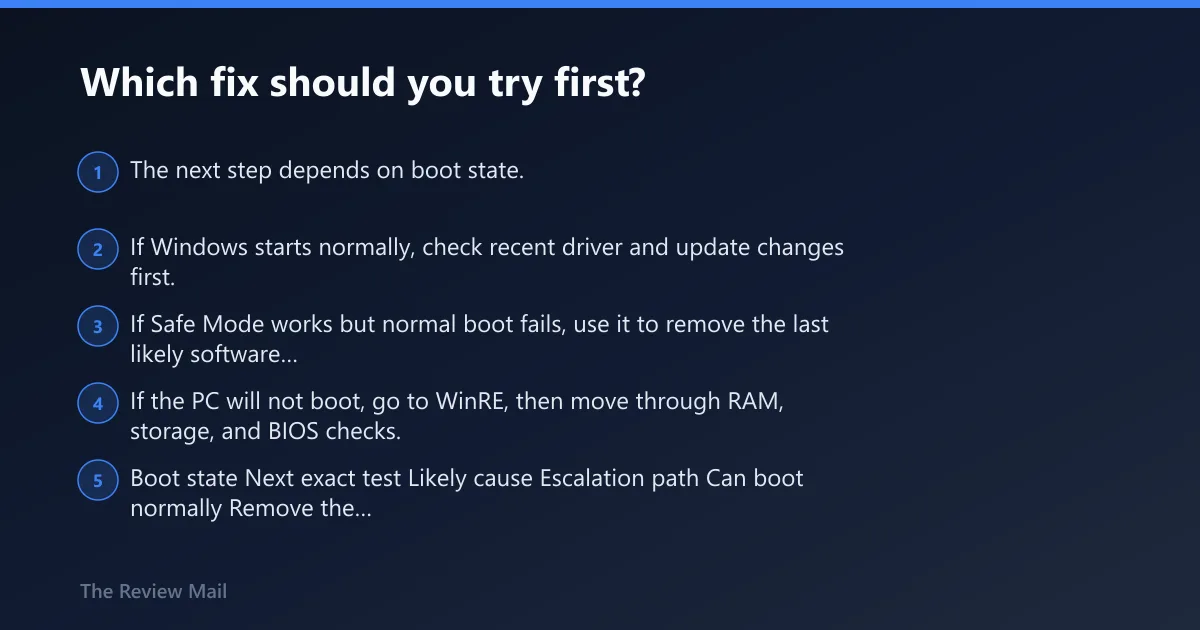
The next step depends on boot state. If Windows starts normally, check recent driver and update changes first. If Safe Mode works but normal boot fails, use it to remove the last likely software trigger. If the PC will not boot, go to WinRE, then move through RAM, storage, and BIOS checks.
| Boot state | Next exact test | Likely cause | Escalation path |
|---|---|---|---|
| Can boot normally | Remove the last GPU, chipset, or storage driver; then check Windows Update history | Recent driver or update change | Run SFC, then DISM once; if the stop code returns, test RAM and storage |
| Can boot Safe Mode only | Uninstall the latest driver or utility from Settings > Apps, then use Device Manager rollback | Software conflict, often a signed OEM driver or utility | Turn off XMP/EXPO, then test memory and storage |
| Cannot boot at all | Enter WinRE and use Startup Repair once; if it loops, stop repeating repairs | Hardware instability or deeper corruption | Check RAM, SSD, BIOS/UEFI settings, then prepare Reset This PC or clean install |
Did the crash start after a driver or update change?
When the timing fits, remove the newest software change first. Recent GPU, chipset, or storage drivers are the first driver group I inspect. If the crash began after an ASUS utility update, remove that utility from Settings > Apps before deeper repairs.
- Open Device Manager and check Display adapters, Storage controllers, and System devices.
- For the newest change, use Properties > Driver > Roll Back Driver if available, or Uninstall device.
- Open Settings > Windows Update > Update history and remove the last update if the timing matches the first crash.
- Open Settings > Apps > Installed apps and uninstall any recent motherboard, GPU, or tuning utility.
- If Windows only crashes after login, try Safe Mode first so the removal is not blocked by the crashing driver.
Can corrupted system files cause Critical Structure Corruption BSOD?
Yes, but treat system-file repair as a first pass only when Windows still starts well enough to run it. Use sfc /scannow first, then DISM /Online /Cleanup-Image /RestoreHealth if Windows still boots. If the stop code comes back after a repair cycle, move on to RAM and storage checks instead of repeating the same scan.
- Open Terminal or Command Prompt as administrator.
- Run
sfc /scannow. - If corruption is found or Windows still behaves badly, run
DISM /Online /Cleanup-Image /RestoreHealth. - Restart once.
- If the BSOD comes back, stop repeating file repair and test memory and the drive.
sfc /scannow
DISM /Online /Cleanup-Image /RestoreHealth
Is this a RAM problem?
It can be. Unstable memory often shows up as crashes that return after reboot, change pattern under load, or vanish when overclock settings are removed. Start with the physical basics: reseat the RAM, test one stick at a time in the recommended slot order, and turn off XMP or EXPO before retesting unstable memory.
- Power off the PC and unplug it.
- Reseat the RAM modules.
- Install one stick at a time in the motherboard’s recommended slot order.
- Enter BIOS/UEFI and disable XMP or EXPO.
- Run Windows Memory Diagnostic from mdsched.exe, then retest under normal use.
- If one stick passes and the other fails, keep testing that stick alone before assuming Windows is the problem.
Is the storage drive causing the crash?
Storage faults can trigger the stop code, especially when Windows reads the same damaged area during boot. If the drive is SATA, check the cable and the port. If it is NVMe, reseat the module. Once the system is stable enough to boot, run chkdsk and check SMART health and firmware status.
- If the drive is SATA, replace the data cable and move it to a different port.
- If the drive is NVMe, power off and reseat the module.
- Boot Windows and open an elevated command prompt.
- Run
chkdskC: /f and restart if prompted. - Check the drive’s SMART status in the vendor tool or BIOS.
- Apply a firmware update only if the vendor release notes match the hardware issue.
How do I boot Windows 11 after a BSOD loop
If Windows is stuck in a BSOD or automatic repair loop, use WinRE once and stop cycling the same repair screens. Safe Mode can tell you the crash depends on a nonessential driver or utility. Startup Repair, System Restore, and Command Prompt are the useful WinRE tools; repeated repair attempts are not.
- Go to Settings > System > Recovery, then select Advanced startup and choose Restart now. After that, choose Troubleshoot > Advanced options > Startup Settings.
- If Safe Mode loads, remove the newest driver or app update.
- If Safe Mode does not load, run Startup Repair once.
- If Repair loops again, stop and move to RAM, storage, and BIOS checks.
- Use System Restore only if a restore point exists from before the crash.
- Use Command Prompt in WinRE for disk checks only when Windows cannot start normally.
What to check in BIOS or UEFI before you reset Windows
Before you reset, strip out settings that can destabilize the kernel. Undo memory overclock profiles first. Review any storage mode changes next. Then check Secure Boot and firmware updates. Those settings can turn a marginal system into a repeat crash, especially after new RAM, SSD, or board firmware.
- Enter BIOS/UEFI.
- Disable XMP or EXPO.
- Confirm storage mode has not changed since the system was stable.
- Check Secure Boot status.
- Apply a firmware update only if the vendor release notes match the hardware issue.
What should I do before resetting Windows 11 for BSODs?
Only move to Reset This PC after the driver, memory, storage, and BIOS checks have failed. Microsoft says built-in recovery options can help resolve common Windows 11 issues, and Windows 11 may recommend troubleshooting steps automatically; Microsoft also says to restart the PC first, repair an app before resetting it when available, uninstall through Windows Settings, and use Windows Security to scan if malware or a suspicious app is involved. If repair fails, Microsoft points to Reset this PC. (per Microsoft support)
If there is still no progress, prepare for a reset or clean install rather than another round of the same scans.
- Back up files you cannot replace.
- Uninstall the last suspicious driver or utility first if it is clearly tied to the crash.
- Open Settings > System > Recovery > Reset this PC.
- Choose the least destructive reset option that still lets Windows rebuild cleanly.
- If the stop code returns after reset, a clean install is the better next step.
Frequently asked questions
how do I fix critical structure corruption BSOD in Windows 11
Start with boot state. If Windows loads, remove the last driver or update, then run sfc /scannow once and DISM /Online /Cleanup-Image /RestoreHealth if needed. If it loops or will not boot, use WinRE, then test RAM and the storage drive before resetting.
what causes critical structure corruption on Windows 11
This is one of the common bug check codes displayed on the bug check screen. The usual workup starts with recent drivers or updates, then moves to memory, storage, and BIOS/UEFI instability. The fastest way to sort it is to match the fix to the boot state and the last change.
is critical structure corruption a RAM or disk problem
It can be either, and sometimes neither. Reseat the RAM, test one stick at a time, and disable XMP or EXPO. For storage, check SATA cables and ports, or reseat an NVMe module, then run chkdsk once Windows stays up long enough to finish it.
when should I reinstall Windows 11 for critical structure corruption
Consider Reset This PC or a clean install if driver rollback, file repair, RAM testing, storage checks, and BIOS/UEFI review do not change the crash. If the BSOD returns after those steps, the system is past the point where another repair pass is likely to help.