Windows 10 Pointing Device Driver
For a Windows 10 pointing device driver, match the driver to how the device appears in Device Manager: use the OEM touchpad package for Synaptics, ELAN, or ALPS entries, Windows Update for newer supported hardware, and the in-box HID driver for basic mice and generic touchpads. The wrong package can drop gestures, break buttons, or leave the device stuck on a generic driver.
Start with the device entry
Open Device Manager, then open Mice and other pointing devices. That category can hold touchpads, mice, and related pointing hardware. The name you see there tells you which driver path is likely right, so check the entry before you remove or replace anything.
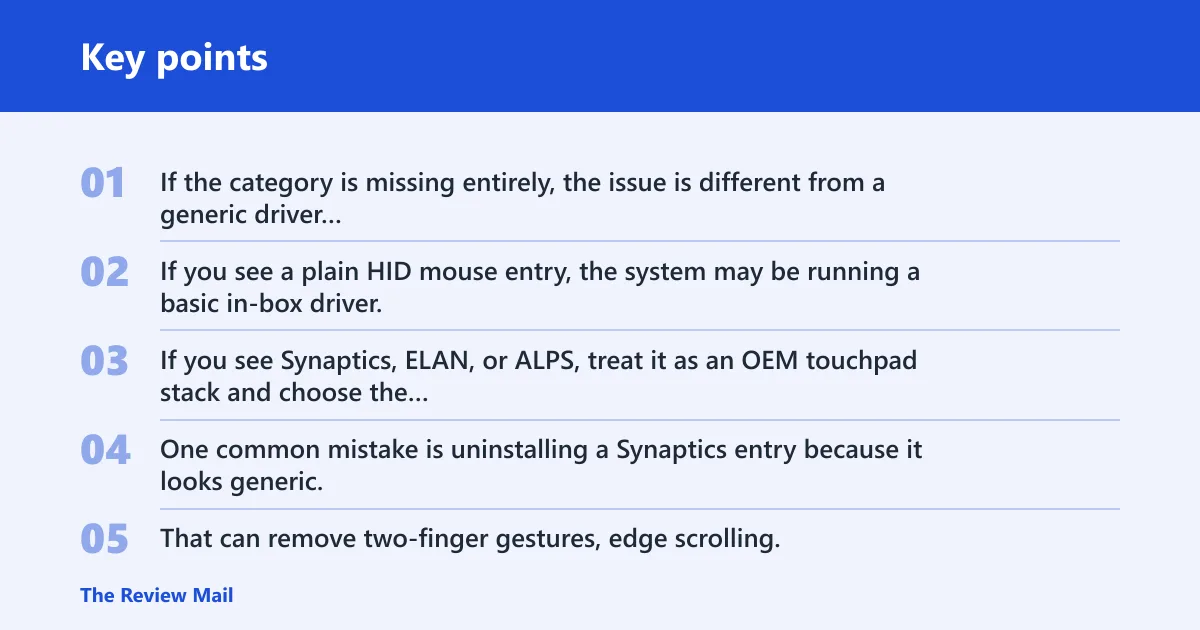
If the category is missing entirely, the issue is different from a generic driver mismatch. If you see a plain HID mouse entry, the system may be running a basic in-box driver. If you see Synaptics, ELAN, or ALPS, treat it as an OEM touchpad stack and choose the laptop maker’s package before you uninstall anything.
Which pointing device driver should you install?
| Device Manager symptom | Likely driver family | Best source | What to do next |
|---|---|---|---|
| Missing category | No active pointing device entry, or hardware not enumerated yet | Windows Update first, then the laptop maker’s support page | Rescan hardware, check for a disabled device, then install the OEM touchpad package that matches the model |
| Generic HID mouse | In-box HID driver | Windows in-box driver, then Windows Update if a better match exists | Keep the HID driver if the device works; move to OEM software only if the laptop needs gestures or special controls |
| Synaptics touchpad | Synaptics Pointing Device | Laptop maker’s Synaptics package | Use the OEM package if gestures, taps, or tray controls are missing |
| ELAN touchpad | ELAN pointing device driver | Laptop maker’s support page | Install the OEM package that matches the exact laptop model and hardware ID |
| ALPS touchpad | ALPS pointing device driver | Laptop maker’s support page | Prefer the manufacturer package; the Microsoft in-box driver may work, but vendor features can disappear |
One common mistake is uninstalling a Synaptics entry because it looks generic. That can remove two-finger gestures, edge scrolling, or vendor control panels until the right package is installed again. Treat the visible name as a clue, not a command to wipe the device.
How do you update the driver in Device Manager?
Right-click the device in Mice and other pointing devices, choose Update driver, and let Windows search automatically first. That is the fastest path when the hardware is already visible and Windows has a better-matching package in its driver store or on Windows Update.
If Device Manager says the best driver is already installed, that does not always mean the correct OEM package is present. It only means Windows did not find a higher-ranked match for the current hardware ID and driver class. In that case, move to Windows Update or the laptop maker’s support page.
Use the automatic path first
- Open Device Manager.
- Open Mice and other pointing devices.
- Right-click the touchpad or mouse entry.
- Select Update driver.
- Choose Search automatically for drivers.
Suppose a Lenovo notebook shows Synaptics Pointing Device and the touchpad works but the gestures stopped after a cumulative update. Start with automatic search. If Windows finds a newer package, it may replace the current one without you needing to uninstall anything.
Should you uninstall and reboot?
Uninstalling can help when the driver is corrupted, stuck, or loaded from the wrong package. It is not the first move for every case. If the device name shows Synaptics, ELAN, or ALPS, keep the vendor package in mind so you do not strip away gesture support or special buttons that the OEM driver provides.
After uninstalling, restart the PC. Then open Device Manager and choose Scan for hardware changes if the device does not return on its own. Windows 10 installs the best matching package in the driver store first, so the device can start operating quickly and then be replaced later by a better match.
When uninstalling helps
- The device appears with an error icon or fails to respond after a driver change.
- The touchpad is listed, but input is broken after a bad package was installed.
- You need Windows to reload the device and rebuild the driver binding.
When to keep vendor software in place
- The device is a Synaptics, ELAN, or ALPS touchpad and only gestures or hotkeys are missing.
- The laptop uses OEM control software for sensitivity, scrolling, or palm rejection.
- The device works as a basic pointer and only needs a targeted update.
After the restart, go back to Device Manager and choose Scan for hardware changes. That refreshes the device list and can bring back a missing entry without a full reinstall cycle. If the category still does not appear, the problem is likely below the driver layer and the download path matters more than another reboot.
What Windows Update can and cannot do
Windows Update can deliver a better-matching driver after the initial install, but it does not always do it immediately or choose the package you expected. Starting in Windows 10 version 1703, the search may wait up to about 24 hours, and starting with Windows 10 version 2004, optional driver updates may appear separately. (Microsoft Learn)
Windows 10 version 1709 and greater uses a best-match Windows Update ranking, and critical or automatic driver packages are prioritized highest. That means Windows Update may prefer a broadly compatible or higher-ranked package over the vendor package you were hoping to see. The result can be a working cursor with missing OEM features.
The driver store matters too. Windows 10 installs the best matching package from the driver store first, and later replacements can come from Windows Update or the DevicePath search order. The DevicePath registry value sits under HKEY_LOCAL_MACHINE\Software\Microsoft\Windows\CurrentVersion, and by default it points to %SystemRoot%\INF.
Use Settings > Update & Security > Windows Update to check for driver updates. If you are on Windows 10 version 2004 or later, also look for View optional updates. That is where many noncritical driver packages appear.
If Windows keeps offering the wrong package, do not assume the hardware is unsupported. The ranking may simply favor a generic match, or the better package may be delayed by the daily scan cycle. In those cases, the OEM download page is the faster path.
Where should you download the OEM package?
Go to the laptop maker’s support page when the entry is Synaptics, ELAN, or ALPS and Windows Update does not supply the right package. Match the exact model name and touchpad family before downloading. HP, Lenovo, and ASUS each publish model-specific support pages that may separate touchpad packages by product line.
Use the hardware ID when the support page offers more than one touchpad option. Synaptics Pointing Device, ELAN pointing device driver, and ALPS pointing device driver are not interchangeable in every laptop. The wrong package can install, then leave gestures or device controls missing.
Pick the correct OEM page
- HP: search by the full product number, then open the touchpad or mouse driver section for that model.
- Lenovo: search by machine type or exact model, then choose the touchpad entry that matches Synaptics, ELAN, or ALPS.
- ASUS: match the notebook series and exact submodel, then install the touchpad package listed for that hardware.
Say your ASUS laptop shows an ELAN entry, but Windows Update offers only a generic HID mouse package. Install the ASUS ELAN package instead. The generic driver may restore clicks, yet the vendor package is more likely to restore gestures, palm rejection, and the manufacturer control panel.
What to do after an update breaks the cursor
If the cursor or touchpad stopped working after a Windows update, first try the Roll Back Driver button in Device Manager if it is available. That is the cleanest way to reverse a bad driver change. If rollback is unavailable, use a restore point if the issue started after a system update, then check the device entry again.
Power or sleep changes can also hide the device. A laptop that wakes to a dead touchpad may need a driver refresh, a scan for hardware changes, or a setting change in the OEM package. If the problem began right after the update, do not jump straight to another uninstall cycle until you know which package Windows replaced.
If the device vanished after sleep or restart, open Device Manager and look for a hidden or disabled entry under Mice and other pointing devices. Then try Scan for hardware changes. If the touchpad returns only as a generic HID device, reinstall the vendor package from the laptop maker instead of relying on the generic match.
Frequently asked questions
How do I reinstall the pointing device driver on Windows 10?
Open Device Manager, open Mice and other pointing devices, right-click the device, and choose Uninstall device. Restart the PC, then let Windows reload the driver or use Scan for hardware changes. If the device uses Synaptics, ELAN, or ALPS hardware and gestures or vendor controls do not return, install the OEM package.
Why is my Synaptics pointing device missing in Device Manager?
A missing Synaptics entry usually means the hardware is not being enumerated, the driver failed to bind, or Windows replaced it with a different package. Check Mice and other pointing devices, run Scan for hardware changes, and then install the Synaptics package from the laptop maker if the category still does not return.
How do I update the mouse or touchpad driver in Windows 10?
Right-click the device in Device Manager and choose Update driver, then let Windows search automatically. If the device is a touchpad and Windows only finds a generic HID package, check Windows Update for optional drivers or use the laptop maker’s support page for the Synaptics, ELAN, or ALPS package.
Should I uninstall the pointing device driver and let Windows reinstall it?
Only if the current driver is broken, stuck, or clearly mismatched. Uninstalling a Synaptics, ELAN, or ALPS device can remove gesture support and vendor controls until the correct package returns. If the touchpad still works, update first; uninstall only when you need a clean rebind.
Where can I find the correct Windows 10 pointing device driver for my laptop?
Start with the laptop maker’s support page for the exact model, then match the touchpad family shown in Device Manager. HP, Lenovo, and ASUS often list separate packages for Synaptics, ELAN, and ALPS hardware. Windows Update can help, but the OEM page is the safer choice when features matter.
What is the difference between Synaptics, ELAN, and ALPS pointing device drivers?
They are OEM touchpad driver families used by different laptop makers and hardware revisions. Each can expose different gestures, button behavior, and control panels. A generic HID driver may move the cursor, but the vendor package is what usually restores the laptop’s touchpad features and tuning options.
Why won’t Windows Update install the right pointing device driver?
Windows Update ranks drivers by hardware ID and driver class, and it prioritizes critical or automatic packages highest. Starting in Windows 10 version 2004, optional updates are shown separately, so the correct driver may be hidden there. It can also take up to 24 hours for the daily scan to surface a better match.
What should I do if my cursor or touchpad stops working after an update?
Try Roll Back Driver if the option is available, then restart and scan for hardware changes. If that fails, use a restore point if the problem began after a Windows update. For Synaptics, ELAN, or ALPS hardware, reinstall the OEM package once the device is visible again.