Trust Settings Windows 11: Where to Find Them
Use Windows 11 Settings for system trust, security, recovery, and account options; use Microsoft 365 Trust Center for Office privacy and macros; use your browser’s own settings for certificates, site permissions, and pop-ups. Pick the wrong panel and you can change the wrong policy, miss a warning, or keep a blocked feature blocked. This guide maps the main trust settings Windows 11 users need and shows where each one lives.
Where are trust settings in Windows 11?
Start with the problem you need to fix. If the issue is device security, use Windows Security. If it is Office trust, macros, add-ins, or trusted documents, use Microsoft Trust Center inside Microsoft 365 apps. If it is a website allowance, go to browser or Internet Options settings, not Windows Settings.
The Windows 11 Settings app is still the main hub for device options, account controls, recovery, and many security-related pages. You can open it from the Start menu, taskbar, desktop, a shortcut, a command, File Explorer, or Quick Settings. If a shortcut fails, launch the app with the ms-settings: URI.
Match the task to the right surface
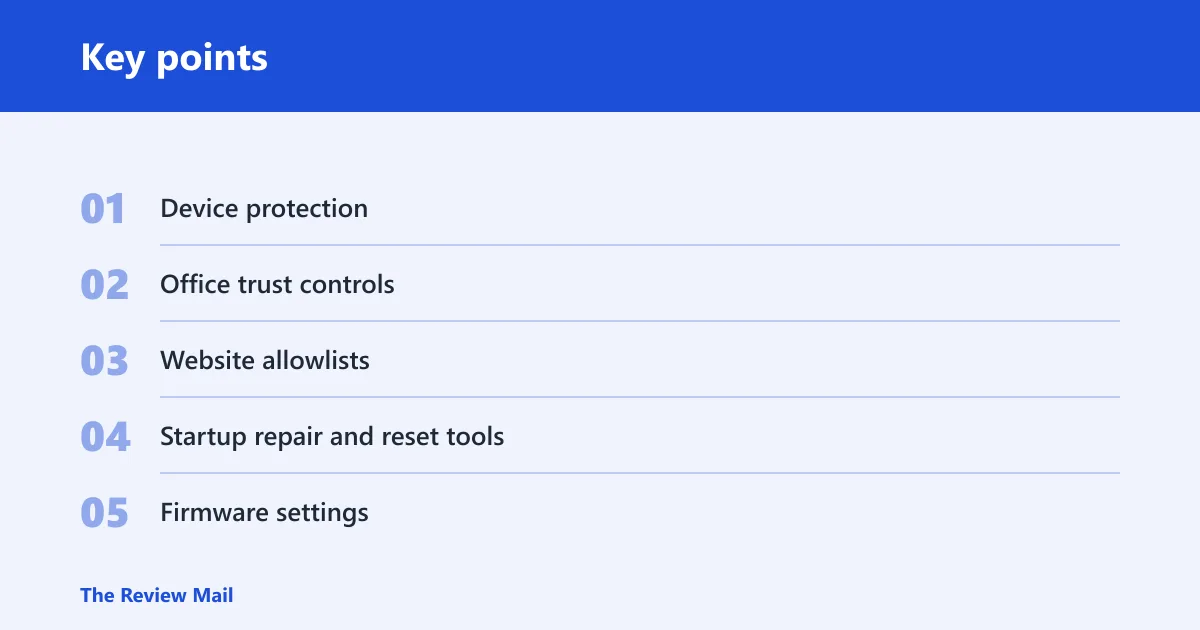
- Device protection such as antivirus, firewall, and app protection: Windows Security. (Microsoft Support)
- Office trust controls such as trusted documents, add-ins, privacy, and file block settings: Microsoft Trust Center.
- Website allowlists such as Trusted Sites: browser security zones or Internet Options.
- Startup repair and reset tools: Advanced Startup, also called WinRE.
- Firmware settings such as boot order or Secure Boot options: UEFI firmware screens.
Say your work laptop blocks a macro-enabled spreadsheet. The fix is usually in Microsoft 365 Trust Center, not in Windows Security and not in the browser. That matters because the same word, trust, points to different menus with different owners.
How do you open Windows 11 Settings quickly?
The ms-settings: URI is a useful fallback when menus or shortcuts are not responding.
Fast ways to open Settings
- Open Start, search for Settings, and select the app.
- Open Run, type ms-settings:, then press Enter.
- Use Quick Settings and open the linked Settings page if it is present.
- Open File Explorer or a command prompt and launch the app from there.
That is why it is the primary access method for many Windows 11 settings pages. When that shortcut is blocked by keyboard remapping or a remote session, the Run box is a reliable fallback.
A common first-timer mistake is to search for “security” and open the wrong panel. Windows Security, Microsoft Trust Center, and browser settings can all appear near each other in search results, but they control different things.
Microsoft trust Center vs Windows Security
Microsoft Trust Center controls Office and Microsoft 365 trust behavior. Windows Security controls device-level protection built into Windows 11. They are separate surfaces, and they solve different problems. If a file opens with a warning in Word, Trust Center is the more likely target. If Defender, firewall, or SmartScreen is involved, Windows Security is the right place.
What Trust Center controls
Trust Center is where Microsoft 365 apps keep settings for trusted documents, trusted locations, add-ins, privacy, and file block behavior. Those controls live inside the Office app you are using, not in Windows Settings. That is why Word, Excel, and PowerPoint can each expose the same Trust Center area.
What Windows Security controls
Windows Security is the built-in security app in Windows 11. It handles device protection, app and browser control, firewall status, virus and threat protection, and related operating-system features. It does not manage Office macros or trusted documents.
When browser or Office settings are the real target
Browser trust settings are for sites, permissions, certificates, pop-ups, and security zones. Office trust settings are for documents and add-ins. If the prompt mentions a website domain, browser settings are usually the right place. If it mentions a blocked workbook or add-in, check Trust Center first.
Trusted Sites and browser security zones
Trusted Sites is a browser security zone setting, usually reached through Internet Options or a managed policy path. It is used to allow specific domains. This is not a Windows Security setting, and it is not the same as a Microsoft 365 trust list. If the Sites button is missing, policy or browser version is usually the reason.
Find the Trusted Sites path
- Open Internet Options from the browser or Control Panel path available on the PC.
- Open the Security tab.
- Select Trusted sites.
- Choose Sites and add the approved domain.
On managed devices, the Trusted Sites list may be locked by group policy or a company security baseline. In that case, the browser may show the zone but not allow edits. If the Sites button is missing or greyed out, the device owner or administrator is controlling it.
Suppose a portal at intranet.example.com still opens in a restricted mode after being added once. The missing piece may be policy, not the address itself. On a work PC, the browser zone can be enforced centrally, so the local menu only shows part of the setup.
Trust settings and file block controls
File block settings belong to Microsoft 365 Trust Center, not Windows Security. Use that area when you need to decide how Office treats older file formats, protected content, trusted documents, or add-ins. If the option is greyed out, an organization policy or a managed account is often in charge.
Trusted documents and trusted add-ins
Trusted documents let Office skip repeated warnings for a document that has already been approved. Trusted add-ins are the Office-side controls for code or extensions allowed to run inside the app. Both live in Trust Center, and both are separate from Windows app permissions.
File Block settings in Microsoft 365 apps
Open the Office app, then go to File > Options > Trust Center > Trust Center Settings > File Block Settings. That path may vary slightly by app, but the Trust Center entry point is the same. Use it to control whether older or potentially risky file types open, warn, or stay blocked.
What to do when an option is greyed out
If File Block settings, trusted document controls, or add-in permissions are unavailable, check whether the account is managed by an organization. A work or school device may hide those controls completely. If a setting is present but disabled, the admin policy is likely overriding local choice.
Windows recovery and firmware access paths
Advanced Startup in Windows 11 is also called Windows Recovery Environment, or WinRE. Use it when Windows will not start normally, when you need startup repair, or when you need to uninstall an update. UEFI firmware is the next layer down, and it is where boot and firmware options live.
Open Advanced Startup in Windows 11
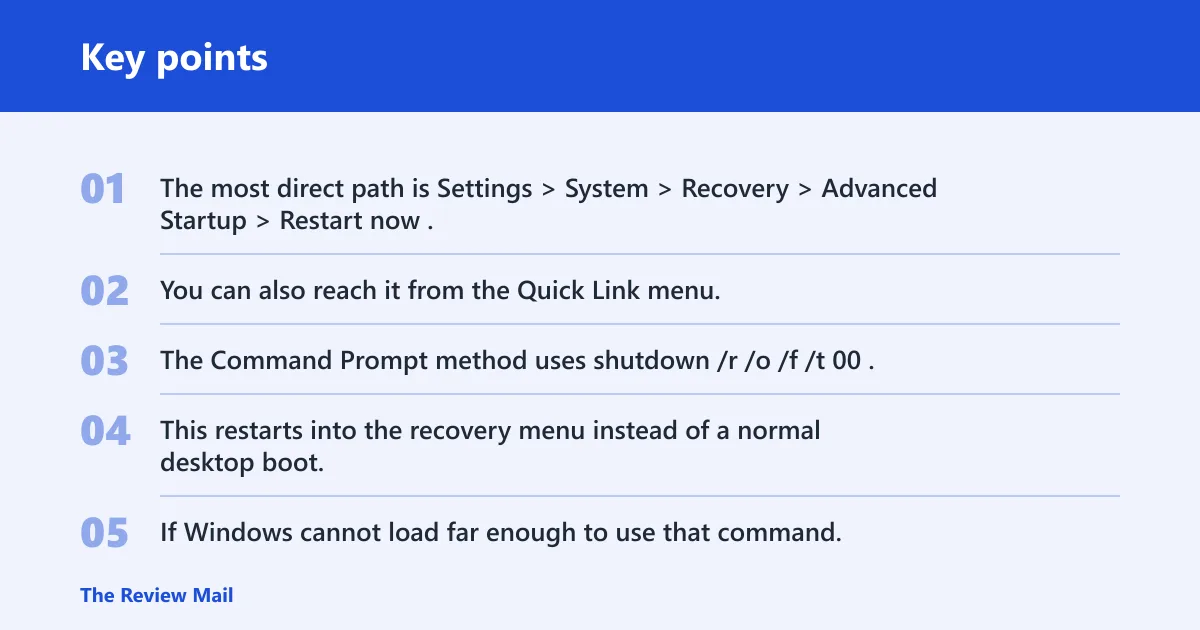
The most direct path is Settings > System > Recovery > Advanced Startup > Restart now. That sends the PC into WinRE. You can also reach it from the Quick Link menu, the Start power menu with Shift + Restart, Command Prompt, USB installation media, or Automatic Repair.
Reach WinRE from startup or media
The Command Prompt method uses shutdown /r /o /f /t 00. This restarts into the recovery menu instead of a normal desktop boot. If Windows cannot load far enough to use that command, booting from installation media can still open the recovery tools.
Get to UEFI firmware settings
UEFI firmware is the modern firmware interface that has largely replaced BIOS on many PCs. Windows 11 includes UEFI support as part of its minimum system requirements, and UEFI can provide mouse and keyboard support, though the implementation varies by manufacturer. The menu name and key sequence are not the same on every device.
To reach UEFI from Windows 11, go through Advanced Startup, then choose the firmware option shown by the manufacturer. If the PC goes straight to Windows instead, the startup path is probably different on that model. In that case, the manufacturer’s support notes are the best reference.
Trust settings Windows 11 task map
This table maps common trust-related tasks to the appropriate surface. It shows where to change each one, the exact path to try first, who controls it, and what to do if the option is missing. Use it when you know the symptom but not the menu.
| Task | Where to change it | Exact path | Who controls it | Fallback if blocked |
|---|---|---|---|---|
| Open system settings | Windows 11 Settings app | Win + I or ms-settings: | User | Use Start, search, Run, File Explorer, Quick Settings, or a command |
| Change device security features | Windows Security | Start > Windows Security | User or admin | Check whether the device is managed by work or school policy |
| Allow a trusted document or add-in | Microsoft 365 Trust Center | File > Options > Trust Center > Trust Center Settings | User or admin | Ask for the Office policy setting if controls are greyed out |
| Change file block behavior | Microsoft 365 Trust Center | Trust Center Settings > File Block Settings | User or admin | Use an admin-approved file format or request policy change |
| Add a trusted website | Internet Options or browser policy | Security tab > Trusted sites > Sites | User or admin | If Sites is missing, check browser policy or IT management |
| Repair startup problems | Advanced Startup / WinRE | Settings > System > Recovery > Advanced Startup > Restart now | User | Use Shift + Restart, shutdown /r /o /f /t 00, USB media, or Automatic Repair |
| Change boot or firmware options | UEFI firmware | Open from WinRE or the manufacturer startup key | User or admin | Check the manufacturer guide if the firmware menu name differs |
Frequently asked questions
Where is Trust Center in Windows 11?
Trust Center is inside Microsoft 365 apps such as Word, Excel, and PowerPoint, not in Windows Settings. Open the app, go to File > Options > Trust Center > Trust Center Settings. That is where trusted documents, add-ins, privacy, and file block controls are usually managed.
How do I find Trusted Sites settings in Windows 11?
Trusted Sites usually lives in Internet Options, under the Security tab. Select Trusted sites, then open Sites. If the button is missing or greyed out, a browser policy or organization setting may control it, especially on a work-managed PC.
What is the difference between Trust Center and Windows Security?
Trust Center is for Microsoft 365 app behavior such as trusted documents, add-ins, privacy, and file block settings. Windows Security is for device-level protection in Windows 11, including antivirus, firewall, and app control. They solve different problems and live in different places.
How do I open Advanced Startup in Windows 11?
Go to Settings > System > Recovery > Advanced Startup > Restart now. You can also reach it with Shift + Restart from the Start power menu, or with the Command Prompt command shutdown /r /o /f /t 00. USB installation media and Automatic Repair are other entry points.
Why are my trust or security settings missing in Windows 11?
They may be in the wrong place, hidden by policy, or controlled by an admin account. Microsoft 365 settings can be locked by work or school management, and browser zones can be enforced the same way. If the menu is missing, check whether the device is managed and whether the setting belongs to Office, Windows Security, or the browser.