Windows 11 Proxy Error: Fixes That Actually Work
A proxy error means Windows or an app cannot use the configured proxy path to reach the network.
Windows 11 proxy problems often come from a mismatch between browser and system proxy settings. Compare both layers first, before you disable anything. A mismatch can break sign-in, updates, Microsoft Store access, and VPN-backed work apps. Check the browser layer and the system-service layer, then restore the correct proxy path without removing a required corporate setting.
Likely causes
Most proxy failures on Windows 11 fall into a few patterns. A bad manual proxy entry is the most common. After that come stale automatic detection or PAC script settings, proxy authentication problems, and leftover VPN or work-profile settings. A browser may recover while Windows Update, Defender, or another service still fails because those components can read a different proxy layer.
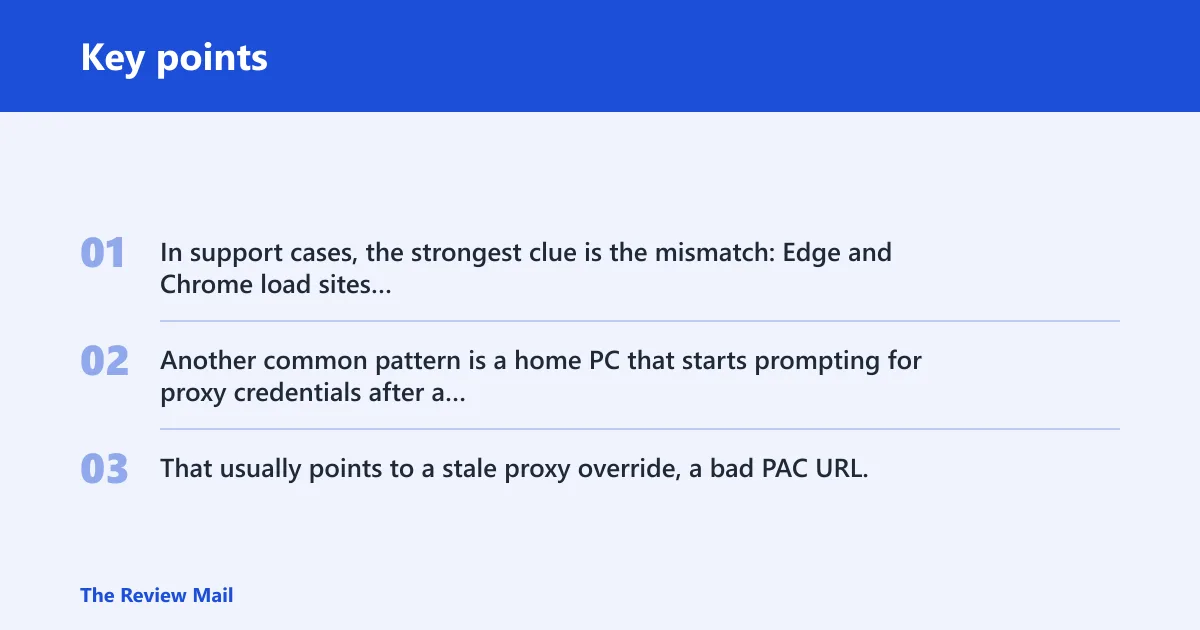
In support cases, the strongest clue is the mismatch: Edge and Chrome load sites normally, but update scans, Microsoft Store, or a device-management agent still fail. Another common pattern is a home PC that starts prompting for proxy credentials after a VPN uninstall. That usually points to a stale proxy override, a bad PAC URL, or an authentication loop that survived the network change.
Proxy settings to check first
Start in Settings > Network & internet > Proxy. Windows 11 includes a dedicated Proxy page there. Check Automatically detect settings, then review Manual proxy setup, including the Use a proxy server toggle, server address, port, and exceptions. If your network uses a script, check the setup script field too, then save changes. Microsoft’s proxy documentation also points to Internet Options/LAN settings for browsers and legacy WinINET consumers, so check both places if one changed and the other did not.
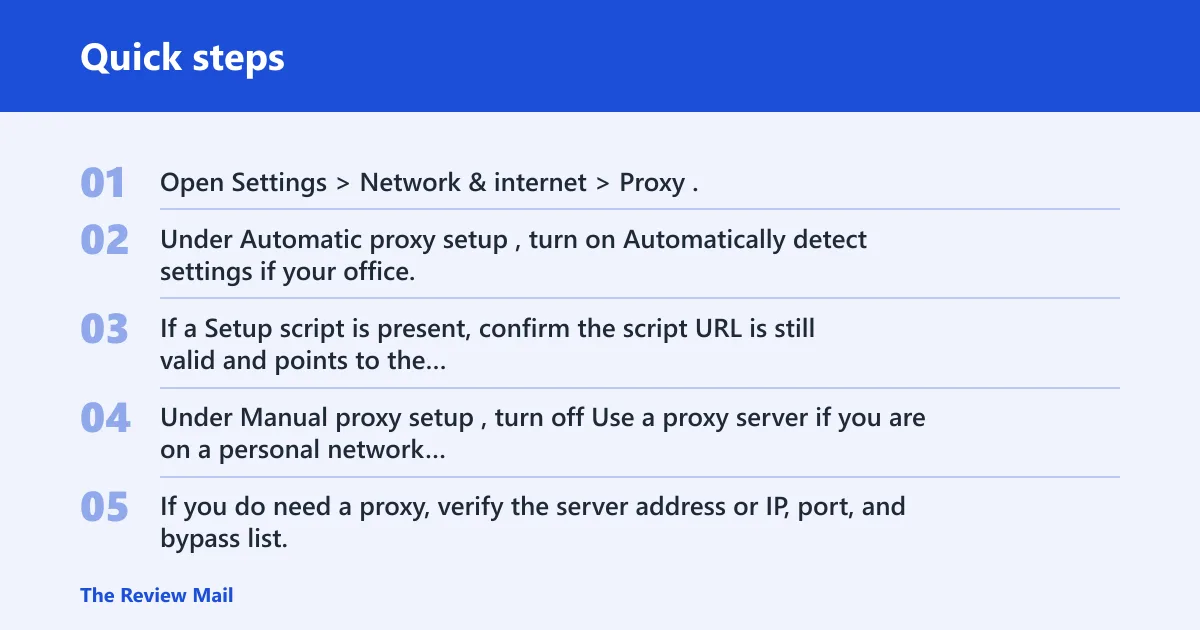
- Open Settings > Network & internet > Proxy.
- Under Automatic proxy setup, turn on Automatically detect settings if your office, school, or managed network uses WPAD.
- If a Setup script is present, confirm the script URL is still valid and points to the correct PAC file.
- Under Manual proxy setup, turn off Use a proxy server if you are on a personal network that should not use one.
- If you do need a proxy, verify the server address or IP, port, and bypass list, then save the changes.
Microsoft supports automatic, script-based, and manual proxy connections, and some VPNs require proxy settings to be configured separately. That means the correct fix may be to keep a proxy on for one network and off for another. Leave the corporate rules in place if the device belongs to work or school. Microsoft Support
Manual proxy and bypass list
Manual proxy entries break often because one field is wrong, not because the whole feature is bad. Check the server address or IP, port number, and any bypass list entries. Microsoft supports exception lists with domain wildcards such as *.contoso.com, and multiple exceptions are separated by semicolons. If your office network uses a local intranet bypass, keep that option enabled.
- Open Settings > Network & internet > Proxy.
- Under Manual proxy setup, inspect the proxy address and port for typos.
- Review the exceptions or bypass list for the required domains and semicolon-separated entries.
- Keep Don’t use the proxy server for local addresses enabled if your network depends on local intranet bypass.
- Select Save, then reopen the affected app or browser.
Automatic detection and PAC script
Automatically detect settings uses WPAD-based discovery. It should stay on for many office and school networks, especially when the proxy is assigned by DHCP or DNS. If your organization uses a PAC file, the setup script URL must still be reachable. A stale script can break browsers while leaving the rest of Windows in a mixed state.
- Go to Settings > Network & internet > Proxy.
- Turn on Automatically detect settings.
- In Setup script, confirm the PAC file URL is correct and still reachable on the current network.
- Save, then close and reopen the browser or app that failed.
Which proxy layer is broken?
The fastest way to narrow the problem is to match the symptom to the layer. WinINET is used by most desktop apps and browsers. WinHTTP is separate and is used by Windows services and some applications. Microsoft documents that WinHTTP has its own proxy configuration and that you can inspect it with netsh winhttp show proxy. They can differ, so a browser fix does not guarantee Windows Update, Defender, or other services will work.
| Symptom | Likely layer | Fastest test | Exact setting to change | Verification command |
|---|---|---|---|---|
| Browser-only failure | WinINET | Edge or Chrome fails, but Windows services still connect | Settings > Network & internet > Proxy and Internet Options/LAN settings | netsh winhttp show proxy |
| All apps fail | WinINET or both layers | Browser, Store, and desktop apps all fail | Manual proxy, auto-detect, PAC script, and bypass list | netsh winhttp show proxy |
| Windows Update fails | WinHTTP | Browser works, update scan fails | netsh winhttp reset proxy | netsh winhttp show proxy |
| Proxy auth prompt loops | Credential or policy issue | Prompt returns after valid sign-in | Credential Manager and proxy auth settings | netsh winhttp show proxy |
| Works after VPN removal | Leftover VPN or work profile | Disconnect VPN, then recheck proxy pages | Remove stale proxy override and keep required corp settings | netsh winhttp show proxy |
Why does Windows Update still fail?
Windows Update can fail after the browser is fixed because it may still be reading WinHTTP, not WinINET. That is a separate proxy store used by Windows services and some apps. Microsoft’s WinHTTP guidance shows how to display, set, and reset that proxy state with netsh winhttp show proxy and netsh winhttp reset proxy. Check it directly, then reset it only if your network does not require a service-side proxy.
- Open Windows Terminal or Command Prompt as administrator.
- Run
netsh winhttp show proxy. - Expect one of three outputs: Direct access (no proxy server), a named proxy with bypass list, or a PAC-based configuration if your organization set one.
- If the output shows a proxy that should not be there, run
netsh winhttp reset proxy. - Restart Windows Update, then retry the update scan.
- If the device is managed, compare the result with the browser proxy settings before changing anything else.
If the browser works and WinHTTP still points to the wrong proxy, you have a layer mismatch rather than a general outage. Clear the wrong system-service proxy and leave the browser settings alone if they are already correct.
How do you fix proxy authentication loops?
Authentication loops usually mean Windows is sending stale credentials or the proxy expects a different sign-in method. The common cases are NTLM, Kerberos, or Basic authentication. Clear cached credentials first, then re-enter them only after the proxy layer itself is correct. Microsoft’s proxy-auth troubleshooting guidance also highlights checking the required auth method, confirming the proxy endpoint is reachable, and validating whether the client is using the expected credentials path.
- Open Control Panel > Credential Manager.
- Check Windows Credentials and remove stale entries tied to the proxy or work account.
- Return to Settings > Network & internet > Proxy and confirm the correct proxy or PAC script is still set.
- Reopen the browser or app and sign in again when prompted.
- If the prompt continues, test on the same network from another managed device to confirm whether the proxy requires policy-based credentials.
Proxy prompts after VPN sign-out
A common first-timer mistake is to disconnect the VPN and stop there. Some VPNs must have proxy settings configured separately, and the VPN can leave behind a proxy override that still affects the device. Remove the VPN profile if needed, but keep the organization’s required proxy entries when the device is managed. In real-world cases, the loop often ends only after both the VPN client and the stale proxy credential are cleared.
- Disconnect the VPN, then reopen Settings > Network & internet > Proxy.
- Check whether the VPN client inserted a manual proxy or script URL.
- Restore the prior work proxy only if the device still belongs to that network.
- Clear stale credentials in Credential Manager if prompts keep looping.
How do you clear leftover proxy state?
If the proxy settings look right but the error remains, clear the network stack next. This can remove cached DNS or socket state that keeps pointing to a dead proxy path. The sequence often used in repair guides includes flushing DNS, resetting Winsock, and resetting TCP/IP. A restart is required afterward.
- Open Command Prompt as administrator.
- Run
ipconfig /flushdns. - Run
netsh winsock reset. - Run
netsh int ip reset. - Restart the PC.
- After restart, revisit Settings > Network & internet > Proxy and run
netsh winhttp show proxyagain.
Do this after the proxy layer checks, not before them. A stack reset can help when a bad proxy state has been cached, but it should not replace a proper check of WinINET and WinHTTP.
Still not working?
If the device is managed by work or school, stop short of wiping proxy policy. The next step is to compare the local settings with the organization’s PAC file, bypass list, and required authentication method. If the device is personal, a full network reset or a clean browser profile can be the next escalation.
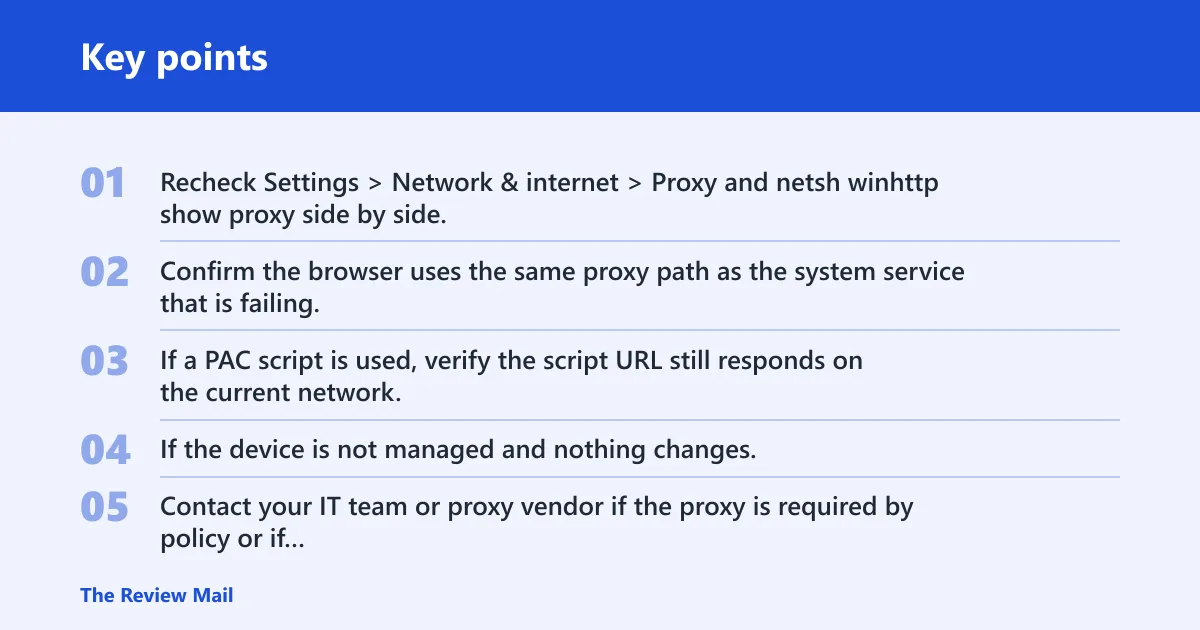
- Recheck Settings > Network & internet > Proxy and
netsh winhttp show proxyside by side. - Confirm the browser uses the same proxy path as the system service that is failing.
- If a PAC script is used, verify the script URL still responds on the current network.
- If the device is not managed and nothing changes, reset the browser profile or use Settings > Network & internet > Advanced network settings > Network reset.
- Contact your IT team or proxy vendor if the proxy is required by policy or if authentication keeps failing on a managed device.
Prevention: after any VPN, office, or school network change, recheck both Settings > Network & internet > Proxy and netsh winhttp show proxy before assuming the change is finished.
Frequently asked questions
How do I fix proxy error on Windows 11?
Check Settings > Network & internet > Proxy first, then run netsh winhttp show proxy in an elevated terminal. If the browser works but updates fail, reset WinHTTP with netsh winhttp reset proxy. If the proxy is required by work or school, keep the approved PAC script or bypass list. For browser-side issues, also confirm Internet Options > LAN settings and the browser’s own system-proxy handoff.
Why is my Windows 11 proxy server not responding?
The server address, port, or PAC script is often wrong, or the proxy is unreachable from the current network. Confirm the manual proxy entry under Settings > Network & internet > Proxy, then check whether Automatically detect settings needs to stay on for your network. If Edge or Chrome are affected while Windows services are not, review the system proxy through Internet Options > LAN settings too.
How do I turn off proxy in Windows 11?
Go to Settings > Network & internet > Proxy and turn off Use a proxy server under Manual proxy setup. If a setup script is present, remove it too. Then save the change and reopen the app or browser that was failing. On personal devices, also confirm Internet Options > LAN settings does not still point to the same proxy.
What is the difference between WinHTTP and WinINET proxy settings?
WinINET is used by most desktop apps and browsers, while WinHTTP is used by Windows services and some applications. They can differ. Check WinINET in Windows proxy settings and check WinHTTP with netsh winhttp show proxy before assuming one fix covers both. Microsoft documents this split in its WinHTTP proxy guidance and Windows proxy configuration guidance.
Why does Windows Update still fail after I disable the proxy?
Windows Update may still be using WinHTTP, which is separate from the browser proxy layer. Open an elevated terminal and run netsh winhttp show proxy. If it still lists a proxy you do not need, run netsh winhttp reset proxy, then try the update again. If the device is managed, compare the result to the organization’s required proxy before clearing anything.
How do I clear a bad proxy configuration in Windows 11?
Remove the bad manual proxy entry, confirm Automatically detect settings, and check any PAC file URL. Then clear cached network state with ipconfig /flushdns, netsh winsock reset, and netsh int ip reset. Restart the PC and verify both WinINET and WinHTTP afterward. For browsers, also confirm the Internet Options > LAN settings path matches the intended configuration.
Sources: Microsoft Support, Use a proxy server in Windows; Microsoft Learn, WinHTTP Proxy Configuration; Microsoft documentation for Internet Options / LAN settings; Microsoft support guidance for proxy authentication troubleshooting; Microsoft guidance for Windows Update proxy behavior and WinHTTP usage.