Critical Service Failed BSOD: Fixes That Actually Work
For a CRITICAL_SERVICE_FAILED BSOD, start with the last change: a recent driver, update, or Secure Boot change. If the PC began looping after Windows Update, remove the newest update or driver before trying Startup Repair. Picking the wrong symptom first wastes time and can leave you in the same boot loop. This guide maps each failure pattern to the next fix, from Safe Mode and offline repair to rollback and reset options.
What the stop code means
CRITICAL_SERVICE_FAILED is a Windows blue screen stop code tied to bug check 0x0000005A. It can appear while Windows is starting or while it is already running, and it may send the PC into a boot loop if the service failure happens early in startup.
Common triggers include corrupted system files, a bad driver, disk or file-system corruption, or a firmware setting that changed the boot path.
Likely causes, ranked
Start by matching the symptom to the most likely cause. That narrows the repair list fast, which matters when Windows will not fully load and every reboot risks another failed attempt.
Corrupted system files or Windows components
This is a common thing to suspect when Windows started failing after an update or a failed repair. DISM can repair the Windows image, and SFC can fix protected files that depend on it.
Bad driver or recent driver update
If the crash began right after a device driver change, Safe Mode is the cleanest place to remove or roll it back. A bad graphics, storage, network, or chipset driver can break early boot services.
Disk or file-system corruption
When Windows shows repair loops, file corruption on the drive is a common suspect. CHKDSK is the usual check when the storage layer may be damaged.
Secure Boot or UEFI change
A firmware mode switch can expose signature or boot-path problems. If the crash began right after a boot-mode or Secure Boot change, test the previous firmware setting first.
Broken recovery path or damaged boot data
If Automatic Repair opens but cannot progress, the issue may be recovery files or boot records that need rebuilding. That is where bootrec and recovery-file backup planning matter.
Critical service failed bsod triage table
Use the symptom you actually see. Then try the first action in that row before moving to the fallback.
| Symptom pattern | Most likely cause | Best first action | Fallback action |
|---|---|---|---|
| Works in BIOS but not in Automatic Repair | Windows boot files or recovery path damage | Open WinRE and run Startup Repair | Open Command Prompt and run bootrec /scanos, then bootrec /rebuildbcd |
| Started after Secure Boot change | Firmware mode or signature-policy mismatch | Return Secure Boot to the prior setting | Match UEFI/Legacy boot mode with the installed Windows setup |
| Started after Windows Update | Broken update or file corruption | Use Safe Mode to remove recent updates from WinRE or Safe Mode | Run DISM, then sfc /scannow |
| Started after a new driver | Driver conflict | Boot to Safe Mode and remove the driver | Use System Restore to roll back the system state |
| Boot loop with no input in WinRE | Deeper boot corruption | Use external USB keyboard and mouse, or unplug nonessential peripherals | Back up files from WinRE, then move to bootrec or reinstall planning |
Can Safe Mode still work after a crash?
Yes. Safe Mode can still load after a CRITICAL_SERVICE_FAILED crash if the failing service or driver is not needed in the minimal boot state. Use it to remove recent updates, roll back a driver, or undo startup changes before you try broader repair steps.
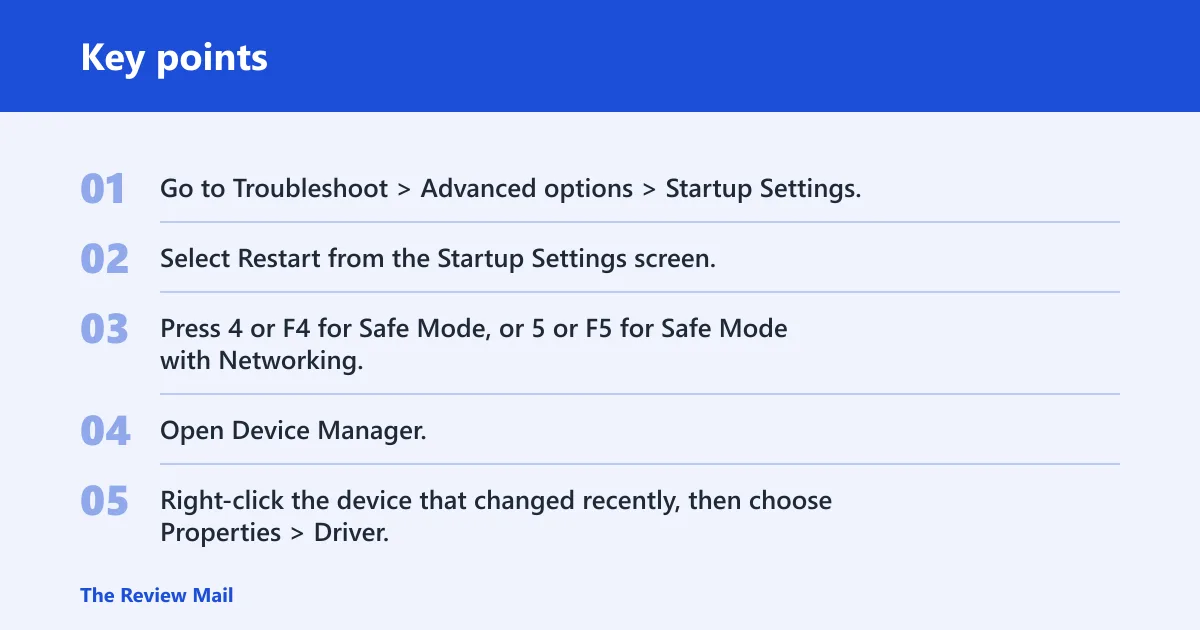
How to reach Safe Mode from WinRE
- Go to Troubleshoot > Advanced options > Startup Settings.
- Select Restart from the Startup Settings screen.
- Press 4 or F4 for Safe Mode, or 5 or F5 for Safe Mode with Networking. (Microsoft Support)
What to remove first in Safe Mode
- Open Device Manager.
- Right-click the device that changed recently, then choose Properties > Driver.
- Select Roll Back Driver, or choose Uninstall device if rollback is unavailable.
- Open Settings > Windows Update > Update history > Uninstall updates if the crash followed a patch.
What to do if Safe Mode will not load
If the PC reaches WinRE but crashes before Safe Mode finishes loading, shift attention toward boot files, firmware settings, or the Windows image. Move to Startup Repair first, then offline repairs.
Run Startup Repair first
Startup Repair is one of the first automated boot fixes to try from WinRE. It is the right first move when Windows will not boot normally, especially if the issue began after an update, driver change, or sudden power loss.
- Open Troubleshoot > Advanced options > Startup Repair.
- Select the Windows installation if prompted.
- Let the tool finish completely before you restart the PC.
- If it reports that it could not fix the PC, move to offline file repair or bootrec.
What success looks like
A successful run usually ends with a prompt to restart into Windows without returning to Automatic Repair. If the same blue screen returns, do not keep rerunning Startup Repair in a loop.
Repair system files and Windows image
When corruption is suspected, run offline repair commands from WinRE against the Windows installation on disk. DISM repairs the Windows image and component store first; SFC then checks protected files against that repaired source.
DISM /Image:C:\ /Cleanup-Image /RestoreHealth
sfc /scannow /offbootdir=C:\ /offwindir=C:\Windows
- Open Command Prompt from WinRE: Troubleshoot > Advanced options > Command Prompt.
- Confirm the correct Windows drive letter if it is not C: in WinRE.
- Run
DISM /Image:C:\ /Cleanup-Image /RestoreHealth,replacing C: with the Windows volume if needed. - After DISM finishes, run the offline SFC command for that same Windows installation.
- Restart and test the boot path again.
When to repeat the pair
If Windows recently finished installing updates and the same crash returns, repeat DISM and SFC once more after you have removed the newest update. That is more useful than blind repetition when the update itself may have damaged the component store.
Could Secure Boot or UEFI changes cause this?
Yes. Secure Boot or a UEFI mode change can trigger CRITICAL_SERVICE_FAILED when the firmware setting no longer matches the way Windows was installed or signed drivers are being checked more strictly.
Check the last firmware change
- Enter firmware setup and look for Secure Boot, boot mode, and OS type.
- Revert only the setting that changed right before the crash.
- If the machine was moved from one boot mode to another, test the previous mode first.
- Save changes and boot again.
Match boot mode with the install
If Windows was installed in one boot mode and the firmware is now set for another, the machine may fail before Windows loads. Keep the disk layout and boot mode aligned before you chase driver repairs.
Recover files and decide on escalation
Back up files before deeper repairs if WinRE still opens and the keyboard or mouse work. Open Command Prompt from WinRE and copy files to an external drive with a command such as robocopy, for example:
robocopy C:\Users\YourName\Documents E:\Backup\Documents /E /COPY:DAT /R:1 /W:1
Replace C:\Users\YourName\Documents with the folder you want to save and E:\Backup\Documents with the external drive path. If input fails in Automatic Repair, try a wired USB keyboard and mouse, then unplug extra peripherals.
Use the repair tools in the right order
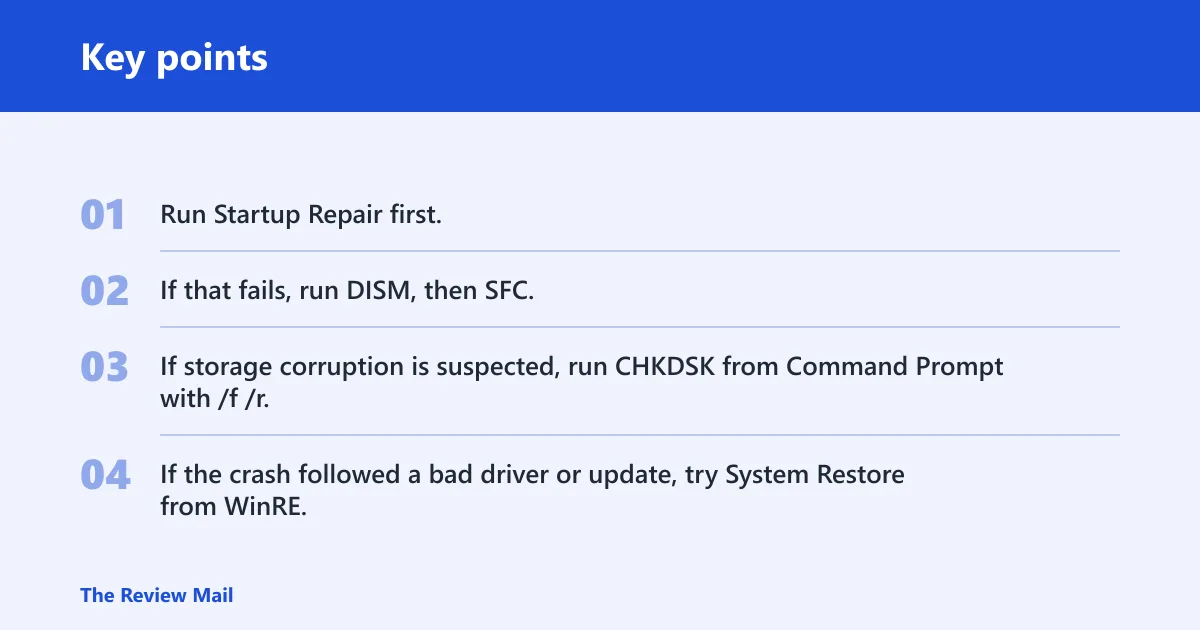
- Run Startup Repair first.
- If that fails, run DISM, then SFC.
- If storage corruption is suspected, run
CHKDSKfrom Command Prompt with /f /r. /x so the volume dismounts first. - If the crash followed a bad driver or update, try System Restore from WinRE.
chkdsk C: /f /r
bootrec /fixmbr
bootrec /fixboot
bootrec /scanos
bootrec /rebuildbcd
Use System Restore when the change is recent
System Restore is best when the crash began after a driver, update, or firmware change and restore points still exist. It can fail with 0x80070003 in this scenario if recovery data is damaged, so do not depend on it as the only path back. (Microsoft Learn)
Stop doing this now
Do not keep forcing endless restarts, repeating failed repairs without a change in plan, or wiping partitions before copying files off the disk. Repeated failed attempts can increase data-loss risk and make later recovery harder.
When reinstall or hardware checks move to the front
If Startup Repair, DISM, SFC, CHKDSK, Safe Mode, and bootrec all fail, the next step is usually a clean reinstall after file backup. If the same stop code returns on a known-good install, the storage drive, RAM, or another hardware component deserves a closer check.
Frequently asked questions
How do I fix CRITICAL_SERVICE_FAILED BSOD if Windows won’t boot?
Open WinRE with Troubleshoot > Advanced options, then try Startup Repair first. If that fails, use Startup Settings for Safe Mode, then run offline repair commands from Command Prompt before moving to bootrec or restore options.
Can Safe Mode still work after a CRITICAL_SERVICE_FAILED crash?
Yes, especially if the bad change is a driver or update that Safe Mode does not need. Use Troubleshoot > Advanced options > Startup Settings, then choose Safe Mode or Safe Mode with Networking. If it still crashes, move on to offline repair.
What should I try first: SFC, DISM, Startup Repair, or System Restore?
Try Startup Repair first when Windows will not boot. If corruption is suspected, run DISM before SFC. Use System Restore when the issue began right after a driver or update and restore points exist, since it rolls the system state back faster than manual repair.
Could Secure Boot or UEFI changes cause CRITICAL_SERVICE_FAILED?
Yes. If the crash began right after a firmware change, revert that setting first and match the boot mode to the Windows installation.
How do I recover files if the PC is stuck on Automatic Repair?
Open Command Prompt from WinRE if possible, then copy files to an external drive before more repair attempts. If the keyboard or mouse do not respond, use a wired USB set or remove extra devices. Back up the user profile folders before trying bootrec or a reinstall.
When does a CRITICAL_SERVICE_FAILED BSOD mean I need to reinstall Windows?
When Startup Repair, Safe Mode, DISM, SFC, CHKDSK, System Restore, and bootrec all fail, reinstall becomes the practical next step. If the crash returns on a clean install, the problem is more likely hardware than Windows itself, and the drive or memory should be checked next.