Unable to Scan in Windows 11: Fixes That Work
If Windows 11 finds your scanner but scan jobs fail, start with the app, then device discovery, then Windows integrity. Windows Scan can throw a generic error even when the scanner is fine. Discovery can hide a working device. A broader Windows issue can break both paths.
Start here when Windows 11 will not scan
Start with the layer most likely to be wrong. If the scanner powers on and appears in Settings > Bluetooth & devices > Printers & scanners, the hardware path is likely working and the app is the first place to check. If Windows cannot find the device there, work on discovery and connection checks before you open the app again.
What the three failure layers
App layer: Windows Scan is the separate Microsoft Store app, and it can show the generic “Problem scanning, there was a problem scanning please try again later” message. The scanner may still be fine.
Device discovery: Windows can fail to find the scanner at all, even if the device is on and the cable or network link is good. That points to setup, discovery, or driver issues.
System integrity: If a repair works briefly and then the problem returns, or multiple apps fail the same way, the issue is wider than one scanner app.
The fastest first checks
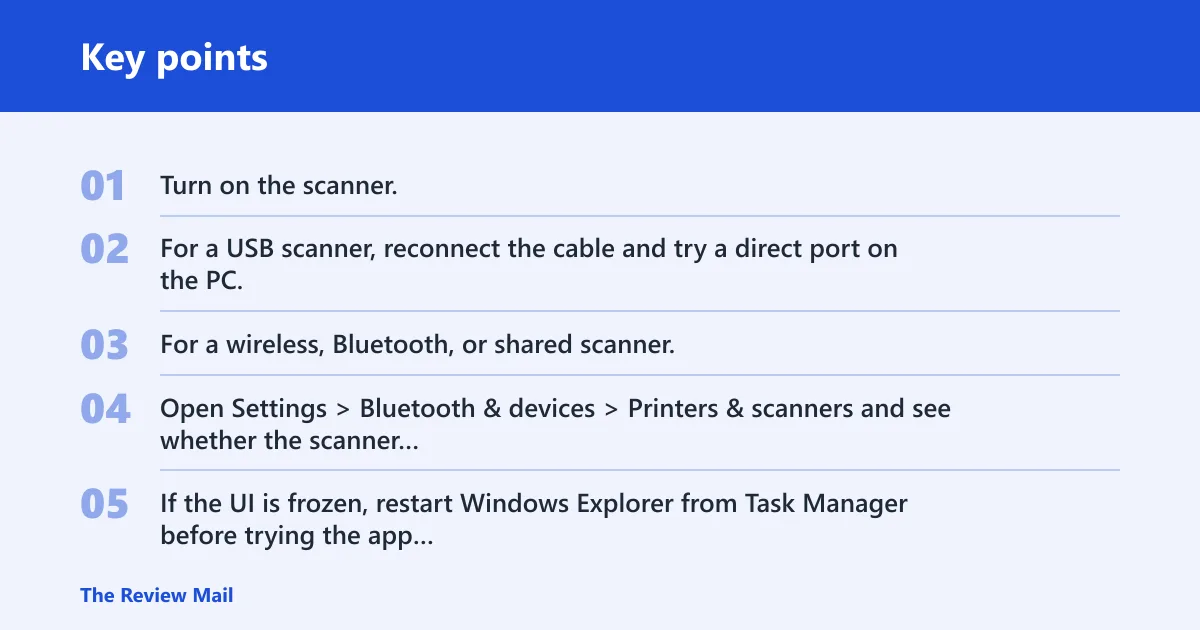
- Turn on the scanner.
- For a USB scanner, reconnect the cable and try a direct port on the PC.
- For a wireless, Bluetooth, or shared scanner, confirm it is on the same network or available to Windows.
- Open Settings > Bluetooth & devices > Printers & scanners and see whether the scanner appears there.
- If the UI is frozen, restart Windows Explorer from Task Manager before trying the app again.
Say your all-in-one printer shows in Windows, but Windows Scan returns the same error every time you press scan. That pattern points first to the app layer, not the scanner itself. Suppose the scanner disappears after a router change; that points more toward discovery than a broken app.
When to skip ahead
Skip straight to app repair if the scanner is listed in Printers & scanners and another scan path might still work. Skip to discovery if Windows cannot see the device at all. Move to an in-place upgrade only after app repair, reset, reinstall, and scanner setup checks all fail or the problem keeps returning.
Scan failure decision table
This table helps you separate app trouble from discovery trouble and from a broader Windows problem. Use the symptom you see first, then follow the fastest test in the same row.
| Symptom | Likely layer | Fastest test | Next action |
|---|---|---|---|
| Windows Scan error: “Problem scanning, there was a problem scanning please try again later” | App | Open the app again after a clean restart of the scanner and PC | Repair, then reset Windows Scan in Settings |
| No scanner found in Windows 11 | Device discovery | Check Settings > Bluetooth & devices > Printers & scanners | Use Add device or manual add |
| Scanner is detected, but no scan output appears | App or driver | Try Windows Fax and Scan with wfs | If that works, reinstall Windows Scan or check vendor software |
| Fix works for a few hours, then fails again | System | Repeat the same scan after a reboot and after update checks | Move to broader Windows repair, then an in-place upgrade if needed |
Why Windows Scan says there was a problem scanning
That message usually means the app could not finish the job, not that the scanner is dead. Windows Scan is a Microsoft Store app, and Microsoft notes it can be repaired or reset in Settings. If the scanner still shows up in Printers & scanners, the failure is often inside the app path. (Microsoft Learn)
App-layer failure signs
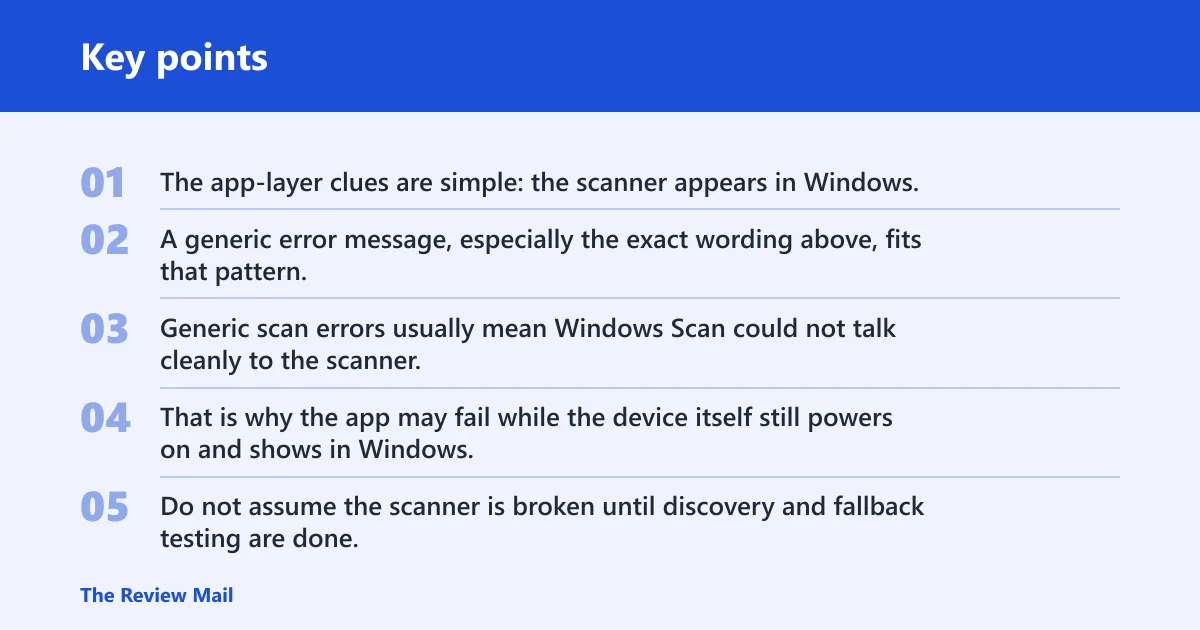
The app-layer clues are simple: the scanner appears in Windows, other devices on the same PC still work, and the failure repeats inside Windows Scan but not necessarily elsewhere. A generic error message, especially the exact wording above, fits that pattern.
What a generic error usually means
Generic scan errors usually mean Windows Scan could not talk cleanly to the scanner, the driver bridge, or the destination path. That is why the app may fail while the device itself still powers on and shows in Windows. Do not assume the scanner is broken until discovery and fallback testing are done.
When reset is worth trying first
If the scanner is already visible in Windows and the failure is limited to Windows Scan, repair first and reset second. Those steps are quick, low-risk, and aimed at app corruption rather than hardware setup. If reset does not help, reinstall the app.
Repair or reset Windows Scan
Open the app’s advanced options in Windows 11 Settings and work in order: terminate, repair, then reset. Microsoft’s suggested path for Windows Scan starts with Terminate, then Repair, then Reset. If reset fails, remove the Microsoft Store app and reinstall it.
Open app settings in Windows 11
- Open Settings.
- Go to Apps.
- Open Installed apps.
- Find Windows Scan.
- Open Advanced options.
From there, use Terminate first if the app is stuck, then try Repair. If that does not clear the failure, use Reset. Repair keeps app data in place; reset is the stronger step and can clear broken app state.
Repair before reset
Repair is the better first move when the app opens but fails during scan jobs. It is the least disruptive fix that still addresses app corruption. If the same error returns right away, the app data or installation may be damaged enough to need a reset.
Reinstall the Microsoft Store app if needed
If reset does not fix it, uninstall Windows Scan and reinstall the Microsoft Store app. That is the right next step when the app itself may be damaged beyond Settings repair. Keep the scanner disconnected from other changes while you test, so you know whether the reinstall made a difference.
Can Windows Fax and Scan still help?
Yes. Windows Fax and Scan is the legacy fallback, and Microsoft’s launch command is wfs. It is useful when Windows Scan fails but the scanner still appears in Windows. If it also fails, the problem is probably wider than the app.
Launch it with wfs
- Open the Start menu.
- Type wfs.
- Open Windows Fax and Scan.
- Try a scan from that app.
Use it as a test path, not a permanent fix. If the scanner works there, the hardware and discovery path are likely fine, and Windows Scan is the likely fault. If both apps fail the same way, move down the stack.
When the legacy app is a useful fallback
It is useful when the scanner is detected but Windows Scan returns the generic error. That split tells you the device path is at least partly alive. It also helps separate app failure from a scanner that is not being discovered at all.
When the problem is wider than the app
If Windows Fax and Scan also cannot complete the job, look harder at the scanner entry in Windows, the driver, or the PC itself. A broad failure across both apps is a warning that repair and reset may not be enough.
Add the scanner in Windows 11 Settings
Use Settings > Bluetooth & devices > Printers & scanners to add or verify the scanner. Microsoft says scanners are managed there. That path matters because it is where Windows finds local and network devices, and where you confirm whether Windows sees the scanner at all. (Microsoft Support)
Use Bluetooth & devices > Printers & scanners
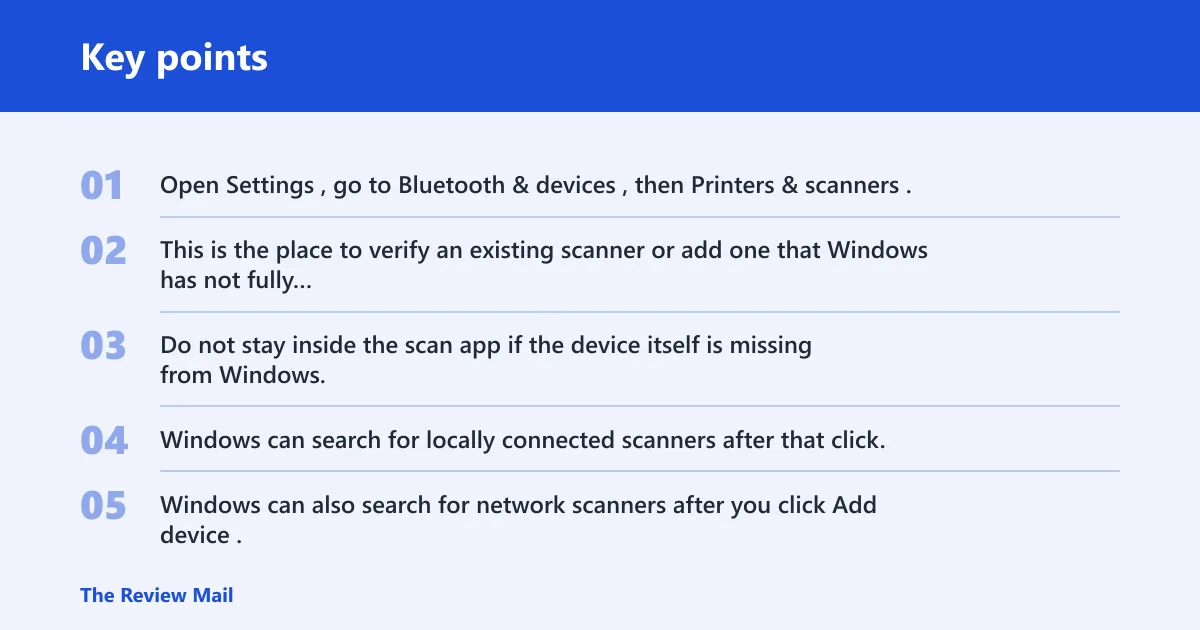
Open Settings, go to Bluetooth & devices, then Printers & scanners. This is the place to verify an existing scanner or add one that Windows has not fully set up yet. Do not stay inside the scan app if the device itself is missing from Windows.
Add device for automatic discovery
Click Add device. Windows can search for locally connected scanners after that click, and the local scanner search can take a few minutes. Windows can also search for network scanners after you click Add device.
Microsoft notes that scanners can be Bluetooth, wireless, or shared on the network. Let the search run long enough to finish before assuming it failed.
Use manual add when discovery fails
If Windows does not discover the scanner, use Add a new device manually. That manual path is the next step when automatic discovery misses a scanner that you know is online or cabled correctly. It is especially useful when the scanner is shared, wireless, or blocked by discovery timing.
Why Windows 11 cannot find your scanner?
Windows usually misses scanners because the connection path is wrong, the device is asleep, or the driver path is incomplete. USB scanners and network or wireless scanners fail for different reasons, so check them separately. If Windows still cannot find the scanner, the vendor software or driver stack may be the problem.
USB local scanner checks
For a USB scanner, turn the scanner on, reconnect the cable, and let Windows search again from Printers & scanners. Windows can auto-install or manually discover a local scanner, but only if the device is powered and the connection is clean. Try a different USB port if needed.
Network, wireless, and Bluetooth scanner checks
For a network or wireless scanner, confirm it is actually on the network or paired as expected. Windows can search for network scanners after Add device, but the scan may take a few minutes. If the device is shared, Bluetooth-based, or wireless, discovery can fail even though the scanner itself is working.
When to suspect driver or vendor software
If Windows repeatedly misses the scanner but the device works from the manufacturer’s own software, the issue is likely in Windows discovery or driver handling. If the scanner disappears after a temporary fix, vendor software or a driver update may be needed before you move to broader Windows repair.
When repeated failures point to Windows repair
If the fix works briefly and then the problem returns, stop cycling through the same app steps. That pattern points to a broader Windows issue, not a one-off app glitch. At that stage, check for UI hangs, run basic system repair, and move to an in-place upgrade if the fault keeps coming back.
Task Manager and Explorer restart for UI hangs
When the Settings app, scanner window, or File Explorer feels frozen, restart Windows Explorer from Task Manager. Business Insider recommends that step for freeze problems. It is a good adjacent fix when the UI is blocking the actual troubleshooting steps.
After that, try the scanner path again. If the UI was the problem, the app may open cleanly again.
Check for broader Windows issues
Broader Windows repair belongs here if the scanner keeps failing across apps or after reboot. Business Insider also recommends running sfc /scannow from Command Prompt for corruption checks. Checking for updates is a final troubleshooting step in the File Explorer guide.
Use an in-place upgrade when fixes keep failing
An in-place upgrade is the right escalation when earlier fixes fail. It repairs Windows without deleting files, which can make it suitable for recurring or systemic scan failures that survive app repair, reset, reinstall, and scanner setup checks. Use it when the problem has moved beyond one app or one device entry.
Frequently asked questions
Can’t scan in Windows 11 — what should I check first?
Check the scanner’s power, the USB or network connection, and then Settings > Bluetooth & devices > Printers & scanners. If the scanner appears there, the app is the next likely layer. If it does not, focus on discovery before you keep repairing Windows Scan.
How do I scan my Windows 11 PC for problems?
For scan failures, start with Windows Scan, then test Windows Fax and Scan with wfs. If both fail, the issue is probably not limited to the app. Move to the scanner entry in Printers & scanners, then to broader Windows repair if the failure keeps returning.
Why does Windows Scan say there was a problem scanning?
That message usually means the app could not finish the job, even if the scanner is present in Windows. It is a common app-layer failure sign. Repair first, then reset, then reinstall if needed. If another app works, the scanner itself may still be fine.
How do I reinstall the Windows Scan app?
Open Settings > Apps > Installed apps, find Windows Scan, uninstall it, then reinstall it from the Microsoft Store. Reinstalling is useful after reset fails or when the app seems damaged. Keep the scanner setup unchanged while you retest so you can tell whether the reinstall helped.
Why can’t Windows 11 find my scanner?
Windows may miss a scanner because the device is off, the USB cable is not right, or network discovery failed. Go to Settings > Bluetooth & devices > Printers & scanners, click Add device, and wait a few minutes. If that fails, try Add a new device manually.
What should I do if scan issues keep coming back after a fix?
When the fix works only briefly, treat it as a broader Windows problem. Restart Explorer if the UI hangs, check for updates, and consider system repair. If the issue keeps returning across apps or after reboot, an in-place upgrade is the stronger next step.