Memory 100 Windows 11 Fix
Open Task Manager first, then compare Memory on the Process tab with startup load, browser tabs, and the Performance tab. If usage stays near the top after sign-in settles, fix the cause behind it instead of treating every 100% reading as a disk problem. Microsoft’s Task Manager and virtual-memory guidance both support this first-pass check: compare what is using RAM now, then confirm whether Windows is paging because physical memory is full.
Identifying common causes of high RAM usage
On Windows 11, a memory reading near 70% to 99% can be normal under load, but it becomes a problem when apps stall, the mouse lags, or memory does not drop after closing heavy apps. Use Task Manager’s Processes tab to find what is consuming RAM, then use the Performance tab to confirm whether the system is under sustained memory pressure rather than just briefly busy.
Likely causes, from most common to least
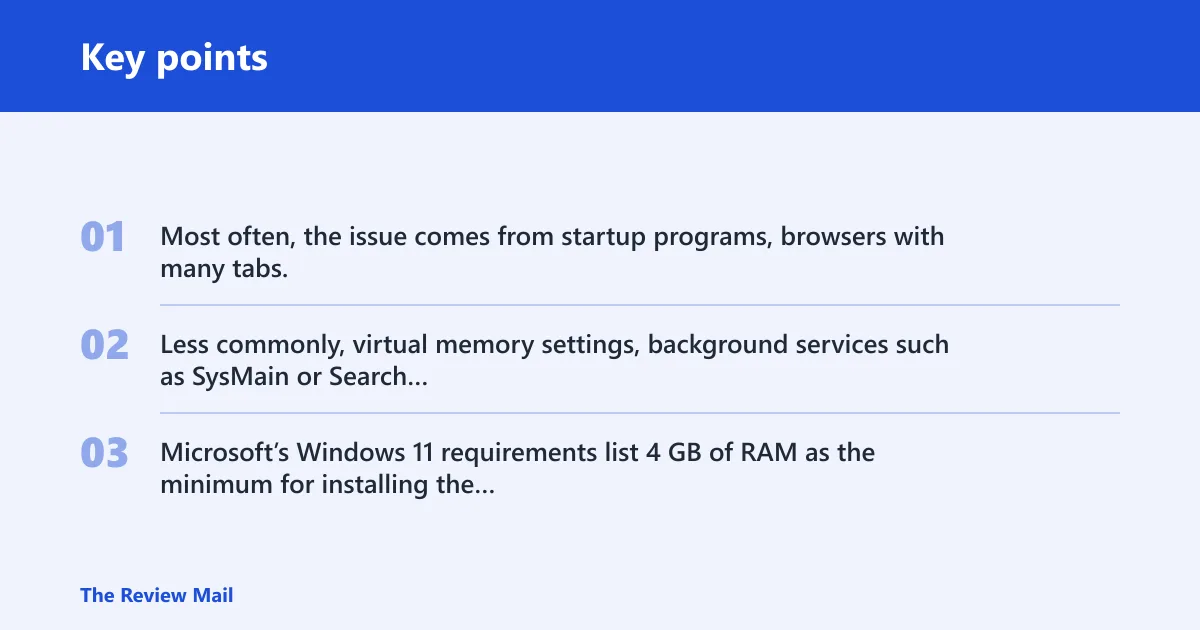
Most often, the issue comes from startup programs, browsers with many tabs, or a system with too little physical RAM for the workload. Less commonly, virtual memory settings, background services such as SysMain or Search indexing, malware, or a storage problem that only looks like memory pressure are behind the slowdown. Microsoft’s Windows 11 requirements list 4 GB of RAM as the minimum for installing the OS, but that minimum is not the same as comfortable multitasking capacity.
| symptom pattern | likely cause | fastest check in Task Manager | next action |
|---|---|---|---|
| Memory spikes right after sign-in, then falls within a few minutes | Startup load | Processes tab, sort by Memory | Reduce Startup apps |
| One browser window with many tabs drives usage high | Browser-heavy load | Processes tab, locate the browser and helper processes | Close the heaviest tab or profile |
| Usage climbs slowly over hours and does not settle | Memory leak | Processes tab, watch one process keep rising | Restart that app, then update or remove it |
| High memory plus a process you do not recognize | Malware or rogue background task | Processes tab, check the name and publisher details | Run a full malware scan |
| Freezes get worse after closing apps, with heavy paging behavior | Virtual memory or paging file issue | Performance tab, check whether memory stays pinned | Restore a normal paging-file setting |
| 4 GB or 8 GB system struggles during normal work | Low-RAM device | Performance tab, see total installed memory | Trim startup load or plan a RAM upgrade |
| Memory stays high, but disk activity is what feels slow | Looks like disk trouble, but RAM pressure is driving it | Performance tab, compare memory pressure with disk bottlenecks | Fix the memory cause first |
| App launches are slow, then settle after a minute | SysMain preload behavior | Processes tab, look for service-related load during startup | Temporarily stop SysMain for testing |
| Search results and indexing push usage up in the background | Windows Search indexing | Processes tab, watch background service load | Pause indexing for a test window |
| Apps freeze after a sudden storage slowdown, but memory is not the only issue | Disk-related lookalike | Performance tab, verify the slowdown is not CPU-only or disk-only | Run CHKDSK if file-system errors are suspected |
Startup apps and browser load
If memory jumps after sign-in, start here. Background programs and startup items often create the first big rise, and modern browsers can consume a large share of RAM when several tabs stay open. The key distinction is whether the spike fades after startup finishes or keeps climbing during normal use. Microsoft’s Task Manager guidance makes Processes the best place to identify the heaviest consumers first.
Fix the load that starts with Windows
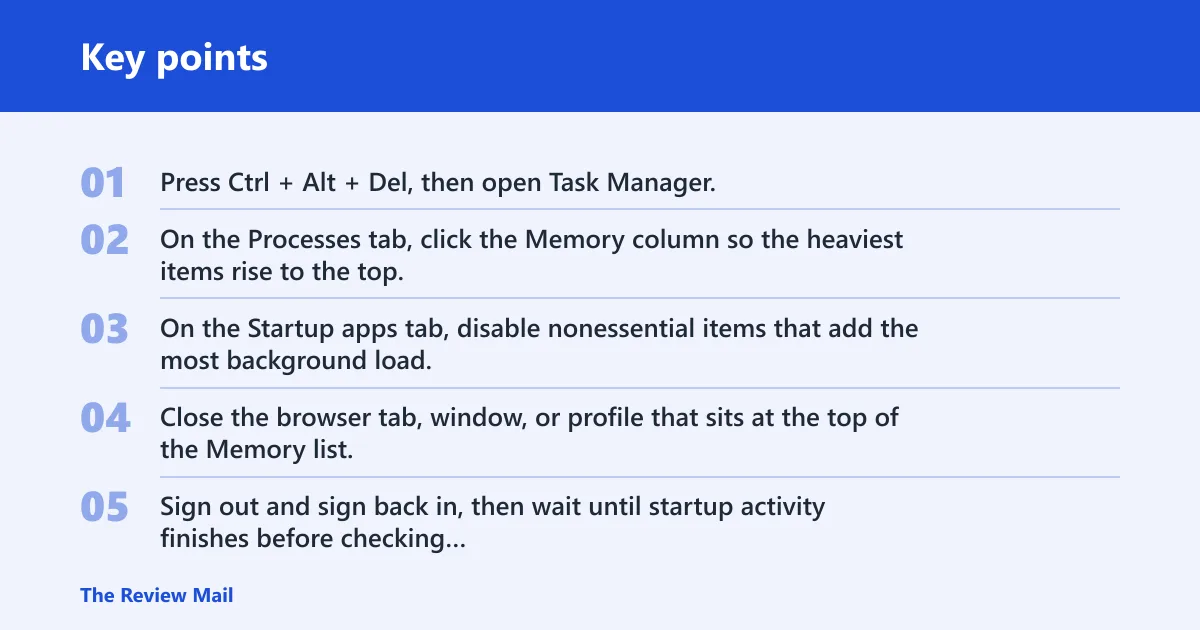
- Press Ctrl + Alt + Del, then open Task Manager.
- On the Processes tab, click the Memory column so the heaviest items rise to the top.
- On the Startup apps tab, disable nonessential items that add the most background load.
- Close the browser tab, window, or profile that sits at the top of the Memory list.
- Sign out and sign back in, then wait until startup activity finishes before checking Memory again.
For example, an 8 GB Windows 11 laptop might show about 92% memory use right after sign-in, then drop to around 58% after a few minutes. That pattern points to startup load, not a steady RAM fault. If the number stays pinned after sign-in settles, move to the next branch.
Virtual memory and paging file
When physical RAM fills up, Windows uses part of the disk as virtual memory. A normal system-managed paging file helps the machine stay responsive under pressure, but settings that are too low can cause crashes or boot problems. Microsoft’s paging-file guidance recommends leaving it system managed in most cases; do not shrink or disable it unless you are testing a known misconfiguration.
Check and restore paging-file settings
- Right-click This PC and select Properties.
- Select Advanced system settings.
- Under the Advanced tab, click Settings under the Performance section.
- Go to the Advanced tab and click Change under Virtual memory.
- Uncheck Automatically manage paging file size for all drives only if you need to test a custom setting.
- Restore a normal configuration, then click Set, OK, and restart the computer.
If the system was already system-managed, leave it that way unless a test shows a bad custom setting. A paging file that is too small can worsen bottlenecks, while a normal setting gives Windows room to cope when RAM is full.
Services to test: SysMain and Search indexing
Some background services raise memory use during startup or while Windows prepares files. SysMain, also called SuperFetch, preloads apps; Windows Search indexing also runs in the background. Use them only as temporary troubleshooting steps: Microsoft’s Search and indexing guidance and general services behavior both support pausing them for comparison, not leaving them disabled long term.
Temporarily test those services
- Press Windows + R, type
services.msc, and press Enter. - Find SysMain, open its properties, and stop it for a test window.
- Find Windows Search, pause or disable it temporarily for testing.
- Restart the PC and compare Memory at idle with the same apps open.
- Undo the change if the reading does not improve.
Suppose a desktop feels sluggish only during app launches, then improves after the same programs are open for a while. That pattern fits preload behavior more than a bad disk. If disabling SysMain changes nothing, put it back and move on.
Malware, leaks, or a disk problem
When memory stays high for no clear reason, rule out hidden software before blaming hardware. Malware can hide in background processes, and a single app with a memory leak can climb over time without giving memory back. If storage errors are also suspected, Microsoft’s CHKDSK, SFC, and DISM documentation supports using CHKDSK first for file-system issues, then SFC and DISM if Windows files look corrupted.
Check for hidden causes and storage errors
- In Task Manager, sort by Memory and watch whether one process keeps rising.
- Run a full malware scan with Microsoft Defender or another reputable antivirus.
- Open an elevated Command Prompt and run
chkdskif file-system errors are suspected. - If Windows also acts corrupted, run
sfc /scannowand thenDISM /Online /Cleanup-Image /RestoreHealth. - Restart and compare the same workload again.
If Task Manager is blank or nothing obvious is listed, use Safe Mode or a clean boot to see whether the problem disappears with third-party software removed from the startup path. When the issue vanishes there, the cause is usually an installed app or service rather than Windows itself.
When to suspect low RAM or a larger system limit
On 4 GB or 8 GB systems, heavy browser use, Windows background activity, and several open apps can push Memory toward the ceiling even when nothing is broken. That does not mean every spike is normal. It does mean you need to separate “busy but expected” from “too little capacity for the workload,” using installed RAM, the Processes tab, and the Performance tab together rather than memory percentage alone.
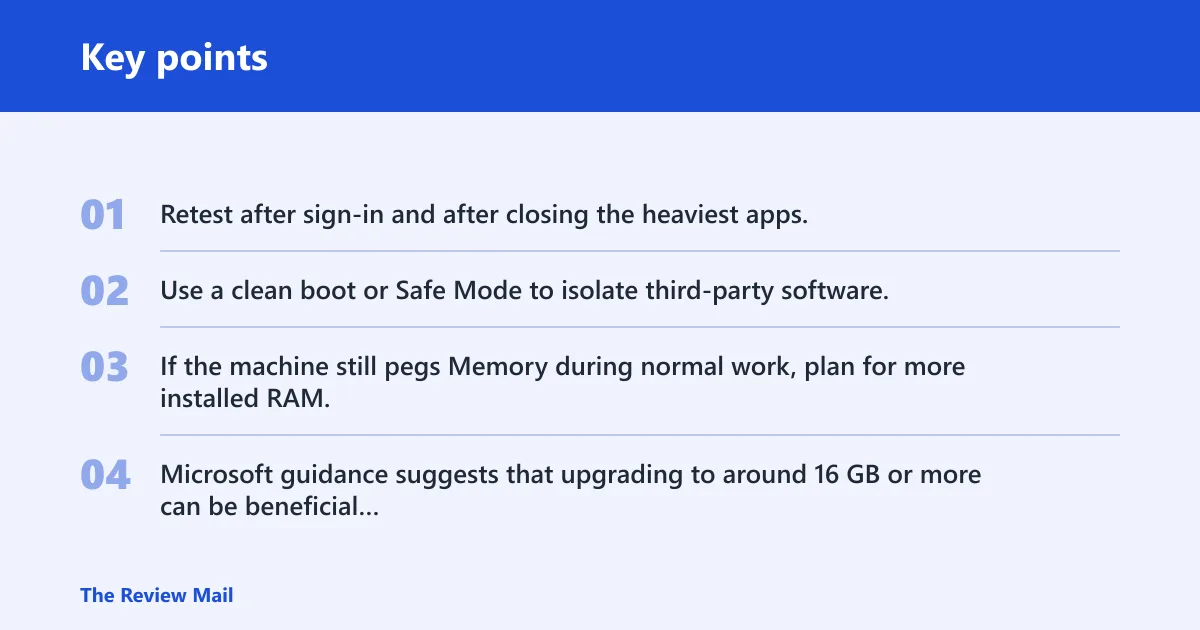
Use this escalation ladder
- Retest after sign-in and after closing the heaviest apps.
- Use a clean boot or Safe Mode to isolate third-party software.
- If the machine still pegs Memory during normal work, plan for more installed RAM.
- Microsoft guidance suggests that upgrading to around 16 GB or more can be beneficial when the system is nearing the limits of installed RAM.
Keep startup apps trimmed and avoid leaving many browser tabs open at once. If the device still runs out of headroom after those changes, more RAM is the fix; if it does not, the cause is usually an app, service, or paging misconfiguration rather than Windows 11 itself.
Frequently asked questions
Why is my memory usage so high in Windows 11?
Windows 11 can run fine on 4 GB of RAM at install time, but that does not leave much room for multitasking. Modern browsers, startup programs, and background services can push a system close to its limit, so the real answer depends on what Task Manager shows and whether the spike persists after startup finishes.
How do I tell if it’s RAM, virtual memory, or disk causing the slowdown?
Use Task Manager’s Memory column first, then compare the Process and Performance tabs. If Memory stays near the top while the disk is not the main bottleneck, focus on RAM pressure, startup apps, or paging-file settings. If file access is also failing, run CHKDSK before changing more memory settings.
What services should I disable for high memory usage on Windows 11?
For testing, use services.msc to stop SysMain and temporarily pause Windows Search indexing. Reboot and compare the same workload. If memory use does not improve, restore those services and look at startup apps, browser tabs, or installed RAM instead of leaving services disabled long term.
Can low RAM make Windows 11 show 100% memory usage?
Yes. Microsoft’s Windows 11 requirements list 4 GB as the minimum RAM for installation, so a machine with only 4 GB or 8 GB can hit 100% during normal work more easily than a larger system. In that case, capacity is usually the limit, not a single bad app.
Does resetting virtual memory help with high memory usage?
It can, if the paging file was disabled or set too low. Open Advanced system settings, go to Performance, then Virtual memory, and restore a system-managed setting or a sane custom size. After that, restart and check whether freezes or app stalls change.