Windows 11 100 Percent Disk Usage
Left alone, it can turn normal tasks into long freezes, failed installs, and data loss. This guide shows how to identify each pattern and apply the smallest fix first.
What 100% disk usage means
Open Task Manager first. If Disk sits at or near 100% while the PC is unresponsive, the drive is the bottleneck; if it only jumps during boot, updates, or downloads, it may be normal background work. Match the timing, not the percentage alone.
How to confirm the pattern
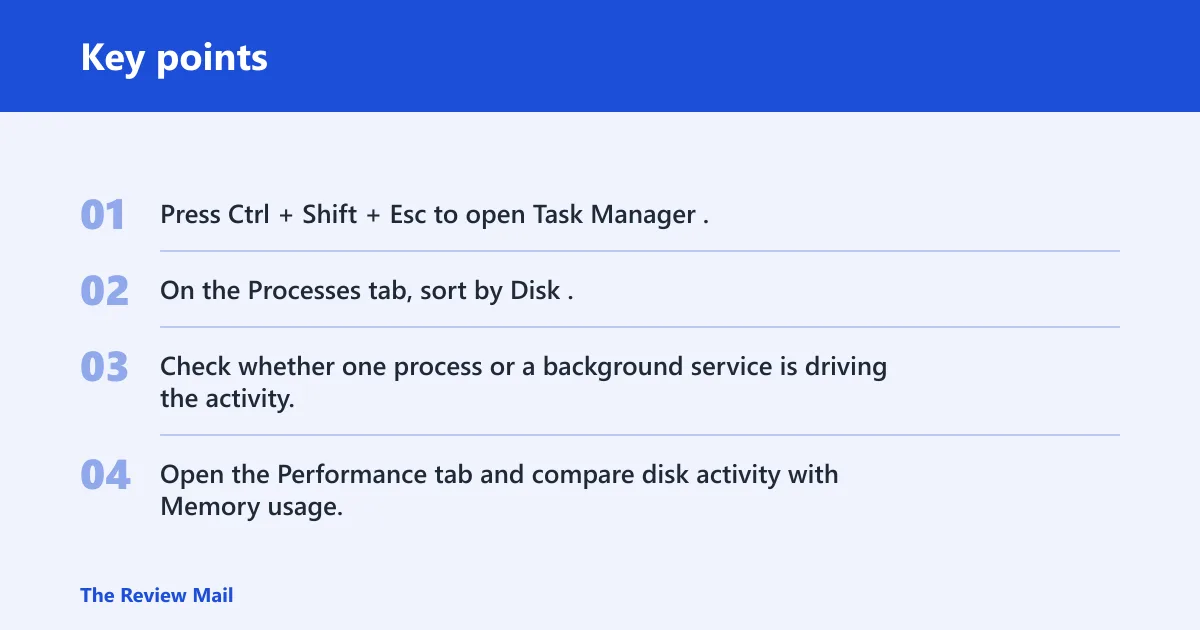
- Press Ctrl + Shift + Esc to open Task Manager.
- On the Processes tab, sort by Disk.
- Check whether one process or a background service is driving the activity.
- Open the Performance tab and compare disk activity with Memory usage.
Say your laptop sits at 100% Disk while the mouse lags and Task Manager shows Windows Search or SysMain at the top. That points to software load. Suppose Disk stays pinned after reboot and Memory is also high; paging-file pressure becomes more likely than a bad drive.
When a spike is normal
Short bursts during Windows Update, large game downloads, app installs, or the first minute after boot are commonly reported. Those spikes should fade. If the disk stays pinned while the machine is idle, or if the system freezes for long stretches, treat it as a real problem.
| When it happens | Likely cause | First check | First fix | Escalation |
|---|---|---|---|---|
| Idle | SysMain | Task Manager process list | Stop SysMain and retest | Clean boot |
| Startup | Startup apps | Task Manager and Startup list | Disable nonessential startup apps | Clean boot with msconfig |
| Updates | Windows Update or system files | Settings > Windows Update | Let the update finish, then repair files | DISM, then SFC /SCANNOW |
| Downloads | Game launcher, HDD saturation | Task Manager and drive type | Pause extra downloads and close other apps | Move to SSD or check storage health |
| Random | RAM pressure, malware, driver, failing HDD/SSD | Memory use, Windows Security, disk health | Run the matched fix | Back up data and replace the drive |
Likely causes
Most often, the load comes from background services, startup apps, or Search indexing. Next is memory pressure, where Windows uses the paging file because RAM is full. Less commonly, the cause is malware, a driver issue, or storage that is starting to fail.
Are background services causing it?
If the spike starts at boot, during idle time, or after sign-in, background services are a good first target. That includes SysMain, Windows Search indexing, and non-Microsoft services that run without notice. These are common fix targets in guides that list 9 Easy Ways or 7 Ways to Fix 100% Disk Usage in Windows 11.
- Open Settings > Apps > Startup and turn off apps you do not need immediately after sign-in.
- Press Win + R, type
services.msc, and check whether SysMain is running. - If disk use stays high while the PC is idle, right-click SysMain, choose Properties, set Startup type to Disabled, then stop the service.
- Press Win + R, type msconfig, open Services, check Hide all Microsoft services, then disable the remaining third-party services and reboot.
Use the SysMain step only when the pattern fits. It is a common troubleshooting target, but it is not the first answer for an SSD that spikes only during large downloads.
Is RAM pressure forcing disk activity?
When disk stays high and memory is nearly full, Windows may be paging data to disk. That makes the drive look busy even when the root cause is not storage. This is especially likely on 8 GB systems, browser-heavy setups, or machines that freeze after opening several apps.
- Open Task Manager > Performance > Memory and check whether memory use is near the top while disk spikes.
- Close memory-heavy apps, browser tabs, or launchers before changing settings.
- Open System Properties > Advanced > Performance > Advanced > Virtual memory.
- Either let Windows manage the paging file or reset the custom size if one was set manually.
EaseUS includes paging file changes as a fix option, and that makes sense when memory pressure is the clear pattern. Do not increase virtual memory first if a single process is already monopolizing the disk.
Are updates, downloads, or indexing the trigger?
Some 100% readings are temporary. Windows Update, game downloads, and Search indexing can saturate a slower drive without signaling failure. The clue is timing: if the load rises during a specific task and falls afterward, treat it as a workload issue before changing system settings.
- Open Settings > Windows Update and let pending updates finish before troubleshooting further.
- Open Settings > Privacy & security > Searching Windows and review indexing settings if file searches coincide with disk spikes.
- For large game downloads, pause other downloads and close launchers that are also writing to disk.
- If disk usage hits 100% during a download on an HDD, expect slower throughput than on an SSD.
Windows Search indexing can scan files constantly, so it deserves separate attention from general background load. A common first-timer mistake is to disable random services when the real culprit is a one-time update or an active game install.
Could the drive or driver be the problem?
If the disk stays at 100% after reboot, freezes happen with small files, or Task Manager shows heavy activity with little throughput, move to repair and health checks. That is where drive corruption, bad sectors, or a storage controller issue becomes more plausible than software load alone.
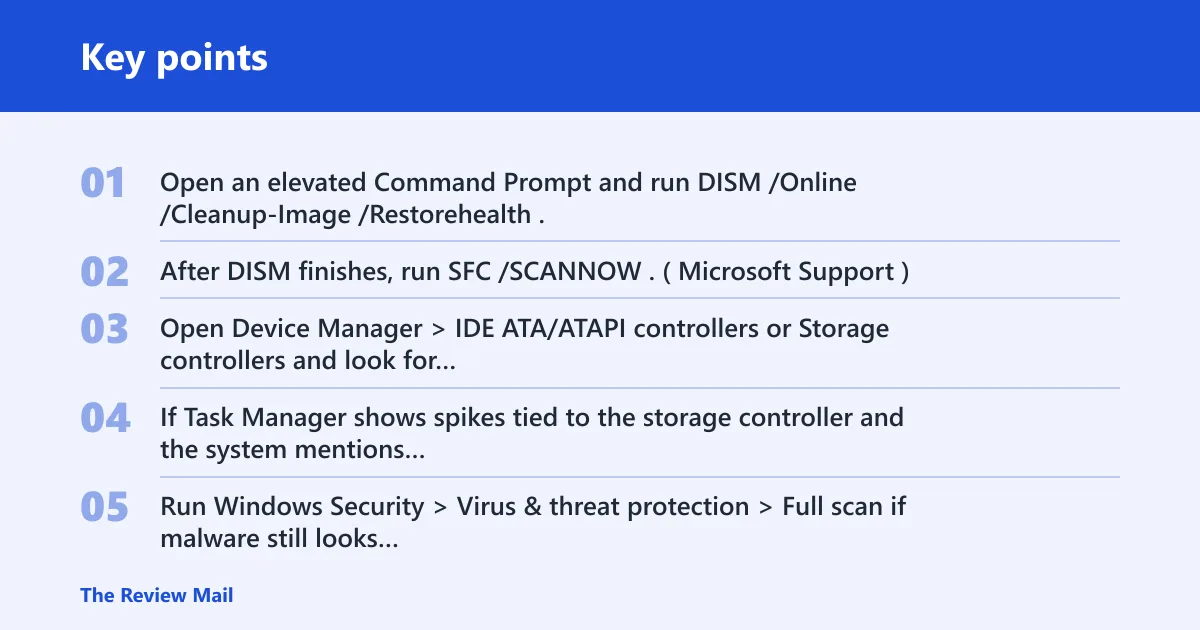
- Open an elevated Command Prompt and run
DISM /Online /Cleanup-Image /Restorehealth. - After DISM finishes, run
SFC /SCANNOW. (Microsoft Support) - Open Device Manager > IDE ATA/ATAPI controllers or Storage controllers and look for storage driver problems.
- If Task Manager shows spikes tied to the storage controller and the system mentions StorAHCI.sys in driver-related troubleshooting, update or reinstall the storage controller driver.
- Run Windows Security > Virus & threat protection > Full scan if malware still looks plausible.
WinTips includes system-file repair with SFC and DISM, malware scanning with Windows Security, and a driver-specific fix for StorAHCI.sys. Those are the right next steps when the disk pattern is random, persistent, or tied to boot-time stalls rather than one app.
SSD and HDD behave differently
An HDD that sits at 100% often feels worse because its latency is high under many small writes. An SSD can still hit 100%, but the cause is more often a controller issue, paging pressure, or an unusually heavy background workload. Do not treat the number the same on both drive types.
Windows Security Full scan
Can malware cause 100% disk usage in Windows 11? Yes. Open Windows Security > Virus & threat protection > Scan options > Full scan and let it complete. WinTips specifically recommends this step when unexplained disk activity persists after the obvious software checks.
Still not working?
If the basic fixes do not change the pattern, move to the power plan and then hardware decisions. A persistent 100% reading after reboot, especially with clicking sounds, long file open times, or repeated drive errors, is the point where replacement becomes more likely than another tweak.
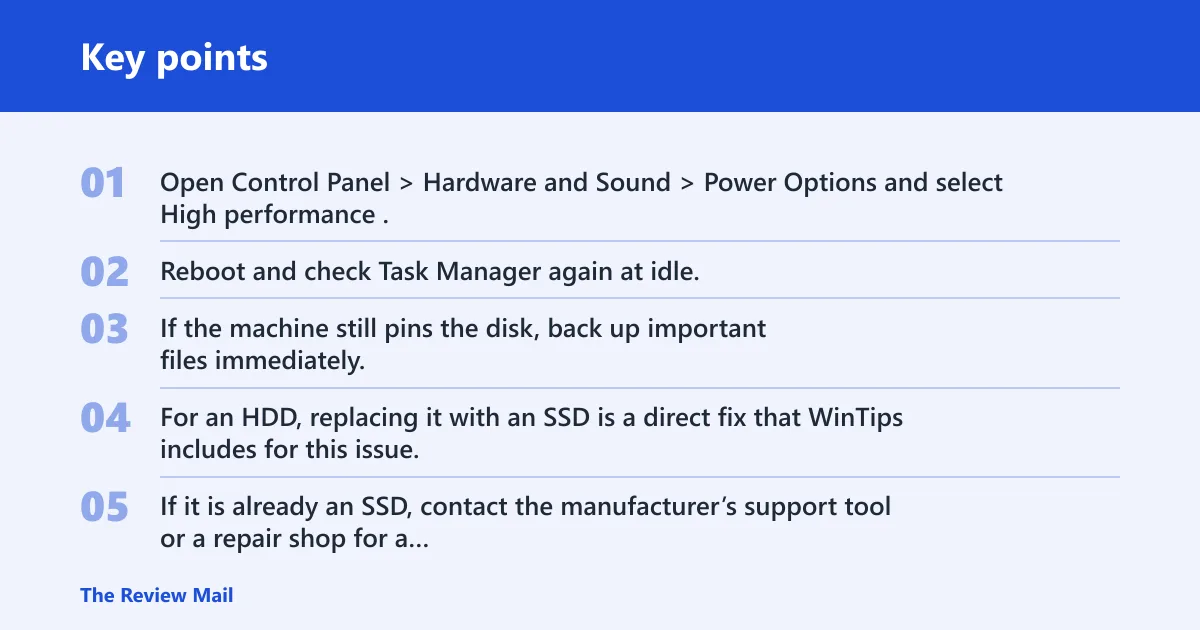
- Open Control Panel > Hardware and Sound > Power Options and select High performance.
- Reboot and check Task Manager again at idle.
- If the machine still pins the disk, back up important files immediately.
- For an HDD, replacing it with an SSD is a direct fix that WinTips includes for this issue.
- If it is already an SSD, contact the manufacturer’s support tool or a repair shop for a health check and replacement plan.
Does upgrading from HDD to SSD fix 100% disk usage? Often yes, if the problem is an overloaded hard drive rather than a failing controller or bad system files. It does not cure every case, but it is the clearest hardware upgrade when an HDD is the bottleneck.
Frequently asked questions
Why is my disk at 100% on Windows 11?
Most often, a background service, update, download, or paging-file activity is saturating the drive. Open Task Manager first and sort by Disk. If memory is also near full, the system may be paging. If the spike is idle-time and persistent, move to service and health checks.
How do I fix 100 percent disk usage in Windows 11?
Start with Task Manager, then disable unneeded startup apps in Settings > Apps > Startup. If the pattern fits, try SysMain and a clean boot with msconfig. After that, run DISM /Online /Cleanup-Image /Restorehealth and SFC /SCANNOW.
Is 100% disk usage on Windows 11 normal?
Brief spikes can be normal during boot, updates, installs, and downloads. Constant 100% at idle is not normal and needs a closer look. The key question is whether the disk returns to normal when the active task ends and whether the PC stays responsive.
Why does Windows 11 show 100% disk usage on SSD?
An SSD can still hit 100% when Windows is paging memory, a driver is misbehaving, or a service is hammering the drive with many small writes. Check Memory in Task Manager first, then test the storage driver, system file repair, and Windows Security Full scan if needed.
Can malware cause 100% disk usage in Windows 11?
Yes. A miner, adware, or malicious updater can keep disk activity high. Open Windows Security > Virus & threat protection > Scan options > Full scan. If the problem returns after the scan, move on to startup apps, clean boot, and system-file repair.
What should I do if disk usage stays at 100% after reboot?
Treat that as a stronger warning sign. Run Task Manager, then DISM and SFC, then a Windows Security Full scan. If the disk still stays pinned, back up data and check the drive for replacement, especially if it is an HDD or if file access is getting slower over time.