Windows 11 Update Making Computer Slow
A Windows 11 update is the likely cause if the slowdown began soon after install, stays after a restart, and Task Manager shows disk, CPU, or memory spikes tied to Windows processes. If that pattern is missing, the issue is more likely startup bloat, storage pressure, or a driver fault. This guide helps you verify the link, then choose repair, rollback, or wait.
Telling normal background lag from a true regression
Windows 11 feature updates and monthly servicing updates can sometimes cause performance regressions, and some lag after a reboot can be normal while services finish work in the background. An update may also arrive as an enablement package on eligible devices, and it can still require a restart. If Microsoft has placed the update under a safeguard hold, rollout may pause for some devices while a fix is prepared.
Temporary load vs a real regression
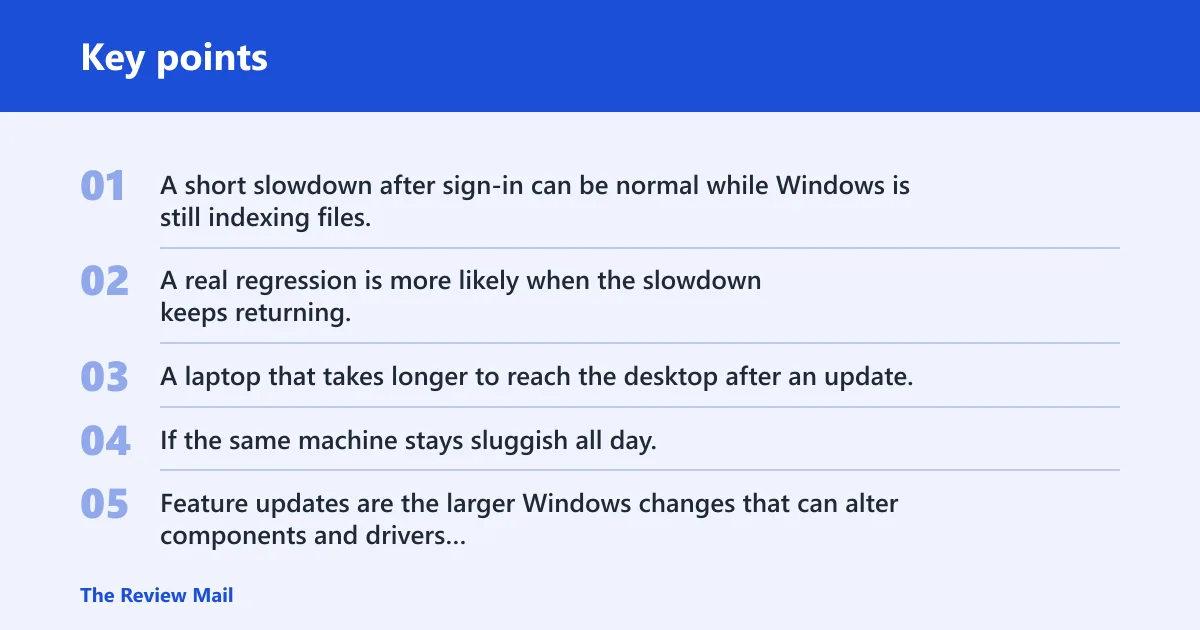
A short slowdown after sign-in can be normal while Windows is still indexing files, finishing app repairs, or completing update cleanup. That usually fades on its own. A real regression is more likely when the slowdown keeps returning, affects the same task after every restart, or matches a known issue in Microsoft’s release health hub.
A laptop that takes longer to reach the desktop after an update, then settles once background work ends, points to temporary post-update load. If the same machine stays sluggish all day, with repeated freezes in File Explorer and Task Manager showing steady Windows process activity, the cause is more likely a regression or driver conflict.
Feature updates, servicing updates, and enablement packages
Feature updates are the larger Windows changes that can alter components and drivers more broadly. Monthly servicing updates are smaller, but they can still cause performance regressions or make an existing issue more noticeable. An enablement package is lighter, but it still changes the update state and can still need a restart before performance settles.
When the slowdown points elsewhere
If the timing is weak, look at the rest of the system. Low-RAM laptops can feel slow when several tabs and apps reopen after sign-in. SSD-equipped desktops can still lag if storage is near full, if a driver regressed, or if a startup app is hogging CPU and disk at the same time. Those cases can look update-related even when the update only exposed the weakness.
Windows 11 slowdown decision table
Use the symptom pattern first. It narrows the likely cause faster than generic cleanup, and it helps you decide whether to wait, repair, or roll back.
| Symptom | Most likely cause | First test to run | Best next move |
|---|---|---|---|
| Slow boot | Startup apps, post-update services, or login bloat | Check Task Manager on the Startup tab after sign-in | Wait if it fades after a few restarts; repair if it persists |
| High disk usage | Windows Update cache cleanup, indexing, or storage pressure | Open Task Manager and sort by Disk | Repair first; roll back only if the pattern started right after the update and stays high |
| High CPU usage | Background update work, a driver conflict, or a busy app | Check which process sits at the top in Task Manager | Wait if Windows processes are still active; repair if one app or driver dominates |
| UI lag | Graphics driver regression, low RAM, or Explorer trouble | Open Task Manager and watch Memory plus GPU activity | Repair or roll back if the lag is tied to a driver or graphics change |
| App crashes | Broken app files, compatibility issue, or failed update component | Check whether one app fails or several do | Repair first if the crash is isolated; wait only if Microsoft lists a known issue |
| Update loop | Corrupt update state, bad cache, or failed install | Open Windows Update history and look for repeated failure codes | Repair first; roll back if the loop began immediately after the update and blocks normal use |
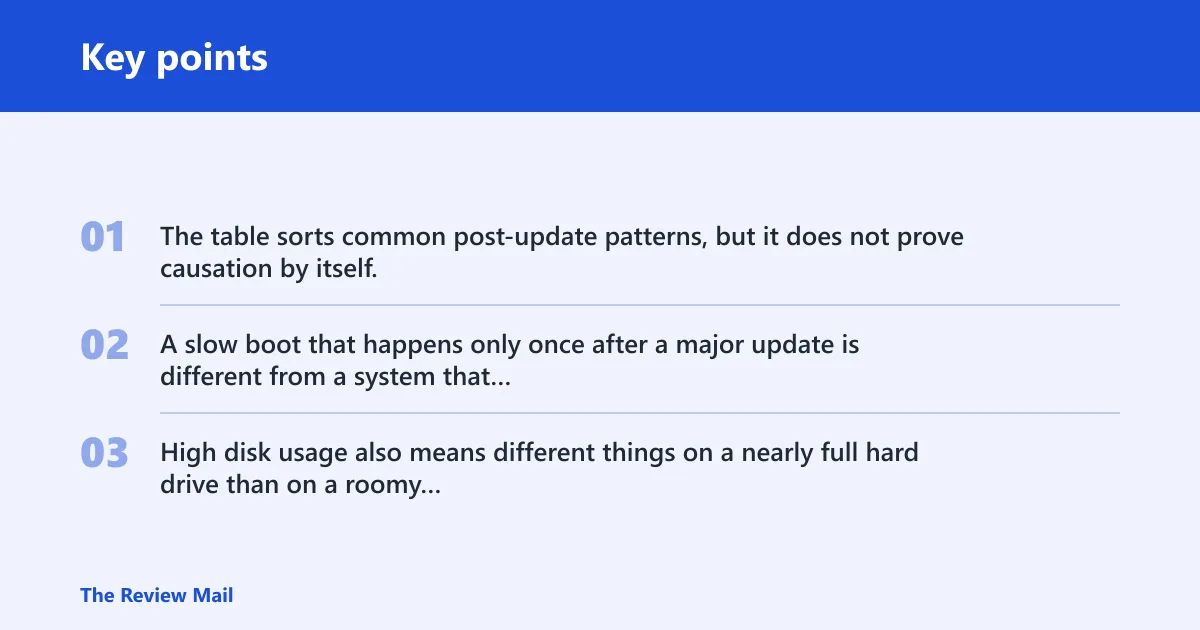
The table sorts common post-update patterns, but it does not prove causation by itself. A slow boot that happens only once after a major update is different from a system that keeps pausing on every login. High disk usage also means different things on a nearly full hard drive than on a roomy SSD.
What should you check first?
Start with checks that separate a normal post-update slowdown from a real fault. Restart the PC, save personal files to OneDrive or a USB drive before changes, disconnect extra hardware, and confirm the device is properly connected to the Internet if the problem involves update downloads or installation. If Windows says administrator access is required, lack of those rights can block the update path entirely.
Restart and let post-update tasks finish
Restart once before doing anything deeper. That clears transient update work and lets Windows finish services that often continue after the first sign-in. If the machine is still slow after a second clean restart, the problem is less likely to be normal background activity.
Back up personal files before changes
Microsoft recommends backing up personal files before trying fixes. Copy them to a USB drive or OneDrive before you clear caches, remove drivers, or roll back an update. A backup protects you if repair steps make the system unstable or if rollback removes recent changes you still need. (Microsoft Support)
Check connection, admin access, and peripherals
Some update problems are really setup problems. Verify the device is properly plugged in and connected to the Internet, confirm you have administrator access if the update path asks for it, and disconnect external hardware such as drives, docks, printers, and other peripherals before retrying the update. Those steps matter most when the issue is installation failure, not just a slow desktop.
Run the Windows Update troubleshooter
Use the Windows Update troubleshooter in the Get Help app first when the slowdown seems tied to failed or incomplete updating. Microsoft’s support page points users to Get Help as the Windows 11 path for automated update diagnostics, and if that fails, Microsoft directs users to broader troubleshooting steps.
Open Get help in Windows 11
- Open the Start menu and search for Get Help.
- Launch the app.
- Enter Windows Update in the help prompt.
- Choose the Windows Update troubleshooter.
Start the troubleshooter
Let the tool scan for common update faults. It can check for known issues that block installation, damaged update components, or problems that keep Windows Update from finishing correctly. If the tool asks for elevated permissions, that usually means the system needs administrator access for part of the repair.
What a successful or failed result means
A successful result means the update path was likely broken rather than the entire PC. If the troubleshooter reports no problem, the slowdown may come from another source such as a driver, low memory, or storage pressure. If it fails, move to the Windows release health hub and then to cache cleanup or rollback, depending on the symptom pattern.
How do you confirm the update is the cause?
Confirm the link with three checks: look at Microsoft’s release health hub for known issues and safeguard holds, compare symptoms with Reliability Monitor and Task Manager, and note startup time, app load, or login delay before and after changes. If the pattern lines up across those checks, the update is a stronger suspect.
Check the release health hub first
Microsoft’s Windows release health hub is the official place to check rollout progress, known issues, and safeguard hold updates. If your device matches a listed issue, waiting is usually better than forcing a rollback or chasing unrelated fixes. A safeguard hold is especially useful evidence because it means Microsoft already found a problem on some systems.
Compare task Manager and reliability Monitor
Task Manager shows which processes are active now. Reliability Monitor shows whether Windows has been logging crashes, failed updates, or app errors around the same time the slowdown started. If the slow period lines up with repeated update failures or the same driver error, that is stronger evidence than a vague sense that the PC “feels slower.”
Use a simple before-and-after check
Write down one repeatable task before changing anything, such as how long it takes to open File Explorer, launch a browser, or reach the desktop after restart. After each fix, repeat the same task under the same conditions. If the delay improves, you have a useful signal; if nothing changes, stop repeating the same repair.
Clear the Windows Update cache
Clear the Windows Update cache when the update loop, failed install, or repeated download problem points to damaged update files. The cache can become corrupt, and it is a common cleanup target in update troubleshooting. If the slowdown is clearly caused by storage pressure or a driver regression, cache cleanup alone may not help.
Safe cleanup steps to follow
- Back up personal files first.
- Restart the PC.
- Open Windows Update and pause updates briefly if the system is actively retrying a failed install.
- Open an elevated command prompt or use the normal cleanup path your admin policy allows.
- Stop the Windows Update service if your system permits it.
- Clear the contents of the Windows Update download cache folder.
- Start Windows Update again and retry the update.
The practical goal is to remove damaged download state, not to wipe unrelated system files. If you are not sure which cleanup path your device policy allows, follow your organization’s instructions or Microsoft’s supported repair route for your edition of Windows 11.
What to do if cache reset does not help
If the cache reset fails and the slowdown is still present, stop treating it as a download problem. Move back to the symptom table. Persistent high CPU, repeated crashes, or a driver-like UI lag pattern is more consistent with repair, driver rollback, or waiting for a Microsoft fix than with cache cleanup.
Should you roll back the update?
Roll back the update when the slowdown started right after install, survives a restart, and clearly blocks normal use. Waiting is better when Microsoft lists a known issue, a safeguard hold is active, or the slowdown looks temporary and is already fading after the first few restarts. Use rollback as a targeted decision, not as a reflex.
When rollback makes sense
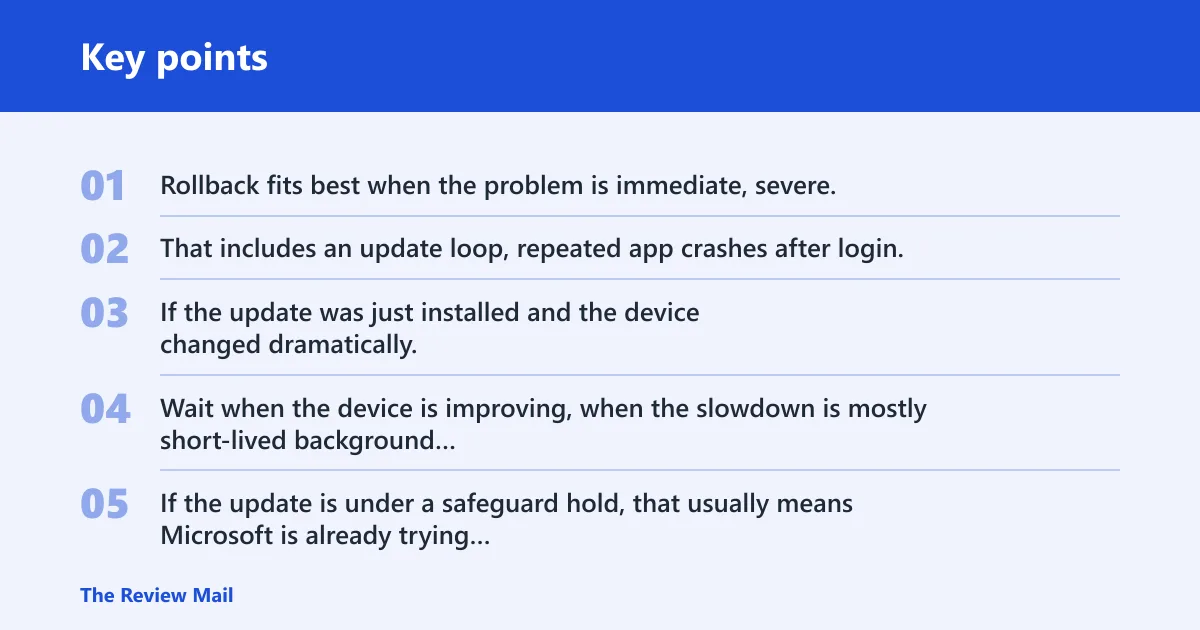
Rollback fits best when the problem is immediate, severe, and tied to a specific update with no sign of recovery. That includes an update loop, repeated app crashes after login, or a system that becomes too slow to use normally. If the update was just installed and the device changed dramatically, a rollback can be the fastest way to restore stability.
When waiting is better
Wait when the device is improving, when the slowdown is mostly short-lived background activity, or when Microsoft has already acknowledged an issue in release health. If the update is under a safeguard hold, that usually means Microsoft is already trying to limit exposure while it prepares a fix. In that case, forcing changes may not help.
How safeguard holds affect the choice
A safeguard hold can change the answer. If Microsoft has paused rollout for a known issue, the better move is often to wait for the hold to lift or for the next patch rather than doing deeper surgery on a system that is already on the path to a fix. If the device is already affected, you still need to weigh rollback against stability and data risk.
A common first-timer mistake is clearing caches before checking release health. If Microsoft already lists the same symptom, you can spend less time guessing and more time choosing the right path.
Frequently asked questions
Why is my computer so slow after updating?
The update may have triggered temporary background work, exposed a driver problem, or made a storage or memory bottleneck more obvious. If the slowdown started right after the install and persists after restart, check Task Manager and Microsoft’s release health hub before you assume it is random.
Why is Windows so slow after update?
Windows can slow after an update because it is still finishing setup tasks, but a lasting slowdown can point to a regression, a startup app problem, or low storage. If the same lag appears on every restart, compare the symptom to the decision table and watch for a known issue.
What Windows Update troubleshooting steps should I try first?
Start with a restart, then use the Windows Update troubleshooter in the Get Help app. Back up personal files before making changes, confirm the device is properly connected to the Internet if the install is failing, and disconnect external hardware before retrying the update.
How do I tell whether an update problem or a hardware problem is causing slowness?
Check whether the slowdown follows the update or was already building before it. If Task Manager shows one Windows process, a known update issue, or a repeated install failure, the update is more likely. If storage is nearly full, RAM is tight, or a device driver keeps failing, the hardware or driver path is more likely.
Should I roll back a Windows 11 update if my computer got slow?
Roll back when the slowdown began immediately after the update, stays after restart, and blocks normal use. Wait when Microsoft lists a known issue or safeguard hold, or when the slowdown is already easing. If you are unsure, use the decision table and the release health hub before making the call.
How do I stop Windows 11 from getting slower after an update?
Keep Windows current, but verify each slowdown with Task Manager, Reliability Monitor, and the release health hub before changing anything. Back up files before repairs, keep enough free storage, and remove only the update cache or update state that actually looks broken. That avoids treating unrelated slowness as an update failure.