Speeding Up My Laptop Windows 11
Start with the bottleneck. If Windows 11 slows after boot, disable high-impact startup apps. If it drags later, trim background load. Free up storage when the system drive is getting low, around 20% free space. Skipping the wrong fix wastes time and can leave the laptop slow in the same places. This guide shows how to read the slowdown pattern and apply the smallest Windows 11 changes that fit it.
How slow is it, exactly?
The first job is to match the symptom to the slowdown pattern. If boot is the main problem, focus on startup apps. If the desktop is slow while sitting idle, check memory and background load. If apps open slowly, storage and disk type matter more. If lag appears only during heavy use, CPU pressure or heat may be the real limit.
Restart the laptop first, then watch what changes. If the system feels normal for a few minutes after a restart and then slows again, that points away from a pure hardware limit and toward startup load, background apps, or a memory leak. If it stays slow right after boot, Task Manager usually makes the cause easier to isolate.
Windows 11 slowdown triage table
| Symptom pattern | Likely cause | What to check | Fastest safe fix | Expected improvement range |
|---|---|---|---|---|
| Slow right after startup | Startup apps or OEM utilities | Task Manager > Startup apps; look for High impact | Disable unneeded startup items | Startup: medium to large |
| Slow while idle at the desktop | Memory pressure or background apps | Task Manager > Processes; sort by Memory and CPU | End runaway apps, close extras, free RAM | Idle: small to medium |
| Apps take long to open | HDD bottleneck or low free space | Settings > Storage; check disk type in system info | Free space, use SSD if possible | App-launch: medium to large on HDD |
| Lag only under load | CPU pressure or thermal throttling | Task Manager > CPU; watch for high usage and spikes | Improve airflow, reduce heavy apps, use plugged-in power mode | Load-time: small to medium |
| Frequent stutter with many tabs | RAM ceiling | Task Manager > Memory; check whether usage stays high | Close tabs and apps; add RAM if possible | Idle and app-launch: medium |
For a useful benchmark, a well-optimized Windows 11 system with 8 GB RAM should show CPU below 5% at idle, memory below 50% at idle, and disk below 10% at idle. Those are not targets for every laptop, but they are a clean way to tell whether the machine still has background load after you make changes.
What is slowing it down?
Four places usually cause the slowdown: CPU pressure, memory pressure, storage bottlenecks, or heat. Task Manager can separate those quickly. That matters because a laptop with an HDD, limited RAM, or poor cooling may not respond the same way as a newer SSD-based system with enough memory.
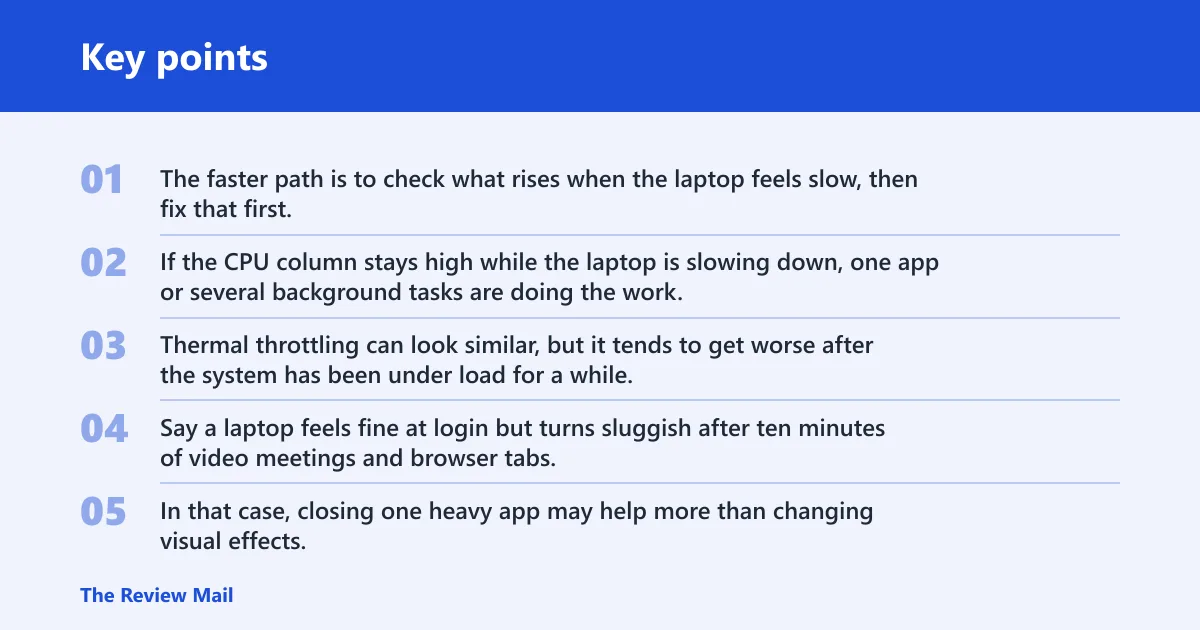
Windows 11 can also slow down from too many startup programs, outdated software or drivers, too little RAM or storage, and malware. Those are common causes, but they are not equally likely in every symptom pattern. The faster path is to check what rises when the laptop feels slow, then fix that first.
CPU pressure
If the CPU column stays high while the laptop is slowing down, one app or several background tasks are doing the work. That usually shows up during software installs, browser-heavy use, cloud sync, or video calls. Thermal throttling can look similar, but it tends to get worse after the system has been under load for a while.
Say a laptop feels fine at login but turns sluggish after ten minutes of video meetings and browser tabs. That points less to startup bloat and more to sustained CPU or memory pressure. In that case, closing one heavy app may help more than changing visual effects.
Memory pressure
Memory pressure shows up when the Memory column stays high and the machine swaps data to disk. That is where a system with 4 GB RAM hits a hard ceiling. On 8 GB systems, persistent memory use still matters, but there is enough room for the machine to recover if background load is trimmed.
A common mistake is to open Task Manager, see only a few visible apps, and assume memory is fine. Background sync tools, browser tabs, launchers, and OEM utilities can all hold RAM even when they are not front and center.
Storage bottlenecks
Storage matters most when apps open slowly, files take a long time to save, or the whole desktop pauses after a click. On computers with HDDs rather than SSDs, disk access speed stays the main bottleneck. SSDs are much better for launch speed and file operations, even before any Windows setting changes.
Low free space can make the problem worse. If the system drive is crowded, Windows has less room for temporary files, updates, and paging.
Thermal throttling
If speed drops after several minutes under load, the laptop may be limiting itself to stay within temperature limits. You may see CPU usage that does not look extreme, yet the machine still feels slow. In that case, software tweaks help only a little unless heat is part of the fix.
Task Manager checks to run
Task Manager is the fastest way to find the bottleneck before you change settings. Use the Processes tab to sort by CPU, Memory, and Disk. Then use Startup apps to see what is delaying boot. This check tells you whether you should cut startup load, free RAM, or focus on storage first.
Open Task Manager. Press Ctrl+Shift+Esc and switch to the Processes tab. Sort by CPU, Memory, and Disk one at a time so you can see what stays near the top when the laptop feels slow.
Check startup impact. Go to the Startup apps tab and look for High impact and Medium impact labels. Those labels help you find the items most likely to affect boot time before you touch less useful settings.
- Common safe-to-disable examples include chat launchers, music apps, game launchers, and cloud tools you do not need at sign-in.
- Leave security software and touchpad or audio utilities alone unless you know the app is optional.
End runaway apps. If one process is sitting at the top of CPU or Memory for no good reason, select it and choose End task. Use this as a cleanup move, not a permanent fix, because the app may reopen or the issue may return after launch.
Do these Windows 11 changes first?
Apply the lowest-risk changes that match the symptom pattern. Microsoft’s performance guidance supports startup management, power plan configuration, and visual effect reduction, and those are the first three places worth checking. In many typical cases, startup management and power settings account for most of the visible improvement.
Disable high-impact startup apps
Startup apps are the fastest boot-time win when the slow path begins at sign-in. Disable only what you do not need immediately. A browser helper, game launcher, or syncing tool can wait; Windows security components and hardware utilities usually should not.
Open Startup apps. In Task Manager, go to the Startup apps tab and sort by startup impact. Focus on High impact first, then Medium impact if the laptop still starts slowly.
Disable nonessential items. Right-click an app and choose Disable. Keep the list short so you can see which item changed the boot pattern later.
Restart and measure. Compare sign-in time and the first minute after the desktop appears. If the laptop reaches a usable desktop faster, you found the right bottleneck.
Change power mode or power plan
Use Balanced for normal battery use, High performance when plugged in, and Best performance when you want the system to stay responsive at the cost of battery life. On a laptop running on battery, higher performance modes can drain power faster, so they make sense mainly when the charger is connected.
Windows 11 power mode will not fix a slow HDD or starved RAM, but it can reduce hesitation from aggressive power saving. That matters most on thin-and-light laptops that downshift too hard.
Reduce visual effects and transparency
Turn off Transparency effects and Animation effects if the laptop uses integrated graphics or already feels strained. Those effects are usually a small gain on fast hardware, but they can help a little when GPU overhead is part of the problem. For a bigger cut, use Adjust for best performance.
Open performance options. Search for “performance” and open the visual effects settings.
Disable extras. Turn off Transparency effects and Animation effects, or choose Adjust for best performance if you want the strongest reduction.
Test the desktop. Watch window opening, switching, and scrolling. If the system drive or RAM is the true bottleneck, the change may be modest.
Run Storage Sense and clear temporary files
Storage Sense helps when the drive is crowded with temporary files, downloads, and update leftovers. It can recover space and keep cleanup automatic. That matters more when the free space has fallen low enough that Windows struggles to work comfortably.
Open Storage settings. Go to Settings, then Storage, and check how much space is free on the system drive.
Run cleanup. Open Temporary files and remove items you do not need. Then turn on Storage Sense so Windows can automate the cleanup later.
Recheck the drive. After cleanup, confirm that the system drive has more breathing room. That is useful for updates, paging, and general responsiveness.
Hardware limits to check
Some slowdowns are partly software and partly hardware. If the laptop has an HDD, 4 GB RAM, or a poor thermal design, Windows tweaks help only within those limits. In those cases, the right fix may be to reduce load, add hardware, or accept that the machine has a ceiling.
SSD versus HDD
An SSD is the most meaningful storage upgrade for Windows 11 speed. It improves boot time, app launches, searches, and file operations. If the laptop still uses an HDD, that single part can dominate the experience even when startup apps are already trimmed.
Do not spend much time on visual tweaks if the app launch delay is clearly storage-bound. An HDD can make even simple tasks feel delayed.
RAM capacity and memory pressure
On computers with 4 GB RAM, RAM pressure remains a performance ceiling. A browser with many tabs, office apps, and syncing tools can push the system into paging quickly. An 8 GB baseline is much more forgiving for everyday Windows 11 use, especially if you keep several apps open at once.
If memory usage stays near the top after closing obvious apps, the machine may need more RAM rather than more settings changes. That is a hardware answer, not a Windows setting answer.
Page file basics
Virtual memory, also called the page file, lets Windows use storage as overflow when RAM is tight. It can reduce crashes and improve stability under pressure, but it is not a replacement for enough RAM. It is a workaround, not a cure.
Leave automatic paging on. In most cases, Windows should manage the page file automatically. That is safer than guessing a custom size.
Use it as a backup. If the laptop feels unstable under memory pressure, the page file can help keep apps open while you close extras.
ReadyBoost compatibility
ReadyBoost is a limited fallback for compatible USB flash drives or SD cards. It may help a little on older systems with slow storage, but it is not a universal fix and is generally far less useful than an SSD. If the laptop already has an SSD, skip ReadyBoost.
Updates and driver fixes
Update Windows 11 and drivers after you have checked the symptom pattern. System updates, optional driver updates, chipset drivers, and graphics drivers can fix bugs or improve compatibility. They are useful when the slowdown appeared after a bad update cycle, device change, or driver problem.
Run Windows Update. Install available system updates first. This is the cleanest way to pick up fixes for performance bugs and background services.
Check optional drivers. Look for optional updates, especially chipset and graphics drivers. These matter because they affect how the laptop handles power, devices, and screen work.
Restart and compare. After updates, check whether the startup delay, idle load, or app-launch lag changed. If nothing improved, the bottleneck is probably elsewhere.
Frequently asked questions
What is slowing down my laptop windows 11?
The most common culprits are startup programs, background apps, low RAM, low free space, and an HDD. Task Manager will show whether CPU, Memory, or Disk is the main pressure point. If the slowdown appears only after several minutes, heat may also be limiting performance.