Downloads Folder Slow to Load Windows 11
In Windows 11, a slow Downloads folder usually comes from File Explorer rendering, thumbnail generation, Defender scans, or a sluggish disk. The fastest fix is to isolate the step that slows the first open: folder render, file-list draw, or disk activity. Ignore it and every visit to Downloads can stall File Explorer, making file access feel random and wasting time on a folder you open constantly. This guide shows a quick diagnostic path to separate folder rendering, antivirus scanning, and storage bottlenecks.
Why does the Downloads folder load slowly?
A slow first open usually points to File Explorer, not the download itself. The delay can come from a crowded folder, thumbnail generation, Microsoft Defender or SmartScreen checks, a slow HDD, or a broken Explorer state. Watch where the pause happens: at the folder open, while the file list draws, or while disk activity spikes.
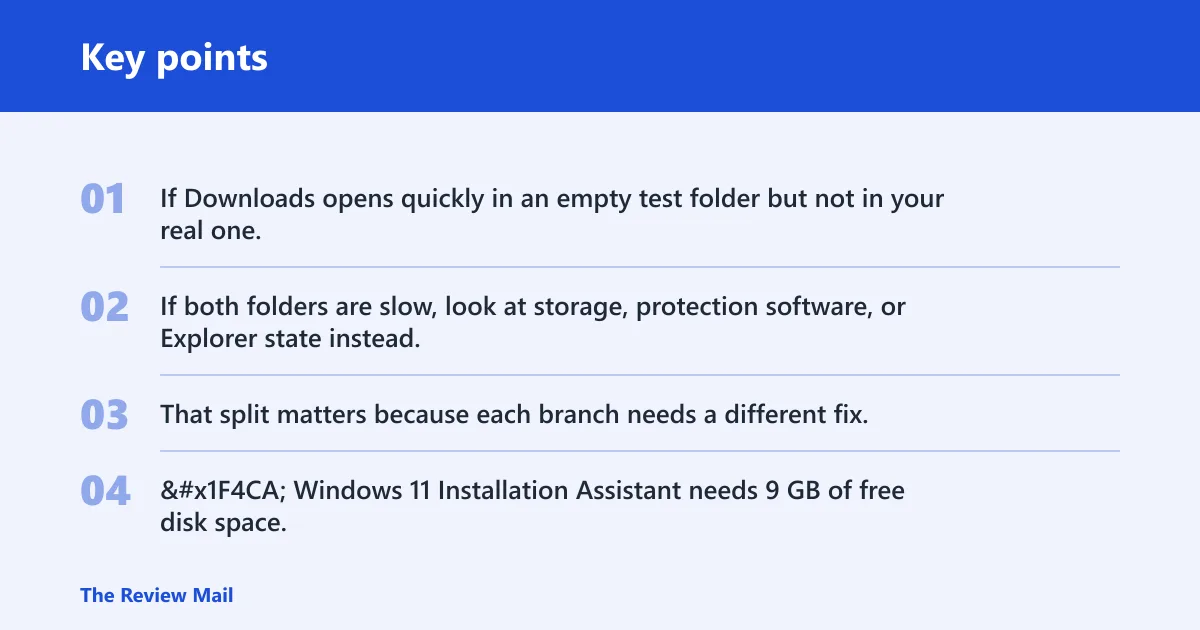
If Downloads opens quickly in an empty test folder but not in your real one, folder contents are the likely cause. If both folders are slow, look at storage, protection software, or Explorer state instead. That split matters because each branch needs a different fix.
Downloads load triage checklist
| Symptom | Likely cause | Quickest test | Safest fix |
|---|---|---|---|
| Downloads opens slowly, but a new empty folder opens fast | Folder contents are too heavy | Sort by Date modified or file size in Details view, then note whether large ISO, ZIP, or media files dominate | Move old files out, split archives into subfolders, and keep recent downloads easy to reach |
| Folder open stalls while disk activity spikes and the file list lags | Defender or SmartScreen scanning | Open Task Manager or Resource Monitor and look for Antimalware Service Executable, MsMpEng.exe, with disk activity during the stall. | Use a folder exclusion only when the evidence points there; do not disable Defender entirely |
| Every folder on the same drive feels slow | Slow storage or disk pressure | Open Resource Monitor with Win + R and resmon, then check disk time and queue activity | Free space, close heavy disk users, and expect HDDs to run slower than SSDs |
| Downloads is the only folder that misbehaves | Broken Explorer state or a bad view cache | Restart File Explorer, then compare Downloads with a new empty folder on the same drive | Reset the folder view, test after temporarily moving Downloads, and check for a bad shell extension |
📊 Windows 11 Installation Assistant needs 9 GB of free disk space. Source: Download Windows 11.
Is the folder itself the problem?
Yes, very often. A large Downloads folder can slow the first open because File Explorer has to build the list, pull metadata, and create previews for items such as ISO, ZIP, photo, and video files. Date modified sorting helps because it surfaces the newest files at the top, which is the practical view most people want in Downloads.
Suppose Downloads holds hundreds of installers, a few about 8 GB ISO files, and months of ZIP archives. The folder can feel slow even when the drive is healthy, because Explorer has more items and more metadata to process before you can click the file you want.
Check file count, ISO, ZIP, and media files
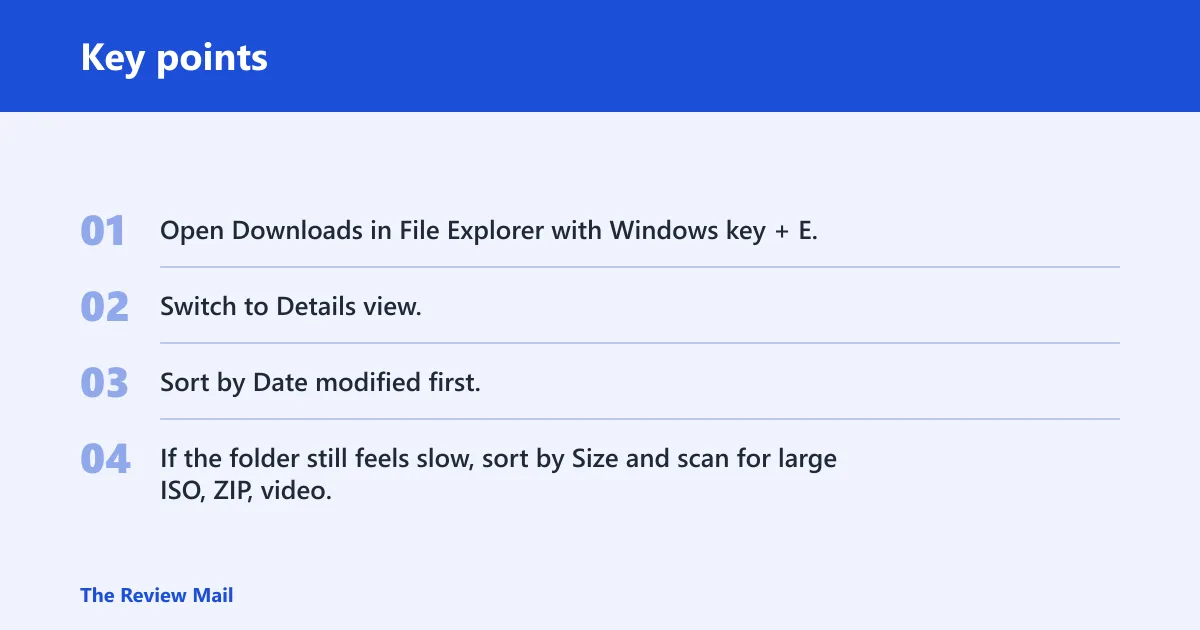
- Open Downloads in File Explorer with Windows key + E.
- Switch to Details view.
- Sort by Date modified first.
- If the folder still feels slow, sort by Size and scan for large ISO, ZIP, video, or installer files.
Large downloads matter because they often sit in the same folder for weeks. That leaves Explorer with more items to enumerate on each open, and previews can add to the delay.
Sort by Date modified in Details view
Date modified sorting is a common way to bring recent downloads to the top in File Explorer. It does not make the drive faster. It does make the folder easier to inspect, which helps you separate “too many files” from “something is wrong with Explorer.”
Open a new empty folder in the same drive
Create a new folder on the same drive as Downloads, such as C:\Temp\Downloads-test, and open it. If that folder opens normally while Downloads still lags, the problem is in the Downloads directory or its view state, not the disk as a whole.
Check Defender and SmartScreen scans
Security checks can make a folder open feel slow when Explorer or the browser is asking Windows to inspect files on entry. Microsoft Defender can slow large downloads enough that they appear to stall at 99%, and the process to watch is Antimalware Service Executable, MsMpEng.exe. SmartScreen can also add a pause when a file is marked as unfamiliar.
Use Task Manager or Resource Monitor first. If disk activity spikes while Downloads opens, and the pause lines up with Defender activity, the folder itself may be fine. The scan is what is blocking the view.
Use Task Manager or Resource Monitor
- Open Task Manager and look for Antimalware Service Executable.
- Or press Win + R, type resmon, and open Resource Monitor.
- Watch the Disk tab while you open Downloads.
- If Defender activity appears only during that open, the scan is a strong suspect.
Do not turn protection off completely. A folder exclusion is the safer move when you have evidence that the folder is causing repeated scans and slow opens.
Use an exclusion only when the evidence fits
If the slowdown follows the same folder every time and disappears for a different folder on the same drive, a targeted exclusion can help. Keep the exclusion narrow. The point is to stop repeated scanning of a specific Downloads path, not to remove protection from the whole PC.
Could slow storage be the real cause?
Yes. HDDs are slower than SSDs, and that difference is easy to notice in File Explorer. A nearly full drive can also drag out folder loading because Windows has less room to work with metadata, temporary files, and cache activity. If every folder on the same drive feels slow, storage jumps higher on the list.
Use Resource Monitor to check whether the disk is busy during the pause. High disk activity, long disk time, or a queue that stays active while Explorer waits points away from the folder contents and toward the drive itself.
What to look for in Resource Monitor
Open Resource Monitor with Win + R and resmon. Watch disk activity when Downloads opens. If the disk is busy before the file list appears, the system may be waiting on storage, not on Explorer rendering.
When slow storage is expected
Some slowdown is normal on older HDD-based PCs, low-RAM systems, or nearly full drives. That does not make the delay ideal, but it does explain why the same folder opens faster on an SSD-equipped system with more free space.
Reset broken Explorer state
If only Downloads is slow, and a new empty folder on the same drive opens quickly, Explorer’s cached state may be the problem. A bad shell extension, a corrupted folder view, or a stale navigation entry can make one folder misbehave while the rest of Windows seems normal.
Say your Downloads folder opens slowly only after a browser adds a new file, but a temporary folder on the same drive opens instantly. That pattern points more to Explorer state or a shell extension than to the disk itself.
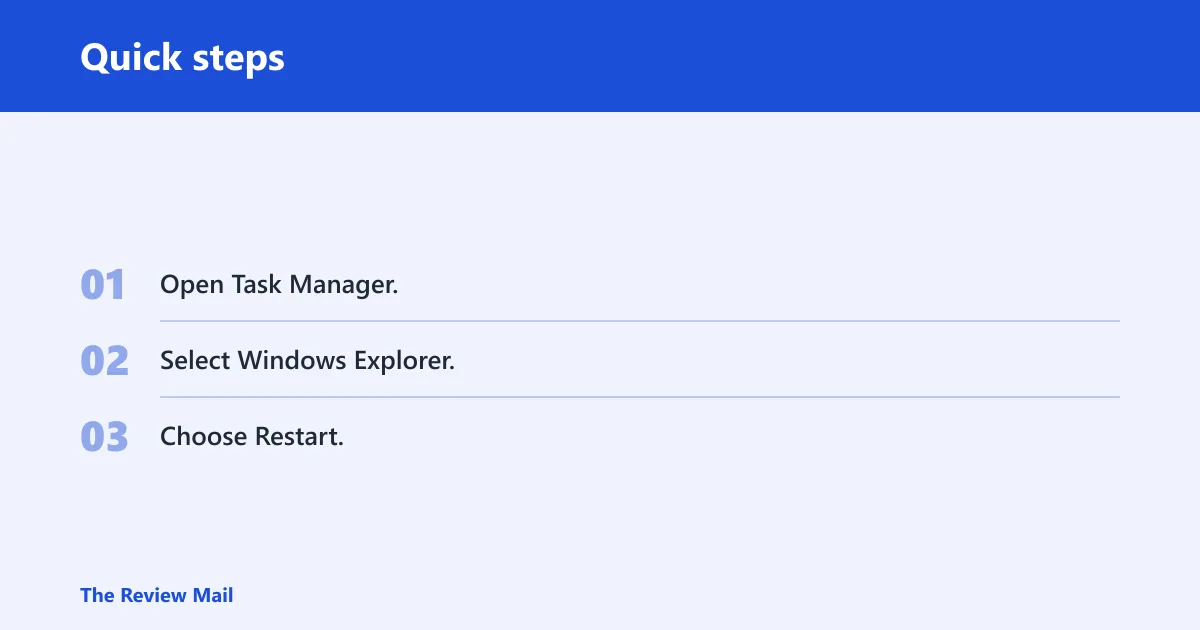
Restart file Explorer
- Open Task Manager.
- Select Windows Explorer.
- Choose Restart.
This is a quick reset for the shell. It often clears a temporary hang without touching your files.
Test Downloads after moving it temporarily
Check the folder’s Properties and Location tab first if Downloads was customized. Then temporarily move the folder to a different path on the same drive or create a new test folder in a clearly named temporary location. If the problem disappears after the move, the original path or its cached state is likely involved.
Check for a bad extension or corrupted view state
If Explorer still stalls after a restart, a shell extension or saved view setting may be holding it back. That is when a clean compare matters: Downloads, an empty folder, and another normal folder on the same drive should not all behave the same if the issue is specific to the shell state.
Where is the Downloads folder in Windows 11?
By default, Downloads sits in the user profile at C:\Users\[User Name]\Downloads. You can open it from File Explorer, or use shell:downloads in the Run dialog for a fast jump. In Windows 11, it may also appear in Quick access or Home, but typically only if it has been pinned or surfaced for that profile.
That behavior can differ from Windows 10. Do not assume every Windows 11 setup shows Downloads in the same place in the navigation pane.
Check location in Properties
Right-click Downloads, open Properties, and check the Location tab. That tab can confirm the actual path or restore it if the folder was moved. This matters when a custom location makes the folder appear slow or confusing to open.
How do I open the Downloads folder faster in Windows 11?
The fastest path is usually shell:downloads or a pinned entry in Quick access or Home, if your profile shows it there. If you spend a lot of time in Downloads, pinning it is more efficient than digging through the user profile path every time.
File Explorer also opens faster when you keep it in Details view and sort by Date modified. That puts current files at the top and reduces the need to hunt through a long list.
Use File Explorer shortcuts
- Press Windows key + E to open File Explorer.
- Use the Downloads entry in Quick access or Home if it is present.
- If not, press Win + R, type shell:downloads, and press Enter.
Open files from Chrome or Edge directly
After a download finishes, Chrome and Edge show the file in the downloads bar or downloads menu. Use the browser’s open or show-in-folder action to get to the file without browsing through File Explorer first. That is the fastest route when you only need the finished file and not the whole folder.
Frequently asked questions
Why does my Downloads folder take so long to open?
The usual causes are a crowded folder, thumbnail generation, Defender or SmartScreen checks, or a slow drive. If a new empty folder opens quickly but Downloads does not, the problem is likely folder-specific. If every folder is slow, storage or Explorer state is more likely.
Why does Windows File Explorer take so long to load?
File Explorer can slow down because of a bad shell extension, a broken view cache, heavy disk activity, or folder content that takes longer to render. Check whether the delay happens in one folder or across the whole app. That split tells you whether to clean up the folder, restart Explorer, or inspect the drive.
What if Downloads is missing from File Explorer?
First check whether it was unpinned from Quick access or Home. Then open its Properties and look at the Location tab to confirm the path. If the folder was moved, restore the path or re-create the link from the profile location so File Explorer can show it again.
How do I find the exact folder a downloaded file was saved to?
Use the browser’s open or show-in-folder action from Chrome or Edge. If the file is already in Downloads, File Explorer can search by file name inside that folder. For older files, sort by Date modified so the most recent downloads appear first and are easier to inspect.
Can I sort Downloads so the newest file appears first?
Yes. Open Downloads in File Explorer, switch to Details view, and sort by Date modified. That brings the newest files to the top. It is especially useful when the folder holds many items and you want the most recent download without scrolling through older files.
How do I open downloads from Chrome or Edge instead of File Explorer?
Use the browser’s downloads menu or bar, then choose the option to open the file or show it in the folder. That skips a separate trip through File Explorer. It is the quickest route when the goal is only to open the finished file.