Windows 11 Slow to Load
If Windows 11 loads slowly, name the stage first: boot delay usually points to startup apps or disk health, desktop lag to Explorer or drivers, app launch to storage or background load, and web lag to DNS, extensions, or network. Chasing the wrong stage wastes time and leaves the real bottleneck untouched. This guide separates each delay type and gives the quickest fix for each one.
Load triage table
| Symptom | Most likely cause | Fastest first check | Skip this fix if… | When to escalate |
|---|---|---|---|---|
| Boot | Too many startup apps, Fast Startup conflict, or a storage delay | Open Task Manager with Ctrl + Shift + Esc and review Startup apps | The delay starts only after sign-in, not before the login screen | Startup items are already minimal, but boot still takes well over a minute to reach sign-in |
| Desktop after login | Explorer load, background sync, shell extensions, or driver lag | Watch CPU, memory, and disk activity in Task Manager right after sign-in | The desktop is fine and only one app is slow | The desktop stays sluggish after startup apps are reduced and updates are current |
| Apps | Disk pressure, low memory, or damaged system files | Check whether disk activity stays high while the app opens | Only web pages are slow, but local apps open normally | Several apps open slowly, even after storage cleanup and repair commands |
| Web pages | Browser extensions, DNS, network, or security software | Try a second browser and test one simple page | Local apps are slow too; this is not only a browser problem | Only web loading is slow across browsers and networks |
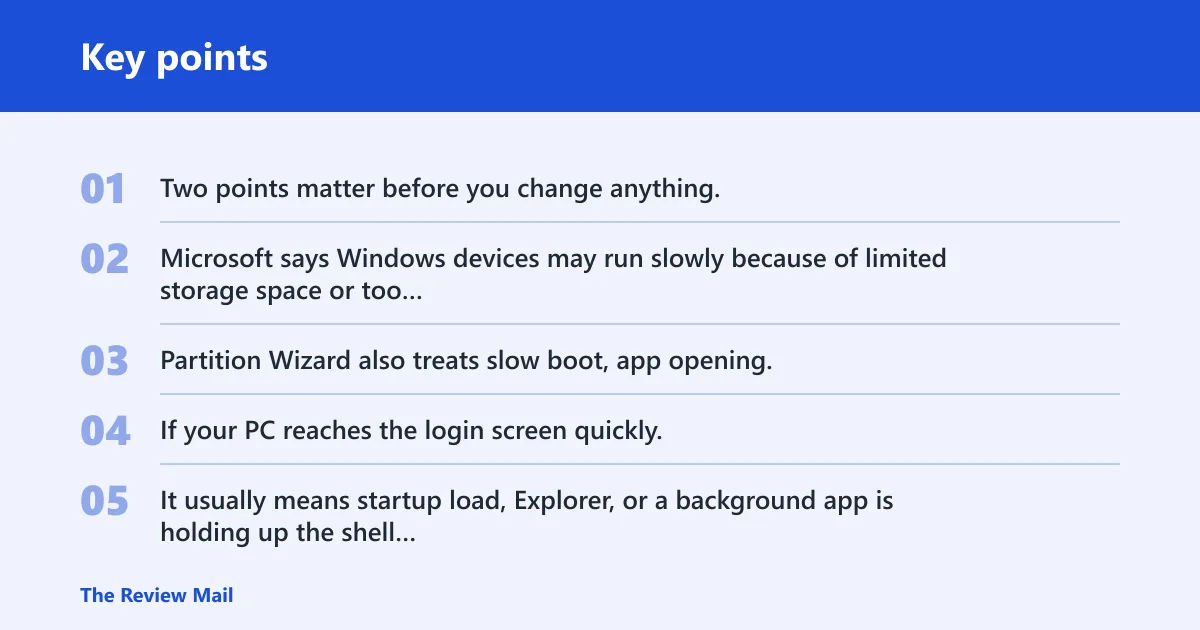
Two points matter before you change anything. Microsoft says Windows devices may run slowly because of limited storage space or too many startup apps. Partition Wizard also treats slow boot, app opening, and gaming performance as separate symptoms, which is the right way to think about this problem.
If your PC reaches the login screen quickly, but the desktop stays blank for about 20 to 30 seconds after sign-in, that usually points to a desktop startup issue rather than a full boot problem. That is not a boot problem. It usually means startup load, Explorer, or a background app is holding up the shell after login.
Why is Windows 11 slow to boot?
A slow boot usually starts before the login screen appears. The most common causes are startup apps, Fast Startup conflicts, or storage trouble that slows the handoff from firmware to Windows. If the delay is more than a minute to reach the login screen, treat it as a boot-stage problem first.
Check startup apps first
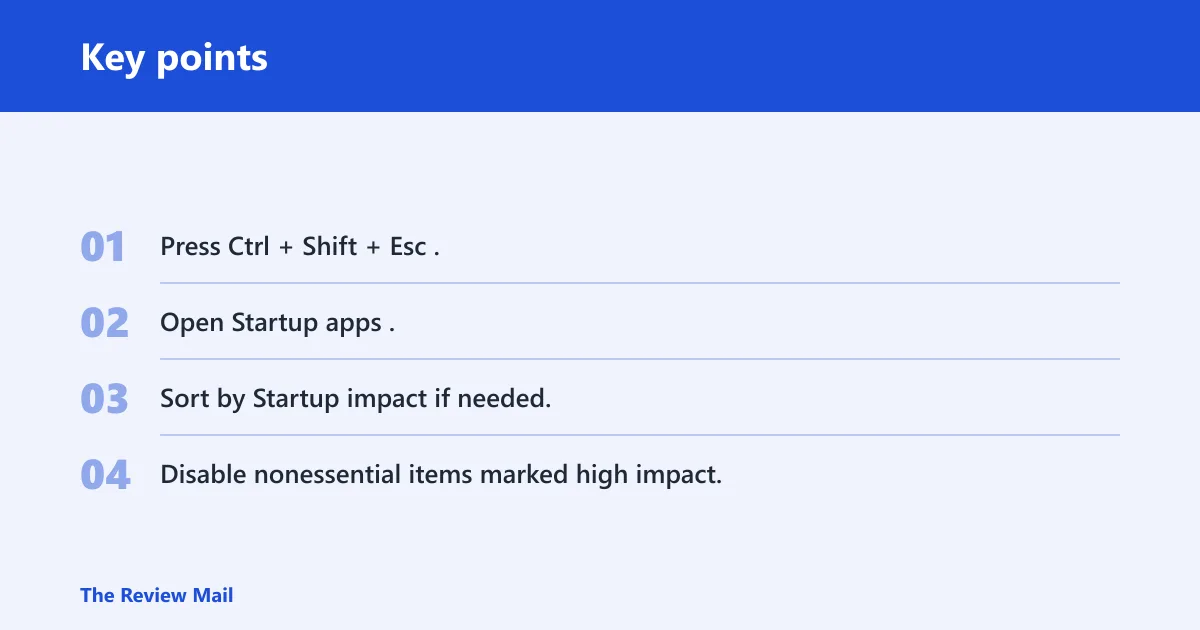
Microsoft recommends opening Task Manager with Ctrl + Shift + Esc, then using the Startup apps section. Look at the Startup impact labels and disable the high-impact entries you do not need at sign-in. This is the quickest first check for a long boot. (Microsoft Support)
- Press Ctrl + Shift + Esc.
- Open Startup apps.
- Sort by Startup impact if needed.
- Disable nonessential items marked high impact.
Skip this step if the boot delay is gone before Windows loads, but the desktop still stalls after sign-in. That points to a different stage, and disabling more startup apps will not fix it.
Test Fast Startup
Fast Startup can help some systems, but it is not harmless in every setup. Microsoft places the setting in Control Panel under Power Options, then Choose what the power buttons do, then Change settings that are currently unavailable. Turn it off for testing, reboot, and see whether boot improves.
Leave it off if the machine uses older drivers that do not wake cleanly, or if it is part of a dual-boot setup. Partition Wizard notes that Fast Startup may fail to clear driver errors, so a test with it disabled is often the quickest way to rule out that conflict.
Check for update-related slowdowns
If the slowdown began after an update, check Settings > Windows Update first, then Optional updates. Microsoft recommends checking for updates first and then optional updates, including optional driver updates when performance is the concern. Updates can fix boot regressions, but they can also introduce them.
Suppose a laptop starts taking 70 seconds to reach the login screen right after a cumulative update. In that case, test startup apps and Fast Startup first, then install pending updates and optional drivers if the delay appeared after the update cycle. The order matters.
Why is the desktop slow after sign-in?
A slow desktop after sign-in means Windows reached the login screen, but the shell is still loading. That delay is often caused by startup apps, cloud sync tools, shell extensions, or graphics and driver issues. The right fix depends on whether the lag is only at sign-in or continues once the desktop is visible.
Separate startup load from desktop shell load
If Task Manager shows heavy disk or CPU activity right after sign-in, the delay may still be tied to startup programs. If resources settle but the desktop stays laggy, the issue is more likely the shell, a driver, or a visual setting that is too heavy for the system.
Do not jump straight to storage cleanup if the desktop is the only slow stage. Cleanup helps when space is low, but it does not fix every sign-in lag.
Check background apps and sync tools
Look for backup tools, cloud sync clients, and app launchers that wake at sign-in. Microsoft says too many startup apps can slow Windows devices, and that warning applies here too. The fastest win is usually disabling the few entries that have the highest startup impact and are not needed immediately.
Reduce visual effects if the desktop stays sluggish
If the desktop remains slow after startup apps are trimmed, use Control Panel > System > Advanced system settings > Performance Settings, then choose Adjust for best performance. Microsoft advises setting Power mode to Best performance as well. On laptops, that setting can cost battery life, so test it on AC power first.
Why do programs open slowly in Windows 11?
Slow app launch usually points to storage, memory pressure, or damaged system files. If one app is slow but the rest of Windows is normal, the app itself may be the problem. If several apps open slowly, check disk activity and system health before changing more settings.
Check disk activity and memory pressure in Task Manager
Open Task Manager and watch the Performance tab while you launch an app. If disk use stays high, the drive is likely the bottleneck. If memory is nearly full, Windows may be paging to disk, which makes app launch feel much slower.
Use storage cleanup tools
Low free space can slow app loading, especially on systems that are nearly full. Microsoft recommends Storage Sense for deleting temporary files automatically, and it includes a Run now option when space is already tight. Disk Cleanup is the manual option for removing temporary files and reclaiming space.
Use Storage Sense when the problem keeps coming back. Use Disk Cleanup when you need to clear space right now.
Run DISM and SFC for system file repair
If app launch is slow across several programs and storage cleanup does not help, repair Windows files. The same source lists DISM and SFC as repair commands, and these are the standard first pair to try. Run DISM /Online /Cleanup-Image /RestoreHealth, then sfc /scannow.
This pair is less likely to help if only one browser is slow while local apps open normally. That pattern points away from system file repair and toward the browser, network, or extensions.
Startup apps and Fast Startup
Startup programs are one of the fastest things to fix because they are easy to inspect and often easy to disable. Fast Startup is worth testing, but only after you know the problem happens during boot rather than after sign-in. Use both tools with care.
Task Manager startup apps tab
Microsoft’s startup-app fix uses the Startup apps section in Task Manager. Open Task Manager with Ctrl + Shift + Esc, review the Startup impact labels, and disable high-impact startup apps that do not need to run immediately. Keep security software and hardware utilities only if you know they are required.
Control Panel path for fast startup
Go to Control Panel > Power Options > Choose what the power buttons do. Select Change settings that are currently unavailable, then turn Turn on fast startup on or off for testing. Reboot after each change so you can compare the result on the same machine.
When to leave Fast Startup off
Leave Fast Startup off if the system uses older drivers that do not resume cleanly, or if Windows shares the machine with another operating system. The same source notes that Fast Startup may fail to clear driver errors, which is exactly when it can make boot behavior confusing rather than faster.
Cleanup and performance fixes
Cleanup helps when space is low, but it should not replace symptom triage. Microsoft says limited storage space can slow devices, and that is a strong clue when apps, updates, and temporary files are piling up. Use cleanup tools early, then move to repair only if the slowdown remains.
Windows Update and optional drivers
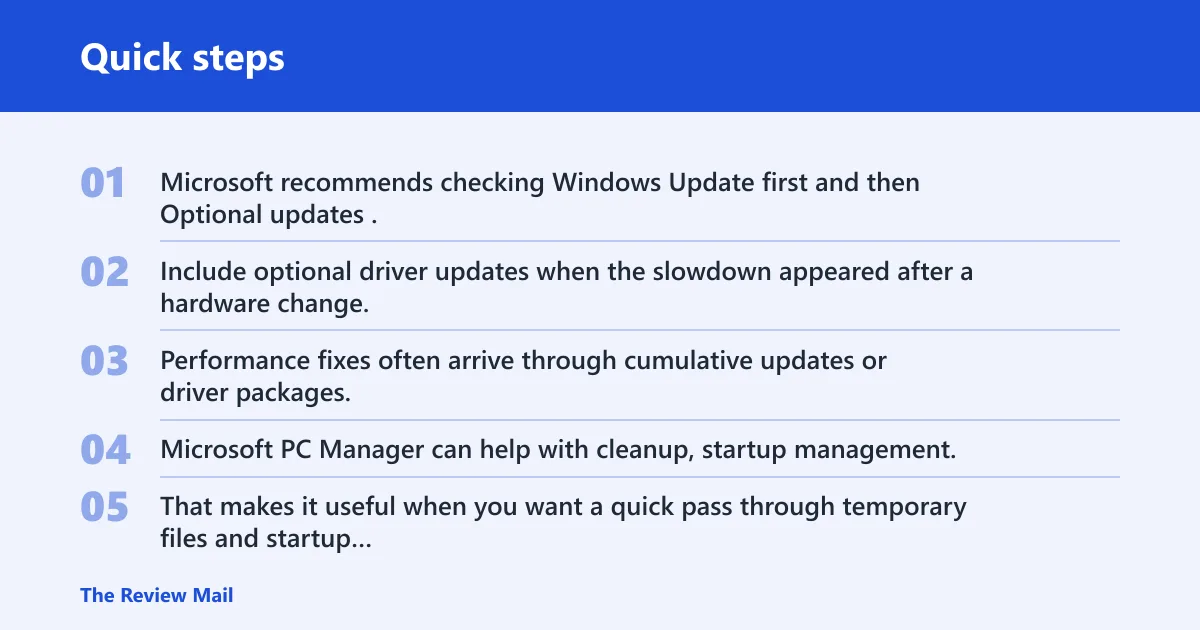
Microsoft recommends checking Windows Update first and then Optional updates. Include optional driver updates when the slowdown appeared after a hardware change, a resume issue, or a post-update regression. Performance fixes often arrive through cumulative updates or driver packages.
Microsoft PC Manager
Microsoft PC Manager can help with cleanup, startup management, and storage cleanup in one place. That makes it useful when you want a quick pass through temporary files and startup entries without opening separate tools. It is most helpful as a maintenance step, not as a substitute for checking the actual symptom first.
Storage Sense and disk Cleanup
Storage Sense can delete temporary files automatically, and the Run now option is useful when the drive is low on space. Disk Cleanup is the manual path for temporary files and other removable clutter. Use both when free space is thin, especially on smaller SSDs.
Power mode and visual effects
Microsoft advises setting Power mode to Best performance. That can reduce slow response at the cost of battery life on laptops. If the desktop still feels heavy, change visual effects through Control Panel and choose Adjust for best performance to cut animation and transparency overhead.
Defragment and Optimize Drives
Microsoft suggests Defragment and Optimize Drives to improve performance. Use the Optimize action for the drive type shown there. It is useful when storage performance is part of the problem, but it is not a cure for every boot delay, especially when startup apps or drivers are the real cause.
Frequently asked questions
Why is Windows 11 so slow to load?
“Slow to load” can mean boot, desktop after sign-in, app launch, or web pages. Each has different causes. Boot delays often point to startup items, desktop lag to shell or drivers, app launch to storage or memory, and web lag to browser or network issues.
Why is my Windows 11 desktop slow after sign-in?
That usually means Windows has logged in, but Explorer or background apps are still loading. Reduce startup apps, check Task Manager for disk or CPU spikes, and test Power mode and visual effects if the desktop remains sluggish. If only the shell is slow, boot fixes alone will miss the problem.
Why is Windows 11 slow on SSD?
On an SSD, slow boot or launch is less likely to be raw drive speed and more likely to be startup load, firmware, driver issues, or low free space. That is why SSD users should check startup apps, Windows Update, optional drivers, and storage health before assuming the drive itself is the cause.
How do I stop Windows 11 from loading slowly after update?
Start with Windows Update, then check optional updates and optional driver updates, because Microsoft includes performance fixes there. If the slowdown began right after the update, test Fast Startup and review startup apps again. If the problem remains across reboots, repair files with DISM and SFC or check storage health.