How to Speed Up an Old Laptop Windows 11
Speed up an old Windows 11 laptop by fixing startup load, storage pressure, and background apps first. If it still feels slow after those checks, test the SSD, RAM, and battery, then decide whether an upgrade is worth it. Skip that triage and you can waste money on the wrong part while the real bottleneck stays in place. This guide gives the fastest software fixes, the hardware checks that matter, and a clear point where replacement makes more sense than repair.
What you’ll need
- Admin access to the laptop.
- A charger, so you can test power mode while plugged in.
- At least 15 to 20 minutes for the first pass.
- Enough free space to move or delete unneeded files.
- A note of the laptop model, RAM size, and whether storage is HDD or SSD.
- Optional: a USB drive or external drive for backups before any upgrade.
Windows 11 speed decision matrix
This is the fastest way to choose the right fix. A slow laptop is usually dragging from startup clutter, low free space, outdated software, or hardware that no longer meets modern needs, and Microsoft says several factors can contribute to poor performance. Start with the row that matches your machine, then follow the priority order.
| Age / setup | Storage type | RAM | Main symptom | Priority order | Effort | Worth it? |
|---|---|---|---|---|---|---|
| Older than 5 years | HDD | 8 GB or less | Slow boot, disk thrashing | Startup apps → storage cleanup → SSD → RAM | Medium | Yes, if the CPU is still usable |
| Older than 5 years | SSD | 8 GB or less | App lag, browser stalls | Startup apps → updates → RAM → SSD only if drive is small or worn | Low to medium | Usually yes |
| Any age | HDD | 16 GB | Slow boot, long file access | SSD first, then cleanup | Medium | Yes |
| Any age | SSD | 16 GB | Heat, fan noise, stutter | Thermals, malware scan, drivers, then stop | Low | Only if cooling is healthy |
| Older than 6 to 7 years | HDD or SSD | 4 GB | Everything lags at once | Cleanup → RAM check → SSD if on HDD → replace if still poor | Low to medium | Often not worth major spending |
One practical rule helps here: if the laptop has an HDD, storage is usually the first hardware bottleneck; if it already has an SSD and only 8 GB of RAM, memory is more likely to cap day-to-day speed. Microsoft’s guidance is to start with the simplest causes first, because storage pressure, startup load, and update issues can all stack up.
What should you disable first?
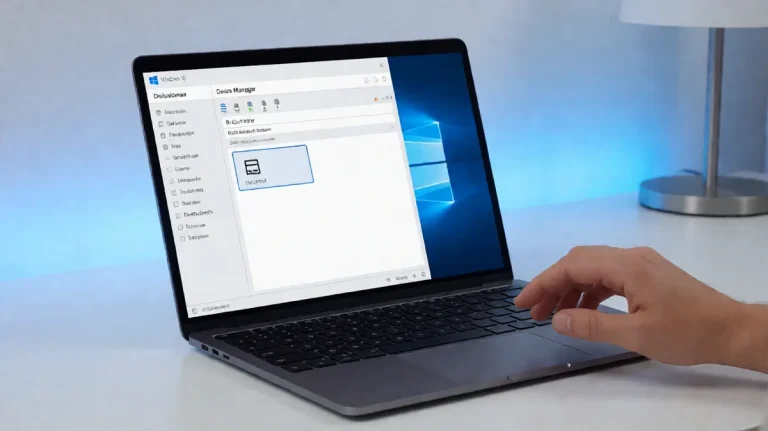
Start with startup apps in Task Manager. Microsoft says too many startup apps can slow a Windows device, and the quickest win is to disable only the entries that do not need to launch with Windows. Sort by Startup impact and leave security tools and hardware-specific utilities alone unless you know they are unnecessary. (Microsoft)
- Open Task Manager. Press Ctrl + Shift + Esc, then select the Startup apps tab.
- Sort by impact. Click the Startup impact column so the heaviest entries rise to the top.
- Disable the extras. Right-click entries you do not need at sign-in and choose Disable. Keep security tools, touchpad utilities, audio drivers, and hardware-specific tools enabled if you know they are required.
- Restart and recheck. A reboot shows whether boot time and sign-in delay improved.
Which startup apps are safe to turn off? Common candidates are chat apps, game launchers, cloud sync tools, vendor update helpers, and tray utilities you rarely use. Leave unknown driver tools alone until you confirm what they control.
Quick fixes to try first
Use this order when you want the biggest improvement per minute spent. Free storage, reduce visual drag, and fix power settings before you spend money on parts. Then update Windows and drivers, because Microsoft says updates can include fixes and performance improvements.
- Clean storage pressure. Go to Settings > System > Storage, open Storage Sense, and turn on automatic cleanup for temporary files, the Downloads folder, and the Recycle Bin if those files are safe to remove.
- Delete unused files. In Settings > System > Storage, open the largest categories and remove unused apps, large videos, and downloads you no longer need. Keep enough free space for Windows to update and cache temporary files smoothly.
- Trim visual effects. Open Settings > Accessibility > Visual effects and turn off Animation effects and Transparency effects first. That trade makes sense when speed matters more than looks.
- Change power mode. Go to Settings > System > Power & battery and choose Best performance or Highest performance when plugged in. Performance-focused power modes can improve responsiveness, though battery life usually drops.
- Install updates. Go to Start > Settings > Windows Update > Check for updates, then open Advanced options > Optional updates and install offered driver updates, especially chipset and graphics items from manufacturer support pages. Microsoft recommends keeping Windows and drivers current.
Say your laptop takes a long pause to reach the desktop and then still feels sticky after sign-in. Disabling the heaviest startup apps can reduce that delay, while freeing storage helps more when the entire system feels weighed down by updates, cached files, and nearly full disk space.
Can an old Windows 11 laptop still be made fast without reinstalling?
Yes, often. A slow Windows 11 laptop can frequently be improved without wiping the system, especially when the slowdown comes from startup clutter, storage pressure, or outdated software. Start with startup apps, storage, updates, malware scanning, and power mode before you consider a reset.
Should you upgrade RAM or switch to an SSD first?
On an HDD-based laptop, an SSD usually matters first. On an SSD laptop, RAM is more likely to be the limiter if the machine has 8 GB or less. For many older systems, the biggest day-to-day gain comes from fixing the slowest bottleneck first instead of guessing.
- Check the storage type. Open Task Manager > Performance and confirm whether the drive is HDD or SSD, or check the laptop’s model specs from the manufacturer.
- Check RAM headroom. If the system has 8 GB or less and browser tabs, Office apps, or photo work cause paging, RAM becomes the better next upgrade.
- Verify upgrade support. Check manufacturer support pages for slot count, maximum supported memory, and whether the SSD uses SATA or NVMe. Older laptops often have limited memory, and some have soldered RAM with no upgrade path.
- Plan cloning carefully. Before buying an SSD, confirm whether the old drive can be cloned or whether you need a fresh Windows install. Make sure the new drive matches the interface and physical size.
Suppose a laptop still has a 5400 RPM hard drive and 8 GB RAM. In that case, the SSD usually delivers the larger visible jump first because the slow drive is holding back boot, file loading, and app launches all at once. Major SSD vendors and OEM support pages consistently position SSDs as the strongest upgrade for older HDD systems.
Can an old Windows 11 laptop still be worth fixing?
Yes, if heat, storage health, and upgrade limits do not point to a dead end. Start by checking whether the laptop is throttling from heat, then look for storage failure signs, then decide whether the cost of parts beats replacement. Hardware that no longer meets modern performance needs can be the real limit.
- Check for heat throttling. Make sure vents are clear, fans spin properly, and the laptop does not cut speed after a few minutes under load. If the chassis stays hot and the fan is loud, cooling may be the bottleneck.
- Look for drive failure signs. Repeated freezes, long file openings, and disk activity lights that stay busy during simple tasks can point to a failing drive rather than mere clutter.
- Check the ceiling. If the laptop has 4 GB RAM, a weak CPU, or fixed memory with no upgrade path, further spending often gives poor value.
- Stop at poor value. Replace the laptop when the upgrade bill gets close to the price of a far better used or refurbished system.
A common first-timer mistake is buying RAM for a laptop whose slowest part is still the hard drive. If the machine boots slowly, loads files slowly, and spends a lot of time grinding the disk, the drive is the first hardware suspect.
Common mistakes
- Turning off random startup entries without checking what they do. Disable only nonessential launch items first.
- Ignoring free space. Keep the system disk comfortably below the point where updates, temp files, and caches start competing for room.
- Defragmenting an SSD. Modern SSDs do not benefit from traditional defragmentation.
- Running duplicate real-time antivirus tools. Keep one real-time antivirus enabled at a time, usually Microsoft Defender unless there is a clear reason for another.
- Skipping updates. Install Windows updates and optional driver updates before assuming the laptop is too old.
- Buying parts before checking compatibility, slot limits, and storage interface.
How do you handle malware and duplicate antivirus on Windows 11?
Use Windows Security to check the system before you assume the slowdown is just age. Open Windows Security > Virus & threat protection and run a full scan if startup behavior, browser pop-ups, or unexplained resource use look suspicious. Keep only one real-time antivirus enabled so the tools do not fight each other.
- Open Windows Security > Virus & threat protection.
- Run a full scan if the laptop is acting unusually slow or unstable.
- Keep Microsoft Defender or one other real-time antivirus active, but not both.
- Uninstall extra security suites if they duplicate core real-time protection.
When is an old laptop too slow to keep upgrading?
When a clean system still lags because of heat, a failing drive, 4 GB RAM, or a weak CPU, it is time to stop. If the laptop has soldered memory, no SSD support, or an upgrade cost that nears replacement value, a new machine usually makes more sense than another repair.
Frequently asked questions
How to speed up Windows 11 on an older laptop
Use the same order every time: disable startup apps in Task Manager > Startup apps, free disk space in Settings > System > Storage, reduce visual effects, switch to Best performance when plugged in, then install Windows and driver updates. If it still crawls, check whether storage is HDD or SSD.
What should I disable first to make Windows 11 faster?
Disable startup apps first. In Task Manager, sort the Startup impact column and turn off entries that do not need to open with Windows. Leave security software, touchpad drivers, and audio or display tools on unless you know they are unnecessary.
How much free disk space does Windows 11 need to stay fast?
Keep the system disk comfortably below the point where Windows starts competing with temporary files, updates, and cached data for space. A practical target is to leave room for routine updates and everyday storage growth instead of letting the drive run nearly full.
Does changing power mode help Windows 11 performance?
Yes, on plugged-in laptops. Switch from Balanced to Best performance or Highest performance in Settings > System > Power & battery. That can improve responsiveness, but it usually reduces battery life and may raise heat and fan noise.