Hal_Error in Windows Event Viewer: What It Means
One-off entries are often noise, but repeated crashes, WHEA errors, or POST failures point to BIOS, RAM, storage, or power issues. Ignore the pattern, and you can spend hours fixing Windows while a failing board, battery, or firmware setting keeps corrupting boot logs. This guide shows how to read the event ID, separate harmless entries from real faults, and decide what to update or replace on Windows 10 and 11.
This guide is part of our Windows BSOD stop codes: full list and fixes series.
If you want the broader Event Viewer workflow first, see our Windows Event Viewer basics guide, plus related troubleshooting for ACPI troubleshooting and our BIOS update walkthrough.
Likely causes and quick triage for HAL errors
In Event Viewer, the useful clue is not the word “HAL” by itself. Look at the System log, the event ID, and whether the entry is an error or a warning. That context tells you whether Windows is reporting a hardware clock, ACPI, Secure Boot, or firmware problem.
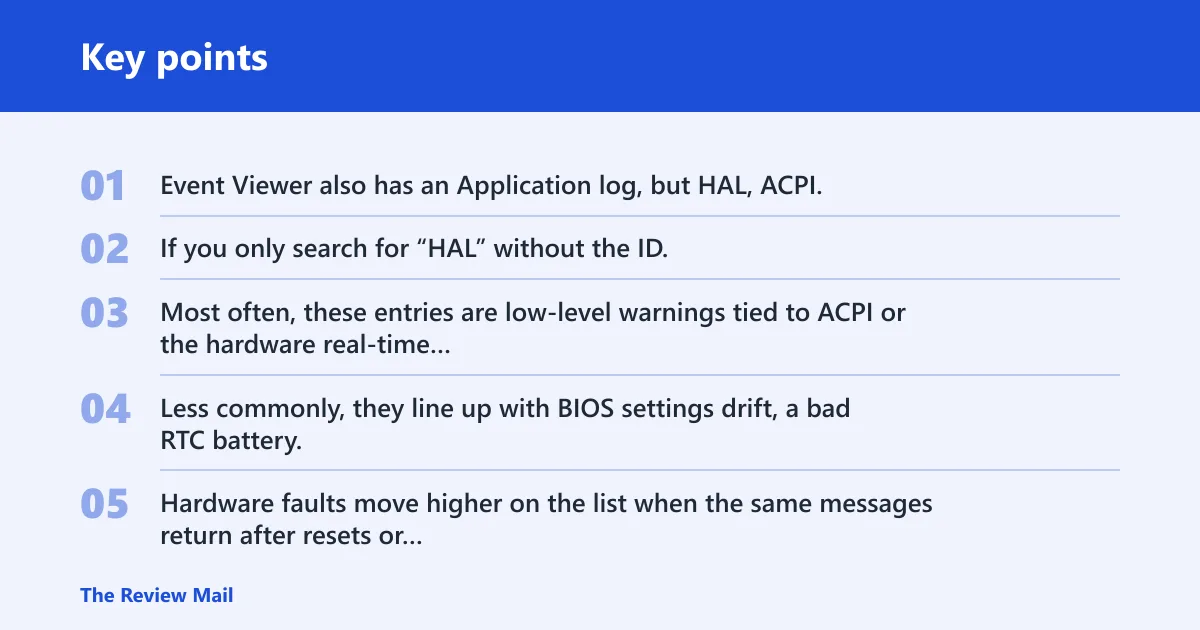
Event Viewer also has an Application log, but HAL, ACPI, and boot-related entries usually matter most in System. If you only search for “HAL” without the ID, you can end up chasing a generic missing-file story that does not fit the actual log entry.
Likely causes, from most to least common
Most often, these entries are low-level warnings tied to ACPI or the hardware real-time clock. Less commonly, they line up with BIOS settings drift, a bad RTC battery, or firmware that stops clock synchronization after shutdown. Hardware faults move higher on the list when the same messages return after resets or are paired with freezes or black screens.
Quick triage matrix
| Event ID / message | Likely subsystem | Next action |
|---|---|---|
| Event ID 15: embedded controller returned data when none was requested | ACPI | Ignore if isolated; BIOS check if it repeats |
| Event ID 20: hardware real-time clock was not queried | Microsoft-Windows-HAL / RTC | Check BIOS date/time, then restart cold |
| Event ID 21: hardware real-time clock activity issue | Microsoft-Windows-HAL / RTC | Check BIOS settings; escalate if it returns after reboot |
| Dell-style RTC case: hardware real-time clock not set | RTC / BIOS | Hard reboot, verify RTC setting, then manufacturer escalation |
How do I fix HAL error in Windows 11?
Start with the fastest, least invasive checks: confirm the PC boots fully, open Event Viewer, and note whether the same entry repeats after a clean shutdown and restart. If the message points to RTC or ACPI, check BIOS date and time before you touch Windows files. That is usually the first real fork in the road.
- Open Event Viewer and check Windows Logs > System. Note the event ID, level, and source name.
- Restart the PC once from a full shutdown, not Sleep or Fast Startup.
- Enter BIOS or UEFI setup and verify the date, time, and RTC setting.
- If the BIOS clock is wrong or resets after power loss, save the correct values and retest after a cold boot.
- If the machine is stable enough to boot but the log keeps repeating, apply the vendor BIOS update for your model, then recheck the log.
A common mistake is to assume the disk is failing when the issue is actually a mismatched BIOS date causing certificate errors. Suppose a laptop boots to the desktop, but Event Viewer keeps showing RTC-related entries after every shutdown. That points more toward BIOS or battery-backed clock trouble than a corrupted Windows file.
What is event ID 20 in Microsoft-Windows-HAL?
Event ID 20 from Microsoft-Windows-HAL is about hardware real-time clock activity, not a missing DLL. In the Dell case, the description says the clock was not queried, references the ACPI Time and Alarm Device method, and shows status 0xC00000BB. That points you toward firmware and RTC checks first. Microsoft documents this HAL event family in its Event ID 20 references, and the status code 0xC00000BB is the kind of low-level code that typically steers troubleshooting toward firmware and device initialization rather than generic Windows file repair.
For the Dell Precision 3590 case, the forum report tied this to BIOS 1.19.1 and recurring HAL error reports, with the user saying the hardware real-time clock was not set. That is a useful clue because the event sits in the system log as a hardware-facing warning, not an application crash. See the Dell community thread for the Precision 3590 case here: Dell forum thread for the Precision 3590 case. For Microsoft’s own event reference, review the Event ID 20 documentation.
If that did not work, try this next
- Open BIOS setup and confirm the system clock, then save and exit.
- Shut the PC down completely and disconnect AC power for a cold restart.
- If the clock resets again, install the manufacturer BIOS update for your exact model.
- If the message returns after the update, treat it as a firmware or board-level issue and contact the manufacturer.
What is Event ID 15 in ACPI and is it related to HAL error?
Event ID 15 is an ACPI warning, and yes, it can sit next to HAL entries without being the same problem. The cited text says the embedded controller returned data when none was requested, and the warning also says a BIOS upgrade may help. That makes it a firmware-leaning clue, not a Windows file repair prompt. Microsoft’s ACPI-related Event ID 15 guidance describes this embedded controller behavior as a low-level platform issue rather than an application fault.
ACPI warnings often show up when BIOS, embedded controller behavior, or power-state handling is off. They are often less urgent than a crash, but they matter when the same warning repeats after reboot or appears together with RTC problems, black screens, or sleep and wake failures. For Microsoft background on the ACPI event path, see the Windows driver event logging guidance that covers how platform events surface in logs.
When ACPI points to BIOS or embedded controller trouble
- Check whether the same ACPI warning appears after a full power-off and restart.
- Reset BIOS settings to defaults if the system recently changed time, power, or boot options.
- Update BIOS only for the exact model and version range listed by the manufacturer.
- If the warning pairs with failed wake, failed shutdown, or repeated clock loss, escalate for hardware review.
Say your laptop wakes from sleep but the time jumps backward and Event ID 15 appears again. That combination is more useful than the warning alone, because it ties ACPI behavior to real state loss after power transitions.
Should you ignore HAL errors?
Ignore them only when they are isolated warnings with no freezes, no black screens, and no boot failure. A single ACPI or RTC entry can be harmless log noise. Repeated entries, especially after a reboot or BIOS reset, change the verdict and deserve a firmware or hardware check instead of dismissal.
Warnings become more serious when they line up with symptoms outside Event Viewer: failed remote management, broken sleep or wake, POST trouble, or a machine that loses BIOS time after power loss. At that point, the log is giving you a hardware clue, not cosmetic noise.
When the log is probably harmless
- Confirm the entry is a warning, not a repeated error with system instability.
- Reboot once and check whether the same ID returns immediately.
- If it stays isolated and the PC behaves normally, monitor it instead of chasing Windows repairs.
When to stop treating it as cosmetic
- Check for black screens, repeated boot loops, or failed BIOS access.
- Look for repeated RTC or ACPI events after every cold start.
- Review whether remote management, sleep, or wake fails at the same time.
- If those symptoms appear together, move to BIOS or manufacturer support.
BIOS checks for RTC faults
For RTC-related HAL entries, BIOS version and settings matter more than broad driver cleanup. Verify the installed BIOS version, confirm the date and time, and reset settings if the clock does not hold after shutdown. Only check storage mode such as AHCI or NVMe when the symptom also involves boot failure or a drive that vanishes from setup.
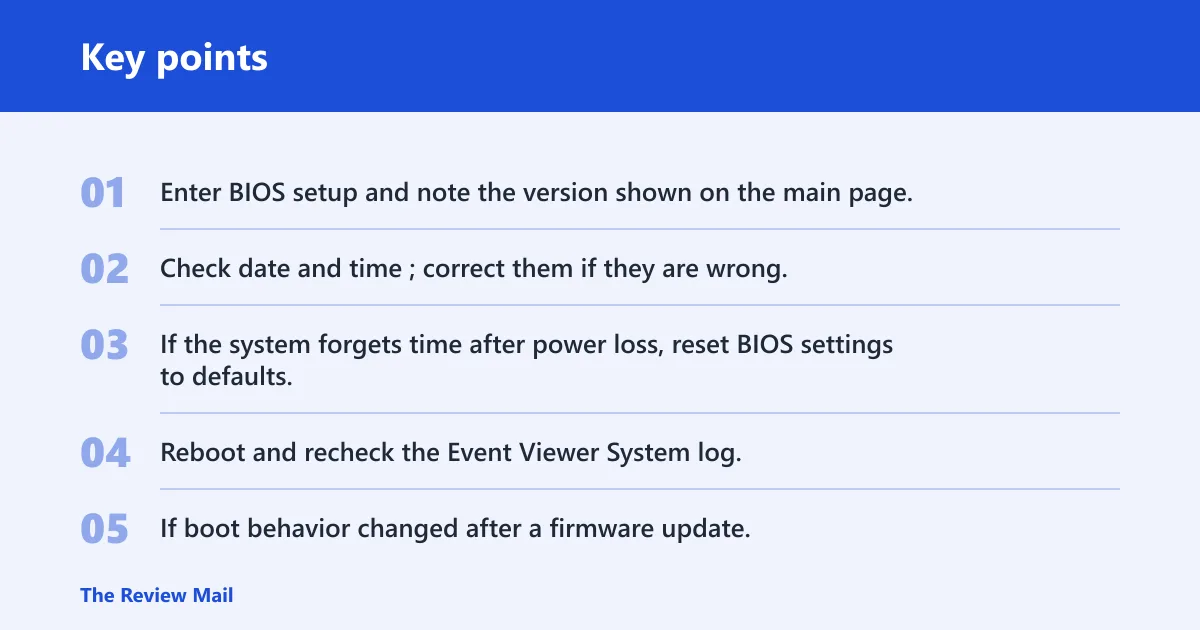
- Enter BIOS setup and note the version shown on the main page.
- Check date and time; correct them if they are wrong.
- If the system forgets time after power loss, reset BIOS settings to defaults.
- Reboot and recheck the Event Viewer System log.
- If boot behavior changed after a firmware update, verify storage mode only in line with the manufacturer’s manual.
The Dell Precision 3590 case matters here because it combines BIOS 1.19.1, a recurring HAL report, and a real-time clock complaint. A separate Dell case on the Dell Pro 14 PB14250 linked the issue to a chipset catastrophic error signal; a responder described a hard reboot with battery removal and holding the power button, and the user later reported BIOS access and RTC setting changes after the reset.
That pattern is the reason a BIOS update is not a blind fix. It can be worth trying when the event repeats with RTC or ACPI clues, but it is not proof that Windows itself is broken.
Why do HAL errors come back after a reboot?
They return when the underlying cause survives the restart. That usually means BIOS settings, clock retention, embedded controller behavior, or a board-level fault. If the same Event ID reappears after a cold boot, treat the restart as a data point, not as evidence that the problem is gone.
- Perform a full shutdown, then power the PC on again.
- Check whether the BIOS clock or RTC setting changed.
- Open Event Viewer and compare the repeated ID with the earlier entry.
- If the same ID returns, move from Windows repair steps to firmware and manufacturer support.
Suppose the PC boots normally after a restart, but the System log shows the same RTC warning every time. That means the reboot is clearing the symptom only briefly; it is not fixing the source.
Still not working?
If BIOS checks, time correction, and a cold restart do not stop the entries, the next step is escalation. Use the manufacturer’s support page for your model, and bring the exact Event ID, source name, BIOS version, and the text of the warning. That is more useful than a generic “HAL error” description.
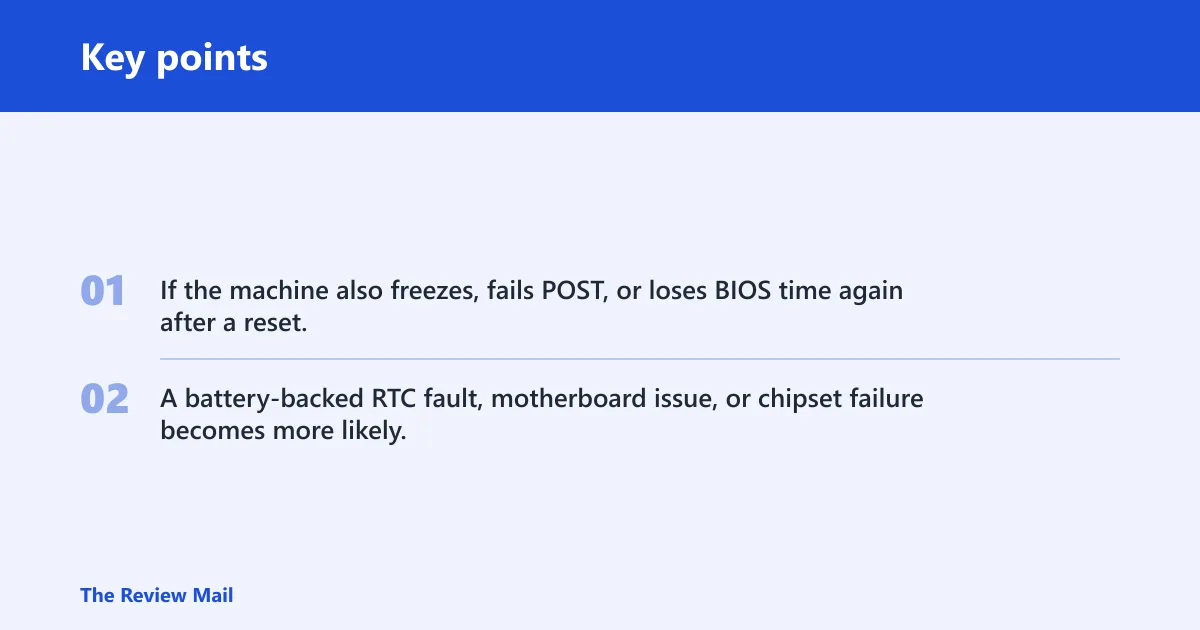
If the machine also freezes, fails POST, or loses BIOS time again after a reset, stop treating it as a Windows-only problem. A battery-backed RTC fault, motherboard issue, or chipset failure becomes more likely, and professional service is the safer path.
Frequently asked questions
What does HAL error mean in Windows Event Viewer?
It means Event Viewer recorded a hardware-facing message under a system provider, usually in Windows Logs > System. The event ID matters more than the word HAL. A warning tied to RTC or ACPI can be minor; a repeated error with boot trouble points to BIOS or hardware work.
How do I know if a BIOS update will fix HAL errors?
A BIOS update is most worth trying when the same Event ID repeats with RTC or ACPI warnings, or when the vendor notes a fix for power, clock, or embedded controller behavior. If the machine also shows freezes or POST failures, update BIOS only as part of a broader manufacturer-supported fix.