Bad Pool Header Error: Causes, Fixes, and Recovery Steps
BAD_POOL_HEADER usually points to bad RAM, a buggy driver, or security software; start with the newest driver or antivirus change, and if the stop error returns twice or triggers a boot loop, move to memory checks. Ignore it, and Windows can keep restarting, corrupt files, or block normal sign-in. This guide shows a short repair path for several Windows versions, from rollback steps to RAM testing and safe-mode recovery.
What is bad pool header error?
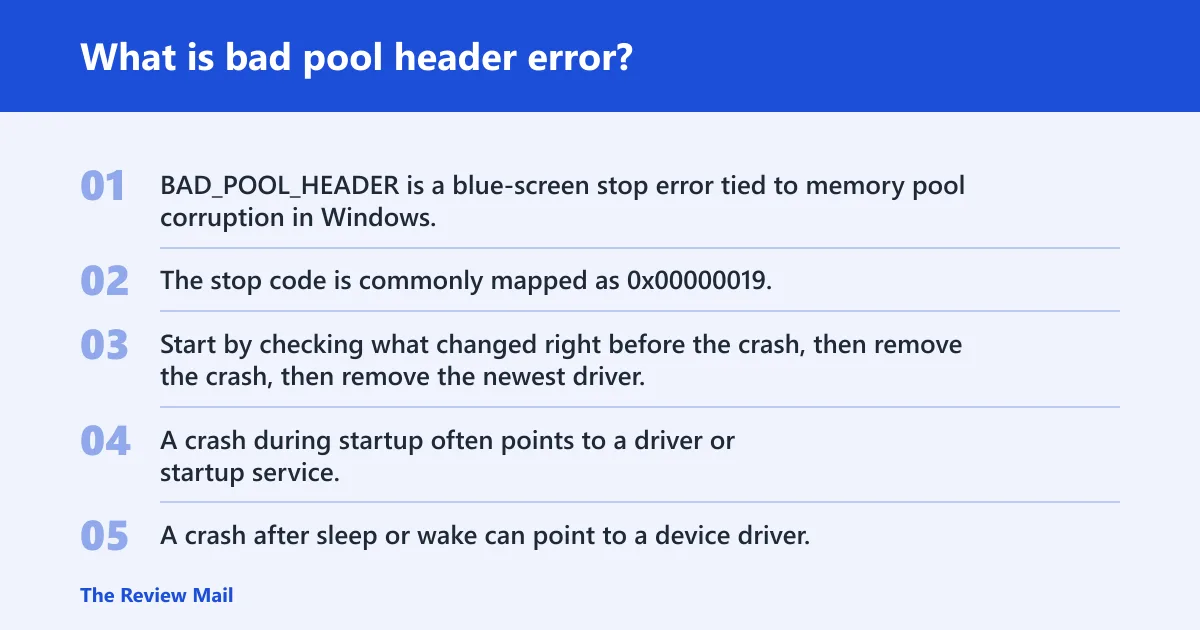
BAD_POOL_HEADER is a blue-screen stop error tied to memory pool corruption in Windows. The stop code is commonly mapped as 0x00000019, and the pool is a region of memory the operating system uses to allocate resources. Start by checking what changed right before the crash, then remove the newest driver, antivirus, or hardware change first.
The screen text matters. A crash during startup often points to a driver or startup service. A crash after sleep or wake can point to a device driver. A crash while idle or after installation often points to a recent software conflict. A single failure is easier to trace than a boot loop.
How BAD_POOL_HEADER differs from BAD_POOL_CALLER
These errors are often confused, but they are not the same. BAD_POOL_HEADER points to pool corruption. BAD_POOL_CALLER is a different stop error, even though both can involve drivers or memory issues. If search results mix them together, use the stop code shown on the blue screen rather than the general phrase.
Which causes are most likely?
The most common causes are faulty RAM, outdated or incompatible device drivers, and anti-malware or other security software conflicts. Faulty RAM often shows up as repeated pool corruption. Outdated or incompatible device drivers often break memory handling after an update or device swap. Software conflicts can trigger memory allocation problems, and malware can also interfere with system files and memory handling. Less often, a corrupted Windows file or a recent install is the trigger.
Say your PC crashes every time a USB Wi-Fi adapter loads. That timing points more toward a driver. Suppose it only fails after a security suite update and the desktop never finishes loading. That points more toward security software or a startup conflict.
| Crash timing or change | Most likely cause | Best first move |
|---|---|---|
| Crash at startup | Driver or startup software | Boot Safe Mode and remove the newest driver or app |
| Crash after sleep or wake | Device driver conflict | Update or roll back the related driver |
| Crash after antivirus install | Security software conflict | Disable or uninstall the security tool |
| Random crash, especially with no recent change | Faulty RAM or memory configuration | Run Windows Memory Diagnostic |
Is faulty RAM the cause?
Faulty RAM is a common cause, and NeoSmart identifies a faulty RAM module as the most common cause. Incorrect memory configurations can also lead to the error. If the crash seems random, happens at idle, or keeps returning after a driver change, RAM testing should move near the top of the list.
- Press Windows, type Windows Memory Diagnostic, and open it with Run as administrator if available.
- Select Restart now and check for problems.
- Let the test finish and note any reported errors.
- If errors appear, test one stick at a time in a known-good slot, or reseat modules first.
- If the error follows a specific stick, replace that module. If it follows a slot, the motherboard slot may be the problem.
If the system has two or more modules, a bad stick can hide until load rises. A single error in memory testing is enough to justify replacement. A clean test does not fully clear RAM, but it makes a driver or software conflict more likely.
Do drivers or security software trigger it?
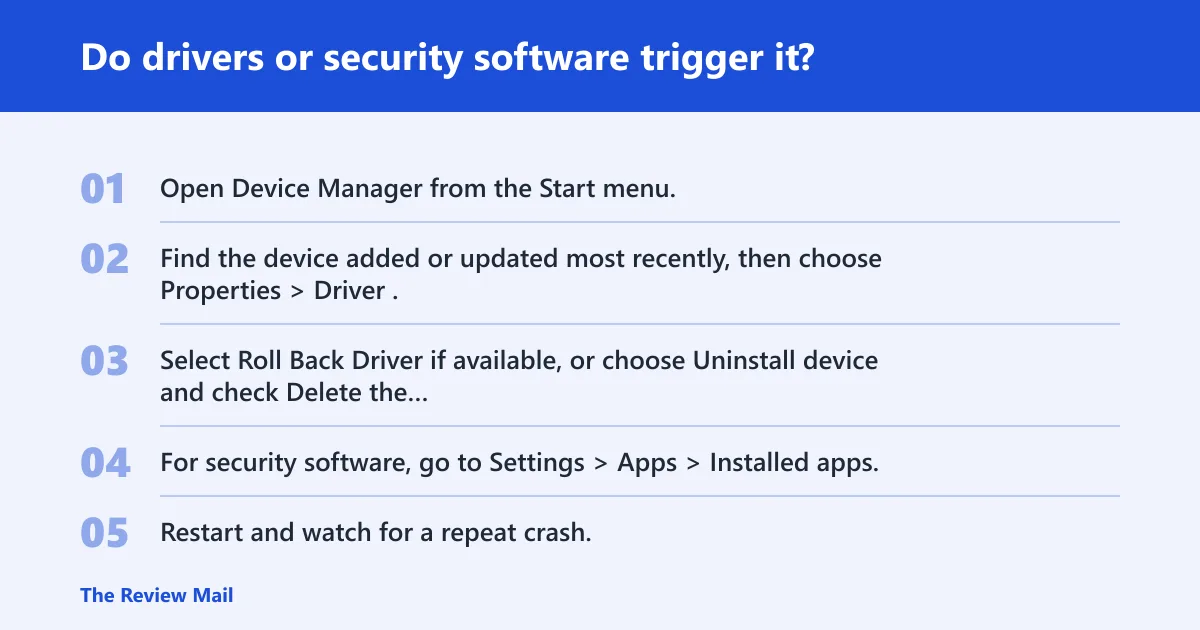
Yes. Outdated or incompatible device drivers are a common cause, and anti-malware software can also trigger the stop error through memory allocation issues. If the crash began after an update, a new peripheral, or a security suite install, treat that change as the lead suspect before touching deeper repair tools.
- Open Device Manager from the Start menu.
- Find the device added or updated most recently, then choose Properties > Driver.
- Select Roll Back Driver if available, or choose Uninstall device and check Delete the driver software for this device when offered.
- For security software, go to Settings > Apps > Installed apps, then remove the newest anti-malware package.
- Restart and watch for a repeat crash.
Use Safe Mode if normal startup fails. On Windows 10 and Windows 11, hold Shift while selecting Restart to reach Advanced startup, then choose Troubleshoot > Advanced options > Startup Settings > Restart. On Windows 7, use F8 during boot for legacy Advanced Startup. In Safe Mode, remove the suspect app or driver more cleanly.
Repair Windows files with DISM and SFC
Run DISM and SFC if the crash keeps returning after driver and RAM checks. DISM repairs the component store, and SFC replaces missing or corrupted protected files. These are built-in tools and work well when system files have been damaged by a failed update, malware, or a bad shutdown.
- Open Command Prompt as administrator.
- Run:
dism /online /cleanup-image /restorehealth - Wait for DISM to finish.
- Run:
sfc /scannow - Restart the PC after SFC completes, even if it says no integrity violations were found.
If the error returns after both scans, stop treating it as a simple file problem and move back to hardware or driver isolation. DISM and SFC are useful, but they do not fix bad RAM or a broken kernel driver.
Which recovery path should you use: bootable or non-bootable?
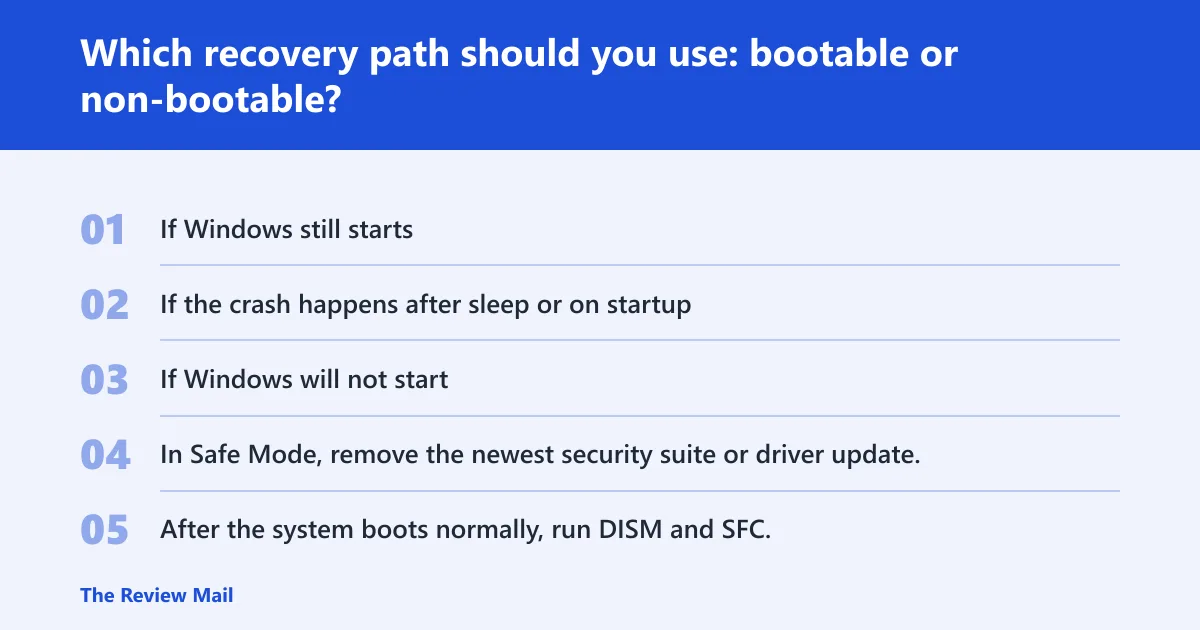
Choose the path based on whether Windows still starts. If you can reach the desktop, remove the newest change first. If the PC will not boot far enough to sign in, use Safe Mode or Advanced startup to remove the suspected driver, app, or security suite before deeper repair. That split saves time.
- If Windows still starts: uninstall the newest driver, antivirus, or peripheral software first.
- If the crash happens after sleep or on startup: disconnect nonessential USB devices, then reboot.
- If Windows will not start: enter Advanced startup and open Safe Mode.
- In Safe Mode, remove the newest security suite or driver update.
- After the system boots normally, run DISM and SFC.
A common mistake is to assume a bad pool header error means the drive is failing and replace hardware before undoing a recent printer driver update. That skips the fastest fix path and can hide the real cause. Another common mistake is testing everything at once; remove one suspect at a time so the next crash means something.
What should I do first when BAD_POOL_HEADER appears?
First, look at the most recent change: a driver, a security app, a new accessory, or a Windows update. If the PC boots, undo that change before running repair tools. If it does not boot, go straight to Safe Mode or Advanced startup and remove the newest suspect there. That is the shortest triage path.
Decision checklist
- Crash after a driver install or update: roll back or uninstall that driver.
- Crash after antivirus or anti-malware install: uninstall the security tool.
- Crash at random, with no clear software change: run Windows Memory Diagnostic.
- Crash persists after the above: run DISM, then SFC, then restart.
- Boot loop or no sign-in screen: use Safe Mode or Advanced startup first.
What should you try if BAD_POOL_HEADER keeps coming back?
If the stop error repeats after driver removal, memory testing, and file repair, move to minimal hardware and deeper diagnosis. Keep only the keyboard, display, boot drive, and one memory module attached. Persistent repeat crashes after that point raise the odds of a failing stick, a bad slot, or a storage or motherboard issue.
- Shut down and disconnect all nonessential USB devices.
- Test with one RAM module at a time.
- Move the module to another slot if the crash follows a slot rather than a stick.
- Run the PC long enough to see whether the stop code returns.
- If the system still fails, consider a repair install or vendor hardware support.
Prevention: Keep chipset, storage, Wi-Fi, and graphics drivers current, and avoid stacking multiple antivirus or tuning tools on the same install. That reduces driver overlap and memory allocation conflicts.
Frequently asked questions
What is bad pool header?
It is a Windows blue-screen stop error tied to memory pool corruption. The code often appears as 0x00000019. The fastest first move is to check the newest driver, security app, or hardware change, then remove or roll back that change before deeper testing.
What is bad pool caller error?
BAD_POOL_CALLER is a different stop error from BAD_POOL_HEADER, even though both can involve drivers or memory corruption. Do not treat them as interchangeable. Use the exact code on the screen and the timing of the crash to guide the next step.
What causes bad pool caller error?
Common causes include driver bugs, memory corruption, and software that mishandles allocation requests. If the crash began after a device driver update, roll that driver back in Device Manager. If it started after a security suite install, remove that suite first.
How do I fix bad pool caller error on Windows 11?
Open Settings > System > Recovery to reach Advanced startup, then remove the newest driver or security app in Safe Mode. After that, run DISM and SFC from an elevated Command Prompt. That path works on Windows 11 and is often the fastest recovery route.
Can antivirus software trigger BAD_POOL_HEADER?
Yes. Anti-malware software can interfere with memory allocation and corrupt system files or startup behavior. If the stop error started after a security install or definition update, uninstall that product first, then restart and see whether the crash stops.