0x0000014e Fixes for PFN List Corrupt Blue Screen Errors
0x0000014E is SOC_CRITICAL_DEVICE_REMOVED; it means a critical SOC device has been unexpectedly removed or failed. Restart once, then check whether the same stop code appears again under the same workload. If it does, use the crash dump and the trigger pattern to narrow down the failing device or driver path.
What does stop code 0x0000014e mean?
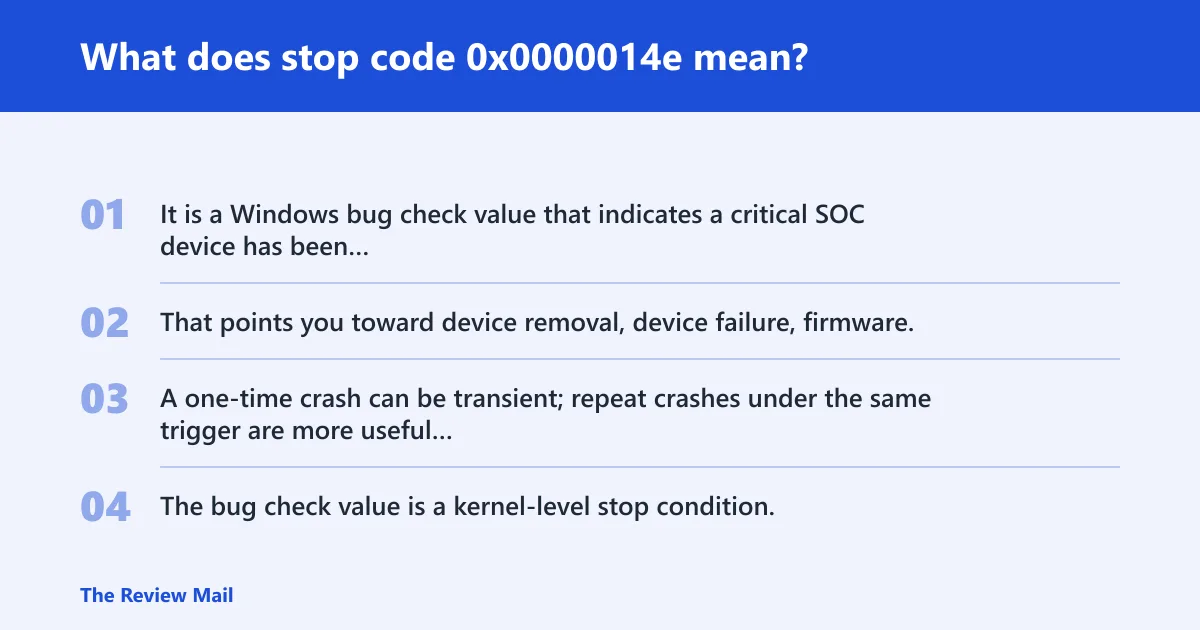
It is a Windows bug check value that indicates a critical SOC device has been unexpectedly removed or failed. That points you toward device removal, device failure, firmware, or driver paths rather than a generic app crash. A one-time crash can be transient; repeat crashes under the same trigger are more useful evidence.
The bug check value is a kernel-level stop condition, so treat it as evidence that something essential in the system’s device path is no longer responding correctly.
What causes a 0x0000014e blue screen in Windows?
Most often, the crash is tied to a critical device path that is being removed, reset, or failing to respond. That can happen after a driver change, during sleep or wake, while a storage or network device is active, or after firmware changes. A bad driver, unstable firmware, or a failing device can all produce the same stop code.
For example, if a laptop blue-screens right after a GPU, storage, or network driver update and then runs normally in Safe Mode, the driver path becomes the first thing to inspect. If the crash happens during sleep, wake, charging, or repeated device use, the device path or firmware becomes more plausible.
Use the crash dump before changing settings
The crash dump is the evidence file that can point to the faulting module, the bug-check parameters, and whether the failure lines up with a device removal, a firmware path, or a driver reset. Minidumps are small and quick to collect, kernel dumps are more complete, and live dumps can help if the system is still responsive.
WinDbg’s !analyze command is the standard first pass for a kernel dump. Look for the bug check code, the four parameters, and any module name tied to the stack. If a third-party driver keeps appearing near the top, that is stronger than guessing from the stop screen alone.
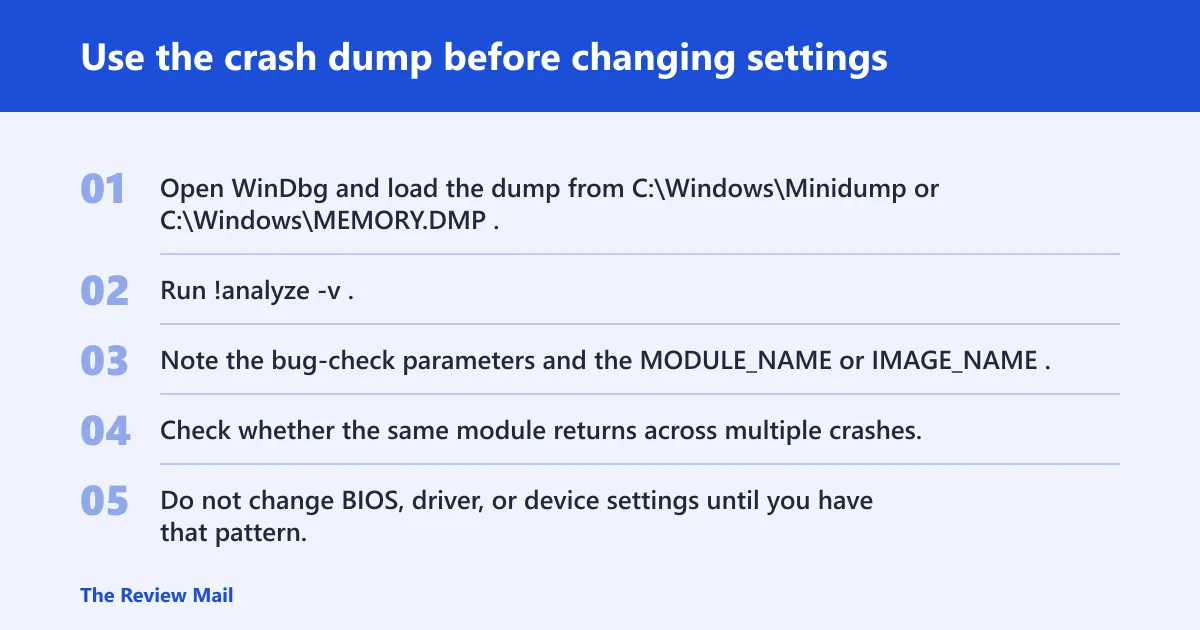
- Open WinDbg and load the dump from
C:\Windows\MinidumporC:\Windows\MEMORY.DMP. - Run !analyze -v.
- Note the bug-check parameters and the MODULE_NAME or IMAGE_NAME.
- Check whether the same module returns across multiple crashes.
- Do not change BIOS, driver, or device settings until you have that pattern.
How do you tell if a driver caused it?
Check for any recent device driver change first, especially storage, network, GPU, VPN, and chipset drivers. A bad kernel driver can force a critical device path to fail, even if the crash does not happen directly in that driver’s code path. Device Manager rollback is the fastest low-risk test.
- Open Device Manager.
- Right-click the newest suspect device, then choose Properties > Driver.
- Select Roll Back Driver if available; otherwise choose Uninstall Device.
- Restart and reproduce the same workload.
- If the crash stops, install the next older stable driver or keep the rollback in place.
If the same workload still fails, run a clean boot with msconfig and retry. That removes most third-party services from the path without hiding the dump evidence.
How do you check memory safely?
Run a memory test after you have documented the crash pattern. Faulty RAM or unstable memory settings can still contribute to device-path failures, especially if the system is under heavy load. Repeated crashes after the same trigger are a strong reason to test memory early.
- Save the dump file or copy the stop-code details first.
- Open Windows Memory Diagnostic and choose Restart now and check for problems, or boot MemTest86 from removable media.
- For desktops, disable XMP or any memory overclock in BIOS/UEFI before retesting.
- If errors appear, test one DIMM at a time and one slot at a time.
- If errors repeat on one stick or one slot, stop and isolate the faulty part.
How do you rule out storage or file-system damage?
Use disk checks when crashes recur after reboot, after updates, or after large file activity. Storage faults and file-system corruption can affect drivers, update installs, and device-related files. CHKDSK-style checks and system file verification are the right next steps after the drive layer is suspected.
- Open an elevated Command Prompt.
- Run
chkdskC: /f /r and restart if Windows schedules it. - After the disk check, run
sfc /scannow. - If SFC reports unrepairable files, run
DISM /Online /Cleanup-Image /RestoreHealth, then run SFC again. - If corruption returns after reboot, inspect the system drive’s SMART warnings in the vendor tool or move to hardware review.
0x0000014e triage matrix
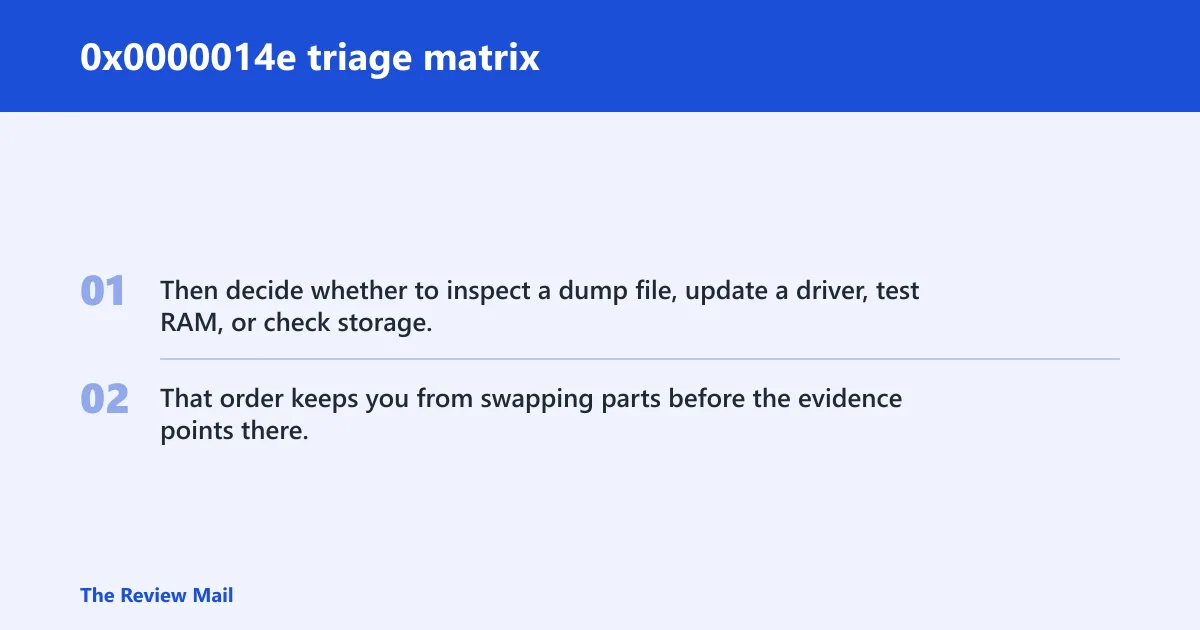
Use the trigger pattern first. Then decide whether to inspect a dump file, update a driver, test RAM, or check storage. That order keeps you from swapping parts before the evidence points there.
| Trigger pattern | Likely cause | Fastest safe test | Next action |
|---|---|---|---|
| One crash after a new driver or update | Driver or firmware path problem | Open the dump in WinDbg and roll back the suspect driver | Inspect dump file, then update or roll back drivers |
| Crashes repeat on boot, sleep, or memory-heavy tasks | Memory instability or a device path stressed by memory use | Run Windows Memory Diagnostic, with XMP off | Test RAM |
| Crashes after copy jobs, update installs, or repeated reboots | Storage or file-system damage | Run chkdsk, then SFC | Check storage |
| Crashes only with one device or one app path | Device driver or firmware path | Disconnect the device, then retest | Update drivers after dump review |
How do I fix 0x0000014e on Windows 11?
Start with the least invasive checks: review the dump, update or roll back the suspect driver, and verify Windows system files. On Windows 11, the menu paths are the same for Device Manager and Windows Memory Diagnostic, and CHKDSK runs from an elevated Command Prompt. Keep the original crash pattern in mind while you test.
- Open Settings > Windows Update > Check for updates and install pending fixes.
- Open Device Manager and roll back or update the most recent storage, network, GPU, or VPN driver.
- Run
sfc /scannow, thenDISM /Online /Cleanup-Image /RestoreHealthif needed. - Run
chkdskC: /f /r and reboot. - If the stop code repeats, run Windows Memory Diagnostic or MemTest86.
Should I update drivers, run CHKDSK, or test memory first?
Use the crash pattern to choose. If the blue screen began right after a driver or app update, inspect the dump and change that driver first. If the crash repeats during boot, sleep, or memory-heavy work, test RAM first. If file copies or updates precede the crash, check storage before changing anything else.
Change one layer, then retest the same action that triggered the stop code.
How do I stop 0x0000014e from coming back after reboot?
Prevent recurrence by fixing the source, not the symptom. Keep the BIOS memory profile stable, avoid unsupported overclocks, and use the same driver version that no longer triggers the dump. If a specific storage device, network adapter, or VPN client is linked to the crash, keep it out of the path until you have a clean dump review.
If the error returns after reboot, treat that as a stronger signal than the first crash. Keep the dump file, record the trigger, and move to the next branch in the matrix.
Frequently asked questions
Can bad RAM cause 0x0000014e?
Yes. Faulty RAM or unstable memory settings can contribute to the crash, especially if the error appears during boot, sleep, or high-memory workloads. Run Windows Memory Diagnostic first, then MemTest86 if you need a longer pass, and test one stick at a time when errors repeat.
How do I read a crash dump for stop code 0x0000014e?
Open the minidump or kernel dump in WinDbg and run !analyze -v. Focus on the bug-check parameters, the faulting module, and whether the same driver appears across multiple dumps. If the stack points to a third-party kernel driver, that is usually your best next target.
0x0000014e SOC critical device removed on a laptop, VPN, or after update
On a laptop, the fault often lines up with sleep, power-state changes, or a driver tied to Wi-Fi, storage, or graphics. With a VPN, the likely path is the network filter driver; uninstall or roll it back through Settings > Apps > Installed apps or Device Manager. After an update, compare the dump against the newest driver or cumulative update and test the same workload again.