How to Fix Airplane Mode Stuck Issue
Start with a quick check: if airplane mode is stuck on Windows 10 or 11, the cause is often a hotkey, service, driver, registry entry, or network stack. Leaving it unresolved can cut Wi‑Fi and Bluetooth, block syncing, and make the PC appear offline. Use this decision tree first, then the matching fixes in the order that saves the most time.
This guide is part of our Windows performance problems: full list and fixes series.
What you’ll need
- Administrator access to the Windows account
- A restore point before any registry change
- Access to Device Manager
- Access to Services
- Registry Editor opened with regedit
How to tell the cause
If the button is gray and not clickable, look for a missing radio control, a disabled service, or a hardware/BIOS-level switch. If the button still clicks but airplane mode stays on, the more likely causes are the function key toggle, Radio Management Service, the Airplane Mode Switch driver, the wireless adapter, or the RadioEnable registry value.
Picture a laptop where the airplane icon is visible, but the toggle is dimmed and nothing happens when you hover it. That usually points away from a simple keyboard problem. By contrast, if the toggle changes color but Wi‑Fi stays off, start with the service and driver checks first.
Airplane mode decision table
| Symptom | Likely cause | Exact Windows location | Safest fix order |
|---|---|---|---|
| Airplane mode is gray and cannot be clicked | Missing radio control, disabled service, or hardware switch | Settings > Network & internet; Services; Device Manager | Check hotkey, restart Radio Management Service, inspect Device Manager |
| Toggle moves, but Wi‑Fi and Bluetooth stay off | Service, driver, registry, or network stack issue | Services; Device Manager; Registry Editor; Settings > Network & internet > Advanced network settings | Restart service, reinstall driver, update adapter, then registry and network reset |
| Problem persists after multiple reboots | Stored setting or driver state | Registry Editor; Device Manager | Check RadioEnable, then the Airplane Mode Switch driver |
| Wireless vanishes after a recent update | Wireless adapter driver issue | Device Manager | Disable and re-enable the adapter, then update its driver |
Fix it in order
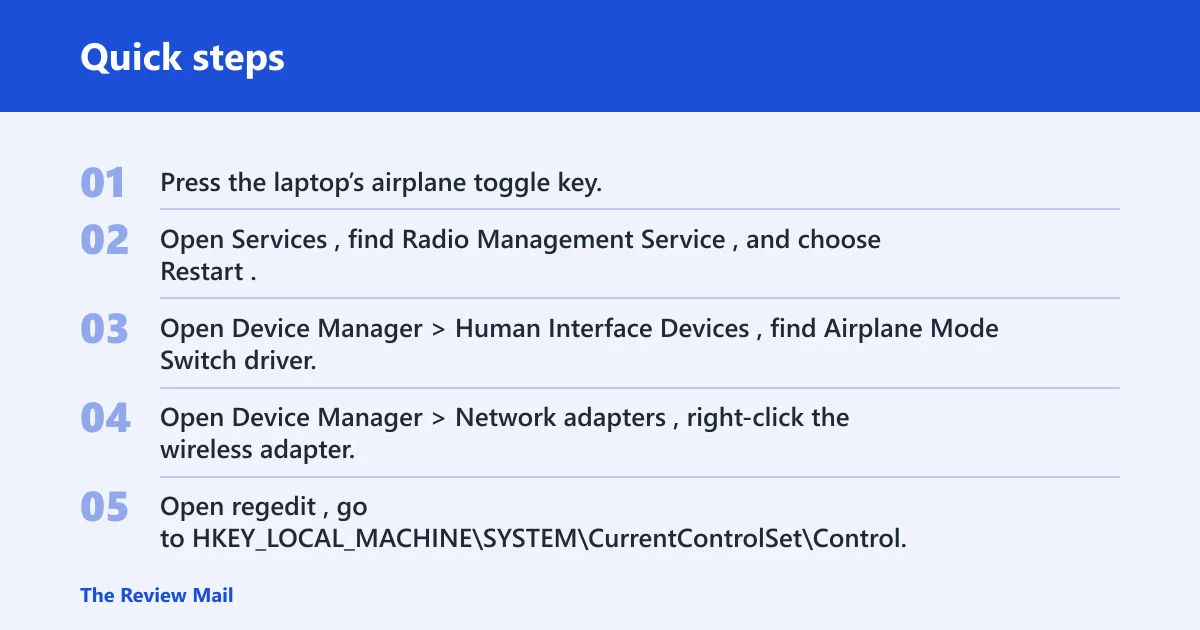
- Press the laptop’s airplane toggle key. Many systems use Fn plus the radio tower symbol key. Some Dell laptops use Fn plus Prt Sc to exit airplane mode.
- Open Services, find Radio Management Service, and choose Restart. If it is stopped, choose Start. This service must run in the background for airplane mode behavior to work normally.
- Open Device Manager > Human Interface Devices, find Airplane Mode Switch driver, right-click it, and choose Uninstall device. Restart the PC so Windows can reinstall it automatically.
- Open Device Manager > Network adapters, right-click the wireless adapter, choose Disable device, then Enable device. If the driver looks old or faulty, choose Update driver.
- Open regedit, go to
HKEY_LOCAL_MACHINE\SYSTEM\CurrentControlSet\Control, and use Edit > Find to search for RadioEnable. Use Find Next if more than one match appears, then confirm the value type is DWORD. Change the value between 1 and 0 only after you confirm you are editing the correct entry. - Open Settings > Network & internet > Advanced network settings, then choose Reset now. Use this last, because it clears saved network settings.
If that didn’t work, try this next
Say your Wi‑Fi works on one account but airplane mode is still stuck on another. That pattern makes the registry or adapter state more likely than a broken keyboard key. In that case, verify the correct RadioEnable entry, then move to the wireless adapter driver before you reset the network stack.
Suppose a laptop has no Airplane Mode Switch entry under Human Interface Devices. That is not a dead end. Skip straight to Radio Management Service, the wireless adapter, and the registry check, because some systems do not expose that driver in Device Manager.
Why is Airplane mode grayed out?
A grayed-out control usually means Windows is missing the radio control path, or a service or driver has stopped exposing it. It can also happen when a hardware switch, BIOS setting, or vendor utility has taken over radio control. The fix order is different from a toggle that is stuck on but still clickable.
Check the radio control path
- Open Settings > Network & internet and confirm whether the airplane control is visible but disabled.
- Open Services and restart Radio Management Service.
- Open Device Manager > Human Interface Devices and check whether Airplane Mode Switch driver exists.
- If the entry is missing, inspect the laptop’s radio hotkey, BIOS radio settings, or vendor control utility before changing more Windows settings.
Common mistakes
Editing the wrong registry value is the biggest risk. In Registry Editor, several RadioEnable matches can appear, so use Find Next and verify the path is HKEY_LOCAL_MACHINE\SYSTEM\CurrentControlSet\Control before you change a DWORD.
Another common error is skipping the restart after removing the Airplane Mode Switch driver. Windows usually reloads it after reboot. If you do not restart, the driver removal can look like it failed.
Network reset is last because it clears saved network settings. Use it only after the service, driver, adapter, and registry checks have failed. If it fixes the problem, rejoin Wi‑Fi and recheck Bluetooth before changing anything else.
Frequently asked questions
How do I fix airplane mode stuck on Windows 11?
Start with Fn plus the radio icon key, then restart Radio Management Service in Services. If that fails, uninstall Airplane Mode Switch driver from Device Manager > Human Interface Devices, restart, and move to the wireless adapter and RadioEnable registry check if needed.
How do I turn off airplane mode when the button does nothing?
Use the keyboard radio toggle first, because some laptops route the command through Fn. If the button still does nothing, restart Radio Management Service, then disable and re-enable the wireless adapter in Device Manager. If the control stays frozen, check the registry value in Control.
Should I restart Radio Management Service to fix airplane mode?
Yes. Open Services, find Radio Management Service, and choose Restart; if it is stopped, choose Start. It is one of the first fixes to try because airplane mode behavior depends on that background service.
How do I reinstall the Airplane Mode Switch driver?
Go to Device Manager > Human Interface Devices, right-click Airplane Mode Switch driver, and choose Uninstall device. Restart the PC afterward. Windows can reinstall the missing driver automatically after reboot.
Can a registry change fix airplane mode stuck on?
It can. Open regedit, go to HKEY_LOCAL_MACHINE\SYSTEM\CurrentControlSet\Control, and locate RadioEnable with Find Next if needed. Confirm the entry is a DWORD before changing the value between 1 and 0, and create a restore point first.
Will resetting network settings fix airplane mode not turning off?
It can, but use it last. Open Settings > Network & internet > Advanced network settings, then select Reset now. That action clears saved network settings, so it is best after the service, driver, adapter, and registry fixes have been tried.
Do I need to update my network adapter driver for airplane mode issues?
If the wireless adapter is unstable, yes. Open Device Manager > Network adapters, right-click the wireless adapter, and choose Update driver. If that does not help, disable and re-enable the adapter first, because a simple reset can clear a bad state faster than a full update.
How to fix airplane mode not turning off
Try the same order used here: keyboard toggle, Radio Management Service, Airplane Mode Switch driver, wireless adapter reset, RadioEnable, and then Reset now under Advanced network settings. If the control is grayed out from the start, jump to the service and driver checks before anything else.