0x000001eb BSOD: What It Means and How to Fix It Now
0x000001eb is a Windows stop code you diagnose by checking the bug check parameters and dump data first; if the stack points to a driver, treat it as driver-led, otherwise inspect recent updates and hardware. Skip that step and you can waste hours on the wrong fix while the system keeps crashing. This guide shows how to read the metadata, pull the dump evidence, and separate driver, update, and hardware causes.
This guide is part of our Windows BSOD stop codes: full list and fixes series.
What 0x000001eb means on Windows
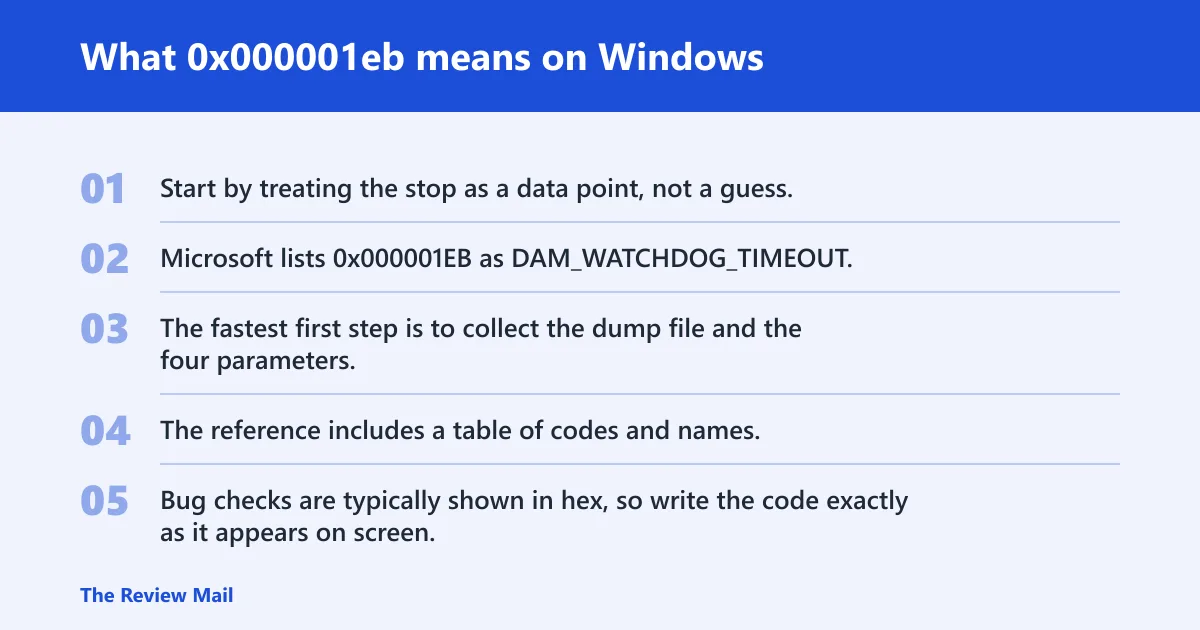
Start by treating the stop as a data point, not a guess. Microsoft lists 0x000001EB as DAM_WATCHDOG_TIMEOUT, and the exact parameters matter because they help separate a stuck driver path from a broader resume problem after modern standby resumes.
The fastest first step is to collect the dump file and the four parameters, then confirm the code in Microsoft Learn’s Bug Check Code Reference. The reference includes a table of codes and names, and WinDbg’s !analyze command is the supported way to show stop code details and likely faulting components.
Why the exact hex code and parameters matter
Bug checks are typically shown in hex, so write the code exactly as it appears on screen. If a value is not already in hex, Microsoft notes that it should be prefixed with 0x before you query it with WinDbg. The four arguments, usually shown as Arg1 through Arg4, can help identify the failing path, timing, or component state. (Microsoft Learn)
Where to confirm the code
Use Microsoft Learn’s Bug Check Code Reference as the official lookup source. It is the page with the code table, and it is the right place to confirm whether the code name matches the crash you are seeing. For analysis, Microsoft also points to WinDbg and !analyze as the first tool to use.
What should you check first after a 0x000001eb blue screen?
Check the crash dump, the Event Viewer record, and the most recent system changes before trying fixes. That order matters because this code often follows a resume event, and the dump usually tells you whether the failure tracks to a driver, an update, or hardware that did not return cleanly.
Crash dump file type and where to find it
Crash dumps capture memory state from around the time the stop occurred, and they may be minidumps or kernel dumps. Look in C:\Windows\Minidump for small dumps and C:\Windows\MEMORY.DMP for the kernel dump. A live dump does not reset the operating system, which can matter in support cases.
Event Viewer entries to note
Open Event Viewer > Windows Logs > System and note the time of the crash, any kernel-power event near it, and any driver warning that lines up with the resume time. Save the event IDs and the exact timestamps. Those details make later dump analysis much faster.
Recent change review
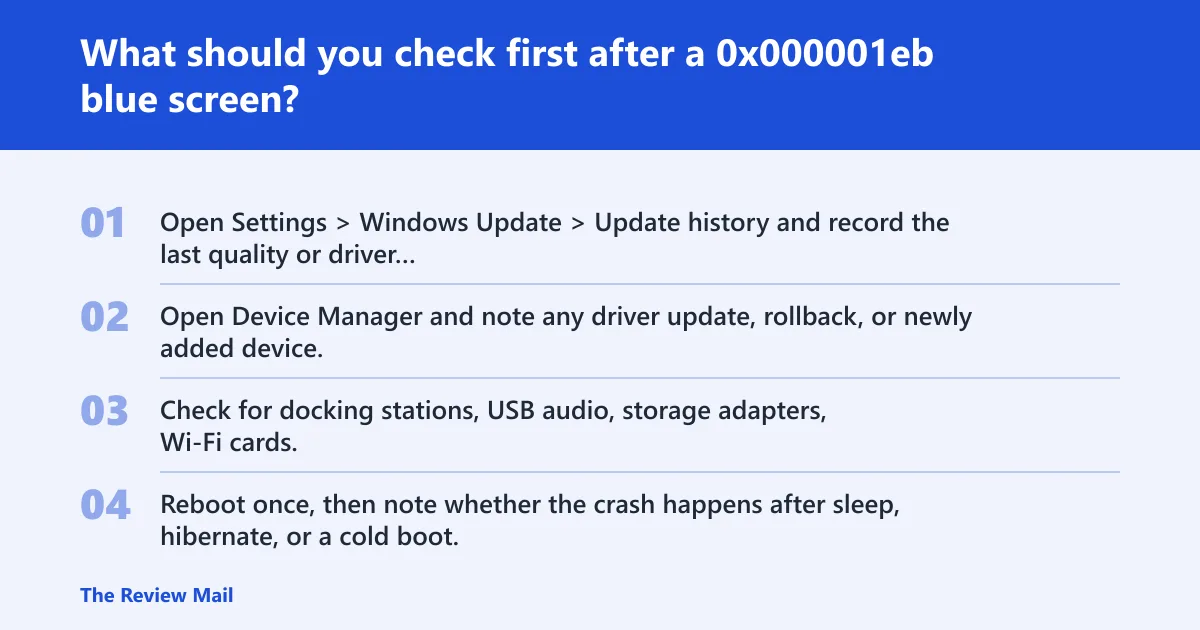
- Open Settings > Windows Update > Update history and record the last quality or driver update.
- Open Device Manager and note any driver update, rollback, or newly added device.
- Check for docking stations, USB audio, storage adapters, Wi‑Fi cards, and display drivers added or changed recently.
- Reboot once, then note whether the crash happens after sleep, hibernate, or a cold boot.
Say your laptop wakes from modern standby, the screen lights up, and the blue screen appears before the sign-in box. That pattern points you toward the resume path first, not a random desktop app. Suppose a USB Wi‑Fi adapter was added the same day; that device stack becomes a stronger suspect than generic Windows settings.
Likely causes, ranked
Most often, this stop tracks to a driver that fails during resume or power handling. Less often, a recent Windows update or software change alters the device stack enough to trigger the same path. Hardware, storage, and memory faults are still possible, especially if the crash repeats after rollback or appears across multiple devices.
| Symptom | Likely subsystem | First check | Evidence to collect | Next action |
|---|---|---|---|---|
| Blue screen after sleep or lid open | Device power resume path | Last driver change | Dump, Device Manager history, Event Viewer | Roll back or update the last changed driver |
| Crash started right after an update | Windows update or software stack | Update history | Installed updates, dump, event timestamps | Revert the matching change or repair system files |
| Crash repeats on more than one device path | Storage, memory, or board-level issue | Hardware changes | Kernel dump, memory test result, disk check result | Run hardware tests and escalate support |
How do you analyze 0x000001eb in WinDbg?
WinDbg is the right tool because Microsoft recommends it for kernel-mode debugging and stop-code lookup. Open the dump, run !analyze, and read the parameters and the faulting module together. That combination usually tells you whether the crash belongs on the driver, update, or hardware path.
Open the dump and run!analyze
- Install WinDbg and open the minidump or kernel dump.
- At the prompt, run !analyze -show 0x1eb if you are querying the code directly, or !analyze -v on the dump.
- Review the bug check line, the probable cause, and the stack trace.
- If the value is not in hex, prefix it with 0x before querying it.
Read Arg1 through Arg4 and the faulting module
Arg1 through Arg4 can point to the state that failed during resume. If the stack names a third-party driver, that is your lead. If the stack is thin and the crash follows an update, inspect the device stack and the update timeline more closely. If the dump is sparse, collect a kernel dump next time.
Decision rule from the dump
If WinDbg shows a single driver or filter at the top of the stack, start with that component. If the failure began right after a cumulative update, security update, or hardware utility install, treat the timeline as evidence. If the dump shows scattered memory corruption or repeated unrelated frames, move to hardware testing.
Driver and device-stack fixes
Driver incompatibility and power IRP problems are the first branch to clear because this code often appears after resume. Focus on the device that changed most recently, and do not touch unrelated software until the driver path is ruled out by dump data.
- Open Device Manager, right-click the most recent device or driver update, then choose Properties > Driver > Roll Back Driver if available.
- If rollback is not available, use Uninstall device, restart, then install the vendor package that matches the device model.
- Check Device Manager > Properties > Power Management for the device, and clear any setting that allows Windows to turn it off to save power if the device supports that option.
- Remove any recently added USB, dock, storage, or peripheral driver and retest after a normal restart.
Windows 10 and 11 note
Menu names are almost the same on Windows 10 and Windows 11, but the Settings layout differs. Use Device Manager for the rollback path on both versions. If the system is managed by policy, the driver may need to be changed from vendor media or from an admin image instead.
Update and system-change fixes
If the dump and timeline point to a recent update or software change, reverse the matching change before trying deeper repair work. This is especially useful when the issue starts after a cumulative update, a driver package, or a utility that changes the device stack.
- Open Settings > Windows Update > Update history, then remove or revert the update that aligns with the first crash.
- Open Settings > Apps > Installed apps and uninstall any software added right before the crashes began.
- Run Control Panel > Programs > Programs and Features for vendor utilities tied to storage, graphics, docking, or power control.
- From an elevated Command Prompt, run
sfc /scannow, thenDISM /Online /Cleanup-Image /RestoreHealth.
A common first-timer mistake is chasing a BIOS setting before checking the last update. If a patch landed the same day the laptop started faulting on resume, that timing is evidence. Fix the change first, then repeat the same sleep or wake path and see whether the stop returns.
If that didn’t work, try this next
Escalate only after the dump, driver path, and update timeline are checked. The next steps are more invasive, so use them when the crash repeats after a rollback or when the dump keeps pointing to memory or storage corruption instead of one device driver.
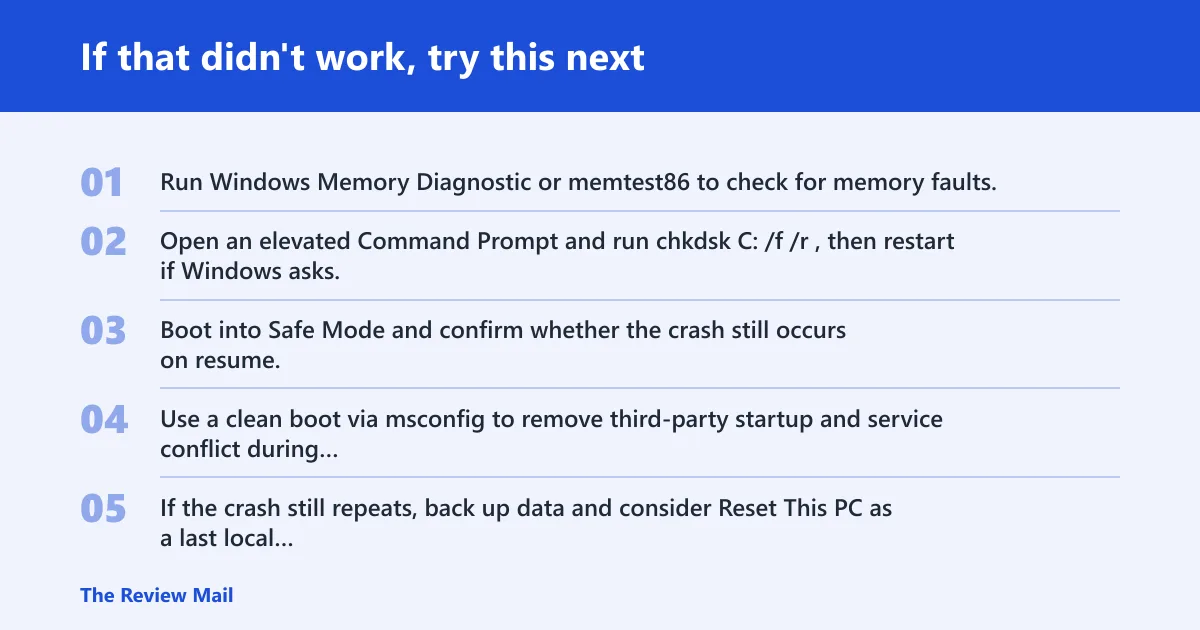
- Run Windows Memory Diagnostic or memtest86 to check for memory faults.
- Open an elevated Command Prompt and run
chkdskC: /f /r, then restart if Windows asks. - Boot into Safe Mode and confirm whether the crash still occurs on resume.
- Use a clean boot via msconfig to remove third-party startup and service conflict during testing.
- If the crash still repeats, back up data and consider Reset This PC as a last local software step.
Prevention
After recovery, keep one driver branch and one update branch in mind at a time. That makes the next crash easier to read, because the dump and the timeline stay aligned with a single change instead of several.
Crash-dump triage and support checklist
Support teams need the dump, the exact stop code, the four parameters, and the change history from the last known good boot. That set usually decides whether the case stays with software or moves to hardware testing. Keep it together before escalation.
Triage table for support
- Dump files:
C:\Windows\MinidumpandC:\Windows\MEMORY.DMP - Event Viewer: System log entries around the crash time
- Update history: last quality, driver, and optional updates
- Driver changes: rollbacks, removals, vendor installs
- Hardware changes: dock, USB devices, storage, RAM, Wi‑Fi, graphics
What to hand to support
- The full stop code in hex, plus Arg1 through Arg4.
- The latest minidump or kernel dump.
- The Event Viewer time stamp from the first crash and any repeat crash.
- The driver or update that changed most recently.
- Whether the crash happens after sleep, hibernate, or cold boot.
Frequently asked questions
How do I fix stop code 0x000001eb?
Start with the most recent driver change, then the most recent update, then hardware checks. Roll back or remove the suspect driver in Device Manager, compare the crash timing with Update history, and run sfc /scannow if the timeline points to file corruption.
Is 0x000001eb caused by a driver or hardware issue?
Most often, the first suspect is a driver on the resume path, but hardware still matters if the crash repeats after rollback or appears across more than one device. Use the dump to decide which branch comes next instead of guessing from the blue screen alone.
Can I use WinDbg to analyze 0x000001eb?
Yes. Open the minidump or kernel dump, then run !analyze -v or query the code with !analyze -show 0x1eb. Read the stop parameters and the probable faulting module together, because that pair tells you whether the issue is driver-led or not.
What if 0x000001eb keeps happening after updates?
If it repeats after rollback or after a clean reinstall of the updated driver, move to hardware testing and deeper dump review. Run memory and disk checks, then send the kernel dump, the stop parameters, and the update timeline to the device or system vendor for escalation.