0x00000101: Meaning and How to Fix the Stop Code
Stop code 0x00000101 usually means one CPU core stopped responding to interrupts, so begin with firmware settings, cooling, memory stability, and recent overclocks before you replace parts. Skipping that order can burn time on random fixes and hide a bad update, BIOS setting, or heat issue. This guide shows how to separate firmware, thermal, memory, and processor deadlock clues from the boot screen and event history.
This guide is part of our Windows BSOD stop codes: full list and fixes series.
What is most likely causing 0x00000101?
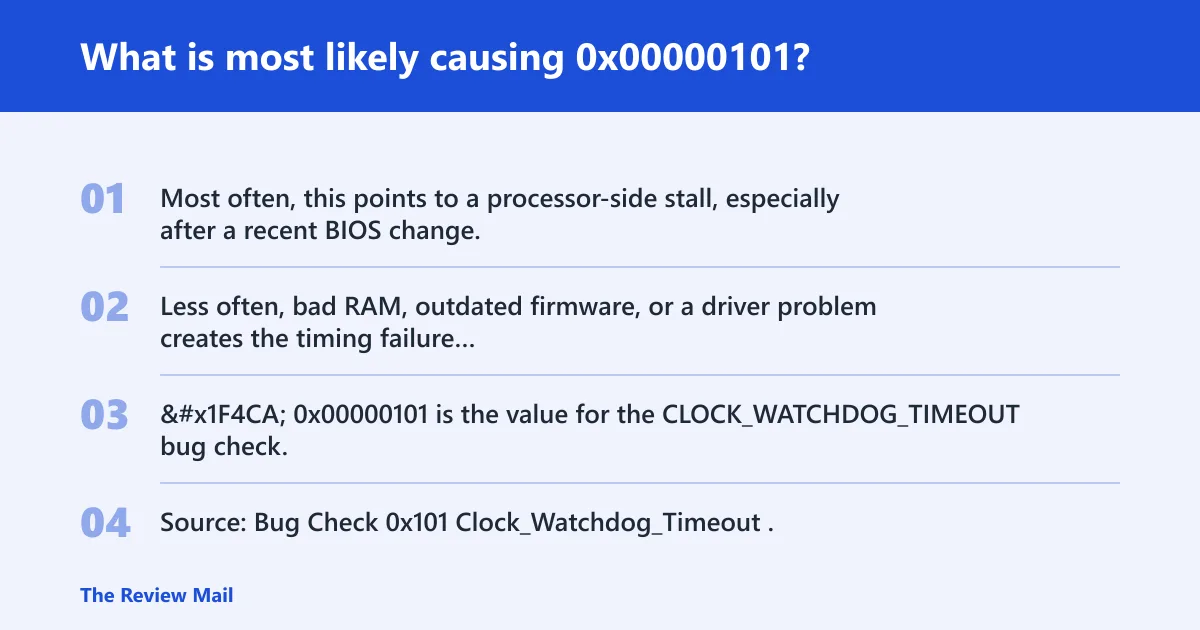
Most often, this points to a processor-side stall, especially after a recent BIOS change, overclock, XMP setting, thermal spike, or chipset driver update. Less often, bad RAM, outdated firmware, or a driver problem creates the timing failure that looks like a CPU hang. Start with the last thing that changed.
Use this triage table before you change anything
| Recent change + symptom pattern | Most likely cause + safest next test |
|---|---|
| BIOS update, then repeat crashes before Windows loads | Firmware mismatch or unstable defaults. Enter UEFI, load optimized defaults, and stop here if the system will not boot after that. Escalate to vendor support with the exact motherboard or laptop model. |
| XMP, EXPO, CPU boost, or GPU overclock started first | Instability from stock settings. Disable all overclocking and retest at default clocks and voltages. Stop here if crashes vanish; do not chase drivers first. |
| New RAM, new SSD, or storage change plus random blue screens | Memory or storage side effects. Run Windows Memory Diagnostic first; if it passes, move to SFC and DISM. Escalate if the PC still crashes during boot or memory test. |
| Gaming load, fans ramping hard, then a crash or freeze | Thermal or power instability. Check temperatures, fan behavior, and airflow before software repairs. Stop here if the machine overheats again under light load. |
| Chipset, GPU, or motherboard driver update just installed | Driver timing conflict. Roll back or reinstall the newest chipset and GPU packages after a stable boot. Escalate if Event Viewer shows repeated kernel-critical failures. |
📊 0x00000101 is the value for the CLOCK_WATCHDOG_TIMEOUT bug check. Source: Bug Check 0x101 Clock_Watchdog_Timeout.
What should you do first after a blue screen with 0x00000101?
First, save evidence if Windows still starts. Open Event Viewer, Reliability Monitor, and the latest minidump before changing settings, because the last failure pattern can separate a deadlocked processor from a driver or memory issue. Then make the safest change: restore stock settings and remove recent overclocking.
Start with the least risky checks
- Open Event Viewer and check Windows Logs > System for Kernel-Power, WHEA, or display-driver errors near the crash time.
- Open Reliability Monitor and note whether the crash follows a driver install, Windows update, firmware update, or hardware addition.
- If the desktop still boots, copy the newest minidump from
C:\Windows\Minidumpbefore making changes. - Return CPU, GPU, and RAM settings to stock in BIOS or UEFI, then retest.
If a desktop crashes only after a game loads a new map and the fans are already loud, heat or unstable boost settings are more likely than a random file issue. If a laptop blue-screens immediately after a BIOS update and never reaches the sign-in screen, firmware moves ahead of driver repair.
Did you change overclocking or BIOS settings?
Recent BIOS tuning, XMP, EXPO, or software overclock tools are the first things to undo, because a timing failure can appear long before a full freeze. If the crash began after a settings change, return everything to stock before testing RAM or reinstalling drivers. That keeps you off the wrong branch.
Put the system back to stock
- Restart and enter BIOS or UEFI with the motherboard key shown on screen.
- Load Optimized Defaults or Setup Defaults.
- Disable XMP or EXPO for a clean memory test.
- Turn off any CPU boost, voltage offset, or manual multiplier changes.
- Save changes and boot Windows once at stock settings.
When a BIOS reset is safer
If the system will not stay booted long enough for software checks, a BIOS reset is safer than more tuning. On desktops, clear settings only after noting the current profile if you can. On laptops, avoid experimental firmware changes unless the vendor release notes mention stability fixes for your exact model.
Could overheating or cooling failure be the trigger?
Yes. A CPU that overheats, a fan that stops, or airflow blocked by dust can cause the processor to stall under load. Desktops usually fail from dust buildup, poor case airflow, or dried thermal paste. Laptops more often fail from clogged vents, a weak blower, or heat soaked into a thin chassis.
Check cooling with the machine off
- Shut down and inspect all fans for free movement and obvious obstruction.
- Check rear, front, and bottom vents for dust buildup.
- Confirm that CPU and case fans spin when the system powers on.
- On a desktop, inspect whether the cooler is seated evenly and the thermal paste looks aged if the cooler was recently removed.
- On a laptop, make sure the vents are open and the unit is not running on a soft surface that blocks airflow.
Stop here and escalate if the system crashes at idle after cleaning, or if a fan fails to spin consistently. That pattern suggests hardware service rather than another Windows repair.
Should you test RAM and system files next?
Yes, after stock settings and cooling checks. Memory faults can trigger this stop code, and file corruption can add noise after a bad crash. Start with Windows Memory Diagnostic, then use SFC and DISM if Windows still boots. That order keeps the hardware branch ahead of the repair branch.
Run Windows Memory Diagnostic the right way
- Press Win + R, type mdsched.exe, and press Enter.
- Select Restart now and check for problems (recommended).
- Let the test finish and sign back in.
- Open Event Viewer and review the memory diagnostic result under Windows Logs > System.
Use SFC and DISM after the hardware checks
- Open Command Prompt as administrator.
- Run
sfc /scannow. - If SFC reports unrepaired files, run
DISM /Online /Cleanup-Image /RestoreHealth. - Restart and see whether the crash returns under the same workload.
A pass on Windows Memory Diagnostic does not clear RAM completely, but it lowers the odds that memory is the main cause. A failure points you toward the affected module, slot, or memory profile. If SFC and DISM repair files but the blue screen returns under load, the root cause is usually elsewhere.
How do drivers and firmware fit into the fix path?
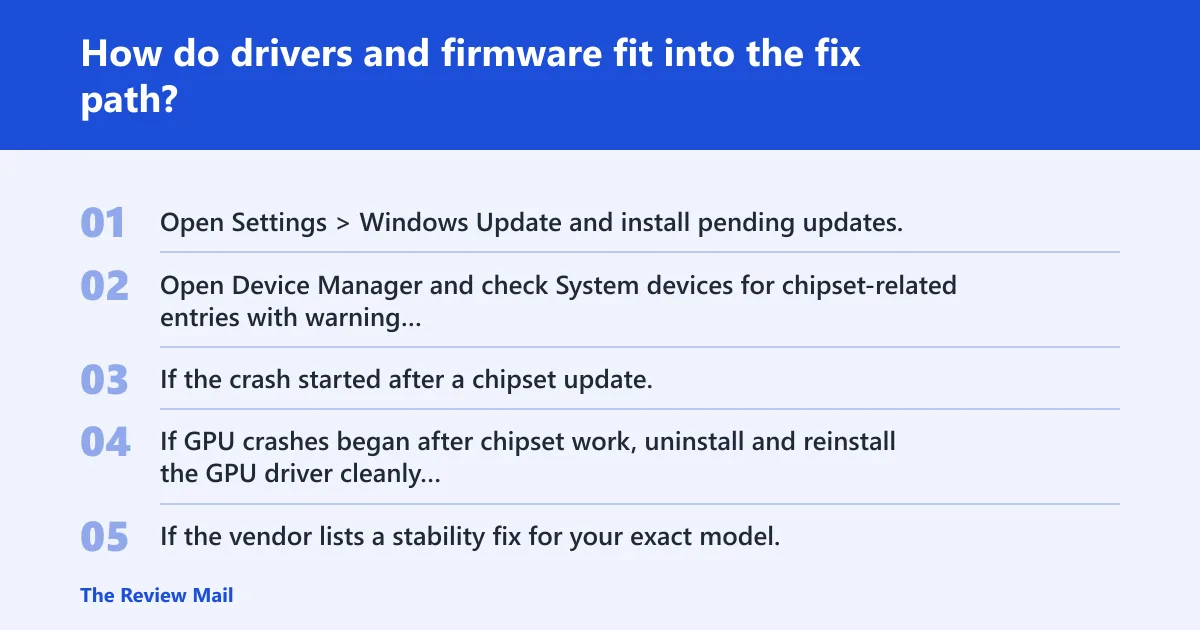
Chipset and motherboard drivers matter because they control how the processor, power states, and interrupts behave. GPU drivers can also contribute, especially after a chipset change. BIOS or UEFI firmware can cause instability too, but the update must match the exact motherboard or laptop model. Wrong firmware can make the machine worse.
Check the highest-value driver and firmware changes
- Open Settings > Windows Update and install pending updates.
- Open Device Manager and check System devices for chipset-related entries with warning icons.
- If the crash started after a chipset update, use Device Manager > Properties > Driver > Roll Back Driver where available.
- If GPU crashes began after chipset work, uninstall and reinstall the GPU driver cleanly from the manufacturer package.
- If the vendor lists a stability fix for your exact model, compare the BIOS or UEFI revision in setup against that release.
To check whether a BIOS update could fix 0x00000101, match the exact motherboard or laptop model, current BIOS version, and the release notes before doing anything. If the note mentions stability, memory compatibility, or processor power behavior, the update may be worth the risk. If not, do not treat firmware as the first answer.
Why am I getting CLOCK_WATCHDOG_TIMEOUT on boot?
Boot-time crashes often point to a firmware setting, an unstable memory profile, or a processor that may not be settling into a stable state. If Windows cannot reach the desktop, skip file repair and start with BIOS defaults, cooling, and memory profile checks. That path is safer than repeated forced restarts.
Escalate in this order when boot is unreliable
- Load BIOS or UEFI defaults.
- Disable XMP or EXPO.
- Test with one memory module at a time if the system can stay on long enough.
- If the board exposes it, check whether a recent firmware flash aligns with the failure.
- If none of that changes the boot crash, stop and seek vendor or shop-level diagnosis.
What driver or hardware changes commonly trigger 0x00000101?
Common triggers can include BIOS updates, memory profile changes, CPU or GPU overclocks, new RAM, chipset driver changes, and thermal issues. Storage changes can muddy the picture, but they are less likely to produce this exact interrupt stall. The order of the last change matters more than the number of changes.
Rank recent changes before making more fixes
- BIOS or UEFI update
- XMP, EXPO, or manual overclock
- Chipset driver install
- GPU driver reinstall or update
- New RAM, SSD, or cooler
- Heat event, dust cleanup, or fan replacement
After any firmware or memory change, leave the system at stock for a few days before restoring performance settings. That gives you a clean baseline if the blue screen returns.
Still not working?
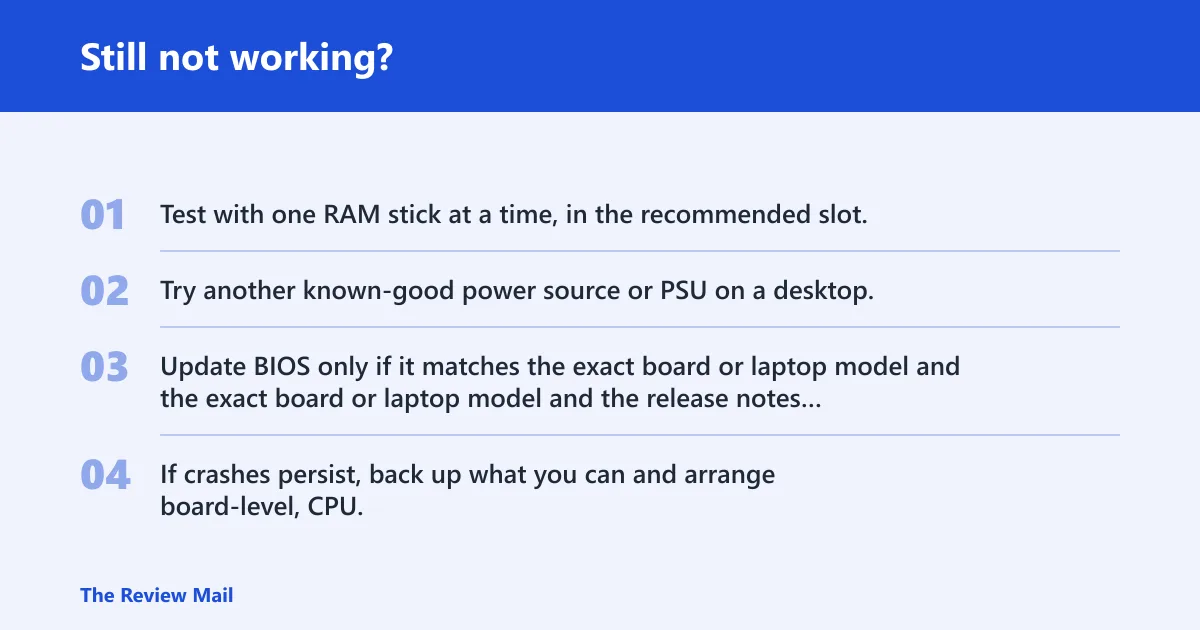
If the machine keeps crashing after stock settings, cooling checks, memory testing, and basic repairs, the next step is more invasive diagnosis. Repeated crashes with the same pattern can point to CPU, motherboard, or RAM failure. Stop troubleshooting and seek repair when the system no longer boots reliably or when the same minidump pattern returns after each restart.
Use this escalation ladder
- Test with one RAM stick at a time, in the recommended slot.
- Try another known-good power source or PSU on a desktop.
- Update BIOS only if it matches the exact board or laptop model and the release notes address stability.
- If crashes persist, back up what you can and arrange board-level, CPU, or memory diagnosis.
Frequently asked questions
What does stop code 0x00000101 mean in Windows?
It identifies a clock watchdog timeout. In plain terms, the system expected an interrupt response from a processor core and did not get one in time. That usually sends you toward firmware, cooling, memory stability, or a stalled CPU state before you assume Windows itself is broken.
Is 0x00000101 caused by CPU, RAM, or a driver?
Any of the three can be involved, but the first clue often comes from recent change history. CPU or cooling trouble shows up with heat or load. RAM trouble often follows a memory profile or new module. Driver trouble is more likely after a chipset or GPU update.
Can overheating or overclocking trigger 0x00000101?
Yes. Heat, aggressive boost behavior, and manual overclocking can all create instability that looks like a stalled processor. Restore default clocks and voltages first, then check fans, airflow, and cooling contact. On laptops, blocked vents and dust are common problems.
How do I check whether a BIOS update could fix 0x00000101?
Compare the exact motherboard or laptop model, current BIOS version, and the vendor’s release notes. Look for language about stability, memory compatibility, or processor behavior. If the update does not clearly address those areas, treat it as a later step rather than the first fix.
Should I run Windows Memory Diagnostic for this stop code?
Yes, after returning settings to stock and checking cooling. Run mdsched.exe, choose Restart now and check for problems (recommended), and read the result in Event Viewer afterward. A failure points toward RAM or slot issues; a pass means you should keep looking.