Windows Computer Stuck on Welcome Screen
If a Windows computer is stuck on the welcome screen, wait about 15 minutes after updates; if the spinner never changes and Caps Lock or Ctrl+Alt+Del do nothing, treat it as a real hang. Wrong guesses can trigger risky restarts, waste time, and turn a fixable sign-in delay into a longer recovery. This guide gives a safe triage flow, from harmless post-update lag to the next data-safe steps when the screen is truly frozen.
Welcome screen freeze meaning
The welcome screen is the point between sign-in and the desktop, where Windows loads your profile, drivers, and startup items. A moving spinner can mean the system is still working. A dead cursor, no change after a long wait, and no response to keyboard shortcuts point to a genuine sign-in stall.
Windows updates are the most common reason this looks worse than it is. A feature update or cumulative update may still be finishing in the background, especially on a slow SSD, a nearly full drive, or a machine that rebooted before setup was done.
Likely causes, ranked
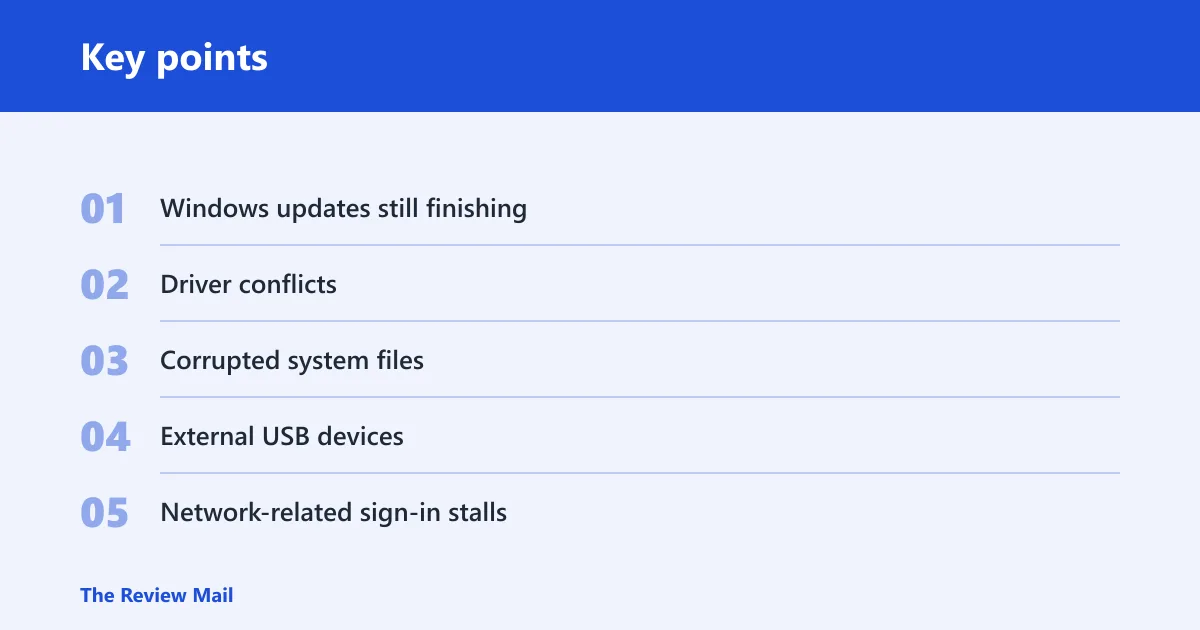
- Windows updates still finishing. Common after a reboot, especially if the spinner is still moving.
- Driver conflicts. Graphics drivers are a frequent problem when the screen never reaches the desktop.
- Corrupted system files. Broken files can block the handoff from welcome screen to sign-in.
- External USB devices. Printers, drives, webcams, controllers, docks, and extra monitors can stall startup.
- Network-related sign-in stalls. Wi-Fi or ethernet can delay account loading after password entry.
- BitLocker and recovery access problems. Encrypted PCs may stop for a recovery key before Safe Mode loads.
Say your laptop sits on the welcome screen after a Patch Tuesday reboot, the circle keeps moving, and the fan stays active. That points more toward update work than a broken boot. Suppose the screen freezes only after the password is accepted and nothing changes when you disconnect the network. That shifts attention to sign-in, drivers, or a damaged profile.
Welcome screen triage matrix
Use this table to choose the safest next move. Start with the least disruptive row that matches what you see, then move down only if that step fails.
| Symptom pattern | Most likely cause | Safest next action | Data-loss risk |
|---|---|---|---|
| Spinning circle under 15 minutes | Windows update still finishing | Wait, then restart only if the spinner stops changing | Low |
| Freeze after password only | Driver conflict or corrupted system files | Force restart once, then try Safe Mode | Low |
| Freeze only with USB devices attached | Peripheral conflict | Disconnect all non-essential USB devices and boot again | Low |
| Freeze only on Wi-Fi | Network-related sign-in stall | Turn off Wi-Fi or unplug ethernet, then sign in offline | Low |
| Safe Mode unavailable | Recovery path blocked or BitLocker prompt first | Enter the Windows Recovery Environment and check BitLocker recovery | Medium |
| BitLocker prompt appears | Encrypted drive requires recovery key | Retrieve the key from the Microsoft account recovery key page | Medium |
Have you waited long enough?
Give it a brief wait first if the spinner is still moving and the machine is warm, active, or recently updated. If nothing changes after that, and keyboard shortcuts such as Ctrl+Alt+Del still do nothing, a controlled restart is safer than staring at a dead screen.
When to keep waiting
- Watch the spinner for movement and listen for disk or fan activity.
- If the PC just installed updates, wait before forcing anything.
- If the display changes, keep waiting until the desktop appears or the system stalls completely.
When to force a restart
- Hold the power button until the PC shuts off.
- Wait about 10 seconds.
- Turn it back on once.
- If the same screen returns, move to Safe Mode or repair tools.
What not to do during the first check
- Do not tap power repeatedly.
- Do not keep unplugging the PC mid-update.
- Do not start reset or reinstall options before trying simpler checks.
Should you unplug devices first?
Yes. Remove non-essential USB devices before deeper troubleshooting, because a bad printer, drive, webcam, controller, dock, or extra monitor can hold startup at the welcome screen. This is one of the safest checks because it does not touch files.
What to remove first
- Unplug external drives.
- Remove printers and webcams.
- Disconnect game controllers, card readers, and USB hubs.
- Unplug docks and extra monitors.
- Leave only the keyboard, mouse, and power connected.
Why extra monitors and docks matter
- A dock can load its own drivers before the desktop appears.
- An external display can trigger a graphics handoff problem.
- A USB hub can keep a bad device in the boot chain.
What to test after reconnecting one item at a time
- Boot once with everything removed.
- If Windows reaches the desktop, reconnect one device.
- Restart after each device to find the trigger.
- Keep the offending device disconnected until its driver is updated or replaced.
How do you get into Safe Mode?
Use the Windows Recovery Environment after repeated failed boots. From there, go to Troubleshoot > Advanced options > Startup Settings, then restart into Safe Mode. Safe Mode loads only the drivers and services Windows needs to start, which helps bypass problem software without changing your files.
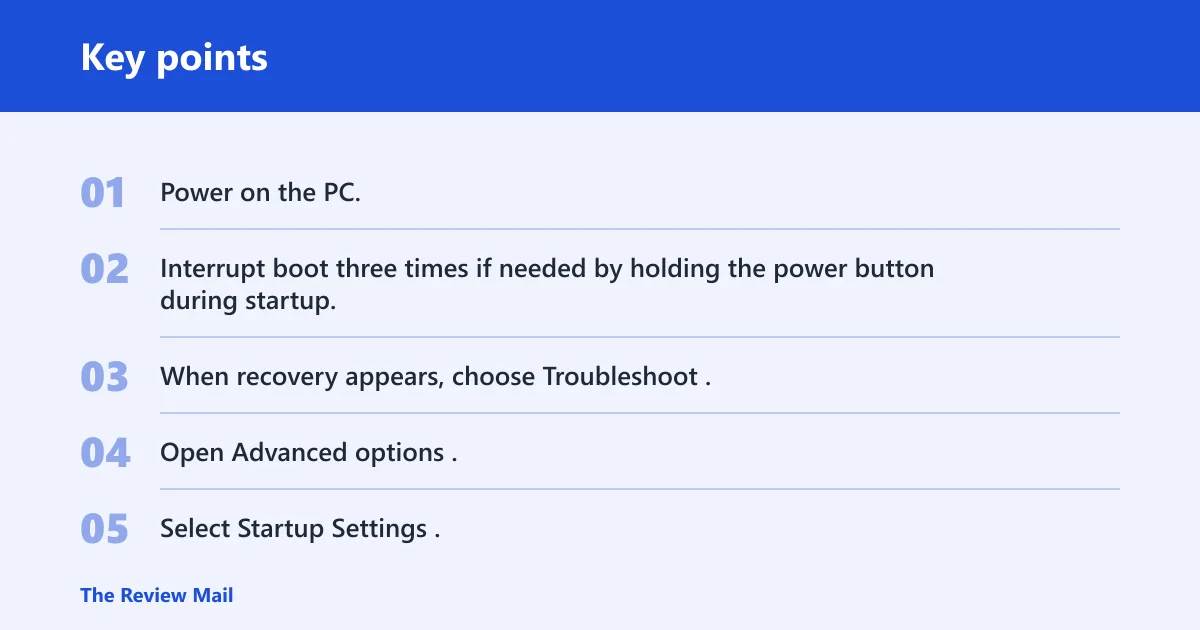
Using windows recovery environment
- Power on the PC.
- Interrupt boot three times if needed by holding the power button during startup.
- When recovery appears, choose Troubleshoot.
- Open Advanced options.
- Select Startup Settings.
Option 5 or F5 for Safe Mode with networking
- After the restart, press 5 or F5.
- Use standard Safe Mode first if networking is not needed.
- Use Safe Mode with Networking only if you need downloads or a BitLocker recovery page.
What to do if BitLocker appears first
- Enter the BitLocker recovery key if prompted.
- If you do not have it, sign in on another device and open the Microsoft account recovery key page.
- Only after that should you continue to Safe Mode or repair tools.
What should you try first when Windows freezes after entering your password?
Start with Safe Mode after one clean restart, because a password-only freeze often points to a driver or startup-item problem. If Safe Mode loads, the issue is usually inside Windows rather than the hardware, which keeps the next steps focused and low-risk.
Driver and system-file fixes
- Open Windows Recovery Environment and enter Safe Mode.
- In Safe Mode, open Device Manager and check display adapters for a recent driver.
- Open Command Prompt as administrator.
- Run
sfc /scannow. - If needed, run
chkdskC: /f and allow the restart.
Uninstall recent updates or bad apps
- Go to Settings > Windows Update > Update history.
- Select Uninstall updates.
- Remove the most recent update first.
- If the problem began after a driver install, roll back that driver in Device Manager.
If that didn’t work, try this next
- Run Startup Repair from Advanced options.
- If repair fails, try System Restore if a restore point exists.
- If the PC still stops at the welcome screen, back up files before any reset.
What do you do if your computer is stuck on the welcome screen?
If the easy checks fail, move in this order: unplug accessories, disconnect from Wi-Fi or ethernet, try Safe Mode, then use repair tools. That sequence keeps the risk low while targeting the most common causes first.
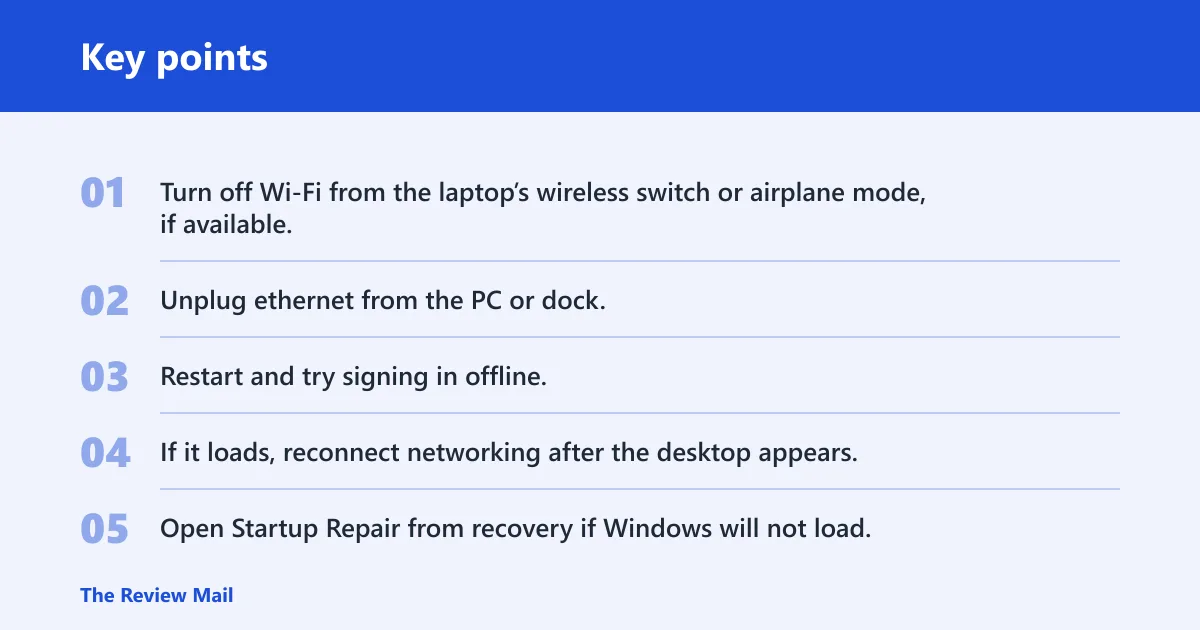
Network-related sign-in stalls
- Turn off Wi-Fi from the laptop’s wireless switch or airplane mode, if available.
- Unplug ethernet from the PC or dock.
- Restart and try signing in offline.
- If it loads, reconnect networking after the desktop appears.
Corrupted update or damaged files
- Open Startup Repair from recovery if Windows will not load.
- Use
sfc /scannowin Safe Mode. - Run
chkdskif the drive may have file-system errors. - Uninstall the most recent Windows update if the hang started right after one.
Windows 10 versus Windows 11 notes
- Windows 10 and Windows 11 use the same recovery path for Startup Settings.
- Windows 11 clean installation instructions are the ones Microsoft points to after repair attempts fail.
- A Windows 10 forum user described a loading circle spinning for a very long time, then the machine no longer booting normally after the issue began.
When does a stuck welcome screen mean you need a clean install?
Move to a clean installation only after repair attempts fail, Safe Mode does not load, or the PC keeps returning to the same freeze after updates, driver removal, and system-file repair. If you reach that point, back up files first, because a reinstall can remove apps and settings.
Back up files before major repairs
- Boot from installation media on another working computer if needed.
- Open Command Prompt from the recovery environment.
- Use Notepad in recovery mode to copy files to an external drive.
- Save documents, pictures, and other personal files before reset or reinstall.
Clean installation as the last resort
- Use the Media Creation Tool on another working computer.
- Create a USB flash drive at least 8GB in size. (Microsoft Learn)
- Boot the stuck PC from that media.
- Follow the Windows 11 clean installation instructions if repair methods have failed.
Prevention note
After recovery, let updates finish before shutting down again, and keep the machine clear of unnecessary USB devices during the next restart. That lowers the chance of the same startup path getting interrupted.
Frequently asked questions
Why is my computer stuck on the welcome screen?
Most often, Windows is still finishing an update, loading a broken driver, or hitting a file error while signing in. Start with one restart, then remove external USB devices and try Safe Mode through Windows Recovery Environment if the screen stays frozen after password entry.
What should I try first when Windows freezes after entering my password?
Disconnect non-essential USB devices, then restart once and try to sign in again. If the same freeze returns, open Windows Recovery Environment, go to Troubleshoot > Advanced options > Startup Settings, and choose Safe Mode or Safe Mode with Networking using 5 or F5.
How do I get past the welcome screen without reinstalling Windows?
Use the least invasive path first: wait briefly for update activity, remove accessories, disconnect internet, then boot into Safe Mode. If Windows loads there, run sfc /scannow, check recent updates, and use Startup Repair before you consider reset or reinstall options.
Is Safe Mode the best fix for a welcome screen hang?
It is usually the best next step after a restart and device check because it loads only minimal drivers and services. That makes it useful for isolating driver conflicts, damaged startup items, and file problems without immediately risking files or settings.
Why Windows 10 stuck on welcome screen?
Windows 10 can hang here for the same reasons as Windows 11: an update still finishing, a display driver problem, corrupted system files, or a device conflict. The fix path is the same too, starting with accessories, then Safe Mode, then built-in repair tools.
When should I stop repairing and back up files?
Stop once Safe Mode will not load, Startup Repair fails, and the system loops back to the same freeze after update and driver checks. At that point, copy personal files first with recovery tools, then move to a clean installation if the PC still will not sign in.