Manually Update Wi‑Fi Drivers in Windows 11
To manually update your Wi‑Fi drivers in Windows 11, start with Windows Update, then use the adapter maker’s driver if that does not fix the problem. Match the exact adapter model before you install anything. A wrong package can break Wi‑Fi, hide the adapter, or force rollback steps. This guide shows you how to identify the adapter, choose the right source, install the driver, and recover if connectivity drops.
When should you update the Wi‑Fi driver?
Start with Windows Update when Wi‑Fi is flaky, the adapter is missing after a restart, or Device Manager shows a warning symbol. Microsoft says driver updates are normally downloaded and installed through Windows Update, and network adapters are among the device types it updates. Move to the manufacturer’s driver when Windows Update finds nothing useful or the current version does not fix the issue. (Microsoft Support)
When Windows Update is enough
Use Windows Update first because it is the simplest route and often the safest one. It can deliver a newer network adapter driver without making you sort through package names, and Microsoft says Device Manager can update drivers automatically or manually. If the adapter works but drops connection or shows a generic error, check here first.
When to switch to the manufacturer driver
Choose the manufacturer’s support page when Windows Update reports no update, offers the same version, or the problem continues after installing the Microsoft-delivered driver. This matters on laptops and compact desktops where the Wi‑Fi card may be Intel, Realtek, Qualcomm, or MediaTek, but the right file is still tied to the exact notebook or adapter model. Do not guess from the brand name alone.
Find your wireless adapter model
You need the exact wireless adapter name before you download anything. Microsoft says to open Device Manager from Start, and wikiHow’s Windows 10/11 guide says to find the correct device category there before updating. For Wi‑Fi, that category is Network adapters.
Open Device Manager from Start
- Right-click Start.
- Select Device Manager.
- Expand Network adapters.
- Look for the wireless entry, which may include Intel, Realtek, Qualcomm, or MediaTek in the name.
Check the exact adapter name
The name has to match the device, not just the chip family. For example, a laptop might show Intel Wi-Fi 6 AX201 or Realtek 8822CE Wireless LAN 802.11ac PCI-E NIC. Those labels point you toward the correct manufacturer package and away from similar-looking files meant for a different revision.
Say your Device Manager shows two adapters: one wired Ethernet card and one wireless card labeled Qualcomm Atheros. You only want the wireless entry when you download the Wi‑Fi driver. The wired package may install cleanly and still leave the wireless radio untouched.
Check the current driver details
Open the adapter’s properties before you change anything. Microsoft’s Device Manager flow lets you inspect the current driver, and the key fields are version, date, and provider. Keep those values so you can confirm the change later or roll back if the new driver causes trouble.
Read version, date, and provider
- Right-click the wireless adapter in Network adapters.
- Select Properties.
- Open the Driver tab.
- Record Driver Provider, Driver Date, and Driver Version.
Those fields matter because the update may come from Microsoft, the laptop OEM, or the chipset vendor. If the provider changes from one source to another after installation, that is a useful clue that the package actually replaced the old driver rather than reinstalling the same one.
Where should you get the driver?
Use Windows Update first, then the manufacturer’s support page if the first path does not solve the problem. Microsoft says downloaded drivers must match the Windows version and architecture, so Windows 11 64-bit users need a package built for that system type. If the driver page offers multiple downloads, choose the one that names your exact wireless adapter or your exact computer model.
Windows Update first
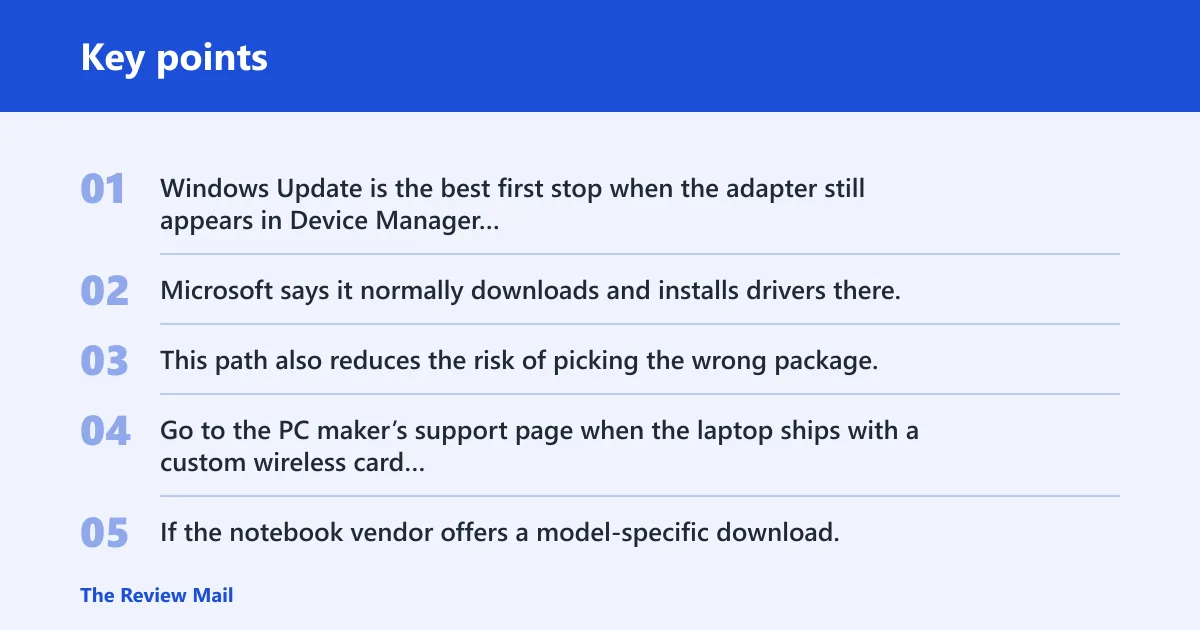
Windows Update is the best first stop when the adapter still appears in Device Manager and the system has some form of connectivity. Microsoft says it normally downloads and installs drivers there, and network adapters are included in that process. This path also reduces the risk of picking the wrong package.
Manufacturer support page next
Go to the PC maker’s support page when the laptop ships with a custom wireless card configuration, or when Windows Update does not deliver a newer package. If the notebook vendor offers a model-specific download, prefer that over a generic chipset page. On many systems, the OEM package includes the right INF file and device identifiers for that machine.
Match Windows 11 64-bit and architecture
Check Windows specifications and Device specifications in Settings if you are unsure about the system type. Windows 11 on many modern PCs is 64-bit, but the download still has to match the architecture shown there. Microsoft says the downloaded driver must match both Windows version and architecture. (Microsoft Support)
Wi-Fi driver checklist table
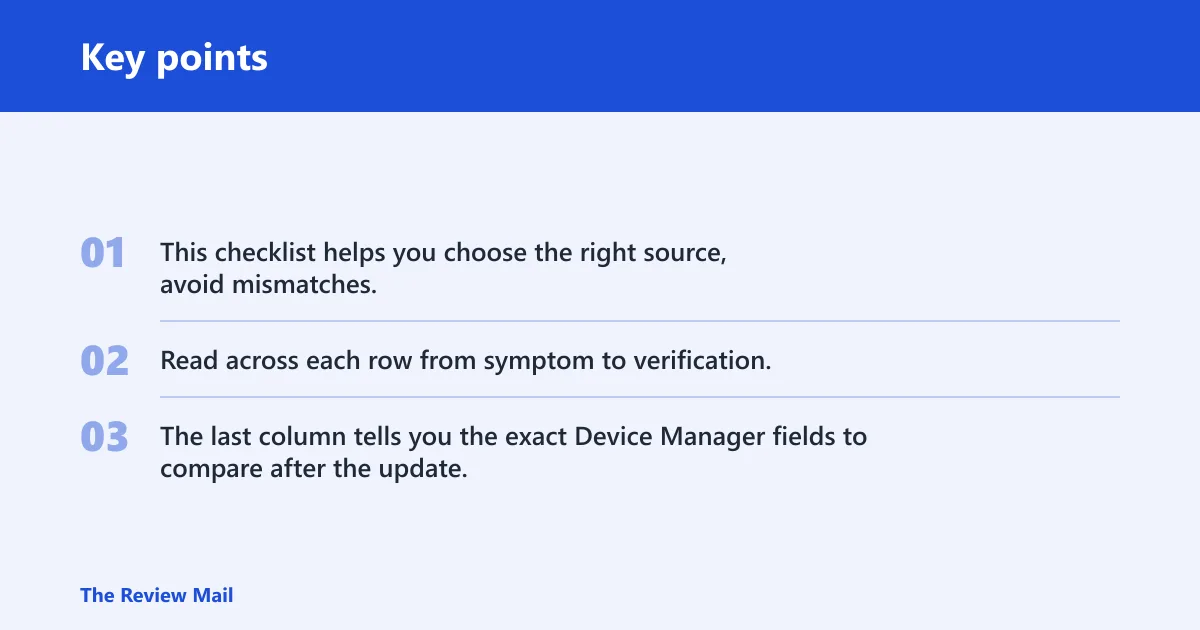
This checklist helps you choose the right source, avoid mismatches, and know what to do if the install fails. Read across each row from symptom to verification. The last column tells you the exact Device Manager fields to compare after the update.
| Symptom | Where to get the driver | Internet required? | What files to expect | What to do if install fails | Final verification |
|---|---|---|---|---|---|
| Wi‑Fi drops after sleep or restart, but the adapter still appears | Windows Update first | Usually yes | Windows installs the package automatically or offers an update in Device Manager | Retry from the manufacturer support page if Windows says nothing new is available | Device Manager > adapter Properties > Driver tab: compare Driver Version, Driver Date, and Driver Provider |
| The adapter is present, but shows a warning symbol | Manufacturer support page for the exact model | No, if you already downloaded the package | Compressed download plus extracted .INF, .SYS, and .CAT files | Point Device Manager to the extracted folder with Browse my computer for drivers | Compare the same Driver tab fields before and after installation |
| Device Manager says the best driver is already installed | Manufacturer support page or Windows Update | Yes for Windows Update, no for a local package | Often one ZIP or EXE that contains the driver folder | Use Browse my computer for drivers and select the extracted folder, or try Roll Back Driver | Check whether Driver Version or Driver Date changed |
| The adapter vanished after a restart | Manufacturer support page | No, if the package is already saved locally | Setup package or extracted driver files in a known folder | Uninstall the adapter in Device Manager, then reinstall from the extracted folder | Verify the adapter appears again under Network adapters and has the expected provider |
| New driver installed, but Wi‑Fi got worse | Previous driver from the same source | No | Older package saved locally, or a backup copy of the prior folder | Use Roll Back Driver if available, or uninstall and reinstall the prior package | Confirm the older Driver Version and Driver Date return |
Install the driver manually in Device Manager
After you download the package, extract it if needed and keep the files in an easy-to-find folder. Microsoft’s manual method uses Browse my computer for drivers, and Microsoft says to use the Browse button to choose the driver folder. Common driver package files include .INF, .SYS, and .CAT.
Download and extract the package
If the download arrives as a ZIP file, extract it before you start the install. If it arrives as an EXE, the vendor may unpack it into a folder or launch a setup routine. Keep the extracted files together, because Device Manager needs the folder that contains the .INF file.
Use Browse my computer for drivers
- Open Device Manager.
- Expand Network adapters.
- Right-click the wireless adapter.
- Select Update driver.
- Choose Browse my computer for drivers.
- Select the folder that contains the extracted driver files.
- Finish the prompts and restart if Windows asks for it.
A common first-time mistake is pointing Windows to the ZIP file itself instead of the extracted folder. That usually ends with a failed search or a message that no suitable driver was found. The folder must expose the driver files, not just the compressed package.
What if the update fails or Wi‑Fi breaks?
If the install fails, stay with the same adapter entry and work backward before trying random downloads. Windows may say the best driver is already installed, the adapter may disappear from Device Manager after reboot, or connectivity may get worse. In those cases, use rollback or reinstall steps tied to the same Wi‑Fi adapter.
If Device Manager says the best driver is already installed
That message means Windows could not find a newer driver through its current source. It does not prove the current driver is ideal for your machine. Try the manufacturer support page next, or open the adapter’s Driver tab and compare the provider and date against the package you downloaded.
If the adapter disappears after restart
Go back to Device Manager and check whether the wireless adapter still appears under Network adapters. If it is missing, use the manufacturer package again and reinstall the driver from the extracted folder. If Windows still does not load the adapter, uninstall it in Device Manager and then reinstall the same package.
Use Roll Back Driver or uninstall and reinstall
If the new driver makes Wi‑Fi worse, open the adapter’s Driver tab and use Roll Back Driver if the button is available. If it is greyed out, uninstall the device from Device Manager, then install the older package from your saved folder. Keep the previous installer until the new driver proves stable.
How do you verify the update worked?
Verification is simple, but skip it and you may not notice that Windows kept the same driver. Open the adapter’s Driver tab again and compare Driver Version, Driver Date, and Driver Provider with the values you recorded earlier. Then confirm the adapter still appears under Network adapters.
Confirm the version and date
The version or date should change when the new package installs correctly. If neither field changes, Windows likely kept the old driver or rejected the new one. That is the clearest sign to try another source or return to the previous package.
Check provider and adapter name
The provider should make sense for the source you chose. A package from the laptop maker may list the OEM as provider, while a chipset package may show Intel, Realtek, Qualcomm, or MediaTek. The adapter name should also remain the same unless the vendor replaced the driver family entirely.
Suppose the adapter shows Driver Version 22.140.0.3 before the change and 22.160.1.1 after the install, with a newer Driver Date and the same adapter name. That is the kind of change you want to see before you move on to other troubleshooting.
Frequently asked questions
How do I manually update my Wi‑Fi driver in Windows 11?
Open Device Manager from Start, expand Network adapters, right-click the wireless adapter, and choose Update driver. If Windows does not find a better version, use Browse my computer for drivers and point it to the extracted manufacturer folder. Then compare the Driver Version, Driver Date, and Driver Provider in the Driver tab.
How do I find my wireless adapter model in Device Manager?
Right-click Start, open Device Manager, and expand Network adapters. The wireless entry usually contains the manufacturer name or chipset family, such as Intel, Realtek, Qualcomm, or MediaTek. Use the exact model name, because similar adapter names can require different driver packages.
Where do I download the correct Wi‑Fi driver for Windows 11?
Use Windows Update first, then the PC maker’s support page or the wireless adapter maker’s support page if Windows does not help. Match the exact adapter model and make sure the download is built for Windows 11 64-bit if that is your system type. Avoid generic third-party driver sites.
Can I update a Wi‑Fi driver without an internet connection?
Yes. If you already downloaded the driver on another device, copy it to the problem PC with a USB drive or local network share. Extract the package if needed, then use Browse my computer for drivers in Device Manager and point Windows to the extracted folder.
Should I use Windows Update or the manufacturer’s driver?
Start with Windows Update because Microsoft normally delivers driver updates there, including network adapters. Move to the manufacturer’s driver when Windows Update offers nothing new, the update does not fix the issue, or the laptop needs a model-specific package. Match the Windows version and architecture before installing either one.
What if Windows says the driver is already the best one?
That message means Windows has no newer driver in its current source, not that your Wi‑Fi problem is solved. Try the manufacturer support page next, or reinstall the current package from a local download if the adapter is unstable. If the new driver caused the issue, use Roll Back Driver.
How do I reinstall a Wi‑Fi driver if updating doesn’t fix it?
Open Device Manager, expand Network adapters, and right-click the wireless adapter. If Roll Back Driver is available, try that first. If not, uninstall the device, restart if Windows asks, and reinstall the correct package from the manufacturer’s extracted files using Browse my computer for drivers.
How do I know whether I need a 64-bit driver for Windows 11?
Open Settings and check Windows specifications or Device specifications for the system type. Most Windows 11 PCs use 64-bit drivers, and Microsoft says the downloaded driver must match both Windows version and architecture. If the download page offers separate 32-bit and 64-bit files, choose the one that matches your system exactly.