Fix Wi-Fi Adapter Windows 11: Step-by-Step
Fix a Windows 11 Wi‑Fi adapter by matching the symptom to the state: missing adapter, disabled adapter, error code, or corrupted driver; then use the right fix path, starting with Device Manager and one reboot. Picking the wrong branch wastes time and can leave you offline. This guide shows how to identify each case and apply the correct repair.
This guide is part of our Windows network and Wi-Fi problems: full list and fixes series.
Wi‑Fi adapter decision table
This table maps the symptom to the next best action, the likely layer at fault, and the check that proves the fix worked. Use it before you start changing drivers or services.
| Symptom in Windows 11 | Likely layer at fault | Next best action | Verify after the fix |
|---|---|---|---|
| Missing from Device Manager | Device detection, hardware, or power state | Device Manager > View > Show hidden devices, then Action > Scan for hardware changes | Network adapters appears again, or the USB adapter re-enumerates |
| Code 10 | Driver failure or bad handoff to hardware | Roll back the driver, then uninstall and reinstall if the rollback fails | The error code disappears and Wi-Fi scans return |
| Code 43 | Driver corruption or device-reported fault | Uninstall the device, restart, then install the OEM driver | The adapter loads without a warning icon |
| Disabled or Wi-Fi radio off | Windows radio state or adapter state | Turn off Airplane mode, then enable the adapter in Device Manager | Wi-Fi becomes available in Quick Settings |
| Driver present but no networks | Profile, service, router, or scan path | Restart WLAN AutoConfig, forget the saved network, then reconnect | Available SSIDs appear in the Wi-Fi list |
| Vanishes after sleep | Power management or driver regression | Disable power-saving behavior, then update or reinstall the driver | The adapter returns after sleep and scans normally |
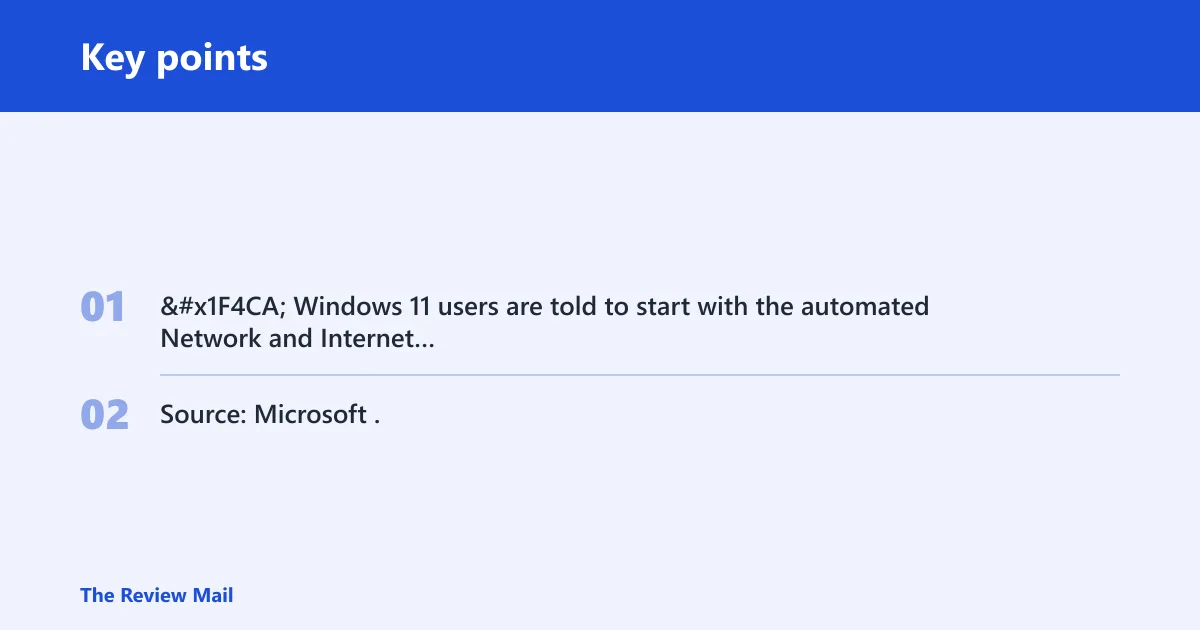
📊 Windows 11 users are told to start with the automated Network and Internet troubleshooter in Get Help. Source: Microsoft.
What is the most likely cause?
The fastest way to fix wifi adapter windows 11 problems is to separate a missing adapter from a present-but-broken one. The first usually points to detection, power, or hardware; the second points to a driver, service, or profile issue. Start with the state you can prove in Device Manager. Windows 11 users should also begin with the built-in Network and Internet troubleshooter in Get Help, per Microsoft support.
Start with the quick checks
Say your laptop shows no Wi‑Fi button after wake, but Ethernet still works. That pattern usually means the adapter or radio state changed, not the router. Check Airplane mode first, because it shuts wireless radios off; then confirm the adapter is enabled before touching drivers.
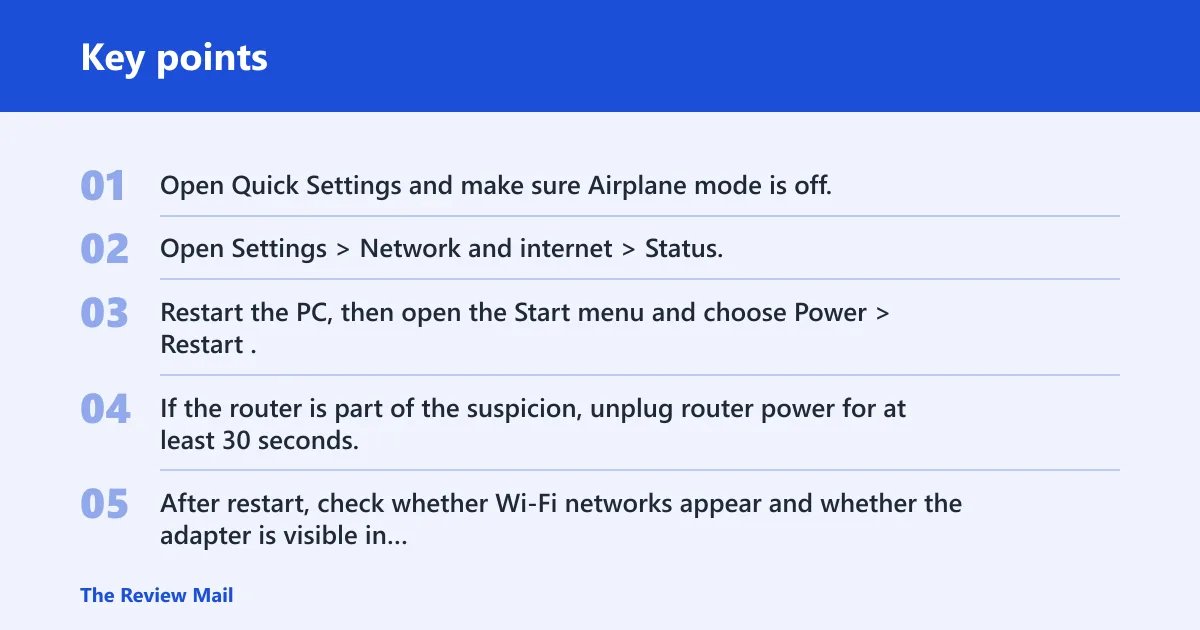
- Open Quick Settings and make sure Airplane mode is off.
- Open Settings > Network and internet > Status, then run the automated Network and Internet troubleshooter in Get Help, which Microsoft recommends for Windows 11.
- Restart the PC, then open the Start menu and choose Power > Restart.
- If the router is part of the suspicion, unplug router power for at least 30 seconds, then reconnect it.
- After restart, check whether Wi‑Fi networks appear and whether the adapter is visible in Device Manager.
Verify by opening the Wi‑Fi list from the taskbar. If nothing appears, move to Device Manager and treat it as a device-state problem, not a simple connection problem.
If the adapter is missing in Device Manager
A missing adapter means Windows is not currently enumerating the device. That can be a disabled internal card, a failed USB adapter, a power-management hiccup after sleep, or a driver that no longer loads. Check whether the problem affects only the internal card or also an external USB Wi‑Fi adapter.
- Open Device Manager > Network adapters.
- Choose View > Show hidden devices.
- Choose Action > Scan for hardware changes.
- If this is a laptop, inspect whether an internal adapter returns after a reboot.
- If it is a USB adapter, move it to another port and scan again.
Verify by checking whether the adapter reappears under Network adapters and whether the Wi‑Fi icon returns. If the same USB adapter works on one port but not another, the fault is often the port or power path, not the driver.
If the adapter is disabled or Wi‑Fi is off
If the adapter is present but disabled, Windows knows the device exists and is choosing not to use it. This is the easiest branch to fix. It also covers cases where the radio looks absent because Airplane mode stayed on after a sleep or update.
- Turn Airplane mode off.
- Open Device Manager > Network adapters.
- Right-click the Wi‑Fi adapter and choose Enable device.
- Open
services.msc, find WLAN AutoConfig, and confirm it is running. - If needed, restart the service and set Startup type to Automatic.
Verify by reopening the Wi‑Fi list and confirming that nearby networks appear. A common first-timer mistake is to enable the adapter but skip WLAN AutoConfig; if the service is stopped, scanning can still fail.
If you see Code 10 or Code 43
Code 10 and Code 43 usually point to the driver path or the device’s handoff to Windows. The order matters: rollback first if the issue started right after an update, then uninstall and reinstall if rollback does not help. OEM driver tools can matter here, because vendor packages sometimes replace the generic Windows driver with a board-specific version.
- Open Device Manager > Network adapters.
- Right-click the adapter and open Properties to confirm the code.
- If the problem started after a recent update, choose Roll Back Driver.
- If rollback is unavailable or fails, choose Uninstall device, then restart.
- Install the latest driver from the PC maker or adapter maker, or use Windows Update for driver fixes.
Verify by reopening Device Manager and confirming the warning icon is gone. Then check whether wireless networks scan again. If the code returns immediately, the driver may be wrong for that hardware revision.
If Windows sees the adapter but no networks appear
This is different from a missing adapter. The card is present, but it is not finding SSIDs or cannot complete the scan path. That can come from a saved profile problem, a router issue, or a service that needs a restart. Microsoft also notes that a firewall can block Internet access even when the Wi‑Fi icon shows connected.
- Open Settings > Network & internet > Wi-Fi > Manage known networks.
- Select the saved network and choose Forget.
- Reconnect and re-enter the SSID password.
- Restart the router or access point, and check the same network from another device.
- Run the Network and Internet troubleshooter again as a secondary check.
Verify by confirming that at least one SSID appears in the Wi‑Fi list and that the PC gets an IP address. If another device also fails on the same router, the fault is more likely with the router or access point than with Windows.
Why does it disappear after sleep or an update?
Adapters that vanish after sleep or after a Windows update often involve power management or a driver regression. That pattern is common enough to separate from a one-time connection failure. If the problem is only on one adapter type, such as the built-in card but not a USB adapter, the hardware or its driver stack is the better suspect.
Check power management and post-sleep behavior
Suppose the Wi‑Fi adapter returns only after a full restart, not after sleep. That points to power-state handling. Internal laptop cards are more likely to be affected by sleep and fast startup than external USB adapters, which are easier to swap for a quick comparison.
- Open Device Manager > Network adapters.
- Open the Wi‑Fi adapter Properties, then check the Power Management tab if present.
- Clear any option that lets Windows turn off the device to save power.
- Restart the PC, then sleep and wake it once.
- If the adapter disappears again, reinstall the driver.
Verify by waking the system and checking whether the adapter still appears in Device Manager and in the Wi‑Fi flyout. If it fails only after sleep, the power path is likely involved.
Reinstall after a bad update
Windows Update can deliver driver fixes, but a recent update can also introduce a regression. That is why the right order is update, then rollback, then uninstall and reinstall, then OEM tools if needed. Do not jump straight to a full reset unless the adapter has already failed every lower-impact step.
- Open Settings > Windows Update and install pending updates.
- Restart the PC after installation.
- If the problem began immediately after the update, use Device Manager > Network adapters > Properties > Driver > Roll Back Driver.
- If rollback does not help, choose Uninstall device, restart, and reinstall the OEM package.
- Check whether the adapter scans normally after the reboot.
Verify by comparing the adapter state before and after the reboot. If it works on one reboot and fails on the next sleep cycle, return to power management rather than reinstalling endlessly.
Still not working?
If the adapter still fails after driver repair and service checks, move on to hardware confirmation. Test another device on the same router, then test this PC on another network. If a USB Wi‑Fi adapter works but the internal card does not, the internal card or its slot is a likely fault. If every device fails on the same router, the router or access point deserves attention first, including a restart and firmware review.
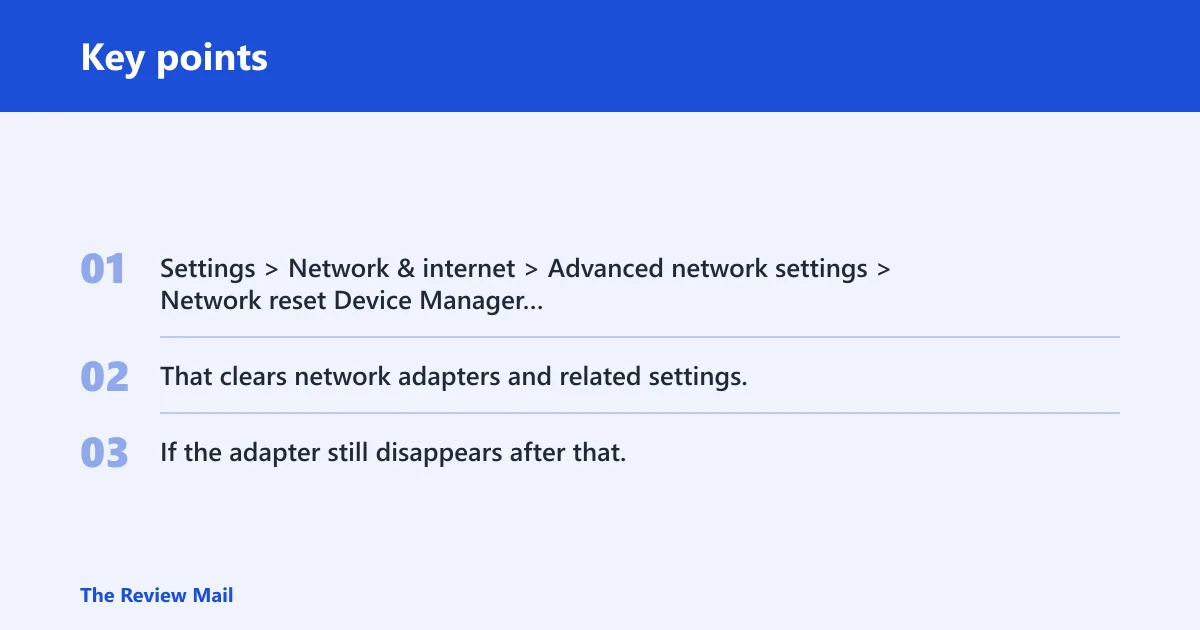
Settings > Network & internet > Advanced network settings > Network reset

Device Manager > Network adapters > (adapter) > Uninstall device, then scan for hardware changes
For a deeper reset, use Settings > Network & internet > Advanced network settings > Network reset. That clears network adapters and related settings, so use it after the adapter-specific checks, not before them. If the adapter still disappears after that, contact the PC maker or the adapter vendor for hardware service.
Frequently asked questions
How to fix wifi adapter driver windows 11
Open Device Manager > Network adapters, right-click the Wi‑Fi adapter, and try Update driver first. If that fails, use Roll Back Driver for a recent regression, or Uninstall device and restart so Windows can reload it. Finish by checking whether Wi‑Fi networks scan normally.