Registry May Be Corrupted Windows 10 Fix
Fix “registry may be corrupted” on Windows 10 by starting with the least destructive step: if Windows still boots, run SFC first, then DISM, and use startup repair or a backup only if the error remains. Ignoring it can lead to boot loops, broken apps, and failed updates. This guide shows how to separate registry damage from system-file or update-chain faults and which fix to try first.
What the error usually means
Most of the time, this warning means Windows cannot read something it needs during startup, app launch, or update processing. The fastest first try is an elevated Command Prompt or PowerShell with sfc /scannow, because that checks protected system files before you touch the registry itself.
How registry damage differs from system-file corruption
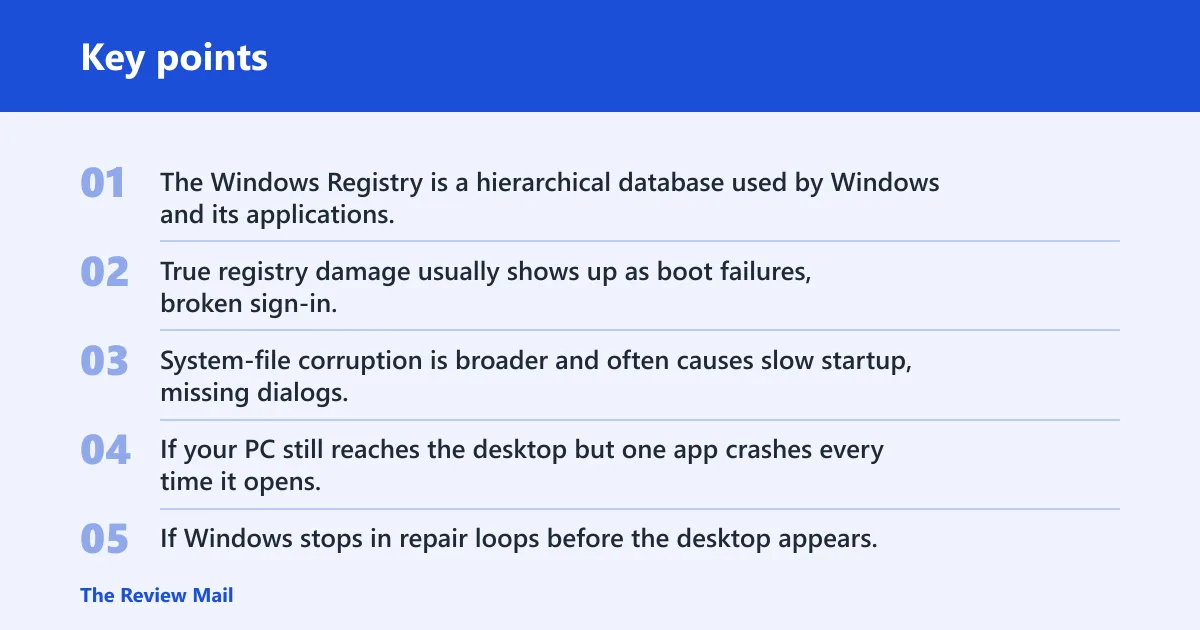
The Windows Registry is a hierarchical database used by Windows and its applications. True registry damage usually shows up as boot failures, broken sign-in, apps that crash on launch, or settings that vanish after a restart. System-file corruption is broader and often causes slow startup, missing dialogs, or repair tools that report damaged files.
If your PC still reaches the desktop but one app crashes every time it opens, that points more toward system files or app-specific data. If Windows stops in repair loops before the desktop appears, the odds shift toward registry damage, broken boot data, or an update that did not finish cleanly.
What makes the problem higher risk
Registry edits are high-risk because a wrong change can block startup or break more than one app. Sudden power loss can also leave both registry data and system files damaged at once. That is why the safe path starts with checks that do not edit anything manually.
What causes Windows 10 registry corruption?
Common triggers include failed updates, interrupted installs, sudden shutdowns, power loss, malware, bad drivers, and disk errors. Less often, the real problem is not registry damage at all but a broken startup chain or file corruption that only looks like a registry issue.
Failed updates and interrupted installs
- Open Settings > Update & Security > Windows Update and note whether the same update keeps retrying.
- Restart once, then try Settings > Update & Security > Troubleshoot > Additional troubleshooters if the loop continues.
- If Windows still boots, open an elevated Command Prompt and run
sfc /scannow. - If SFC does not finish the job, run
Dism /Online /Cleanup-Image /RestoreHealth.
Failed update loops often damage files that the registry points to, which is why SFC and DISM come before manual editing.
Unexpected shutdowns, power loss, and disk errors
- Disconnect external drives that are not needed for startup.
- Open an elevated Command Prompt or PowerShell.
- Run
sfc /scannowfirst. - If Windows still reports corruption, run
Dism /Online /Cleanup-Image /RestoreHealth, then run SFC again.
A sudden power failure can leave file data incomplete. If the disk is failing, repairs may work once and fail again until you check storage health with the device maker’s diagnostics.
Malware, bad drivers, or broken startup data
- Boot into Windows Safe Mode if normal startup fails.
- Run Windows Security or your approved offline scanner.
- Remove newly installed drivers or startup tools from Settings > Apps.
- Try SFC again after the system is clean enough to boot.
Safe Mode turns off many nonessential services and startup items, which makes it easier to reach repair tools when a third-party driver or service is getting in the way.
Registry corruption triage for Windows 10 decision table
| Symptom | Likely cause | Safest fix | Command to run | When to escalate |
|---|---|---|---|---|
| Windows will not boot past repair loops | Boot chain issue or damaged startup data | Safe Mode, then recovery tools | sfc /scannow | Escalate if Safe Mode will not load |
| Apps crash on launch | System-file corruption or app data damage | Run SFC first | sfc /scannow | Escalate if SFC reports unrepaired files |
| Windows Update keeps looping | Interrupted update chain | Repair image, then rerun SFC | Dism /Online /Cleanup-Image /RestoreHealth | Escalate if the same update fails again |
| System Restore points are missing | No usable restore snapshot exists | Use SFC and DISM instead | sfc /scannow | Escalate to repair install if repairs keep failing |
| SFC says Windows Resource Protection found corruption | Protected file damage remains | Run DISM next | Dism /Online /Cleanup-Image /RestoreHealth | Escalate if SFC still reports unfixable files |
| DISM fails to complete | Image source problem or deeper damage | Use install media as the source | Dism /Online /Cleanup-Image /RestoreHealth /Source:wim:X:\sources\install.wim /limitaccess | Escalate if source repair still fails |
| Boot works, but edits break more things | Manual registry changes made the problem worse | Restore a backup .reg file | reg import backup.reg | Escalate if no clean backup exists |
| Repeated SFC and DISM failures | Windows image is too damaged | In-place repair install | Use Windows Setup from matching media | Escalate to reset only if repair install fails |
| System still unstable after repair install | Wider OS corruption or hardware issue | Reset this PC or seek vendor support | Settings > Update & Security > Recovery | Escalate if the same symptoms return after reset |
How do you fix a corrupted registry in Windows 10?
Start with an elevated Command Prompt or PowerShell, run sfc /scannow, then use Dism /Online /Cleanup-Image /RestoreHealth only if SFC does not fix the issue. After DISM finishes, run SFC again. If Windows still will not stabilize, move to a repair install instead of manual registry edits.
Run SFC first
- Right-click Start and open Windows PowerShell (Admin) or Command Prompt (Admin).
- Type
sfc /scannowand press Enter. - Wait for Windows Resource Protection to finish checking protected files.
- If corruption remains, move to DISM.
SFC checks protected system files, not every registry entry. A clean result is helpful, but it does not rule out registry damage or a broken update chain.
Then run DISM if SFC does not finish the job
- Open the same elevated window.
- Run
Dism /Online /Cleanup-Image /RestoreHealth. - Leave the window open if progress seems stuck at 20%; that can be normal.
- When DISM completes, run
sfc /scannowagain.
DISM repairs the Windows image that SFC depends on. If the component store is damaged, SFC may keep reporting the same files until DISM repairs the source image first.
How do I use DISM /RestoreHealth on Windows 10?
Use Dism /Online /Cleanup-Image /RestoreHealth from an elevated prompt to repair the running Windows image. If Windows Update cannot supply files, point DISM to installation media. Mount a Windows ISO or use a DVD or USB drive, then substitute the correct drive letter in the source path.
Use installation media as the source
- Insert a Windows installation DVD or USB drive, or mount a Windows ISO.
- Find the drive letter assigned to the media.
- Run a command in this form:
Dism /Online /Cleanup-Image /RestoreHealth /Source:wim:X:\sources\install.wim /limitaccess. - Replace X: with the actual drive letter.
The /limitaccess switch prevents DISM from using Windows Update. That matters when update services are broken or the PC is offline.
Use offline repair when Windows will not boot normally
- Boot to Windows Recovery Environment or installation media.
- Open Command Prompt from the recovery options.
- Point DISM at the offline Windows image on the system drive.
- Use the same install.wim source path if you need replacement files.
If the machine cannot reach the desktop, offline repair can still fix the image before you attempt startup again.
Will System Restore fix a corrupted registry?
System Restore can roll back registry settings and system files if a restore point exists from before the problem began. It will not help when restore points are missing, and it cannot fix every disk or hardware fault. Safe Mode can help you reach the restore tools when normal startup fails.
When restore points can help
- Open Control Panel > Recovery > Open System Restore.
- Choose a restore point from before the failed update or crash.
- Confirm the selection and let Windows restart.
- Run SFC again after the restore completes.
Restore points work best after a bad update, a driver change, or an install that broke startup data. They are less useful if the disk itself is failing.
If restore points are missing
- Skip System Restore.
- Run SFC and DISM instead.
- Use Safe Mode if normal startup keeps failing.
- Escalate to a repair install if the same error returns.
What if SFC or DISM fails?
If both SFC and DISM fail, a repair install is usually safer than more registry editing. A repair install uses a matching Windows ISO and reinstalls Windows without wiping files. If the machine is still unstable after that, a full reset is safer than repeating partial fixes.
Use an in-place repair install
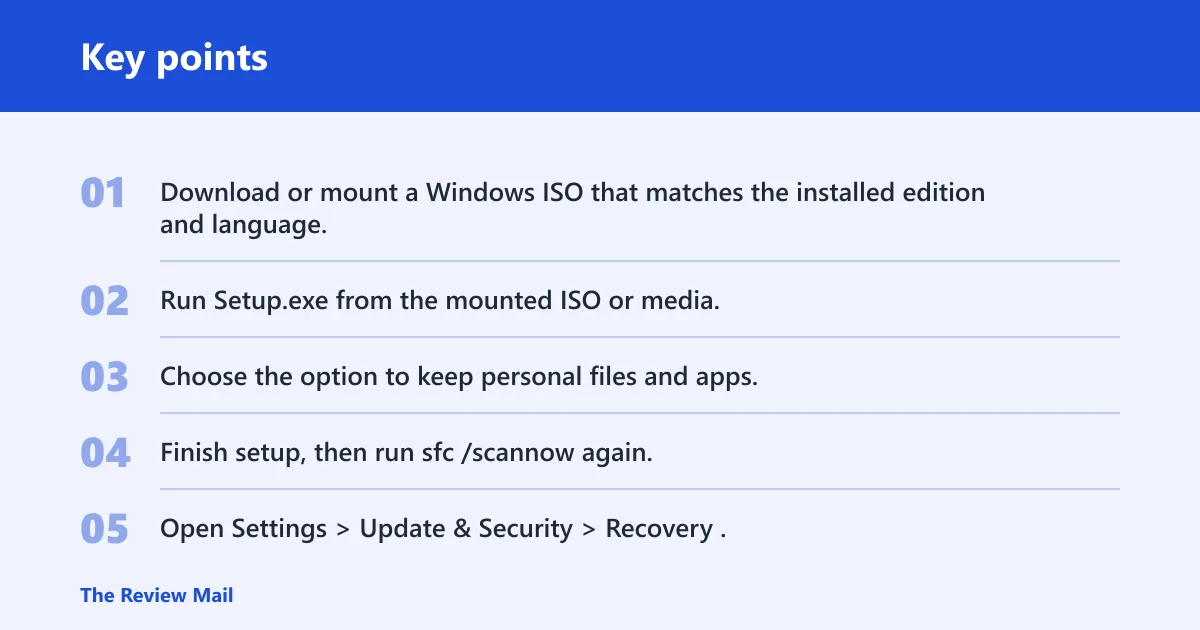
- Download or mount a Windows ISO that matches the installed edition and language.
- Run Setup.exe from the mounted ISO or media.
- Choose the option to keep personal files and apps.
- Finish setup, then run
sfc /scannowagain.
This is the right choice when registry or system image damage keeps returning after standard repair tools.
Choose reset only when repair is no longer enough
- Open Settings > Update & Security > Recovery.
- Select Reset this PC.
- Choose whether to keep files or remove everything.
- Use this only after repair install fails or the system remains unstable.
Before any manual Registry Editor change
- Open regedit from the Start menu.
- Select the key you plan to change.
- Choose File > Export and save a .reg backup.
- Import the backup later with reg import backup.reg if needed.
A common first-timer mistake is editing registry values before exporting the key. That removes your fastest rollback path.
Frequently asked questions
Can I repair registry problems without reinstalling Windows?
Often yes. Start with SFC and DISM, then use System Restore if a restore point exists. If those do not work, an in-place repair install keeps files and apps while replacing damaged Windows components. A full reset is the next step only when repair install fails.
Should I run SFC or DISM first for registry errors?
Run SFC first. Use sfc /scannow in an elevated window because it checks protected system files before you move on to image repair. If SFC reports corruption it cannot fix, run Dism /Online /Cleanup-Image /RestoreHealth and then run SFC again.