Can’t Connect to the Network Windows 11?
If Windows 11 can’t connect to one network, check the saved profile, adapter, DNS/TCP-IP stack, then the router in that order; if multiple networks fail on one PC, suspect the adapter or network stack first. Skipping the pattern wastes time on fixes that cannot work. This guide gives a symptom-first decision tree for sign-in, adapter, DNS, IP, and router faults.
What this error usually means
This message usually means Windows can see the network but fails at one step in the wireless handshake, saved sign-in, or address setup. It does not tell you whether the problem is the password, the adapter, the DNS cache, or the router. On Windows 11, start by running the automated Network and Internet troubleshooter in the Get Help app.
Suppose a laptop connects to Ethernet but not Wi‑Fi, while a phone reaches the same router just fine. That pattern points away from the ISP and toward the laptop’s profile, adapter, or network stack. A different pattern, such as every device failing on the same SSID, points the other way.
📊 Microsoft’s Wi-Fi guide applies to both Windows 10 and Windows 11. Source: Microsoft.
Likely causes
Most often, the saved Wi‑Fi profile is stale or the password changed after Windows stored it. Next in line are adapter state or driver problems. Less commonly, DNS, TCP/IP, or IPv6 mismatch blocks traffic after the link comes up. If several devices fail, the router, modem, or ISP becomes the stronger suspect.
Which fix to try first?
| Symptom | Likely cause | Fastest test | Next action |
|---|---|---|---|
| Hidden network appears but will not join | SSID or security mismatch, or discovery setting issue | Confirm the exact SSID and type it manually | Remove the saved profile, then reconnect; check the router’s broadcast setting |
| iPhone hotspot fails while other Wi‑Fi works | Band, hotspot mode, or saved hotspot profile | Turn the hotspot off and back on, then reconnect to the hotspot name | Remove the hotspot profile and try 2.4 GHz if available |
| Fails during setup or installation | No driver, no saved profile, or offline setup path problem | Check whether the adapter is visible in setup or Device Manager | Use the built-in troubleshooter or finish setup offline, then install the driver |
| Password was changed recently | Saved profile no longer matches the router | Disconnect, then reconnect and re-enter the password | Remove the network first if the prompt loops |
| Works on another device but not this PC | Adapter, driver, or TCP/IP issue on this PC | Test the adapter state and open the troubleshooter | Reset the adapter driver or the network stack |
Saved network and profile fixes
A saved profile fault is the best match when Windows sees the SSID, asks for a password, then fails again after reconnecting. This also helps after a password change or after the profile has become corrupted.
- Open Settings > Network & internet > Wi‑Fi.
- Select Manage known networks.
- Choose the network, then select Forget.
- Return to Quick Settings from the network icon, pick the SSID, and select Connect (reported by windowscentral.com).
- Enter the current password, then try the connection again.
- If Windows asks whether the device should be discoverable, choose Private for a trusted home or work network and Public for a network you do not trust.
For a home network, Settings > Network & internet > Wi‑Fi > Properties lets you check the Network profile type. Public limits discovery and trust more aggressively than Private, so a profile mismatch can complicate file sharing and some login flows on local networks.
Wi-fi adapter and driver fixes
When only this PC fails on several networks, the adapter or its driver moves up the list. Find it in Device Manager > Network adapters. The name may look like Intel(R) Wi‑Fi 6 AX201, Realtek 8852AE, or a manufacturer-specific model. Its job is the wireless handshake; if Windows has disabled it, the connection can fail before authentication starts.
- Right-click Start, open Device Manager, then expand Network adapters.
- Check whether the Wi‑Fi adapter shows a down-arrow icon, warning symbol, or is missing.
- Right-click the adapter and choose Enable device if it is disabled.
- If the problem started after an update, choose Properties > Driver and check the driver version.
- Use Roll Back Driver if the last update broke connectivity, or Update driver if the version is old.
- If needed, choose Uninstall device, then restart the PC and scan for hardware changes in Device Manager > Action > Scan for hardware changes.
The built-in troubleshooter can also catch basic radio and adapter faults. If you are using Windows 11, open the Get Help app and run the automated Network and Internet troubleshooter.
Why Windows 11 says it can’t connect
The message often appears after a password change, a Windows Update, or a driver glitch. In those cases, the profile points to an old key, the adapter rejects the handshake, or the router refuses the device’s current security exchange. If the error appears only on one access point, the access point settings may be blocking the current band or security mode.
- Open the Wi‑Fi list from Quick Settings, select the network, and reconnect with the current password (reported by windowscentral.com).
- If the password prompt loops, open Settings > Network & internet > Wi‑Fi > Manage known networks, choose the network, select Forget, and reconnect.
- Open Settings > Network & internet > Wi‑Fi and confirm the profile type matches the network’s trust level.
- Open Device Manager and confirm the Wi‑Fi adapter is enabled.
Say your PC joins the office guest network but not the home SSID after the router password changed last night. That points to the saved profile first, not the modem. Change only that profile before moving on to driver work.
DNS and TCP/IP fixes
If Windows shows as connected but pages still fail, or the sign-in succeeds and then stalls, the next layer is DNS or the TCP/IP stack. Use an elevated Command Prompt, because these commands need administrator rights. Stale DNS records, a broken Winsock catalog, or a stuck IP lease can all leave the radio link up while traffic still dies.
- Open Command Prompt as administrator.
- Run
ipconfig /release. - Run
ipconfig /flushdns. - Run
ipconfig /renew. - Run
netsh winsock reset. - Run
netsh int ip reset. - Restart the PC and test the network again.
ipconfig /release
ipconfig /flushdns
ipconfig /renew
netsh winsock reset
netsh int ip reset
If the adapter connects but only certain sites fail, the DNS cache is a stronger suspect than the router. If the network fails in the same way after these commands, move to IPv6 compatibility and router-side checks.
Router, hotspot, and setup-time fixes
If multiple devices fail on the same network, the router or ISP moves up the list. Power-cycle the modem and router in the correct order: unplug both, wait about 30 seconds, plug the modem back in first, wait until it is ready, then plug in the router. A cable modem/Wi‑Fi router combo needs only one device reset sequence.
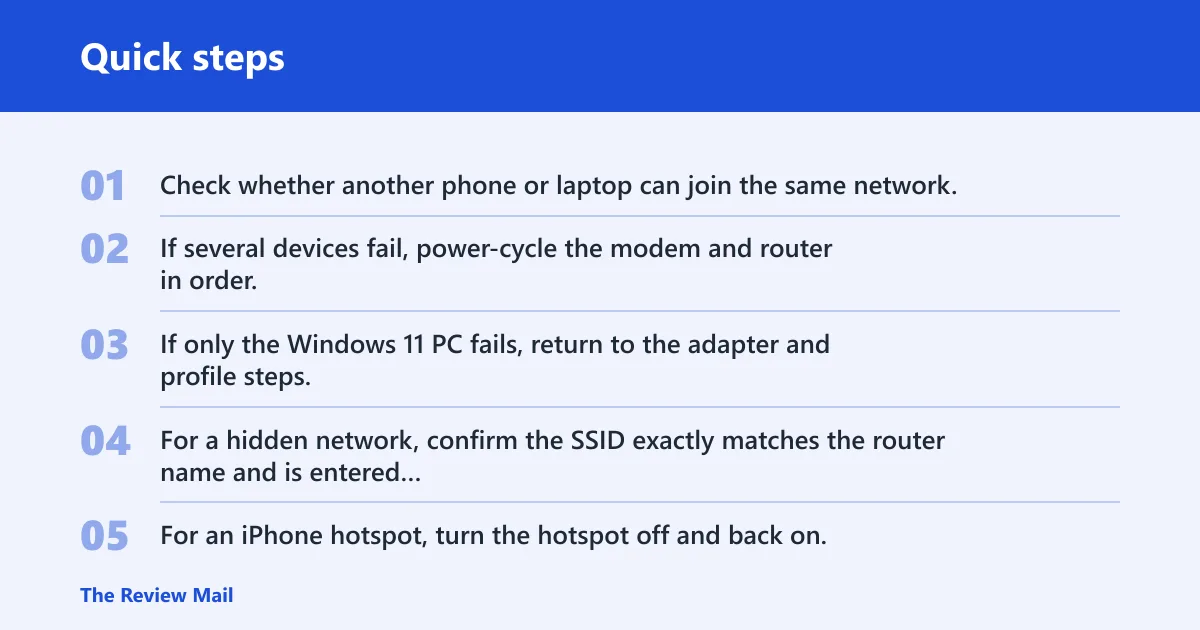
- Check whether another phone or laptop can join the same network.
- If several devices fail, power-cycle the modem and router in order.
- If only the Windows 11 PC fails, return to the adapter and profile steps.
- For a hidden network, confirm the SSID exactly matches the router name and is entered manually.
- For an iPhone hotspot, turn the hotspot off and back on, then reconnect to the hotspot SSID.
- During setup or installation, use the built-in troubleshooter path if it is available, then finish setup once the adapter is recognized.
IPv6 check: if the router or ISP has compatibility trouble, open the adapter properties and clear the IPv6 checkbox, then test again. Some networks work better on IPv4 fallback. Turn it back on later if the connection improves or if the network requires IPv6.
Still not working?
If the same PC fails on every network, and the issue survives a profile reset, driver reinstall, and TCP/IP reset, the fault is likely deeper in the adapter, Windows networking stack, or firmware. At that point, use Settings > Network & internet > Advanced network settings > Network reset, then reinstall the Wi‑Fi driver if needed. If it still fails, the adapter hardware may need vendor support or replacement.
Prevention is simple here: after a router password change, remove the old profile before reconnecting so Windows does not keep trying stale credentials.
Frequently asked questions
How do I fix can’t connect to this network on Windows 11?
Start with the saved profile: Settings > Network & internet > Wi‑Fi > Manage known networks, select the SSID, and choose Forget. Then reconnect from Quick Settings, re-enter the password, and only then move to adapter or TCP/IP fixes if the same error returns.
Why does Windows 11 say it can’t connect to this network?
The usual causes are a mismatched saved password, a disabled adapter, or a failed handshake at the router. If the message appears after a password change, remove the network and reconnect. If it appears across several SSIDs, open Device Manager and check the Wi‑Fi adapter status.
What should I try first when Windows 11 won’t connect to Wi‑Fi?
On Windows 11, run the automated Network and Internet troubleshooter in the Get Help app first. After that, check whether Airplane mode is off, then remove the network and reconnect if needed.
How do I reset TCP/IP and flush DNS on Windows 11?
Open Command Prompt as administrator and run ipconfig /flushdns, netsh winsock reset, and netsh int ip reset, then restart. If the adapter is connected but traffic still fails, add ipconfig /release and ipconfig /renew before rebooting.
Why can Windows 11 connect on another device but not this PC?
That pattern usually points to the PC, not the router. Check the Wi‑Fi adapter in Device Manager > Network adapters, confirm it is enabled, then install the latest driver or roll back to the previous one. If that does not help, reset the TCP/IP stack and test again.
What if Windows 11 can’t connect during setup or installation?
During setup, the Wi‑Fi driver may not be loaded yet, so the network list can fail or stay empty. Use the built-in troubleshooter if it is available, or finish setup offline, then install the adapter driver once Windows reaches the desktop. If the adapter is missing in Device Manager, the driver is the first thing to fix.