Fix Wi‑Fi Connections Windows 10: Which Fix Fits?
To fix Wi‑Fi connections in Windows 10, start with the symptom: missing Wi‑Fi usually means an adapter or service issue, disconnecting points to power or driver trouble, and limited access often calls for a network reset or IP renewal. Using the wrong fix wastes time and can keep you offline longer. This guide routes you to the right Windows 10 fix in a few minutes.
What your Wi‑Fi symptom means
Start with the symptom, not a random checklist. Windows can fail in different places: it may hide the Wi‑Fi adapter, fail to join a saved network, show a connection with no internet, or drop off after a few minutes. The fastest safe first step is usually the built-in Network troubleshooter from Settings > Network and Internet > Status, which can try automatic fixes on both Windows 10 and Windows 11 devices (per Microsoft support).
Likely causes
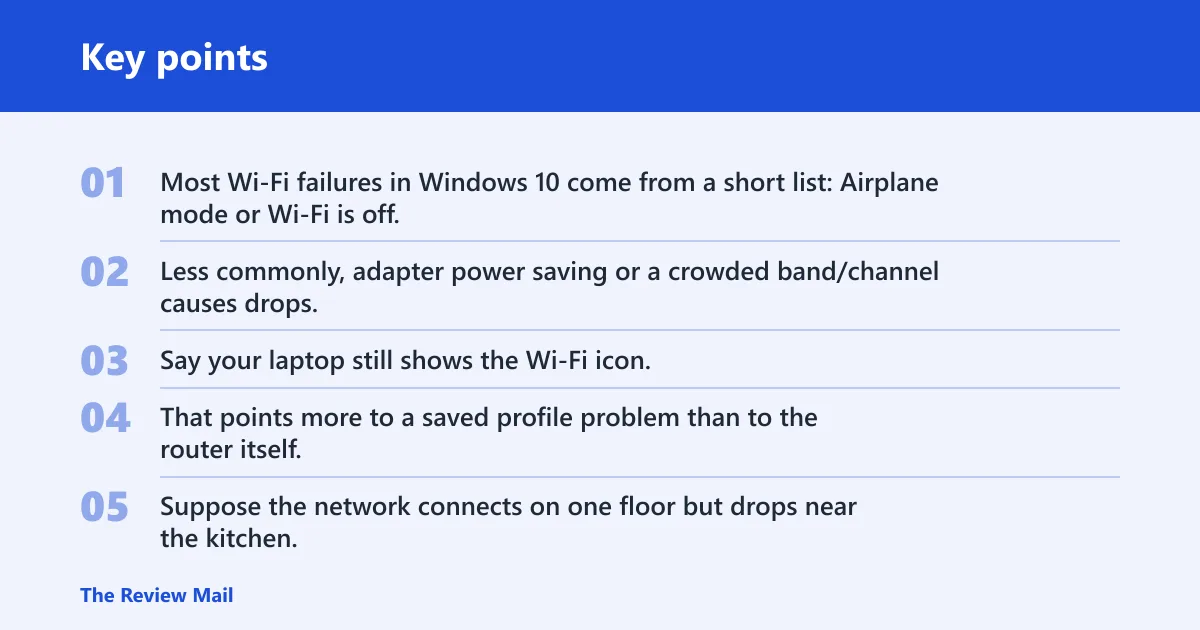
Most Wi‑Fi failures in Windows 10 come from a short list: Airplane mode or Wi‑Fi is off, the saved profile or password is stale, the router or modem needs a reboot, the adapter driver is damaged or out of date, or the TCP/IP stack needs a reset. Less commonly, adapter power saving or a crowded band/channel causes drops.
Say your laptop still shows the Wi‑Fi icon, but every saved network fails at the password prompt. That points more to a saved profile problem than to the router itself. Suppose the network connects on one floor but drops near the kitchen. That points more to signal or band congestion than to the password.
📊 Microsoft’s guide applies to both Windows 10 and Windows 11. Source: Microsoft.
Why won’t Wi‑Fi connect?
If Windows sees the network but will not join it, the usual culprits are a bad saved profile, a stale password, or a router that needs a clean restart. Microsoft recommends forgetting the saved Wi‑Fi network and reconnecting, and its support flow also points to the Network troubleshooter from Settings > Network and Internet > Status as an early step (per Microsoft support).
First fix: forget the network and reconnect
- Open Settings > Network & Internet > Wi‑Fi > Manage known networks.
- Select the failing network and choose Forget.
- Return to the Wi‑Fi list from the taskbar network icon.
- Select the network again and enter the password carefully.
- If the sign-in page appears, complete any browser registration before retrying the connection. Public Wi‑Fi often needs that extra step.
If that fails: restart modem and router in the right order
- Unplug the power cable from the modem and router.
- Wait at least 30 seconds. (Microsoft Support)
- Plug the modem back in first.
- Wait for its lights to settle, then plug in the router.
- If the device is a combo modem/router, a single power cycle is enough. Some modems also have a backup battery, so remove that if the unit still stays on.
If it still fails: update or reinstall the adapter driver
- Right-click Start and open Device Manager.
- Expand Network adapters.
- Right-click the Wi‑Fi adapter and choose Update driver.
- If Windows finds nothing useful, get the newest driver from the PC maker or adapter maker and install that instead.
- If the adapter still behaves badly, choose Uninstall device, then restart and let Windows reinstall it.
Why does my PC not have a Wi‑Fi option?
When the Wi‑Fi toggle or network list disappears, the adapter is often disabled, hidden, or missing its driver. Check Airplane mode in Settings > Network & Internet > Airplane mode, because that switch can block wireless access entirely. Windows usually shows Wi‑Fi networks in the system tray when the adapter is active (per Microsoft support and Trusted Reviews).
First fix: confirm Airplane mode and Wi‑Fi
- Open Settings > Network & Internet > Airplane mode.
- Turn Airplane mode off.
- Open Settings > Network & Internet > Wi‑Fi.
- Turn Wi‑Fi on.
- Check the system tray network icon again.
If that fails: re-enable the adapter in Device Manager
- Open Device Manager.
- Expand Network adapters.
- Look for the wireless adapter and right-click it.
- If it is disabled, choose Enable device.
- If it is missing or has an error mark, install the correct driver from the PC maker or adapter maker.
If it still fails: check driver installation and power settings
- In Device Manager, right-click the Wi‑Fi adapter and open Properties.
- On the Power Management tab, clear the box that lets the computer turn off the device to save power.
- Restart the PC.
- If the adapter still does not appear, install the OEM driver package, not just the default Windows driver.
Why does it say connected but no internet?
“Connected, no internet” usually means the Wi‑Fi link exists but routing, DNS, or IP assignment has failed. Microsoft notes that the moving signal bar means the device is still connecting, and its support flow starts with the Network troubleshooter before moving to general troubleshooting steps (per Microsoft support).
First fix: run the Network troubleshooter
- Open Settings > Network & Internet > Status.
- Select Network troubleshooter.
- Let Windows diagnose and apply any automatic fixes.
- Reconnect to the Wi‑Fi network if prompted.
If that fails: reset TCP/IP and Winsock
- Open Command Prompt as administrator.
- Run the commands below in order.
- Restart the PC after the commands finish.
netsh winsock reset
netsh int ip reset
If it still fails: check the router and IP assignment
- Restart the modem and router using the 30-second power cycle.
- Open the Wi‑Fi status page and reconnect to the network.
- If the network is public, complete any browser sign-in page before retrying normal browsing.
- If the PC still shows no internet, test another device on the same network to separate a Windows problem from a router problem.
Wi‑Fi decision table
| Symptom | Most likely cause | First fix | If that fails |
|---|---|---|---|
| No Wi‑Fi option | Airplane mode on, adapter disabled, or driver missing | Settings > Network & Internet > Airplane mode, then Device Manager | Install the OEM Wi‑Fi driver and check Power Management |
| Can’t connect | Saved profile or password mismatch | Forget the known Wi‑Fi network and reconnect | Restart modem first, then router |
| Connected but no internet | IP, DNS, or router assignment failure | Run the Network troubleshooter | Reset TCP/IP with netsh winsock reset and netsh int ip reset |
| Frequent disconnects | Power saving, driver fault, or weak signal | Change adapter Power Management settings | Try another band or channel on the router |
| Unidentified network | Addressing or profile problem | Reset TCP/IP and reconnect | Forget the profile, then reinstall the adapter driver |
| Slow Wi‑Fi | Congestion or poor band choice | Move to another Wi‑Fi band | Change the router channel or test a different network |
Driver and power settings
Driver problems are common, but the fix is not always “update.” If Windows Update already has a stable driver, leave it alone. If the adapter started failing after a new driver, roll it back. If the driver looks corrupted or missing, uninstall it and let Windows reinstall it, or use the PC or adapter maker’s download when Windows cannot find the right package. Trusted Reviews notes that driver updates are found in Device Manager under Network Adapters.
Update, roll back, or reinstall
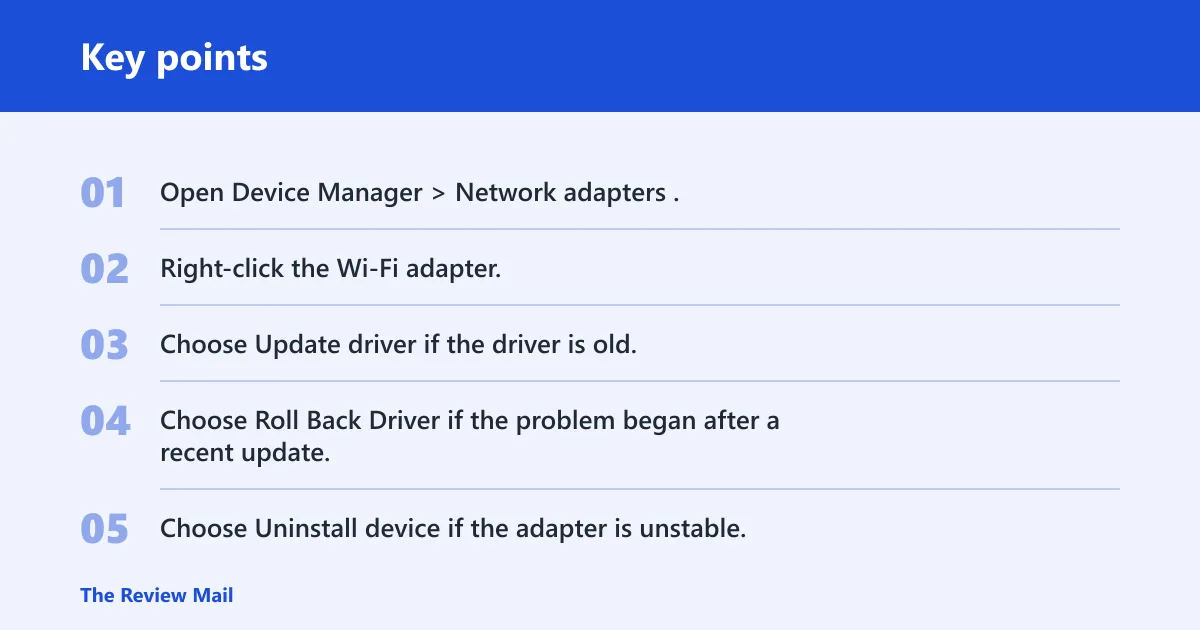
- Open Device Manager > Network adapters.
- Right-click the Wi‑Fi adapter.
- Choose Update driver if the driver is old.
- Choose Roll Back Driver if the problem began after a recent update.
- Choose Uninstall device if the adapter is unstable, then restart and scan for hardware changes.
Fix power saving on laptops
- In Device Manager, open the Wi‑Fi adapter Properties.
- Open the Power Management tab.
- Clear the option that lets Windows turn off the adapter to save power.
- Check battery and plugged-in behavior separately, because the fault can appear only on battery.
Use the manufacturer driver when Windows stalls
- Go to the PC maker’s support page or the Wi‑Fi adapter maker’s support page.
- Download the Windows 10 driver that matches the exact adapter model.
- Install it, then restart the PC.
- Open the Wi‑Fi list again and reconnect to the network.
Still not working?
If the first fixes do not help, move to the next layer: try another Wi‑Fi band or channel, then test the PC on a different network to isolate the fault. Dual-band routers can move a device from a crowded 2.4 GHz band to a cleaner 5 GHz band, and a different channel can help when congestion is the problem. If the PC still cannot stay connected, use the network reset path in Settings > Network & Internet > Status > Network reset, then reinstall the adapter driver if needed.
Try another band or channel
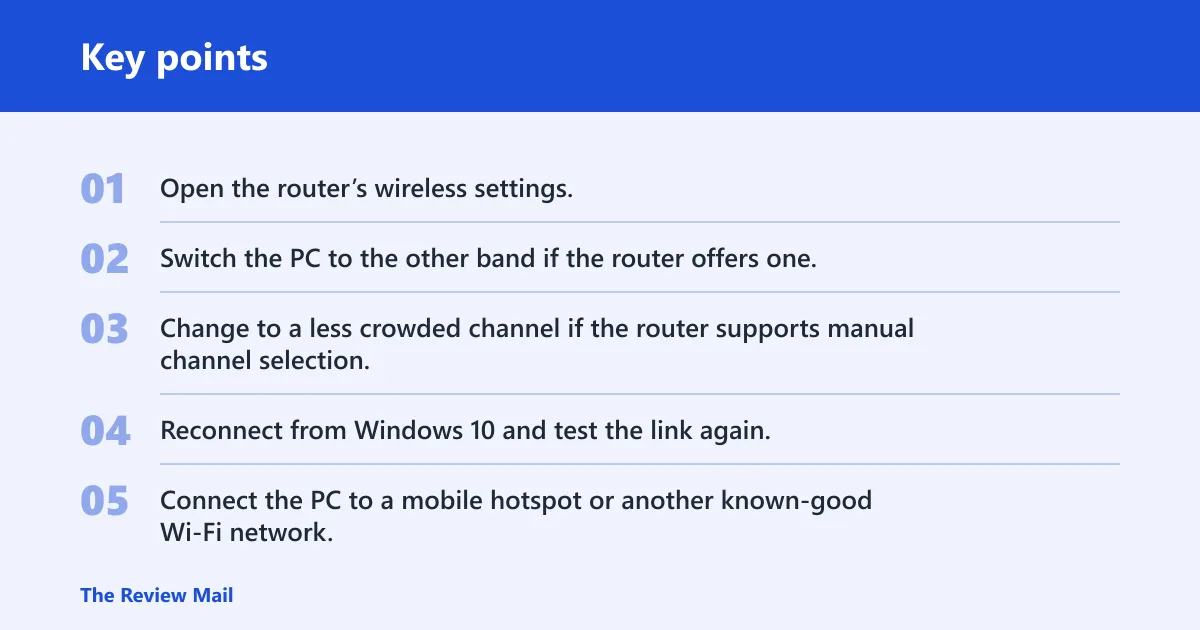
- Open the router’s wireless settings.
- Switch the PC to the other band if the router offers one.
- Change to a less crowded channel if the router supports manual channel selection.
- Reconnect from Windows 10 and test the link again.
Use a different network to isolate the fault
- Connect the PC to a mobile hotspot or another known-good Wi‑Fi network.
- If it works there, the PC is probably fine and the original router or ISP path is the problem.
- If it fails everywhere, focus on the adapter, driver, or power settings.
- If needed, run Settings > Network & Internet > Status > Network reset and then reinstall the Wi‑Fi driver.
Prevention: keep the OEM Wi‑Fi driver current on laptops, and avoid letting the adapter power down on battery if disconnects appear only when unplugged.
Frequently asked questions
Why does my pc not have wifi option?
Check Settings > Network & Internet > Airplane mode first, then open Device Manager > Network adapters. If the wireless adapter is disabled, enable it. If it is missing, install the correct driver from the PC maker or adapter maker and check the adapter’s Power Management tab.
Why won’t my computer stay connected to wifi?
That pattern usually points to adapter power saving, weak signal, or a driver issue. Clear the option that lets Windows turn off the adapter to save power in Device Manager, then try another Wi‑Fi band. If disconnects continue, roll back or reinstall the wireless driver.
How to fix wifi unidentified network windows 10
Reset the network stack with netsh winsock reset and netsh int ip reset, then restart. If the network still appears as unidentified, forget the saved Wi‑Fi profile and reconnect. A router reboot can also clear a bad address assignment.