Windows 11 Network Error
A Windows 11 network error usually comes from one failed layer: Wi‑Fi association, IP/DNS, or file-sharing access. Fix the layer that matches the symptom. Skipping that split often wastes time and leaves you connected to the router but still unable to browse, sign in, or open shared files. This guide maps the error by symptom and gives the exact fixes for each layer.
What this network error means
A generic Windows 11 network error is a symptom, not one fault. The same popup can mean a saved Wi‑Fi profile problem, an adapter driver fault, a bad IP or DNS lease, a router issue, or a file-sharing problem on another PC. Match the wording to the layer that actually failed.
Likely causes, ranked
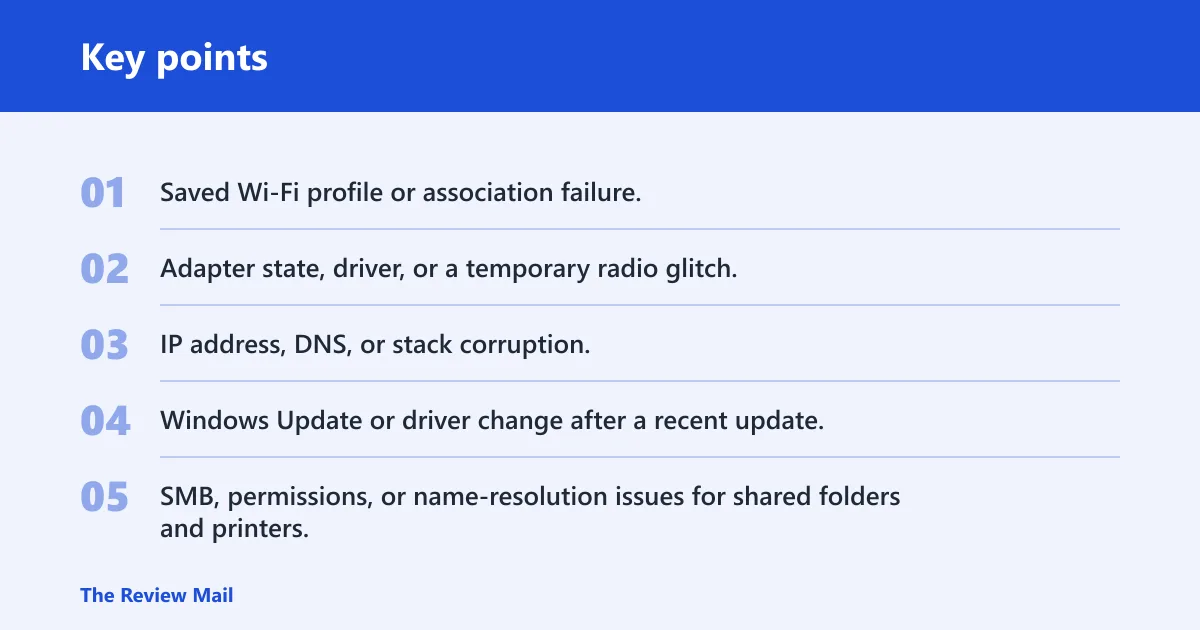
- Saved Wi‑Fi profile or association failure.
- Adapter state, driver, or a temporary radio glitch.
- IP address, DNS, or stack corruption.
- Windows Update or driver change after a recent update.
- SMB, permissions, or name-resolution issues for shared folders and printers.
- Router or modem-router trouble when more than one device is affected.
Say your laptop shows No Internet, secured while another phone on the same SSID browses normally. That points away from the router and toward the PC’s Wi‑Fi layer or DNS. A common first-timer mistake is to reboot the router first and skip the saved-network profile, which is often the faster repair.
Windows 11 network error table
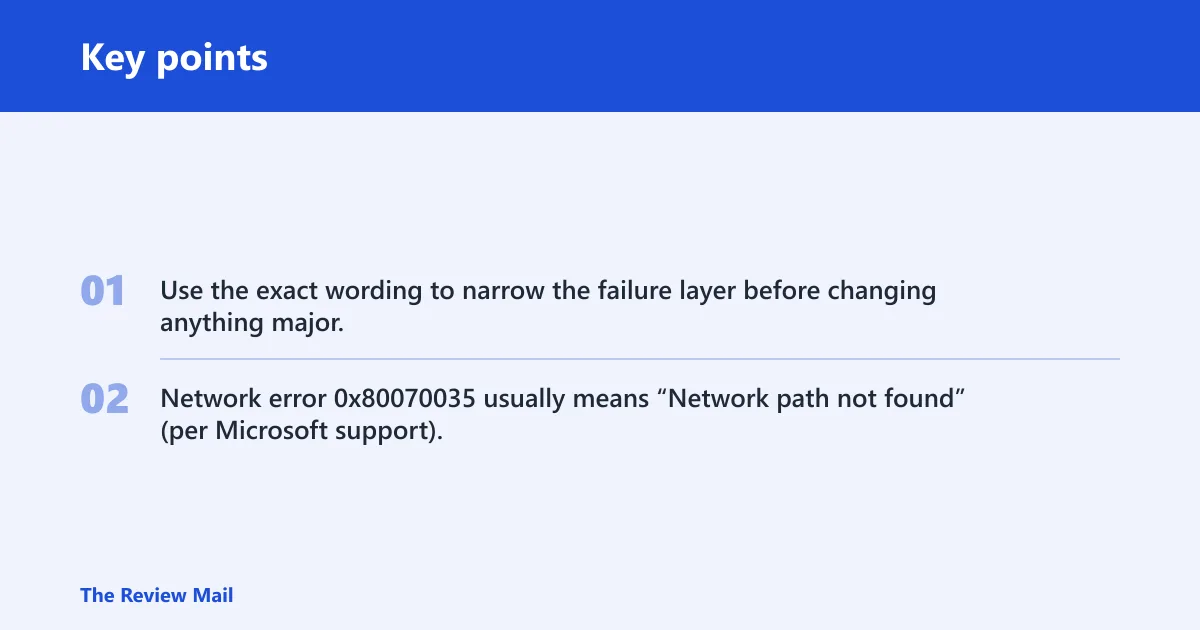
Use the exact wording to narrow the failure layer before changing anything major. Network error 0x80070035 usually means “Network path not found” (per Microsoft support), and that points more toward sharing, permissions, or name resolution than plain Wi‑Fi loss. (Microsoft Learn)
| Exact error wording | Most likely layer | Fastest safe test | Next action |
|---|---|---|---|
| Can’t connect to this network | Saved Wi‑Fi profile or adapter association | Forget the network, then reconnect | Check the Wi‑Fi driver or adapter state |
| No Internet, secured | IP/DNS or router uplink | Open a web page on another device on the same Wi‑Fi | Reset TCP/IP or test DNS, then check the router |
| Wi‑Fi connected but no internet | DNS, lease, or router WAN issue | Switch to a phone hotspot | Renew the lease and verify router status |
| Network cable unplugged | Ethernet link or adapter | Reseat the cable and try a different port | Update or reinstall the adapter driver |
| Windows cannot access \\PC\Share | SMB permissions or name resolution | Open the share by IP address | Check sharing permissions and credentials |
| The network path was not found | SMB path, name resolution, or sharing service | Ping the host by name and by IP | Review file sharing, SMB settings, or the host PC |
0x80070035 | SMB share path or access layer | Try the same path from another PC | Check permissions, credentials, and SMB support |
| Internet access blocked after update | Driver or Windows update change | Roll back the network driver | Check Windows Update and reinstall the adapter driver |
How do you fix Wi‑Fi connection errors?
Start here when the PC can see the network but will not join it, or when the connection drops at the sign-in stage. These steps address association, adapter state, and the local Wi‑Fi profile. Guiding Tech lists six fixes for this family of errors, including forget-and-reconnect, the troubleshooter, disabling IPv6, toggling the adapter, and checking driver updates; MakeUseOf says the error is common on Windows 11.
- Turn Airplane mode on, wait three to five seconds, then turn it off. That clears a stuck wireless radio state and forces Windows to renegotiate the link.
- Go to Settings > Network & internet > Wi‑Fi, then open Manage known networks. Select the affected SSID and choose Forget.
- Reconnect from Settings > Network & internet > Wi‑Fi and enter the password again.
- Open System > Troubleshoot > Other troubleshooters, then run Network and Internet (per Microsoft support and Guiding Tech).
- If the same SSID fails on another device too, power-cycle the router or modem-router. If only this PC fails, stay on the PC-side steps.
Suppose a guest laptop joins a coffee shop Wi‑Fi but gets bounced back after the password prompt. Forgetting the saved profile can clear a stale security handshake. If the network is a guest or managed network, policy can still block the device even when the password is correct.
How do you fix IP or DNS errors?
Use this branch when the network shows connected status but web pages fail, or when a name opens by IP but not by hostname. That pattern points to IP or DNS trouble more than Wi‑Fi association. A quick check on another device helps separate a local lease problem from an outage on the router or upstream service.
- Open Command Prompt as administrator.
- A common troubleshooting step is to run these commands in order:
ipconfig /release
ipconfig /flushdns
ipconfig /renew
netsh winsock reset
netsh int ip reset
- Restart the PC after the reset commands finish.
- If the problem began after a recent change, go to Settings > Network & internet > Advanced network settings and confirm the adapter is enabled.
- For a short test, open the adapter properties and disable IPv6. Reconnect, then re-enable it if the test does not help. Guiding Tech and MakeUseOf both include disabling IPv6 as a fix.
Use Settings > Network & internet > Advanced network settings when the adapter is present but traffic stalls after sign-in. If the PC gets an address in a 169.254.x.x range, the DHCP lease did not arrive correctly, which is a stronger sign that IP setup needs attention than Wi‑Fi itself.
How do you fix access and sharing errors?
This branch is for shared folders, printers, mapped drives, and similar SMB-style failures. If the message says Windows cannot access or network path not found, the break may be on the other computer, in permissions, or in name resolution. That is different from a plain Wi‑Fi join failure.
- Confirm the target device is awake and on the same network.
- Try the share by IP address instead of the name.
- Check the username and password for the shared folder. Microsoft support specifically says to use the correct credentials, and if the share is on another computer, try the local account on that computer.
- On the host PC, review sharing and permissions for the folder or printer.
- If the share is older or the environment requires it, open Control Panel > Programs > Enable or disable Windows features, check SMB 1.0/CIFS file sharing support, click OK, and restart. Use this only when the share truly depends on it.
Enterprise and domain networks add another layer. Guest networks can block file sharing by design, adapter policies can limit access, and domain permissions can override local settings. If other internet traffic works but a mapped drive fails, the router is probably not the real problem.
How do you fix a post-update network problem?
If the failure began right after a Windows Update or driver update, treat the update as the trigger until proven otherwise. The most useful clue is timing: if the network worked before restart and failed right after the new build or driver loaded, the adapter driver or a Windows networking change is a better suspect than the router. MakeUseOf includes checking another device on the same network, updating the driver in Device Manager, rolling back a driver after an update, uninstalling the driver, and reinstalling it.
- Open Settings > Windows Update and check for updates. Install any networking or cumulative fixes.
- Open Device Manager > Network adapters, open the Wi‑Fi adapter, and choose Update driver.
- If the issue started after an update, choose Roll Back Driver if available.
- If rollback is not available, choose Uninstall device, then scan for hardware changes so Windows reinstalls it.
- Open Settings > Network & internet > Advanced network settings and check whether the adapter is disabled or missing.
Guiding Tech also recommends checking driver updates as a final fix, and that order makes sense after the faster Wi‑Fi and IP checks fail. If the adapter disappears after a Windows update, a driver reinstall is more likely to help than another router restart.
Still not working?
If none of the local fixes work, move outward in this order: another device on the same network, the router or modem-router, then the ISP or IT admin. A router restart helps when multiple devices fail together, when the SSID is visible but no client gets through, or when the modem-router has stale state. It is unlikely to help when only one PC fails and the others are fine.
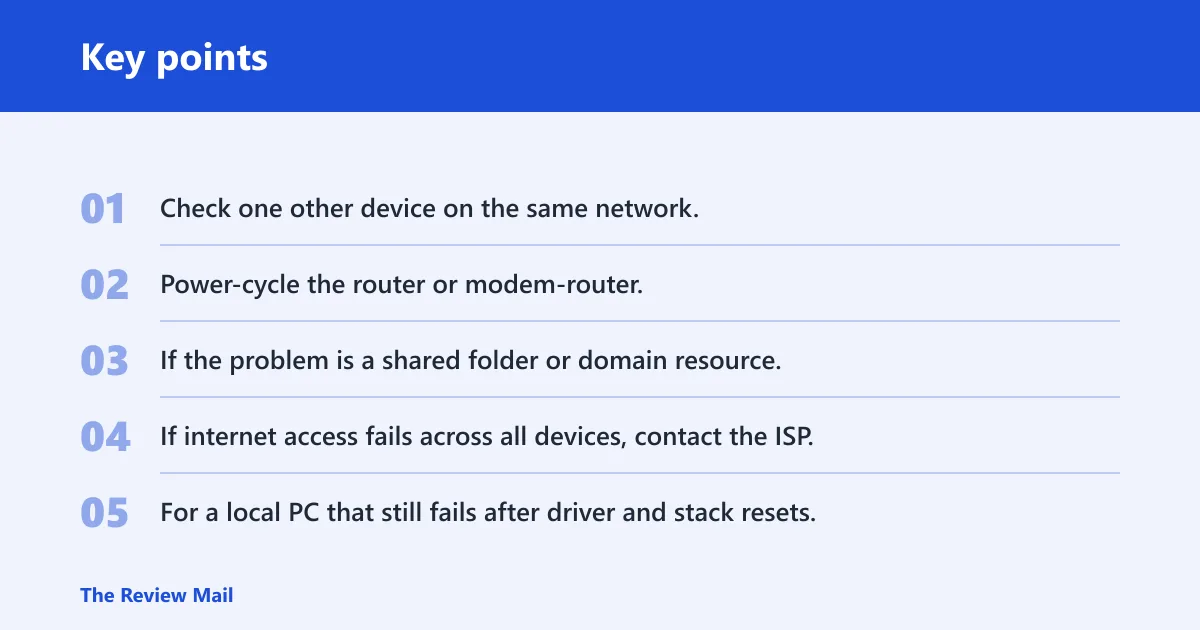
- Check one other device on the same network.
- Power-cycle the router or modem-router.
- If the problem is a shared folder or domain resource, contact the device owner or IT admin about permissions, guest access, or policy blocks.
- If internet access fails across all devices, contact the ISP.
- For a local PC that still fails after driver and stack resets, use Settings > Network & internet > Advanced network settings > Network reset as the next more invasive step.
Network reset:
Settings > Network & internet > Advanced network settings > Network reset
Frequently asked questions
How do I fix the Windows 11 network error?
Start with the layer that failed. If the PC will not join Wi‑Fi, forget the network and reconnect. If it joins but cannot browse, reset TCP/IP and DNS. If a shared folder fails, check permissions and the exact path. That order avoids changing settings that do not match the symptom.
Why does Windows 11 say it can’t connect to this network?
That wording usually points to a saved profile issue, a bad security handshake, or an adapter problem rather than a full router outage. Forget the network under Settings > Network & internet > Wi‑Fi > Manage known networks, then reconnect. If the same SSID fails on other devices, check the router next.
What should I do first when Windows 11 networking fails?
Turn Airplane mode on and off once, then check whether another device on the same network works. That tells you whether the failure is local or network-wide. After that, use Settings > Network & internet > Wi‑Fi to forget the profile if the issue is only on one PC.
How do I reset network settings in Windows 11?
Open Settings > Network & internet > Advanced network settings > Network reset. That removes and reinstalls network adapters and resets related settings. If you only need a lighter reset first, use netsh winsock reset and netsh int ip reset from an elevated Command Prompt, then restart.
Should I update or roll back my Wi-Fi driver for this error?
Update first if the driver is old or missing a vendor fix. Roll back if the problem began immediately after a driver or Windows update. If rollback is unavailable, uninstall the adapter in Device Manager > Network adapters and let Windows reinstall it. That sequence is safer than guessing.
Does disabling IPv6 help when Windows 11 can’t connect to Wi-Fi?
Sometimes. It is a useful test when Wi‑Fi connects but traffic stalls, or when DNS and lease resets do not help. Disable IPv6 in the adapter properties, reconnect, and then turn it back on if the test does not fix the issue. Do not leave it off without a reason.
How do I know if the problem is my PC or my router?
Check another device on the same network first. If that device also fails, the router or modem-router is more likely at fault. If the other device works and only the Windows 11 PC fails, focus on Wi‑Fi association, the adapter driver, or the IP and DNS stack on that PC.
What Windows 11 update or driver issue can cause network errors?
A new Windows Update can change the network stack or replace a driver in a way that breaks connectivity, especially if the issue starts right after reboot. In that case, check for updates, then use Device Manager to update, roll back, or reinstall the Wi‑Fi adapter driver before touching the router.
How do I troubleshoot a Windows 11 network error after an update?
Start with the timestamp. If the failure began after a Windows Update or driver install, open Settings > Windows Update, then check the adapter in Device Manager. If needed, roll back the driver, uninstall it, and let Windows reinstall it. That is the shortest path when the update is the trigger.