Windows 11 This App Has Been Blocked
“Windows 11 this app has been blocked” usually points to SmartScreen, UAC, Group Policy, or blocked file metadata, not one single error. Identify the source before you change security settings. Guessing wrong can leave the block in place, or weaken protections you still need. This guide shows how to tell which Windows control is stopping the app and what each one means.
How to identify the source of a Windows 11 app block
The same wording can come from different controls. A downloaded installer may be stopped by SmartScreen, a built-in app may be limited by policy, and a file copied from another PC may still carry metadata Windows treats with suspicion. The fix depends on where the block appears and what kind of app you opened.
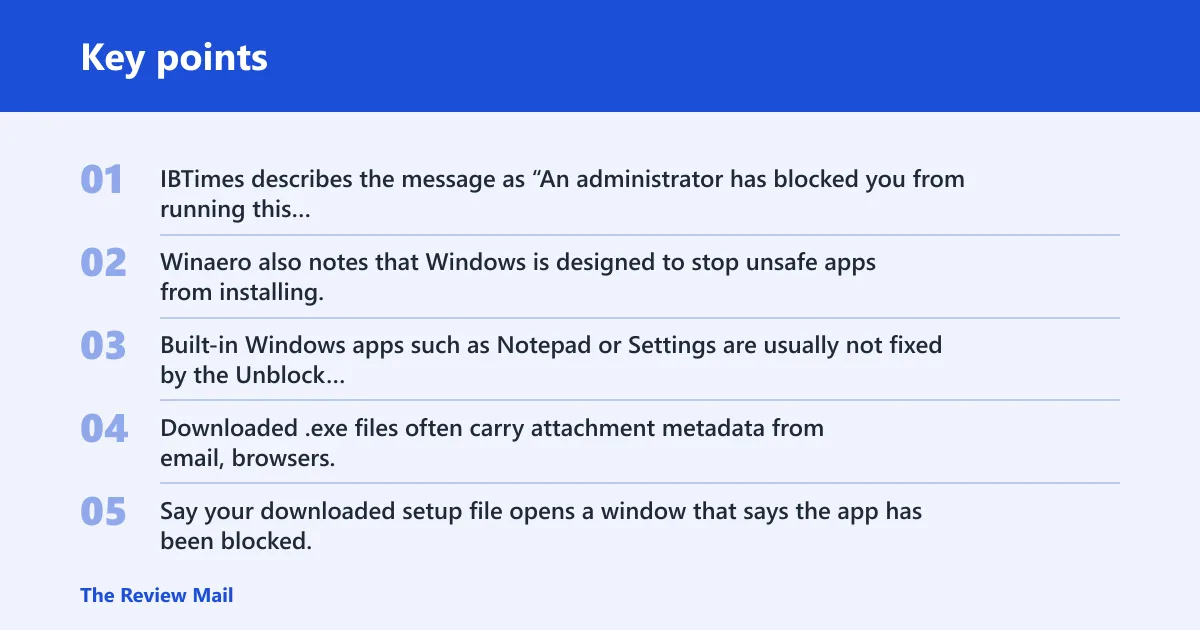
IBTimes describes the message as “An administrator has blocked you from running this app.” That wording matters because it often points to a policy or approval issue, not a damaged file. Winaero also notes that Windows is designed to stop unsafe apps from installing, which is why unknown or flagged files can be blocked before launch.
Built-in apps versus downloaded.exe files
Built-in Windows apps such as Notepad or Settings are usually not fixed by the Unblock checkbox, because that checkbox applies to downloaded source files. Downloaded .exe files often carry attachment metadata from email, browsers, or file transfers, and that metadata can trigger a block even when the file itself is fine.
Say your downloaded setup file opens a window that says the app has been blocked, but the same message does not appear when you launch a built-in app. That pattern points away from policy and toward SmartScreen, file metadata, or antivirus review.
When the block comes from policy, reputation checks, or file metadata
Policy blocks usually show up on managed or domain-joined devices, often with language about an administrator. Reputation checks come from Windows Security and are tied to SmartScreen. File metadata blocks are common with source files that still carry the downloaded-from-the-internet mark. Each one needs a different first check.
Blocked app troubleshooting matrix
| Symptom pattern | Likely blocker | Quickest safe check | Next step |
|---|---|---|---|
| Downloaded .exe shows a block when opened, especially after a browser download | SmartScreen or file attachment metadata | Check Windows Security > App & browser control, then right-click the file > Properties > General | If the file is trusted, use the Unblock checkbox on the source .exe and recheck the publisher before running it. Do not change UAC or Group Policy first. |
| Notepad, Settings, or another built-in app opens with an admin block message | Group Policy or admin approval rules | Look for the wording “blocked by your system administrator” and check whether the device is managed | Stop local changes and ask IT if the device is domain-joined. Do not change EnableLUA or disable security features to force the app open. |
| Microsoft Store app fails to launch after a setting change or security tweak | UAC or system-wide policy change | Check whether UAC was changed and whether the app depends on Microsoft Store/UWP behavior | Restore normal UAC behavior and restart. Do not change EnableLUA to 0 unless you understand it disables UAC system-wide. |
| The app is blocked on a work laptop, school device, or company image | Group Policy or administrator control | Confirm whether the PC is managed and whether the same app works on an unmanaged device | Ask IT for the approved method or allow list. Do not change local policy settings if the device is managed. |
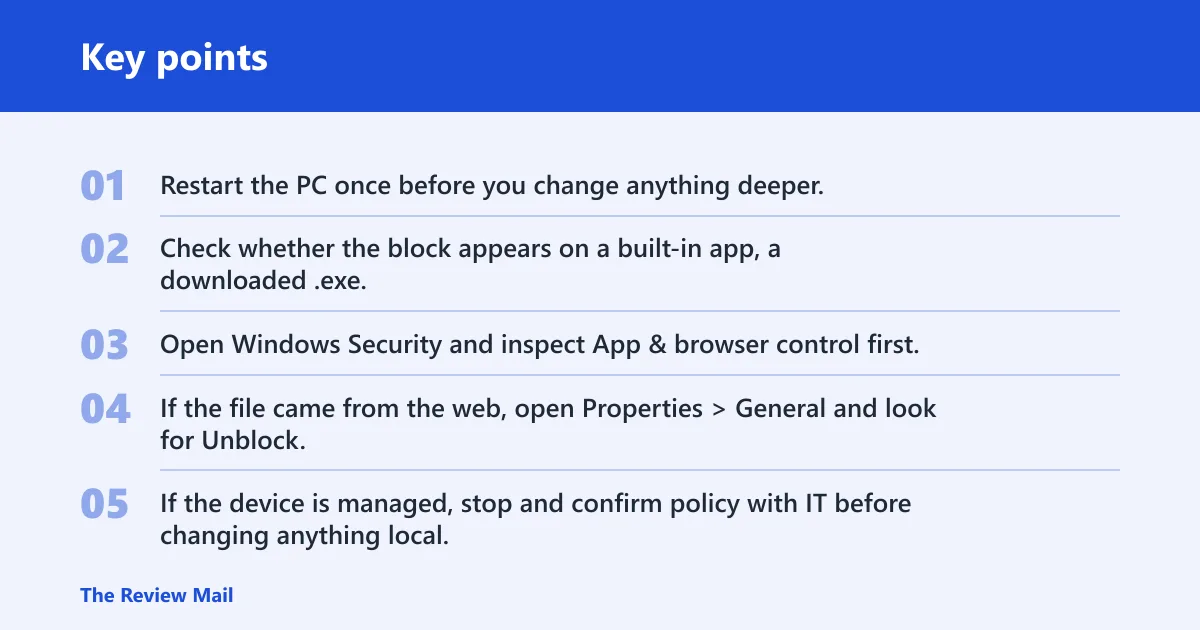
- Restart the PC once before you change anything deeper.
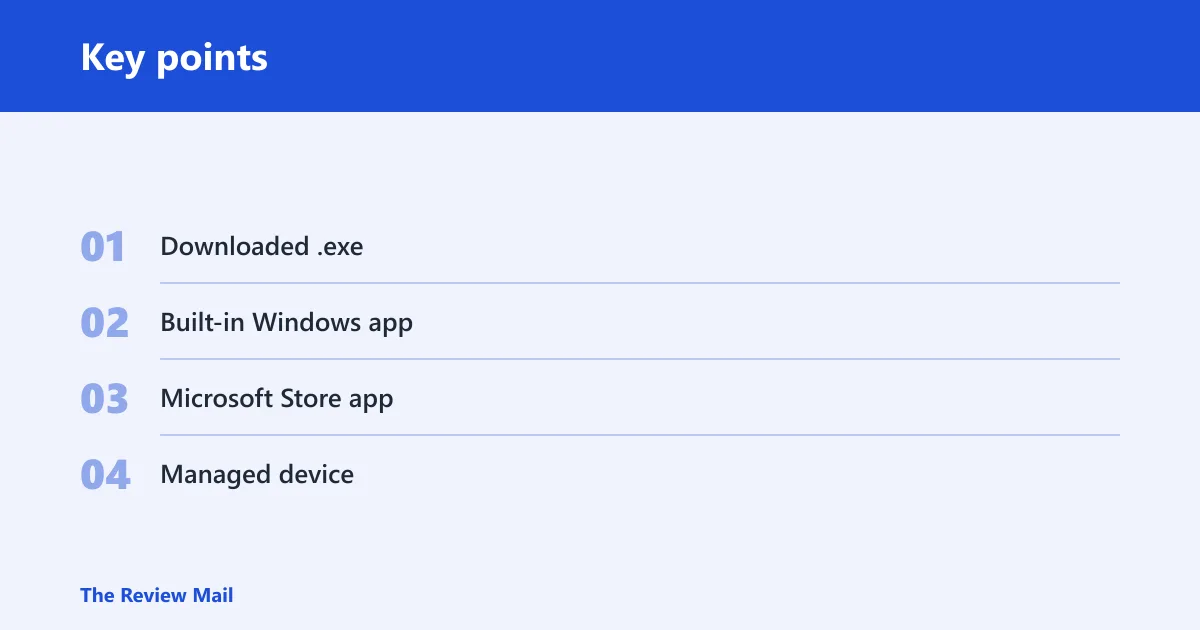
- Check whether the block appears on a built-in app, a downloaded .exe, a Microsoft Store app, or a managed device.
- Open Windows Security and inspect App & browser control first.
- If the file came from the web, open Properties > General and look for Unblock.
- If the device is managed, stop and confirm policy with IT before changing anything local.
Is SmartScreen causing the block?
SmartScreen is often cited as a common reason Windows 11 blocks an app with a warning about protection. It lives in Windows Security under App & browser control, and its reputation checks can stop unknown or flagged apps. For testing, you may switch it off briefly, then turn it back on after the check.
Where to check in Windows Security
Open Windows Security, go to App & browser control, then select Reputation-based protection settings. Also check Virus & threat protection if the app disappeared into Protection history instead of showing a SmartScreen prompt. Those two sections tell you whether the issue is reputation, malware detection, or something else.
If the block appears during launch and the page offers More info, that is a useful sign that SmartScreen is involved. In some cases Run anyway appears after you expand the warning, which means Windows is letting you make an informed decision. Use that only when the file source and publisher look credible.
How to confirm reputation-based protection
A SmartScreen block usually appears on a file you downloaded, copied, or received from outside the device, and the same app may work on another PC if reputation differs. It is less likely to be the cause if the message names a system administrator or if the app is a built-in Windows component with policy restrictions.
Suppose a 64-bit installer from a known vendor stops on first launch and shows a Windows Security warning. A second copy from the same site may behave the same way if reputation checks have not cleared yet. That pattern points more strongly to SmartScreen than to UAC.
How do you unblock a downloaded.exe?
To unblock a downloaded executable, open the source file’s properties, not a shortcut. Right-click the .exe, choose Properties, open the General tab, and look for Unblock. If the checkbox is there and the file source is trusted, apply it and try again.
The exact click path
Use Properties > General > Unblock. This applies to downloaded source files and other files with attachment metadata. It does not fix a shortcut on the desktop, and it does not change an installed app that already lives in Program Files. If you only have a shortcut, find the original .exe first.
Before you run the file, check the publisher shown in the properties window. If the file has no clear publisher, or if the signature looks wrong, stop there. An Unblock checkbox removes one layer of Windows caution; it does not prove the file is safe.
Why shortcuts are different
A shortcut is only a pointer. If you right-click a .lnk file and look for Unblock, you may not be touching the file Windows is actually refusing to run. The real fix belongs on the downloaded installer or executable itself, not the link to it.
Is Group Policy blocking the app?
Group Policy is a common reason for this error on managed or domain-joined devices. It can block built-in apps, downloaded programs, or specific classes of software by rule. If the message says the system administrator blocked the app, local troubleshooting may not be enough and IT may need to change the policy.
How to tell policy from SmartScreen
Policy blocks often appear without a SmartScreen-style reputation prompt, and they are more likely on work or school computers. SmartScreen usually gives a reputation warning and may offer More info. If the wording directly blames an administrator, and the device is managed, treat it as a policy issue first.
A common first-timer mistake is changing local security settings on a company laptop because the same app worked at home. If the device is joined to a domain, the local change may be overwritten at the next policy refresh. In that case, ask IT for the approved installation path or allow list.
When to stop and ask IT
If the device is managed, the safest next step is to stop and ask the administrator who controls the image or policy. That is especially true for Notepad, Settings, or another built-in app that suddenly shows an administrator block message. Local toggles usually do not solve a centrally managed block.
UAC, Defender, and admin checks
UAC is the Windows elevation layer that decides when an app needs approval to make system changes. It can contribute to launch trouble, but it is not the usual cause of this error by itself. Defender and other antivirus tools can also interfere, so check Protection history before changing real-time protection.
What EnableLUA does
EnableLUA is the registry value under HKLM\SOFTWARE\Microsoft\Windows\CurrentVersion\Policies\System. A value of 1 enables UAC. A value of 0 disables UAC system-wide after a restart, which can reduce security and may break Microsoft Store/UWP behavior. Do not switch it off as a casual fix.
If you must test UAC as a cause, change it only with a clear reason and be ready to restore the original value and restart. That step is for troubleshooting, not a normal answer to a blocked app prompt.
Use an administrator account only as a test
The same source recommends enabling the hidden Administrator account with net user administrator /active:yes. That can help confirm whether a standard account is hitting an elevation or permission problem. It should be used only for troubleshooting, then disabled again when the test is done.
Check antivirus before lowering protection
Open Windows Security > Virus & threat protection > Protection history before you turn off real-time protection. If Defender already quarantined or blocked the file, you may see the reason there. That is safer than disabling protection first and guessing later.
If you need to test antivirus interference, disable real-time protection only briefly and only after you have noted the file name and source. Related services can also appear in services.msc, which can help you confirm what security software is active. Turn protection back on immediately after the test.
Decision guide by app type
Use the app type to choose the next step. Downloaded executables should start with SmartScreen and file properties. Built-in apps should push you toward policy or UAC checks. Microsoft Store apps point back to UAC and system-wide changes. Managed devices should move to IT instead of local edits.
- Downloaded .exe: check Windows Security, then Properties > General > Unblock.
- Built-in Windows app: check whether the wording names an administrator or policy.
- Microsoft Store app: check UAC and avoid disabling EnableLUA.
- Managed device: stop and confirm policy with IT.
Frequently asked questions
Why does Windows 11 say this app has been blocked for your protection?
That message usually means Windows judged the app risky based on reputation, policy, or a security rule. SmartScreen is a common trigger, but it is not the only one. Check whether the app is downloaded, built in, or managed before changing security settings.
How do I fix this app has been blocked by your system administrator on Windows 11?
First confirm whether the device is managed. If it is, the fix is usually an IT policy change, not a local toggle. If it is not managed, check SmartScreen, file properties, and whether the app needs elevation before you touch UAC or registry settings.
How do I unblock an.exe file in Windows 11?
Right-click the downloaded source file, open Properties > General, and select Unblock if it appears. This applies to the original .exe, not a shortcut. Then verify the publisher and signature before you run it.
Is SmartScreen causing this app has been blocked errors in Windows 11?
It often is when the file is downloaded from the web and Windows Security shows a reputation warning. Open Windows Security > App & browser control > Reputation-based protection settings to check. If you see More info or Run anyway, SmartScreen is likely involved.
Should I change UAC or Group Policy to fix the blocked app message?
Only with caution. UAC changes can affect the whole system, and setting EnableLUA to 0 disables UAC system-wide after restart and may break Microsoft Store/UWP behavior. Group Policy changes belong to the IT administrator on managed devices.
How do I tell whether the block came from antivirus, SmartScreen, or admin policy?
Use the message wording and the app type. SmartScreen usually points to reputation and Windows Security. Antivirus often appears in Protection history or a security app alert. Policy blocks tend to mention an administrator and show up on managed devices. Start with the exact path the prompt gives you.