Windows 10 Version 22H2: Install Paths and Support
Windows 10 version 22H2 is the final Windows 10 feature release, and eligible PCs can install it through Windows Update, Installation Assistant, ISO, or Windows Update for Business if they already run a supported Windows 10 build. Support ended on October 14, 2025, so devices that stay on it no longer receive monthly security or preview updates. This guide covers compatibility, blocked installs, fast upgrade paths, and what to do after support ends.
What 22H2 is and how Microsoft serviced it
Windows 10 version 22H2 is a feature update, not a new operating system. Microsoft describes it as a scoped release focused on quality improvements, and it includes all previous cumulative updates through Windows 10, version 21H2. The current OS build family is Windows 10 build 19045.
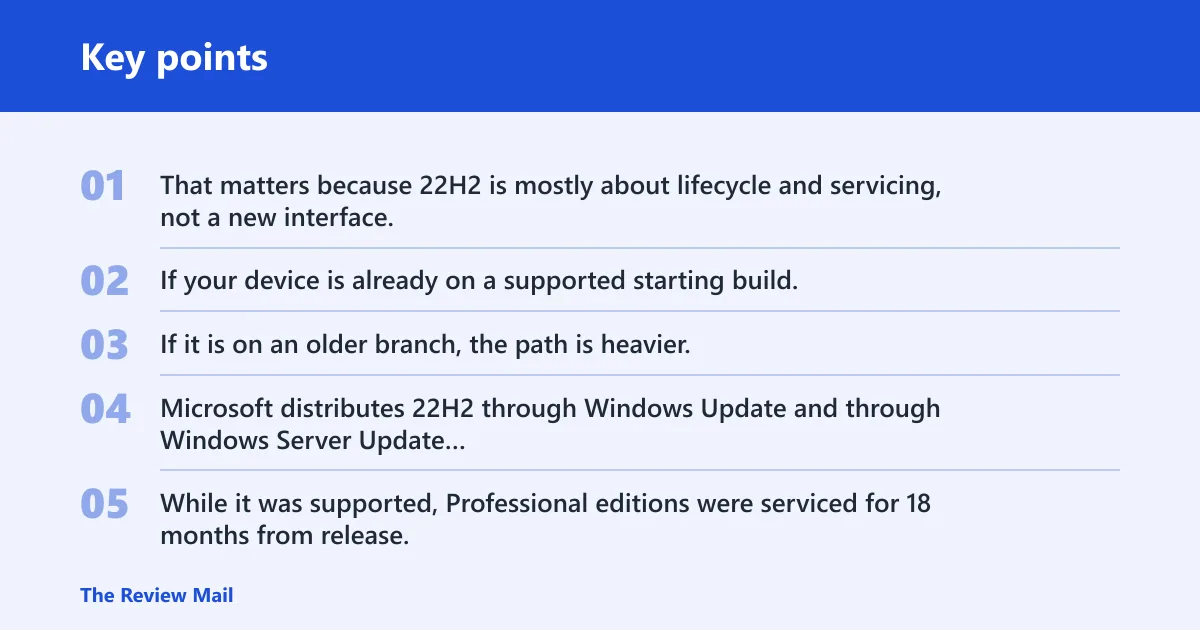
That matters because 22H2 is mostly about lifecycle and servicing, not a new interface. If your device is already on a supported starting build, Microsoft can often move it to 22H2 with a small package. If it is on an older branch, the path is heavier.
How Microsoft treats 22H2
Microsoft distributes 22H2 through Windows Update and through Windows Server Update Services. While it was supported, Professional editions were serviced for 18 months from release, and Enterprise editions for 30 months from release. Monthly quality updates still arrived on Patch Tuesday during that support window.
Now that support has ended, the key question is not only whether the install works. It is whether you should stay on 22H2 at all. For most personal devices, that means moving to Windows 11 if the hardware qualifies.
Which devices get the enablement package?
Supported PCs running Windows 10 version 2004, 20H2, 21H1, or 21H2 can typically use the enablement package path. Microsoft says the package enables a single restart on supported devices, which is why these upgrades finish much faster than a full feature update.
Devices on Windows 10 version 1909 or earlier cannot use that package manually. They need the full feature update path instead, which means more download time, more setup work, and more restart activity. (Microsoft Support)
Why 1909 or earlier is different
The enablement package does not carry a complete jump from older builds. It switches on code that is already present on supported 2004-and-newer devices. Older builds need the full version payload, so they lose the single-restart advantage.
Picture a 20H2 laptop that is already current on cumulative updates. That system can often move to 22H2 quickly. Now picture a 1909 desktop that has been offline for months. That device needs a broader upgrade path and more preparation.
Windows 10 22H2 install paths
The recommended path is Windows Update. On eligible devices, Microsoft lists the update as Feature Update to Windows 10, version 22H2, and Windows Update installs the feature update automatically. If compatibility checks pass, it is the simplest route.
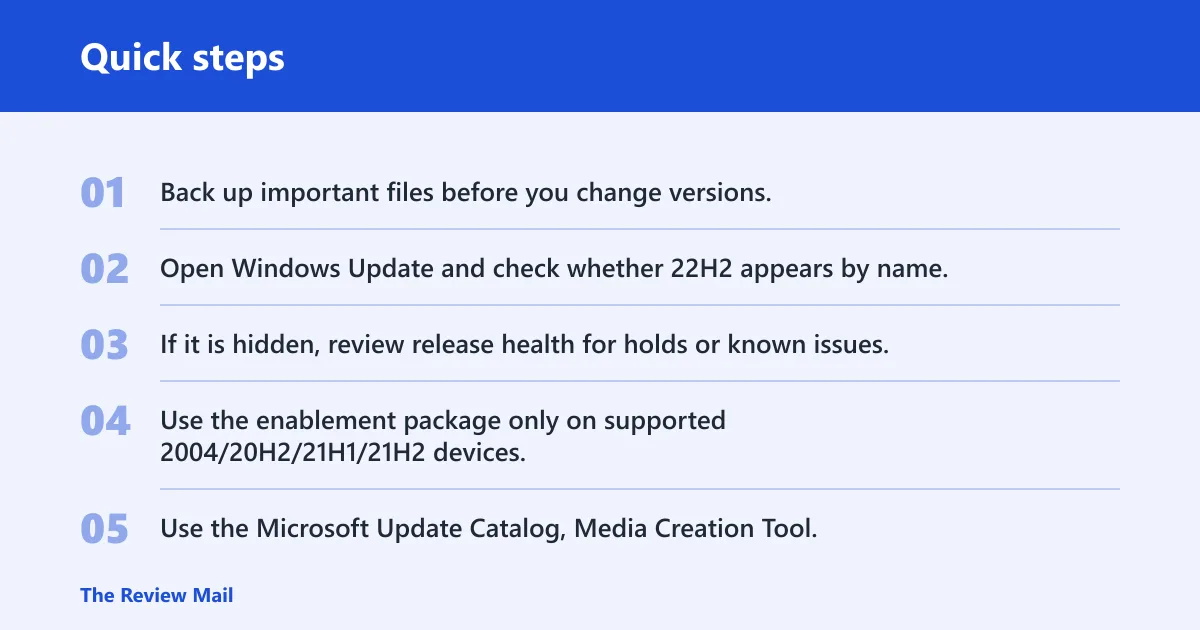
If Windows Update does not offer it, check release health first. Microsoft uses that page for rollout status, known issues, and safeguard holds. If the block is temporary, waiting is often the right move.
Manual paths when Windows Update does not offer it
If the device is eligible and the update is needed right away, the Microsoft Update Catalog is a manual source for Windows 10 Version 22H2 cumulative updates for x64-based systems. That path is useful for administrators and for machines that need a specific KB.
Media Creation Tool or an ISO is the better fallback when you want a clean feature upgrade path or when Windows Update never surfaces the offer. Those methods still require a restart, and the ISO path is closer to a full feature update than the enablement package route.
- Back up important files before you change versions.
- Open Windows Update and check whether 22H2 appears by name.
- If it is hidden, review release health for holds or known issues.
- Use the enablement package only on supported 2004/20H2/21H1/21H2 devices.
- Use the Microsoft Update Catalog, Media Creation Tool, or ISO if Windows Update never offers the upgrade.
22H2 compatibility table
| Starting Windows 10 version | Eligible for enablement package | Likely install path | Expected restart/downtime profile |
|---|---|---|---|
| 1909 or earlier | No | Full feature upgrade through Windows Update, ISO, or Media Creation Tool | More downtime; multiple setup phases and at least one restart |
| 2004, 20H2, 21H1, or 21H2 | Yes | Windows Update, or enablement package on supported devices | Single restart on the enablement-package path; lower downtime |
| 22H2 already installed | Not needed | Stay on the current build and install quality updates only while supported | Normal monthly update restart pattern while support lasts |
Why 22H2 may not appear
When Windows 10 version 22H2 does not show up, the reason is not always a broken update system. The usual causes fall into three buckets: safeguard holds, missing prerequisite cumulative updates, and unsupported starting builds. Those are different problems, and they need different fixes.
Safeguard holds and compatibility blocks
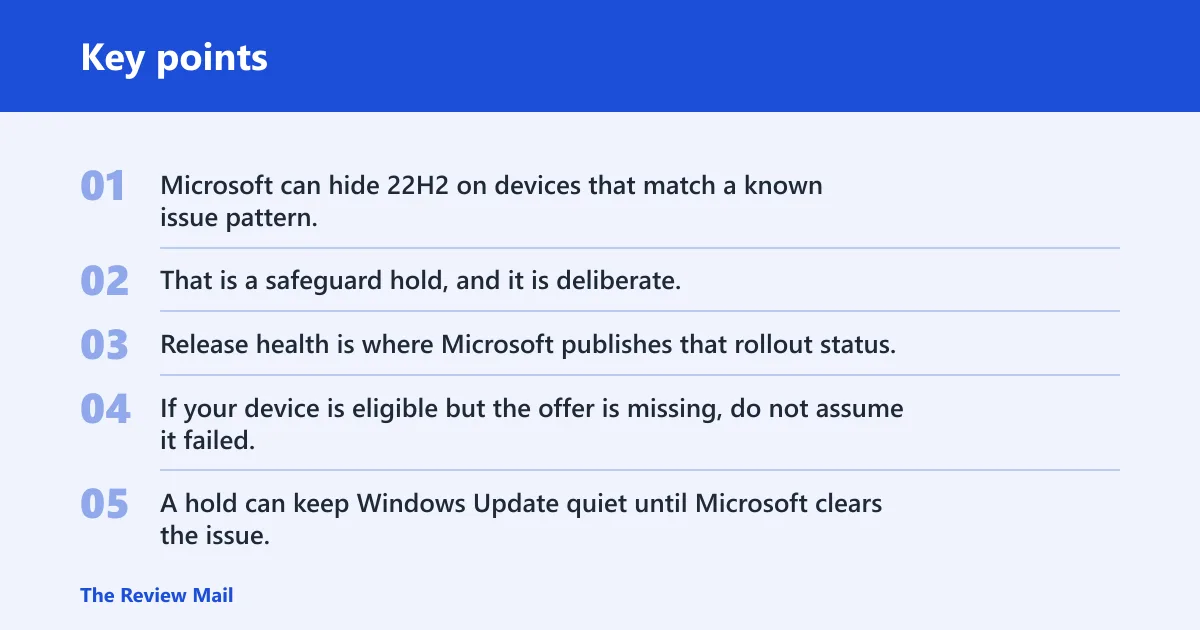
Microsoft can hide 22H2 on devices that match a known issue pattern. That is a safeguard hold, and it is deliberate. Release health is where Microsoft publishes that rollout status, along with the issue notes that explain why a PC is blocked.
If your device is eligible but the offer is missing, do not assume it failed. A hold can keep Windows Update quiet until Microsoft clears the issue.
Missing prerequisite updates
Some devices do not have the cumulative updates needed for a smooth upgrade. On those PCs, Windows Update may keep checking without surfacing 22H2. Installing the current quality update first is often enough to expose the feature update offer.
A common first-timer mistake is to treat every delay as a compatibility problem. Sometimes the device just needs the latest servicing stack and cumulative update before the feature update appears.
Unsupported starting builds
Devices on 1909 or earlier are outside the enablement-package path. They need the full upgrade route. If they are also missing key cumulative updates, the process can feel slow or inconsistent, but that does not mean 22H2 is permanently unavailable.
How long 22H2 support lasts
Windows 10 version 22H2 was the last Windows 10 feature release, and its support ended on October 14, 2025. After that date, Microsoft says devices no longer receive monthly security and preview updates. That is the practical end of the road for unsupported 22H2 systems. (Microsoft Learn)
While it was supported, Windows 10 Professional was serviced for 18 months from the release date, and Windows 10 Enterprise was serviced for 30 months. During that period, monthly quality updates arrived on Patch Tuesday. That schedule no longer applies to unsupported devices.
Why support status matters more than the version number
Two PCs can both show 22H2 and be in different states. One may still have a supported servicing path through an organization’s management channel. Another may be out of support and missing current fixes. The version label alone does not tell you whether you are protected.
Windows 10 22H2 vs older versions
Compared with 21H2, 22H2 is a smaller step for supported devices because it rides on the same build family and includes prior cumulative updates through 21H2. That is why the enablement package path is so fast on 2004-and-newer systems.
Compared with 1903 and 1909, 22H2 is not a quick switch. Those builds cannot use the enablement package manually, so they need the fuller feature upgrade process. That is the practical difference users feel at install time.
Which version choice matters now?
For a machine that is still on Windows 10 and not eligible for Windows 11, 22H2 was the cleanest final stopping point while it was supported. Today, the better choice is usually not whether to move from 21H2 to 22H2. It is whether to move off Windows 10 entirely.
What to do after support ends
After Windows 10 support ended, the decision path changed. If the device qualifies for Windows 11, that is the main upgrade to plan. If it does not, the remaining options are to use an ESU path where available, replace the device, or move to another supported setup.
Stay on 22H2 only if you have a valid ESU path or a managed exception. Otherwise, waiting for more Windows 10 fixes is not a plan, because Microsoft no longer ships monthly security or preview updates for unsupported 22H2 systems.
A practical decision path
Suppose a business PC is still on Windows 10 version 21H2 and meets Windows 11 requirements. Move it to Windows 11 rather than spending time on 22H2. If it does not meet the hardware requirements, check whether an ESU path exists before keeping it on Windows 10.
Say a home PC already has 22H2 but cannot upgrade to Windows 11. That device should not sit waiting for new Windows 10 fixes. The safer move is to line up a supported replacement or another supported operating system path.
Frequently asked questions
What is Windows 10 version 22H2?
Windows 10 version 22H2 is the final Windows 10 feature update. Microsoft describes it as a scoped release focused on quality improvements, and it includes prior cumulative updates through 21H2. It is still Windows 10, not a new operating system.
How do I update to Windows 10 version 22H2?
Start with Windows Update, because that is Microsoft’s recommended path and it installs the feature update automatically when the device qualifies. If the offer does not appear, check release health for holds, then consider the Microsoft Update Catalog, Media Creation Tool, or ISO.
How long does Windows 10 version 22H2 take to install?
Supported 2004/20H2/21H1/21H2 devices can use the enablement package, which needs a single restart and usually much less downtime than a full upgrade. Devices on 1909 or earlier need the full feature update path, so the install is longer and involves more setup activity.
What is the Windows 10 22H2 enablement package?
It is a small update package that turns on 22H2 features on supported Windows 10 devices already running 2004, 20H2, 21H1, or 21H2. Microsoft says it enables a single restart on supported devices. It cannot be manually installed from 1909 or earlier.
Why is Windows 10 version 22H2 not installing?
The usual causes are a safeguard hold, missing prerequisite cumulative updates, or an unsupported starting build. Compatibility holds can hide the update even on eligible devices, while 1909 or earlier needs the full upgrade path instead of the enablement package route.
Windows 10 22H2 vs 21H2: what’s the difference?
For supported devices, the gap is small. 22H2 is a scoped feature update that includes all previous cumulative updates through 21H2 and usually installs through a single restart on eligible builds. The bigger difference is lifecycle timing, not a dramatic change in features.