Unidentified Network on Windows 11
On Windows 11, “Unidentified network” usually means DHCP, DNS, the adapter, the firewall, or the physical link failed. Start by checking whether you have a valid IP address, a working gateway, and link lights. If you guess wrong, you can waste time on resets that do nothing and keep Wi‑Fi, Ethernet, or VPN traffic down. This guide maps each symptom to the likely fault and the next fix to try.
Diagnosing unidentified network symptoms and fixes
Separate no internet from local access that still works
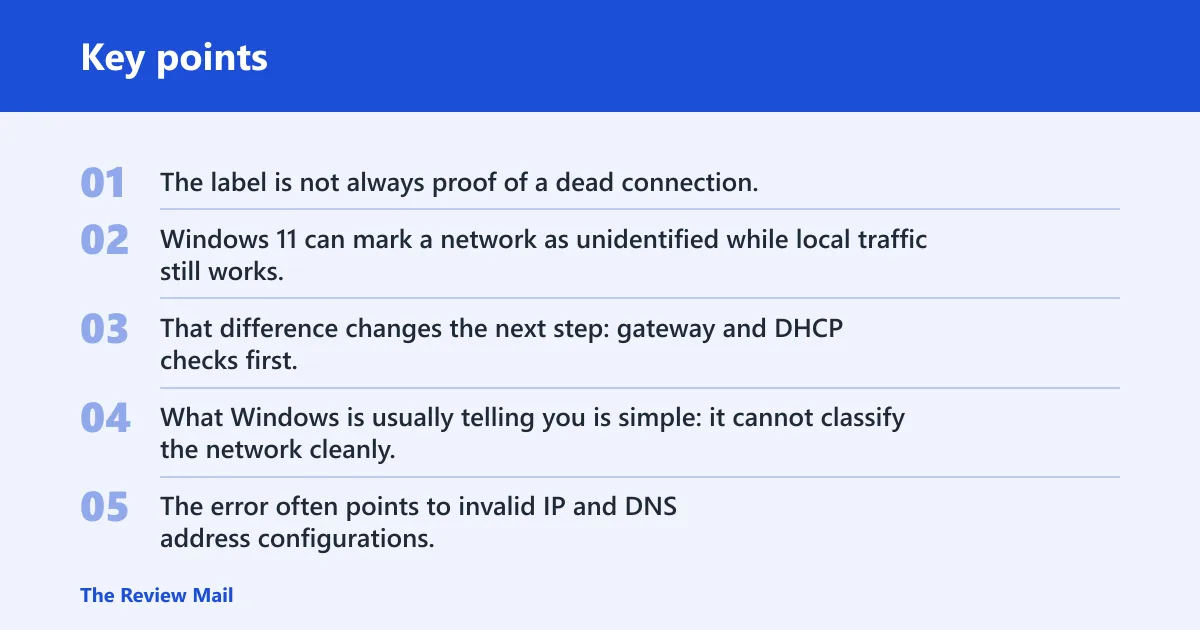
The label is not always proof of a dead connection. Windows 11 can mark a network as unidentified while local traffic still works, or while the adapter has an address but no route to the internet. That difference changes the next step: gateway and DHCP checks first, or DNS and firewall checks first.
What Windows is usually telling you is simple: it cannot classify the network cleanly. The error often points to invalid IP and DNS address configurations, and it can also appear when third-party tools such as VPN or firewall software interfere with normal routing.
Unidentified network decision table
| Symptom | Likely cause | Fastest check | Best next fix |
|---|---|---|---|
| Wi‑Fi shows unidentified network and no internet | DHCP lease failure or bad DNS | Check whether the adapter has an IP address and a default gateway | Release and renew the IP address, then test DNS |
| Ethernet shows unidentified network and no internet | Loose cable, bad port, or router/modem issue | Check the cable, router lights, and link status | Reseat or replace the cable, then restart the router or modem |
| Unidentified network but some sites still load | Misclassified network profile or partial DNS issue | Try a known site and check whether local sharing still works | Set DNS manually to 8.8.8.8 and 8.8.4.4 if automatic DNS fails |
| VPN connects but traffic fails or shows unidentified network | VPN route conflict or firewall interference | Disconnect the VPN and retest the adapter directly | Review VPN settings and temporarily test Windows Defender Firewall |
| Connection works only after disabling firewall or security software | Firewall rule or antivirus network filter | Check whether Windows Defender Firewall is blocking the profile | Adjust the Public or Private profile, then retest |
| IP address exists, but there is no default gateway | DHCP or router assignment problem | Inspect the adapter details for gateway presence | Renew the lease; if the gateway stays absent, restart the router |
| Network adapter is missing in Windows 11 | Driver failure, disabled adapter, or hardware fault | Open Device Manager and look under the network adapters section | Enable the adapter or use Update driver if it is present but unstable |
| No internet access after reconnecting to Wi‑Fi or Ethernet | TCP/IP stack state or stale DNS cache | Run a quick reconnect and see whether the same address returns | Use netsh int ip reset, then ipconfig /flushdns and reboot |
| Link drops repeatedly after boot | Fast Startup state or adapter compatibility issue | Disable Fast Startup as a test and reconnect | Keep it off if the problem stops, then review adapter and driver state |
| Nothing changes after all checks, or the adapter keeps disappearing | Hardware fault, firmware issue, or ISP-side fault | Try another port, another cable, or another network | Stop and escalate to the device vendor, network admin, or ISP |
Check the physical link first
Start with the link that can fail before Windows even starts assigning addresses. Airplane mode must be off on Windows 11 laptops, because it can block Wi‑Fi and make the adapter look broken when it is only switched off. For Ethernet, check the cable, the modem, and the router before you change software settings.

Quick physical checks
- Turn Airplane mode off and confirm Wi‑Fi is enabled.
- Check whether the Ethernet cable is fully seated at both ends.
- Look for a loose or damaged cable, especially near plugs and bends.
- Restart the router or modem, then wait for normal status lights.
- Reconnect and check whether the unidentified network label returns.
Restarting the wifi router is a first fix for a reason: it clears temporary link and assignment problems before you touch Windows settings. If the network comes back after a restart, the fault was likely on the router, modem, or local link side rather than in the adapter driver.
Say your laptop connects to Wi‑Fi at home but shows unidentified network only after waking from sleep. If Airplane mode is off and the router has normal lights, the next best check is whether the adapter keeps a valid IP address after sleep. That points you toward DHCP, not the cable.
Is DHCP or DNS the problem?
If the adapter is connected but Windows still shows unidentified network, check the address first. A valid IP address with a missing default gateway often points to DHCP trouble, while a gateway is present but websites fail often points to DNS issues. That is why the symptom matters before you reset anything.
What to look
Look for three things on the adapter: a valid IP address, a default gateway, and whether the connection changes after reconnecting. The error can stem from invalid IP and DNS address configurations, so you want to separate address assignment from name resolution before you change settings.
Next steps for DHCP and DNS
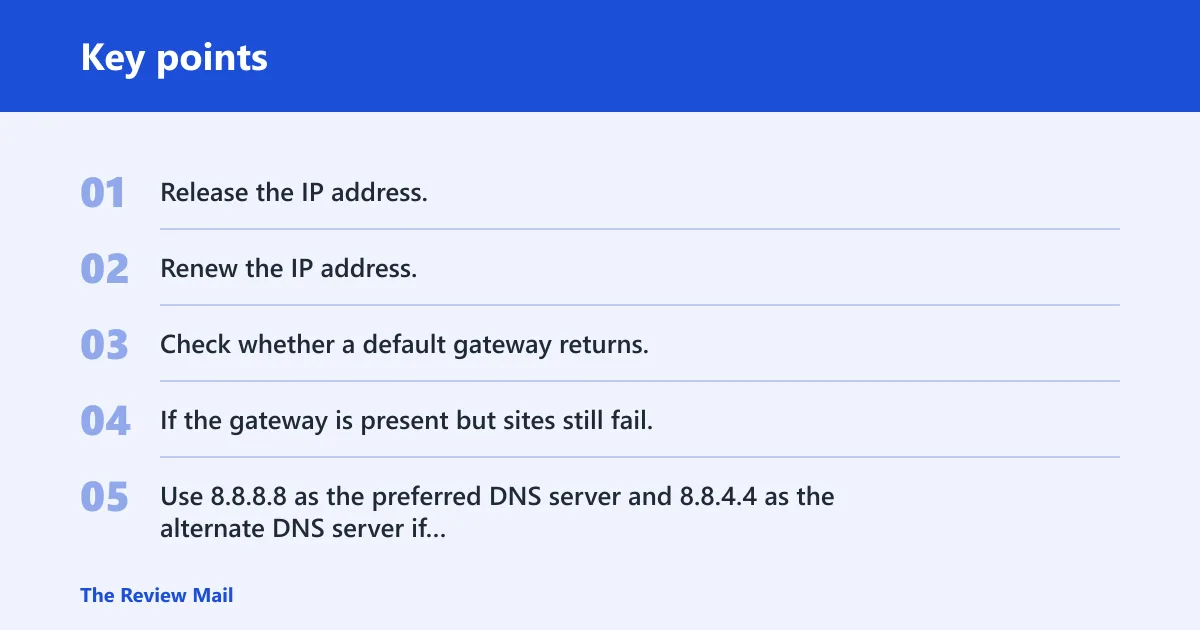
- Release the IP address.
- Renew the IP address.
- Check whether a default gateway returns.
- If the gateway is present but sites still fail, switch DNS from automatic to manual values.
- Use 8.8.8.8 as the preferred DNS server and 8.8.4.4 as the alternate DNS server if automatic DNS is not working.
Use automatic IP first unless you already know your network needs a manual address. If automatic IP is working but DNS is not, a manual DNS override is the cleaner test. If both IP assignment and DNS resolution fail, move on to the TCP/IP reset rather than changing nameserver values at random.
Suppose your desktop gets an IP address but the default gateway field stays blank after every reconnect. That is not a DNS problem first. It usually means DHCP is not completing properly, so releasing and renewing the lease is the more direct next step than changing DNS servers.
Reset the TCP/IP stack
If release and renew do not restore a valid gateway or internet access, reset the TCP/IP stack. Windows network reset commands include netsh int ip reset, and the reset should be followed by a reboot. That sequence matters because the stack reloads during restart, not while the command window is still open. (DUKE)
Use this order
- Open an elevated Command Prompt or Windows Terminal.
- Run
netsh int ip reset. - Run
ipconfig /flushdnsto clear the DNS cache. - Restart the PC.
- Reconnect and test the network again.
The point of this step is not to reset everything blindly. It is the next move when address assignment or stale network state is the likely fault area. If the adapter still has no gateway after reboot, move to driver and adapter checks rather than repeating the same reset.
Fix the adapter and driver state
If the adapter is present but unstable, Windows 11 can often improve the connection with a driver update. The network adapter lives in Device Manager, usually under Network adapters, and the Update driver option is the quick place to start when the hardware is visible but not behaving normally. (Wikihow)
Find the adapter in Device Manager
- Right-click the Start button and open Device Manager.
- Expand Network adapters.
- Look for your Ethernet or Wi‑Fi interface.
- Check whether it shows an error icon, is disabled, or disappears entirely.
- If it is present but unstable, use Update driver.
Use the driver path when Windows can still see the adapter. If the adapter is missing, disabled, or reporting an error that keeps returning after reboot, the issue may be deeper than a simple update. That is when you stop treating it like a normal software fault.
A common first-timer mistake is to update the driver before checking whether the adapter is even loaded. If Device Manager does not show the Wi‑Fi or Ethernet interface, a driver update button cannot fix a device that is not being detected at all.
Could firewall, VPN, or IPv6 be the cause?
Yes. Third-party tools like VPN and firewall software can trigger the issue, and Windows Defender Firewall can block a profile that was previously allowed. IPv6 can also be part of the problem on some adapters or networks, especially when the network expects one stack and the interface is negotiating another.
Test the security and profile layer
Open Windows Defender Firewall through Firewall & network protection. Check whether the connection is on a Public or Private network profile, because the wrong profile can change what Windows allows. A temporary disable test is useful only as a test: if the connection returns while the firewall is off, the block is in the firewall path.
Run the built-in troubleshooter
The built-in troubleshooter can confirm whether Windows sees a general adapter problem. Run msdt.exe -id NetworkDiagnosticsNetworkAdapter to open the connection diagnosis tool. It is not a cure-all, but it can separate adapter faults from routing or DNS faults quickly.
Test fast Startup and IPv6
Fast Startup can interfere with the network boot state, so toggling it off is a useful test when the problem appears after boot or sleep. IPv6 is worth checking when one adapter or one network behaves badly while another works normally. The fix may depend on the adapter or the network, so do not assume a single setting applies everywhere.
Frequently asked questions
Why does it say unidentified network?
Windows says unidentified network when it cannot classify the connection cleanly. The usual causes are invalid IP and DNS settings, a missing gateway, adapter trouble, or interference from VPN or firewall software. The label is a clue, not a diagnosis, so the next step depends on the exact symptom.
Why is my ethernet showing unidentified network?
Ethernet often shows unidentified network when the cable, port, or router side is the problem, or when the adapter gets an address without a gateway. Check the cable first, then the router or modem, then the adapter status in Device Manager. If the gateway is absent, renew the IP address.
What causes unidentified network with no internet access?
No internet access usually means the network cannot reach beyond the local link. The most common causes are DHCP failure, bad DNS, firewall blocks, VPN routing conflicts, or a broken cable or router link. If local access works but internet does not, DNS and gateway checks are the right next steps.