Windows Cannot Start This Hardware Device: Code 19 Fix
On Windows 10, the message “Windows cannot start this hardware device because its configuration information is incomplete or damaged” is commonly associated with Device Manager Code 19. This Device Manager error message indicates that a registry problem was detected. The first step is usually to remove the device entry in Device Manager and then rescan for hardware changes. If the problem began after a recent driver or registry change, use the safer rollback path before making deeper edits.
What Code 19 means in Windows 10
Code 19 points to a registry-related problem for that device, so Windows cannot finish starting it. Open Device Manager, find the device with the yellow exclamation mark, and treat that device as the one to troubleshoot first. In some cases, the issue is limited to one device entry rather than the whole PC.
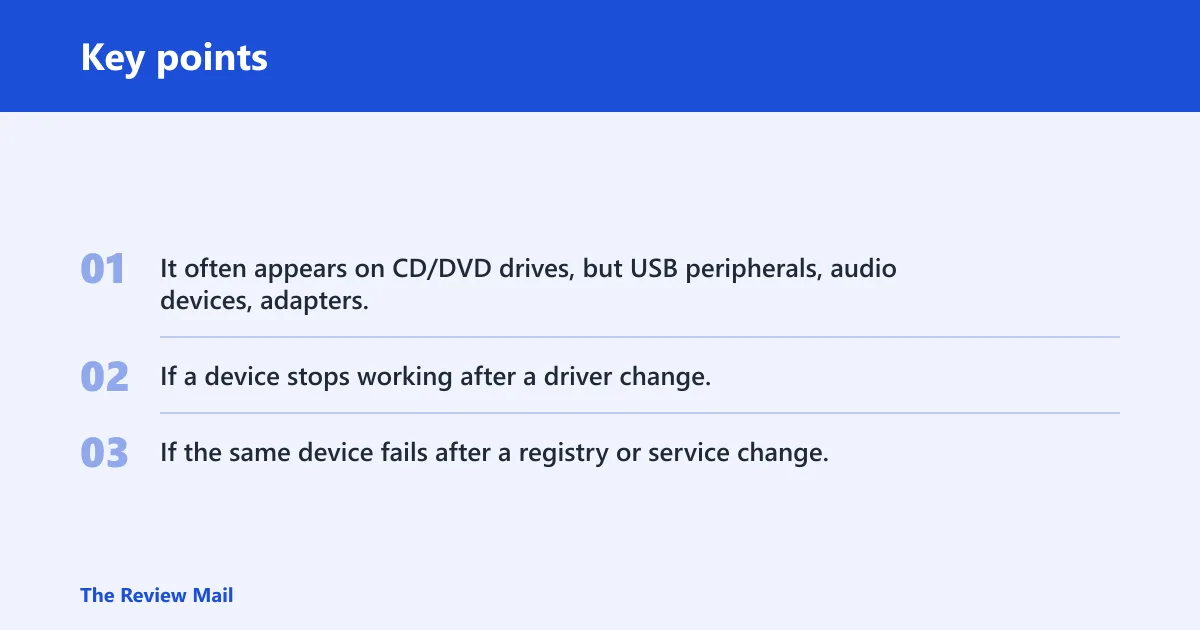
It often appears on CD/DVD drives, but USB peripherals, audio devices, adapters, and other class-based hardware can show the same error. If a device stops working after a driver change, that points toward a driver or device-entry issue. If the same device fails after a registry or service change, that also fits Code 19 behavior.
What usually causes Code 19?
Common causes include more than one service being defined for a device, a failure opening the service key, or the driver name not being obtainable from the service key. A common cause is also a driver service specified as a device filter or class filter that does not exist.
Corrupted or outdated driver package
- Right-click Start and open Device Manager.
- Expand the category that contains the device with the yellow exclamation mark.
- Right-click the problem device and choose Uninstall device.
- Click Action on the Device Manager menu bar.
- Click Scan for hardware changes to reinstall the device driver.
If Windows reloads the same error after the rescan, resolve it by updating the driver package.
Registry filters on optical drives
UpperFilters and LowerFilters can be part of the problem, especially on CD/DVD devices. Back up the Registry first. Do not edit filter values unless the affected device class is the one failing.
- Press Win + R, type regedit, and open Registry Editor.
- Before changes, export the branch or create a restore point.
- Go to
HKEY_LOCAL_MACHINE\SYSTEM\CurrentControlSet\Control\Class\{4D36E965-E325-11CE-BFC1-08002BE10318}. - Look for UpperFilters and LowerFilters.
- Delete only those values for the affected optical-drive class.
- Close Registry Editor and restart Windows.
Do not clear random keys. If the drive was the only failing device, this is a focused fix. If several unrelated devices are failing, use the driver and startup checks first.
System startup rollback before deeper edits
If the trouble began right after a driver install, Windows update, registry cleanup, or software removal, use the rollback path that restores the most recent successful configuration. This is the safer choice when you want a reversible step first.
- Restart the computer in Safe Mode.
- Let Windows start with that configuration.
- Check Device Manager again after sign-in.
A common mistake is editing the Registry immediately because the error mentions configuration data, then finding the problem was introduced by a recent driver or service change. Try the rollback path first when the timing lines up.
Code 19 triage table
| Symptom pattern | Likely cause | Safest first fix | Registry editing needed? | When to stop and replace the device |
|---|---|---|---|---|
| CD/DVD drive shows Code 19 after software or driver changes | UpperFilters or LowerFilters damage, or an outdated optical-drive driver | Remove the device entry, then scan for hardware changes; if that fails, remove only the optical-drive filter values | Often yes, but only for the optical-drive class | If the drive stays missing after a clean driver reinstall |
| USB keyboard, mouse, dongle, or external drive fails | Bad driver package or a missing device service/filter entry | Remove the device entry, then scan for hardware changes | Usually no at first | If the device continues to fail after reinstalling its driver package |
| Other peripherals such as audio adapters, printers, or Bluetooth hardware show a yellow exclamation mark | Driver corruption or a service-definition problem | Remove the device entry, then reinstall the latest driver package | Usually only if the error persists across reinstall | If the device remains Code 19 after driver reinstall and rollback |
How do I uninstall the problematic driver for Code 19?
Start with Device Manager, because it lets you remove the broken device entry without touching the Registry. This is the best first move when the issue is limited to one device and you want the lowest-risk fix.
- Open Device Manager.
- Find the device with the yellow exclamation mark.
- Right-click it and choose Uninstall device.
- Confirm the removal if Windows asks.
- Click Action on the Device Manager menu bar.
- Click Scan for hardware changes to reinstall the device driver.
If you are searching for the exact phrase “windows cannot start this hardware device because its configuration information is incomplete windows 10 fix won t,” this is still the right first branch: remove the device, rescan, then decide whether the fault is driver or registry related.
Should I use system restore for a Code 19 error?
Use the rollback path that restores the most recent successful configuration when the error started after a change you can name, such as a driver install or registry edit. That is the safer rollback choice than making random registry changes.
- Restart the computer in Safe Mode.
- Let Windows start with that configuration.
- Recheck the device in Device Manager.
Use this before deep Registry work if the timing is clear. If the error is older, random, or affects more than one device class, keep going through the device-specific checks instead of changing the Registry blindly.
What if it still fails?
If uninstalling, rescanning, and rolling back do not help, the next step is to determine whether the error follows the device or stays with the PC. That split tells you whether to keep working on Windows or stop and replace the hardware.
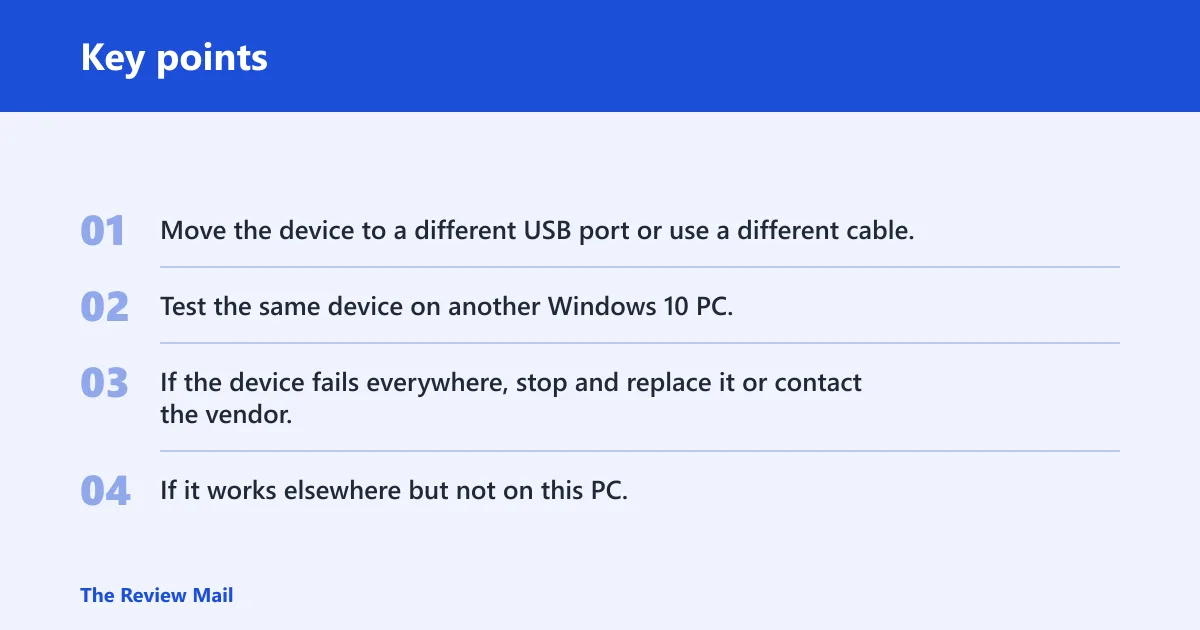
- Move the device to a different USB port or use a different cable.
- Test the same device on another Windows 10 PC.
- If the device fails everywhere, stop and replace it or contact the vendor.
- If it works elsewhere but not on this PC, reinstall the latest driver package and revisit the Registry only for the affected class.
For an ASUS laptop or desktop with a built-in optical drive, the brand does not change the logic. Start with the same triage: Device Manager, driver reinstall, then UpperFilters and LowerFilters only if the failing device is the CD/DVD class.
Frequently asked questions
How do I fix Windows cannot start this hardware device because its configuration information is incomplete or damaged on Windows 10?
Open Device Manager, remove the device with the warning symbol, then use Action > Scan for hardware changes. If the problem began after a recent change, use the rollback path that restores the most recent successful configuration. If the device is a CD/DVD drive, check UpperFilters and LowerFilters next.
What causes Code 19 in device manager?
Code 19 usually comes from a registry problem, a missing or conflicting filter service, or a bad driver package. Microsoft also lists more than one service defined for a device, failure to open the service key, and inability to get the driver name from that key as possible causes.
Do UpperFilters and LowerFilters cause Code 19?
Yes, they can. For optical drives, corrupted UpperFilters or LowerFilters entries are a common repair target. If the failing device is not a CD/DVD drive, do not delete those values unless the device class specifically uses them and the symptom points there.
What device types are most often affected by Code 19?
CD/DVD drives are common, but USB devices and other peripherals can show it too. If several device classes fail at once, the problem may affect more than one device entry. If only one device fails, treat it as device-specific first.
Is Code 19 the same as Code 10 in Device Manager?
No. Code 19 points to a registry or filter problem, while Code 10 is a separate Device Manager error with different causes and fixes. If you see Code 10, do not follow a Code 19 Registry path just because both show a yellow warning symbol.