Stop code HAL_INITIALIZATION_FAILED: fix it fast in Windows
Stop code HAL_INITIALIZATION_FAILED has a value of 0x0000005C and indicates that the HAL initialization failed. If your PC stops during boot, use the recovery options below to get back into Windows, check recent changes, and try standard repair steps. This guide shows the recovery path, basic Windows checks, and when to stop repeating the same repair.
What HAL_INITIALIZATION_FAILED means
This is a Windows blue screen tied to HAL startup during boot. HAL stands for Hardware Abstraction Layer, the component that lets Windows communicate with hardware devices. When initialization fails, Windows may stop before normal sign-in.
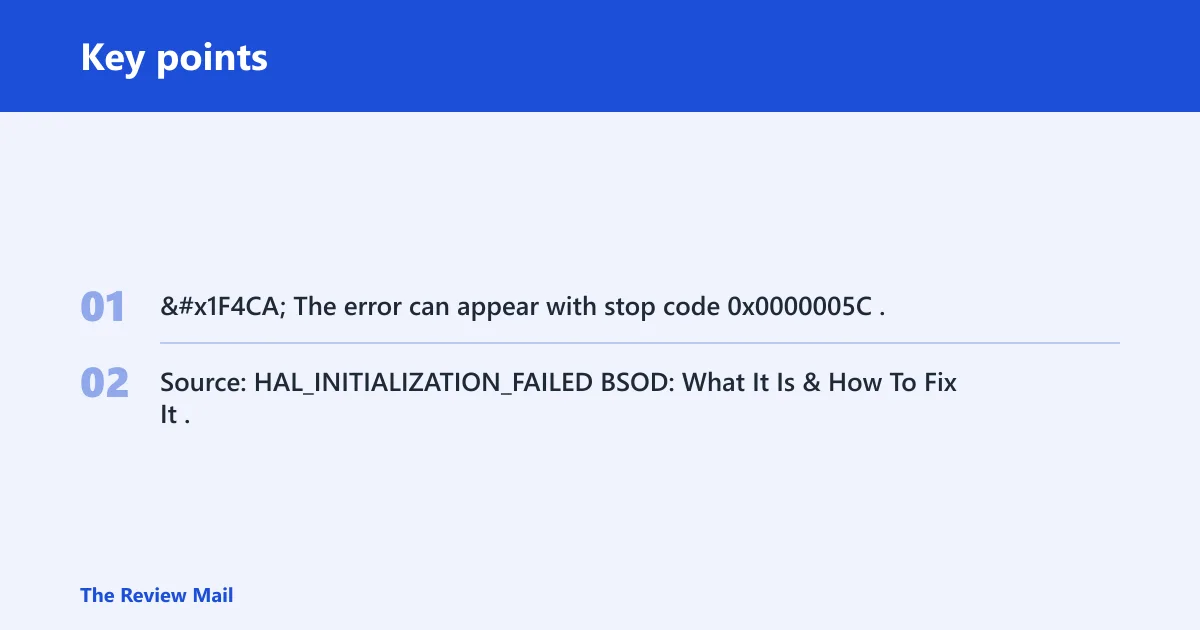
📊 The error can appear with stop code 0x0000005C. Source: HAL_INITIALIZATION_FAILED BSOD: What It Is & How To Fix It.
Which failure pattern matches HAL_INITIALIZATION_FAILED?
Use the pattern first, not a random repair. A boot-time stop code can happen after a recent driver change, after an update, or after another recent system change, so start with the most recent change you can verify.
| Symptom pattern | Likely layer | Fastest verification step | Next action |
|---|---|---|---|
| Boot-only, before sign-in | Startup change | Try Safe Mode from Advanced startup | Undo the most recent driver or update, then try standard repair tools |
| Starts after a Windows update | Recent update change | Check the last installed update in Settings > Windows Update > Update history | Remove the recent update, then retry the repair steps |
| Starts after a driver install | Device driver change | Device Manager > Properties > Driver | Roll back or uninstall the driver |
| Only after one app opens | App-related change | Uninstall or repair the app in Settings > Apps | Reinstall the app after the system is stable |
| Returns after clean software rollback | Possible hardware issue | Use built-in Windows checks for memory and storage | Continue with hardware-focused troubleshooting |
For example, if the PC starts crashing right after a driver update, that recent change is the first one to undo. If the crash begins before sign-in and keeps coming back after the recent change is removed, move on to recovery tools and built-in checks.
Likely causes
- Most often: a recent driver or update changed the startup path.
- Sometimes: a recent app change affected startup behavior.
- Sometimes: a file or system repair issue can prevent normal boot.
- Sometimes: a hardware problem can keep Windows from starting normally.
Could a recent update, driver, or app be the cause?
Yes. If the crash began after one change, undo that change first before you run deeper repairs. Windows Update history, Device Manager, and Installed apps are the quickest places to check.
- Open Settings > Windows Update > Update history and note the last update installed before the crash.
- Open Device Manager, right-click the most recently changed device, then choose Properties > Driver > Roll Back Driver or Uninstall device.
- Open Settings > Apps > Installed apps and remove any app added just before the blue screen started.
- If Windows will not load normally, go to Settings > Recovery > Advanced startup > Restart now > Troubleshoot > Advanced options > Startup Settings, then enter Safe Mode.
- Restart and check whether Windows reaches the desktop without the stop code.
How do you repair Windows files with DISM and SFC?
If Windows can reach an elevated Command Prompt, you can run standard image and file checks from Windows. Open Command Prompt as administrator and run the commands below.
- Open Start, type cmd, right-click Command Prompt, and choose Run as administrator.
- Run:
DISM /Online /Cleanup-Image /RestoreHealth
sfc /scannow
- Wait for each command to finish.
- Restart the PC.
- If the blue screen returns, use Safe Mode or another recovery option instead of repeating the same repair immediately.
Is the crash pointing to hardware failure?
It can be. If the system keeps failing before the desktop after recent software changes have been undone, use built-in Windows checks for memory and storage. That is a practical next step when software repair does not change the result.
- Run Windows Memory Diagnostic by typing mdsched.exe in Start.
- Check storage with
chkdskfrom an elevated Command Prompt:chkdskC: /f /r. - If Windows will not boot far enough, use Advanced startup > Startup Settings and attempt Safe Mode again.
- If the problem began after a recent firmware or BIOS change, review that setting in BIOS or UEFI and restore the previous configuration if needed.
For example, if the PC fails before login on every cold boot but starts normally after a restart, the pattern is consistent with a startup problem that needs further checks in memory, storage, or recent configuration changes.
Could malware or file corruption trigger this stop code?
Yes. If Windows can start, run a scan and then follow with the standard repair commands. If the system cannot start normally, use recovery media or Safe Mode to reach the tools.
- Open Windows Security > Virus & threat protection > Scan options.
- Run a Full scan or, if needed, Microsoft Defender Offline scan.
- After cleanup, open an elevated Command Prompt and run
DISM /Online /Cleanup-Image /RestoreHealth, thensfc /scannow. - Restart and confirm the system reaches the desktop.
Still not working?
If the blue screen keeps coming back, move through the built-in recovery options in Windows. Start with System Restore if you have a restore point, then use Startup Repair. If Windows will not reach the desktop, boot from recovery media and run the same repair tools there.
- Open Settings > Recovery > Advanced startup > Restart now.
- Choose Troubleshoot > Advanced options > System Restore or Startup Repair.
- If Windows will not reach the desktop, boot from recovery media and run the same repair tools there.
- If the stop code persists after the recovery tools finish, check the most recent driver, update, or app change again before repeating repairs.
Prevention: after the PC is stable, install one driver or one update at a time, then restart and verify before adding the next change. That makes the next failure pattern easier to trace.
Frequently asked questions
What does stop code HAL_INITIALIZATION_FAILED mean?
It is a Windows stop code that appears when HAL initialization fails during boot.
How do I fix HAL_INITIALIZATION_FAILED on Windows 10?
Start in Settings > Recovery > Advanced startup > Restart now, try Safe Mode, undo the last driver, update, or app change, then open an elevated Command Prompt and run DISM /Online /Cleanup-Image /RestoreHealth followed by sfc /scannow. Restart after each major step.
Why does my PC keep blue-screening with 0x0000005C?
That value identifies the same stop code, so repeated crashes usually mean the underlying trigger is still present. Check the last update, driver, app, or boot-time configuration change first, then use memory and storage checks if the system still fails after rollback.
Can bad drivers cause HAL initialization failed?
Yes. If the crash began right after a device install or update, open Device Manager > Properties > Driver, then choose Roll Back Driver or Uninstall device, and restart.
Should I run DISM and SFC for this stop code?
If Windows can reach an elevated Command Prompt, run DISM /Online /Cleanup-Image /RestoreHealth first, then sfc /scannow.
Is HAL_INITIALIZATION_FAILED a hardware or software problem?
It can be either. A recent driver, update, or app change suggests software-related troubleshooting first; if the system still fails after those changes are undone, use memory and storage checks.
What should I do if the blue screen appears only after installing an app?
Uninstall the app from Settings > Apps > Installed apps, then restart and test again. If the system becomes stable, reinstall only after the OS is healthy and file checks have passed.
Could malware cause HAL_INITIALIZATION_FAILED?
Yes. If Windows can start, run a full scan or Microsoft Defender Offline scan, then follow with DISM /Online /Cleanup-Image /RestoreHealth and sfc /scannow.