Windows stop code bad pool header fixes and quick steps
Windows stop code BAD_POOL_HEADER often points to a faulty driver, bad RAM, or a recent change. If Windows still boots, begin with the newest driver or app change, then use Safe Mode. If it loops BSODs, switch to recovery tools. Ignoring it can mean repeated crashes, lost work, and extra repair time. This guide shows how to split the problem by symptom pattern and narrow the cause fast.
This guide is part of our Windows BSOD stop codes: full list and fixes series.
What does stop code BAD_POOL_HEADER mean in Windows?
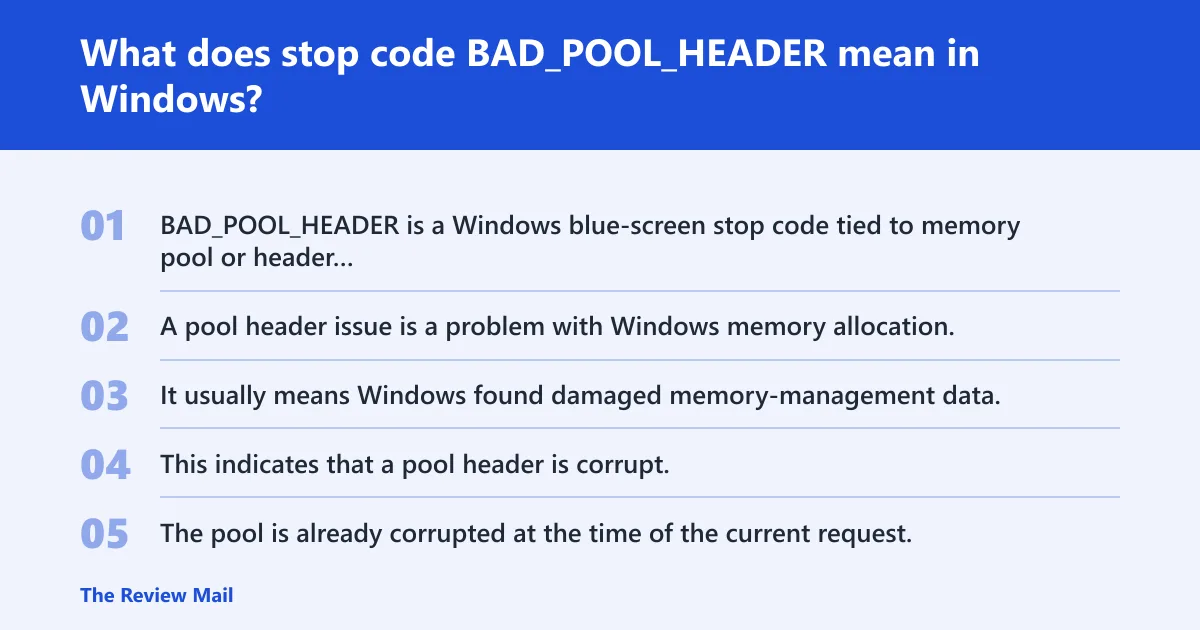
BAD_POOL_HEADER is a Windows blue-screen stop code tied to memory pool or header corruption. A pool header issue is a problem with Windows memory allocation. It usually means Windows found damaged memory-management data, not that the whole PC is automatically failing. The stop code has a value of 0x00000019. This indicates that a pool header is corrupt. The pool is already corrupted at the time of the current request. This may or may not be due to the caller. The quickest first check is whether Windows still boots. (Microsoft Learn)
In practice, the error often tracks back to a driver problem, RAM trouble, or disk/file corruption. Device driver issues are probably the most common. This can have diverse causes including bad sectors or other disk write issues, and problems with some routers. If the machine still reaches the desktop, you have a better chance of fixing the cause from normal Windows. If it only reaches recovery or Safe Mode, treat the symptom pattern as the main clue.
Which cause is most likely?
Start with the last change. A new driver or Windows update is the strongest signal. If there was no recent software change, move next to RAM and disk checks, then to Windows file repair. That order saves time and avoids replacing hardware before software causes are ruled out.
Recent driver change or Windows update
Device driver issues are often a common trigger, especially after a new device install or an update. Incompatible software can do the same, including some utilities that hook deeply into the system.
- Open Device Manager.
- Look for yellow warning icons or a device added recently.
- Open the device Properties > Driver tab.
- Choose Roll Back Driver or Uninstall device if the problem began after that change.
- Restart and check whether the BSOD returns during normal use.
Verification: if the PC boots normally twice and the stop code does not return, the driver change was likely the cause. If it still fails only after the same device loads, keep that device uninstalled for now.
RAM or disk corruption
Memory errors can trigger this BSOD, and disk write issues can corrupt the pool data Windows depends on. If the crash appears random, happens across multiple apps, or persists after driver rollback, memory or storage moves up the list. That is especially true when Safe Mode also fails.
- Press Win+R, type mdsched.exe, and start Windows Memory Diagnostic.
- Choose Restart now and check for problems.
- After Windows restarts, review the result in the notification area or Event Viewer.
- Open an elevated Command Prompt and run
chkdskC: /f /r. - Accept the restart so
CHKDSKcan run before Windows loads.
Verification: a clean memory test points away from RAM. Disk repairs that report fixed file-system errors point toward storage damage; if errors recur, the drive may need a deeper check or replacement.
Recently installed software
Recent software changes can trigger the error, especially when they install low-level drivers or other components that interact with Windows.
- Open Settings > Apps > Installed apps.
- Remove the newest program first, especially any utility installed right before the crashes began.
- Restart and confirm whether the BSOD still appears on a cold boot.
Verification: if the system stops crashing after removal, that software was likely part of the fault. If the crash returns only after reinstalling the same tool, keep it off the machine.
Corrupted Windows files
If a recent update or app install changed core files, Windows file repair becomes the next test. This is less likely than a bad driver, but it matters when the system gets farther into boot before crashing or when the error started after a patch cycle.
- Open Command Prompt as administrator.
- Run
sfc /scannow. - If SFC reports unfixable damage, run
DISM /Online /Cleanup-Image /RestoreHealth. - Restart and test a normal boot.
Verification: if SFC repairs files and the BSOD stops, file corruption was part of the fault. If SFC says it fixed files but the stop code remains, move on rather than repeating the same scan.
How do I fix windows stop code bad pool header on Windows 10 or 11?
If Windows still boots, begin with the most recent driver or software change, then test system files. If Windows only reaches Safe Mode, strip the system back to the last known-good state and verify after each change. If it loops BSODs, use recovery options before trying more desktop-based fixes.
- Check Device Manager for warning icons and recent devices.
- Roll back, update, or uninstall the suspicious driver.
- Remove any recently installed program.
- Run
sfc /scannowfrom an elevated Command Prompt. - Run
chkdskC: /f /r and let it restart.
Verification: after each step, reboot twice. Windows 10 and Windows 11 use the same core commands; the menu labels can differ slightly, but the repair order is similar.
Use the symptom pattern to pick the next test
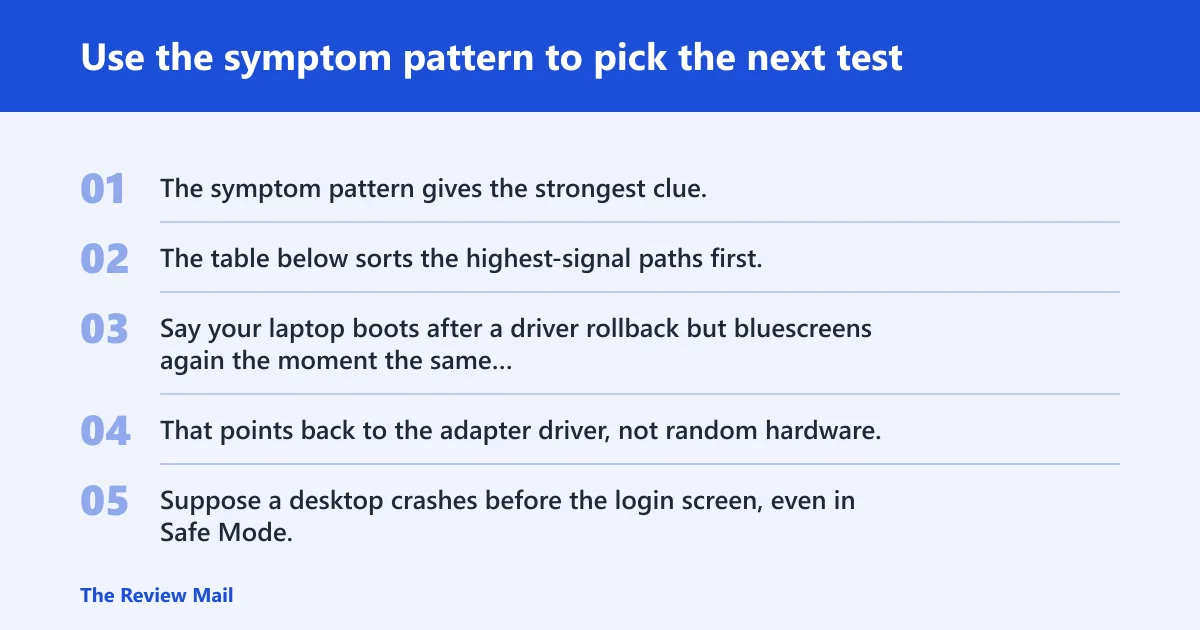
Do not treat every cause as equal. The symptom pattern gives the strongest clue, so use it to decide the next move before you waste time on slower repairs. The table below sorts the highest-signal paths first.
| Symptom pattern | Most likely cause | Next test |
|---|---|---|
| Fails right after installing a driver | Driver conflict or bad driver | Device Manager > device > Driver tab > Roll Back Driver |
| Passes Safe Mode but fails on normal boot | Driver or startup software | Remove the newest program, then test again |
| Crashes in Safe Mode too | RAM, disk, or deeper hardware issue | Run Windows Memory Diagnostic, then CHKDSK /f /r |
| Started after a security suite install | Incompatible software | Uninstall the suite and reboot twice |
| Started after an update or sudden file errors | System file corruption | Run sfc /scannow, then DISM /Online /Cleanup-Image /RestoreHealth |
Say your laptop boots after a driver rollback but bluescreens again the moment the same Wi‑Fi adapter is enabled. That points back to the adapter driver, not random hardware. Suppose a desktop crashes before the login screen, even in Safe Mode; RAM or disk checks move to the front of the line.
How do I boot into Safe Mode if Windows keeps blue screening?
Safe Mode is the cleanest way to isolate software and driver causes when normal boot fails. On Windows 10 and Windows 11, you usually reach it through Advanced startup, or through recovery options if the desktop never appears. If Safe Mode works, the fault is more likely software or a driver than failed hardware.
- At the sign-in screen or from Settings, choose Power > Restart while holding Shift.
- Go to Troubleshoot > Advanced options > Startup Settings.
- Select Restart now.
- Press the number for Safe Mode or Safe Mode with Networking.
Verification: if Safe Mode loads and the system stays stable there, focus on drivers, startup apps, and installed software. If Safe Mode also blue screens, shift to memory, disk, or hardware checks first.
Is bad pool header caused by RAM or drivers?
Both are plausible, but drivers usually rank higher when the crash starts after an install, update, or new device. RAM becomes more suspicious when the crash is random, happens in Safe Mode, or survives driver rollback. Disk problems sit in the middle because they can mimic memory corruption after file writes go bad.
- Check for a recent driver or software change first.
- If none stands out, run Windows Memory Diagnostic with mdsched.exe.
- Then run
chkdskC: /f /r from an elevated Command Prompt. - If both pass and the BSOD continues, inspect the last added hardware or seek repair help.
Verification: a clean RAM test makes a memory stick less likely. A disk repair that finds bad sectors or file-system errors shifts suspicion to storage, not drivers.
Can antivirus or security software cause BAD POOL_HEADER?
Yes. Security software can cause BAD POOL HEADER when it adds low-level drivers or filters that conflict with Windows. That is more believable when the problem starts soon after installation or right after switching security products. It is less convincing if nothing changed.
- Open Settings > Apps > Installed apps.
- Uninstall the most recent security tool or antivirus package.
- Restart the PC.
- Test a normal boot and then a second reboot.
- If the problem is gone, leave that product off until the vendor confirms support for your Windows version.
Verification: if removal stops the BSOD, the software was likely part of the fault. If it returns only after reinstalling the same package, the conflict is confirmed.
Should I use SFC, CHKDSK, or Windows Memory Diagnostic first?
Use the tool that matches the symptom pattern. If Windows still boots and the problem started after a driver or app change, start with rollback or removal, then SFC. If crashes happen in Safe Mode too, run Windows Memory Diagnostic first, followed by CHKDSK. That order separates software faults from hardware faults faster.
- Driver or app change: Device Manager rollback, then
sfc /scannow. - Random crashes, even in Safe Mode: mdsched.exe, then
chkdskC: /f /r. - After a recent update:
sfc /scannow, thenDISM /Online /Cleanup-Image /RestoreHealth. - Reboot after each repair and test again.
sfc /scannow
DISM /Online /Cleanup-Image /RestoreHealth
chkdsk C: /f /r
mdsched.exe
When does a bad pool header mean I need to reinstall Windows?
Reinstall Windows when rollback, Safe Mode cleanup, SFC, CHKDSK, and memory testing do not stop the crashes, or when the system is too unstable to repair from the desktop. If the machine cannot boot reliably even after recovery steps, installation media becomes the next practical move before a clean reinstall.
- Back up personal files if the PC still reaches recovery or Safe Mode.
- Try System Restore first if the crash began after an update, driver, or app install.
- If repair still fails, use installation media for a repair install or clean install.
- If the same error returns after a clean install, suspect hardware and stop chasing software fixes.
Verification: a successful reinstall that stays stable points away from the original Windows installation. A reinstall that fails again suggests hardware trouble.
How do I make installation media?
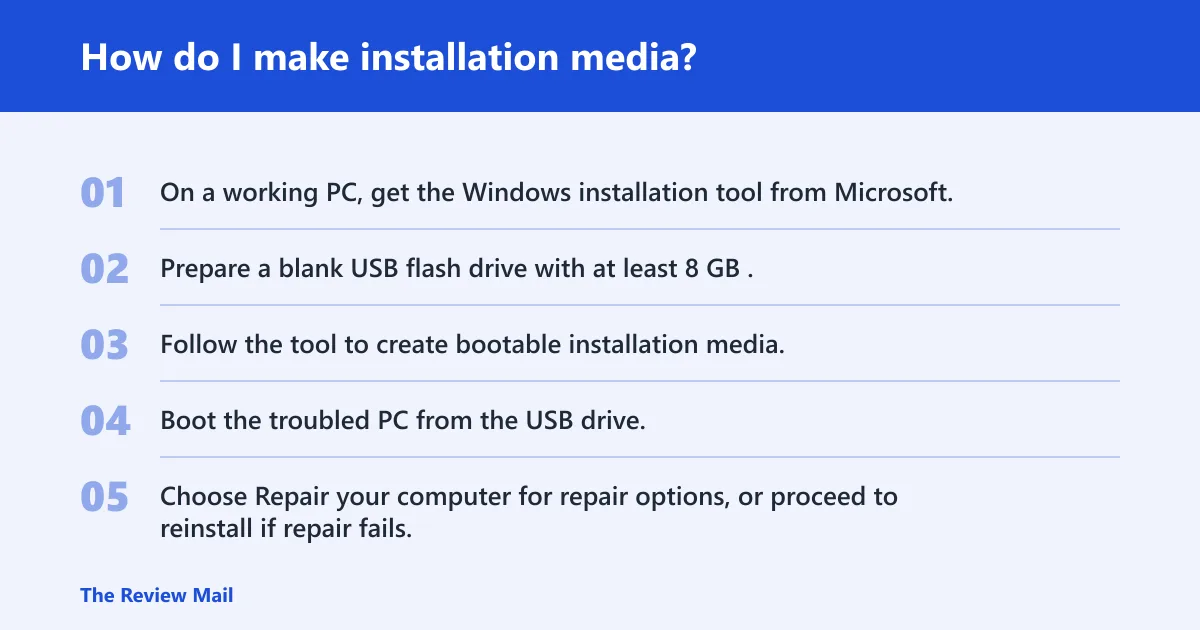
Use installation media when Windows will not stay up long enough for repair tools, or when you need a repair install or clean reinstall. A blank USB flash drive with at least 8 GB is the usual starting point. That is the point where software repair becomes setup work. (Microsoft Support)
- On a working PC, get the Windows installation tool from Microsoft.
- Prepare a blank USB flash drive with at least 8 GB.
- Follow the tool to create bootable installation media.
- Boot the troubled PC from the USB drive.
- Choose Repair your computer for repair options, or proceed to reinstall if repair fails.
Verification: if the PC boots from the USB and Repair your computer opens, the media is usable. If a repair install completes and the BSOD stops, the issue was likely inside Windows rather than the hardware.