
0x000001db: What It Means and How to Fix It in Windows
For 0x000001db, start by matching the crash to what the system was doing. Record the exact time of the crash and whether it happened at boot, idle, load, sleep, or wake. If it happened on a Dell system, note the BIOS/UEFI version before you change anything else. This bug check has value 0x000001DB and means a processor has been stuck in an IPI loop for more than the allowed time.
This guide is part of our Windows BSOD stop codes: full list and fixes series.
What does 0x000001db mean in Windows?
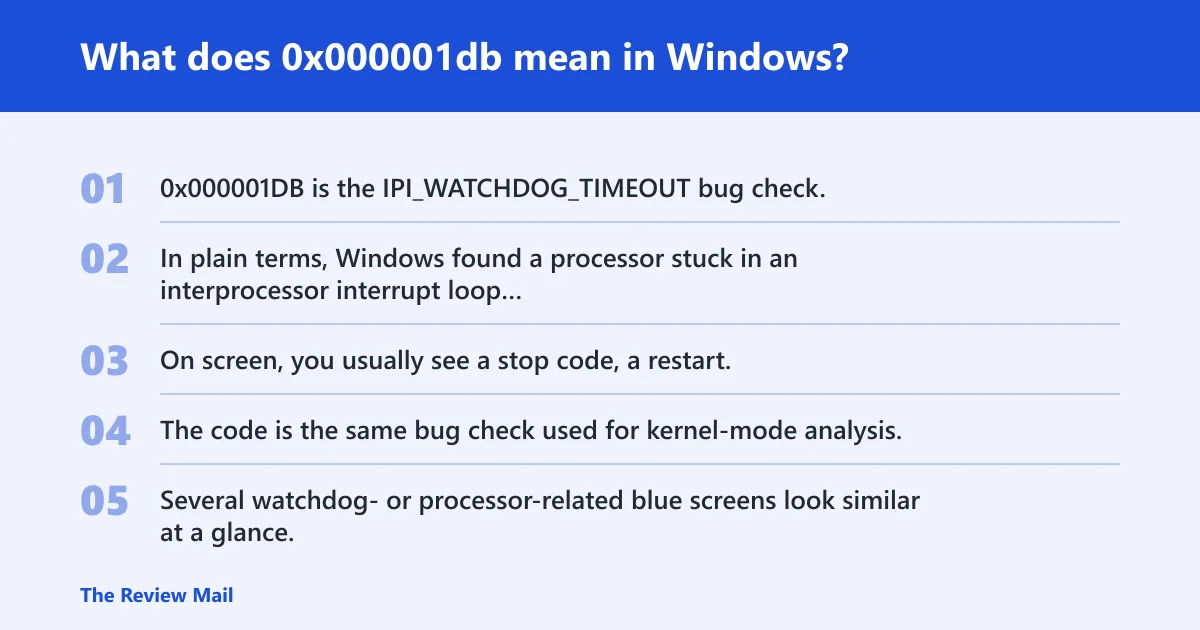
0x000001DB is the IPI_WATCHDOG_TIMEOUT bug check. In plain terms, Windows found a processor stuck in an interprocessor interrupt loop longer than allowed, so the system stopped to avoid further damage or corruption.
On screen, you usually see a stop code, a restart, and then the same failure again if the trigger is still present. The code is the same bug check used for kernel-mode analysis, and Microsoft’s bug check code reference points you to WinDbg’s !analyze extension, including the syntax !analyze -show <code>. Prefix the code with 0x if needed.
How this differs from lookalike stop codes
Several watchdog- or processor-related blue screens look similar at a glance, but this one is tied to the IPI path. That matters because a generic “watchdog” label can send you to the wrong subsystem. If the crash report names IPI_WATCHDOG_TIMEOUT, treat it as a timing failure in processor communication until the dump says more.
A crash dump file can hold memory data from the failure, including the context needed to separate a timing problem from a bad driver path. The content here is mainly for programmers, but you can still collect the right files before deeper analysis starts.
📊 The bug check value is 0x000001DB. Source: Bug Check 0x1DB IPI_Watchdog_Timeout.
What usually causes a 0x000001db crash?
The crash can appear at boot, during idle time, under load, or during sleep and wake transitions. Recent hardware, firmware, driver, or power-setting changes are a good place to start, since they can change timing behavior enough to expose the issue.
Common clues are repeat crashes after a recent update, a system that reboots cleanly but fails again under the same workload, or a machine that only falls over during wake from sleep. If your PC blue-screens every time it resumes after lid close, that timing points you toward the last sleep-related change.
First-15-minute triage checklist
- Record the exact time of the crash and whether it happened at boot, idle, load, sleep, or wake.
- Copy the newest minidumps from
C:\Windows\Minidumpand, if present, the kernel-mode dump fromC:\Windows\MEMORY.DMP. - Open Event Viewer and save the System log entries around the crash time.
- Write down any driver, BIOS/UEFI, Windows Update, or device-change history from the same day.
- Do not change three things at once. One change. Then retest.
How do you triage it by when it fails?
When the failure happens is often the quickest separator. Boot failures point you toward very early startup changes. Idle or load failures point you toward timing sensitivity that appears after the OS is running. Sleep and wake failures point you toward transition paths, power state changes, or a device that does not resume cleanly.
Crashes during boot
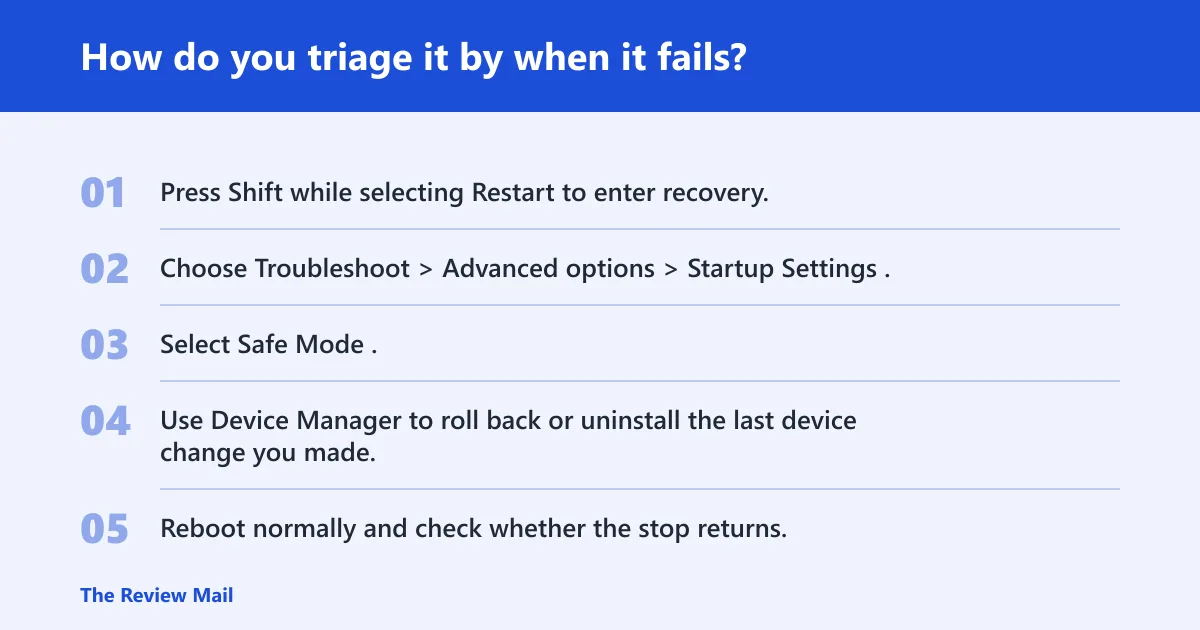
Boot-time crashes often mean the trigger is present before the desktop appears. That can be a recent firmware change, a startup driver, or a device that fails during initialization. If the machine never reaches sign-in, collect the dump first and then use Safe Mode or recovery options before trying broad repair steps.
- Press Shift while selecting Restart to enter recovery.
- Choose Troubleshoot > Advanced options > Startup Settings.
- Select Safe Mode.
- Use Device Manager to roll back or uninstall the last device change you made.
- Reboot normally and check whether the stop returns.
Crashes while idle or under load
Idle or load-related crashes are often tied to a change that alters processor timing or driver scheduling. That can be a new driver, a power-plan edit, or a custom tuning profile. The key detail is whether the problem appears only under one workload, such as game launch, rendering, compression, or a long idle period.
- Open Control Panel > Power Options and return the plan to Balanced or the vendor default.
- Remove any custom processor tuning or vendor power mode changes.
- Reboot and retest the same workload once.
- If the stop returns, undo the last device or driver change next.
Crashes during sleep or wake
Sleep and wake crashes usually need the exact transition state, not just the blue screen code. Note whether the machine fails when entering sleep, resuming, or immediately after display wake. A common first-timer mistake is to test only cold boot after a sleep failure and assume the issue is gone when it is still present on wake.
- Open Settings > System > Power & battery or System > Power and return sleep settings to defaults.
- Use Device Manager to roll back the last driver that handles networking, graphics, storage, or USB.
- Retest sleep and wake once before making another change.
What should you check after a recent driver or update?
If the crash started after a driver or Windows change, reverse that change first. A bad update can create the same timing failure that hardware would, so start with the most recent addition rather than the oldest installed item. If rollback is unavailable, uninstall the device, restart, then install the last known stable version.
- Open Device Manager.
- Right-click the most recently changed device.
- Choose Properties > Driver > Roll Back Driver if it is available.
- If rollback is greyed out, choose Uninstall device.
- Restart the PC.
- Install the last known stable version from the vendor package or Windows Update history after the machine is back up.
After each step, confirm whether the problem returns before touching anything else. If it stops, the last change was likely the trigger. If it does not, keep the old dump files and move to the next branch instead of layering new changes on top.
How should you reset power, firmware, or processor settings?
Return CPU power options to stock settings if you changed them. Review any vendor power modes, overclock profiles, or custom processor tuning, then put them back to default one by one. The aim is not to guess the cause. It is to remove variables until the crash either stops or becomes repeatable in a narrower setup.
- Open the system’s power settings and select the default plan.
- Reset any vendor performance or quiet-mode profile to the manufacturer default.
- Restore processor-related tuning to stock values.
- Restart and retest after one change only.
- Keep notes on each setting you changed so you can undo them cleanly.
Suppose a desktop began crashing after someone enabled a custom performance profile and changed memory settings. Put the machine back to stock, then test again before chasing drivers or replacing parts. If the crash disappears, that is a cleaner answer than a broad rebuild.
Decision table: what evidence points to the next move?
Use the pattern, not the label. The table below maps what you see, what changed recently, and what the dump file may show to the next practical move. It is meant for triage first, WinDbg second.
| Symptom pattern | Recent changes to compare | Dump-file clues to collect | Most likely next action | Collect this evidence |
|---|---|---|---|---|
| Fails at boot before sign-in | BIOS/UEFI, storage, startup driver, device install | Repeated early-boot timing path, no stable user session | Boot into Safe Mode and undo the last device or driver change | Minidump, System log, list of changes made in the last 48 hours |
| Fails only under heavy load | Power plan, vendor tuning, driver update, workload change | Crash occurs after sustained activity rather than at idle | Return power and processor settings to stock, then retest | Minidump, workload used, current power plan, tuning settings |
| Fails on sleep or wake | Sleep settings, graphics, network, USB, recent laptop firmware change | Crash near suspend or resume transition | Restore default sleep settings and roll back the last device change | Event Viewer entries around suspend/resume, minidump, wake timing |
| Recurs after a single device change | New hardware, driver update, vendor utility | One path appears in multiple crashes | Uninstall the device, restart, then install the last stable version | Driver version history, plug/unplug date, latest dump file |
How do I confirm 0x000001db from a dump file?
Use the dump file to verify the bug check code, then inspect the surrounding context for the stuck processor path. WinDbg is the standard debugger for kernel-mode analysis, and Microsoft’s bug check code reference recommends the !analyze extension, including !analyze -show <code>. That is the fastest path from a raw dump to a readable summary.
- Open the minidump or kernel-mode dump in WinDbg.
- Run !analyze -show 0x1DB to display the code summary.
- Check the four parameters shown in the output.
- Look for the processor timing path and the module or stack frame closest to the failure.
- Compare that with the change history you recorded earlier.
The parameter values matter. For this stop, parameter 1 is typically QPC frequency, parameter 2 is the current QPC, parameter 3 is the baseline QPC, and parameter 4 is reserved. Those values help a debugger or support engineer judge whether the failure was a timing issue, but they are not a fix by themselves.
Can outdated drivers or BIOS updates fix 0x000001db?
Yes, either can matter, but neither is a universal fix. A newer driver may remove a bad timing path, and a firmware update may change low-level behavior enough to stop the crash. The useful rule is simple: change one thing, then retest, so you can tell which change mattered.
- Record the current BIOS/UEFI version and driver versions.
- Update only the item that changed most recently or looks most suspicious from the crash timing.
- Reboot and retest the exact scenario that triggered the stop.
- If the issue remains, undo the update if a rollback is available.
Do not stack a BIOS update, a chipset package, and three device drivers in one pass. That turns one clue into six unknowns.
When is 0x000001db more likely to be hardware than software?
It becomes more hardware-leaning when the failure survives clean driver rollbacks, default power settings, and a minimal software load. Repeated crashes under the same physical trigger, especially during boot or wake, also raise that suspicion. At that point, a memory or storage check and vendor support become more reasonable than more software churn.
- Boot into Safe Mode and see whether the stop still appears.
- Run Windows Memory Diagnostic or memtest86 if memory instability is still plausible.
- Run
chkdskif the crash appears alongside disk errors. - If the crash persists in a stripped-down state, contact the system or board vendor with the dump files and Event Viewer logs.
Prevention: keep firmware, drivers, and power profiles documented before changing them. A short change log makes the next crash easier to sort.
Still not working?
If the system still crashes after rollback, default power settings, and a clean retest, move to a narrower recovery path. For non-technical users, that means preserving the dump files and contacting the PC vendor or a qualified support shop with the exact crash time, the last change made, and the dump package. For administrators, that means taking the system out of service until the repeat path is understood.
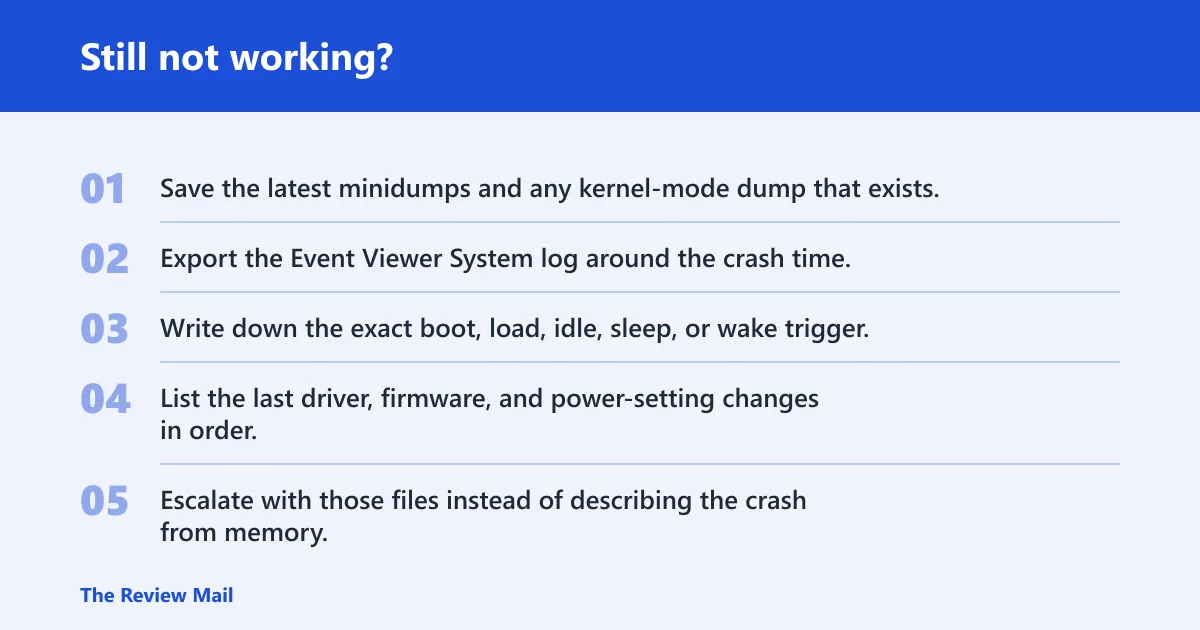
- Save the latest minidumps and any kernel-mode dump that exists.
- Export the Event Viewer System log around the crash time.
- Write down the exact boot, load, idle, sleep, or wake trigger.
- List the last driver, firmware, and power-setting changes in order.
- Escalate with those files instead of describing the crash from memory.
For readers who cannot use WinDbg, this is the point to hand the package to someone who can. The dump file may contain the memory contents needed to explain the stop, and that is the clearest route when the machine keeps repeating the same failure.
Frequently asked questions
What does stop code 0x000001db mean in Windows?
It is the IPI_WATCHDOG_TIMEOUT bug check, which points to a processor stuck in an interprocessor interrupt loop for too long. The fastest useful response is to save the dump files, note when it failed, and compare that timing with the last driver, firmware, or power change before making more edits.
Is 0x000001db the same as IPI_WATCHDOG_TIMEOUT?
Yes. The numeric value is the bug check code, and IPI_WATCHDOG_TIMEOUT is the name attached to it. When you search a dump, use !analyze -show 0x1DB in WinDbg, and make sure the code is written with 0x if the tool needs it.
What usually causes a 0x000001db blue screen?
Most often it is a timing failure in the processor communication path, but the trigger can be exposed by a recent change. Check the crash timing first, then compare recent updates, driver changes, sleep settings, and any custom power or processor tuning before guessing at a root cause.
What should I do first after a 0x000001db BSOD?
Save the latest dump files, record whether the crash happened at boot, load, idle, sleep, or wake, and write down the most recent driver or firmware change. If there was a recent device update, roll it back first. That is faster than changing several settings at once.