Duplicate Screen Windows 10 Not Working: Fixes by Cause
If duplicate screen Windows 10 is not working, start by checking the most common hardware path issues and display settings in order. This guide shows how to test the connection, confirm Duplicate mode, and narrow down whether the problem is the cable, dock, port, monitor, or a Windows setting.
What duplicate failure means
Duplicate is failing when Windows can see the second display, but the mirror path does not stay active. Duplicate mode may be missing from Win + P, show a black second screen, or switch back to Extend after an app launches. The fastest first step is to press Windows logo key + P and choose Duplicate again, then check whether Extend still works.
Try this first
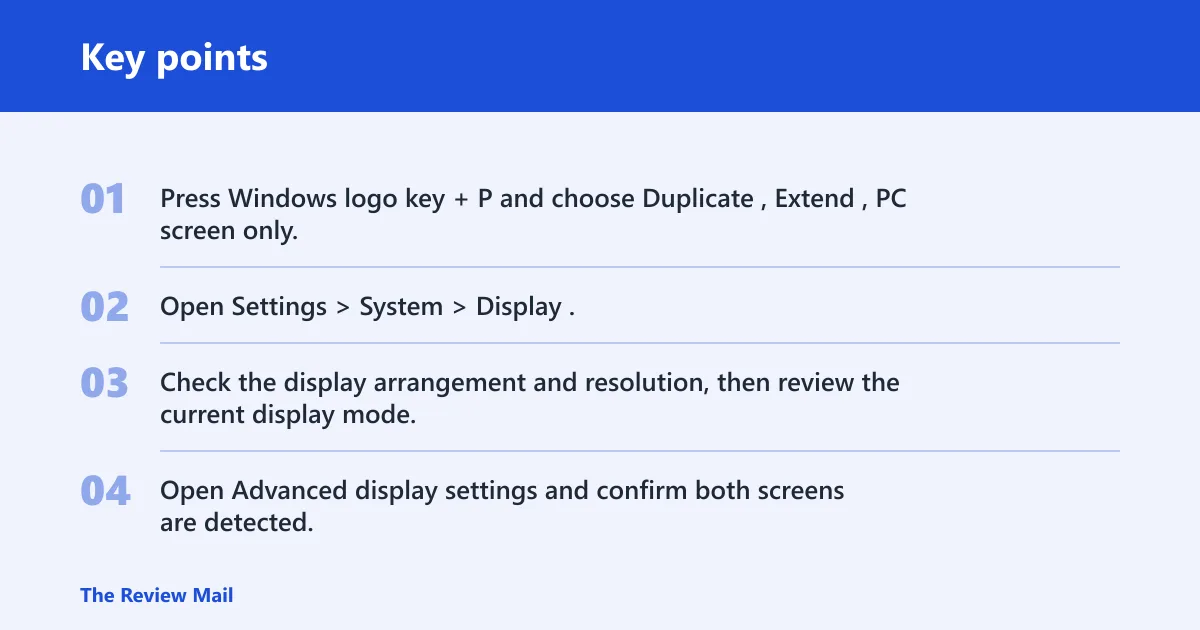
- Press Windows logo key + P and choose Duplicate, Extend, PC screen only, or Second screen only as needed.
- Open Settings > System > Display.
- Check the display arrangement and resolution, then review the current display mode.
- Open Advanced display settings and confirm both screens are detected.
📊 Microsoft’s monitor troubleshooting applies to both Windows 11 and Windows 10. Source: Microsoft.
Why does Duplicate stop working in Windows 10 but Extend still works?
That pattern usually means Windows can detect both displays, but the duplicate connection is not staying active. The first things to check are whether the device is up to date, whether Duplicate is selected with Windows logo key + P, and whether the displays are set to a common working configuration.
- Make sure your device is up to date.
- Press Windows logo key + P and select Extend first, then switch back to Duplicate.
- Open Settings > System > Display and verify the monitor appears under Multiple displays.
- If Duplicate fails only at a certain mode, lower the resolution on both screens and test again.
Suppose a 4K laptop panel is paired with a 1080p projector and Duplicate never appears to hold. A lower common mode is a useful test when the two displays do not hold the same configuration.
Why does the second screen go black when I choose Duplicate?
A black second screen usually means the display path is active long enough for Windows to switch modes, then the signal drops. That may point to a loose cable, a faulty cable, or a dock, dongle, or adapter conflict.
- Press Windows logo key + P and choose Extend to restore the picture.
- Open Settings > System > Display and test a lower resolution on both screens.
- Make sure the cable connecting your PC to your external monitor is secure.
- Try changing the cable connecting the external monitor.
- Disconnect all accessories from your PC, then reconnect the monitor directly if possible.
A common first-timer mistake is assuming “black screen” always means the panel is dead. A projector may work in Extend and then go black in Duplicate. That can happen when the connection or display mode is not holding.
Likely causes, ranked
Work through the checks in this order so you can rule out the simplest connection and display-setting issues first.
| Symptom | Likely cause | Exact fix | Do not waste time on this if… |
|---|---|---|---|
| Duplicate missing in Win + P | Windows is not set to the duplicate mode you want | Open Settings > System > Display, confirm detection, then try Windows logo key + P again and select Duplicate. | The display is already working in Extend and only fails when switched to Duplicate. |
| Duplicate turns second screen black | Loose cable, bad cable, or dock/adaptor conflict | Use Windows logo key + P to return to Extend, disconnect docks and accessories, then test another cable or port. | The same monitor works on another system with the same cable. |
| Duplicate reverts to Extend after a game | An app is changing the display mode | Close the app, return to Settings > System > Display, set Duplicate again, and retest with the app windowed. | The setting flips back even before any app opens. |
| Error message about display calibration | Display settings were changed by a profile or app-specific setting | Open Settings > System > Display and review the active resolution and monitor arrangement again. | Duplicate still fails after cable and port changes. |
How do I fix duplicate screen not working on Windows 10?
Use a short sequence that separates hardware limits from Windows settings. First verify the display path, then check Windows display mode, then move to driver rollback or reinstall if the issue started after an update. If those steps fail, test the monitor on another system to isolate the fault.
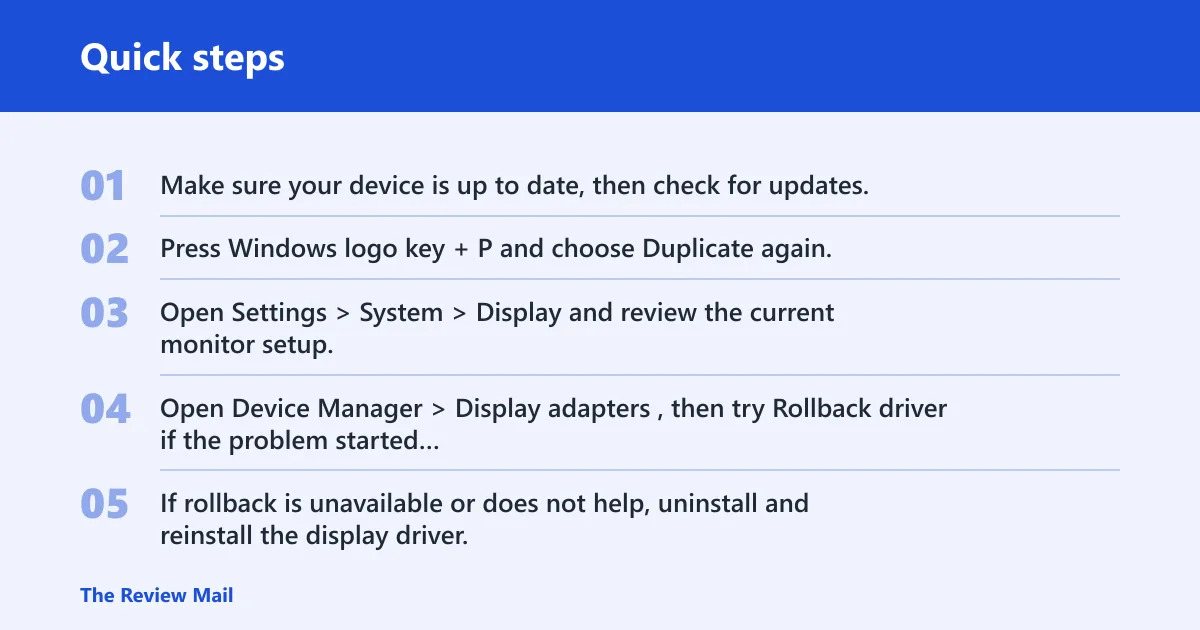
- Make sure your device is up to date, then check for updates.
- Press Windows logo key + P and choose Duplicate again.
- Open Settings > System > Display and review the current monitor setup.
- Open Device Manager > Display adapters, then try Rollback driver if the problem started after an update.
- If rollback is unavailable or does not help, uninstall and reinstall the display driver, or install the manufacturer’s current package.
- Try using the external monitor with a different system.
If the same monitor works on another PC, the original system, cable path, or adapter is more likely to be the source of the issue.
Does the duplicate screen problem come from HDMI, graphics drivers, or display calibration?
Any of the three can affect display output, but start with the connection path and the duplicate setting itself. Cable condition, port choice, and dock or adapter conflicts are hardware-path issues. Driver problems can affect how Windows talks to the adapter. If the monitor still fails after those checks, compare the monitor on another system to isolate the fault.
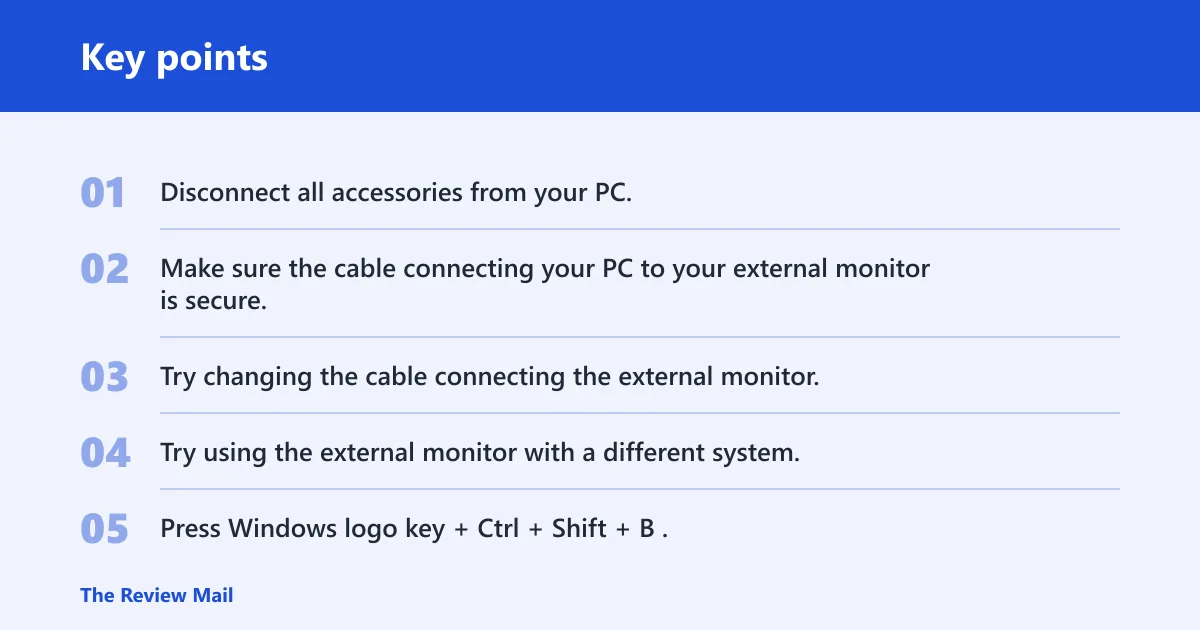
Hardware path checks
- Disconnect all accessories from your PC.
- Make sure the cable connecting your PC to your external monitor is secure.
- Try changing the cable connecting the external monitor.
- Try using the external monitor with a different system.
Driver checks
- Press Windows logo key + Ctrl + Shift + B.
- Use Rollback driver in Device Manager if the issue began after an update.
- If rollback is not available, uninstall and reinstall the display driver.
Color Management checks
If the display still does not duplicate correctly after the hardware and driver checks, return to Settings > System > Display and confirm the monitor is detected and the current display arrangement is correct.
What should I check if Win+P shows Duplicate but the display turns off?
That usually points to a display-capability limit, a bad connection path, or a mode the monitor cannot hold. If Win + P shows Duplicate but the display turns off, test the cable, port, and adapter first. Then lower the resolution and confirm whether the display can stay lit in Duplicate.
- Press Windows logo key + P and switch to Extend.
- Open Settings > System > Display and set both displays to a common lower resolution.
- Open Advanced display settings and review the display details.
- Swap the cable and port, or bypass the dock if one is present.
Microsoft notes that connected docks, dongles, adapters, and other hardware can cause conflicts. That means the hardware path can look healthy while Duplicate still fails at the chosen setup.
How do I make Windows 10 remember Duplicate mode after a game or app changes it?
When a game forces Extend back on, the app is changing display behavior at launch or full screen. The fix is to set Duplicate after closing the app, then retest in a windowed mode or with the app’s display options adjusted.
- Close the game or app completely.
- Press Windows logo key + P and set Duplicate.
- Open the app again in windowed mode, then check whether it forces Extend back on.
- If it does, open Settings > System > Display and retest at a lower resolution.
Say your tablet display duplicates correctly after a reboot, but a fullscreen game on the external monitor flips it back to Extend. That points to a mode change triggered by the app, not a dead cable.
How do I reset the graphics driver when duplicate screen stops working?
The quickest recovery is the graphics-driver reset shortcut. If that does not restore mirroring, move to rollback or reinstall, especially when the problem started after an update.
- Press Windows logo key + Ctrl + Shift + B.
- Wait for the display to reinitialize, then press Windows logo key + P.
- Select Duplicate again.
- Open Device Manager > Display adapters and use Rollback driver if the issue began after a recent driver change.
- If needed, uninstall and reinstall the driver, then install the manufacturer’s current version.
Still not working?
If the software path is exhausted, stop treating it as a Windows-only problem. Try another port, another cable, and another adapter or dock. If the monitor duplicates on a different system but not on this one, the GPU output path, dock, or adapter is the likely limit. If the display only works in Extend or only at one low resolution, the hardware combination may not support the duplicate mode you want.
Before escalating, make sure your device is up to date and check for updates. After that, vendor support is the right next stop for a laptop, dock, projector, or display that refuses Duplicate across known-good cables and ports.
Frequently asked questions
Why does my second screen turn black when I choose Duplicate?
That usually means the signal path breaks after the mode switch. Use Windows logo key + P to return to Extend, then try a lower common resolution. If the screen still blacks out, test another cable, port, or dock path.
Can a mismatched resolution stop Duplicate mode from working?
Yes. A resolution mismatch can block Duplicate even when both displays are detected. Test a lower shared value, then set both screens through Settings > System > Display before trying Duplicate again.
Why does Windows say it cannot save display settings when I duplicate screens?
That can happen when the monitor settings do not hold after a mode change. Open Settings > System > Display, confirm the monitor arrangement, and try Duplicate again after lowering the resolution.